How To Make Sticker Whatsapp Android Guide
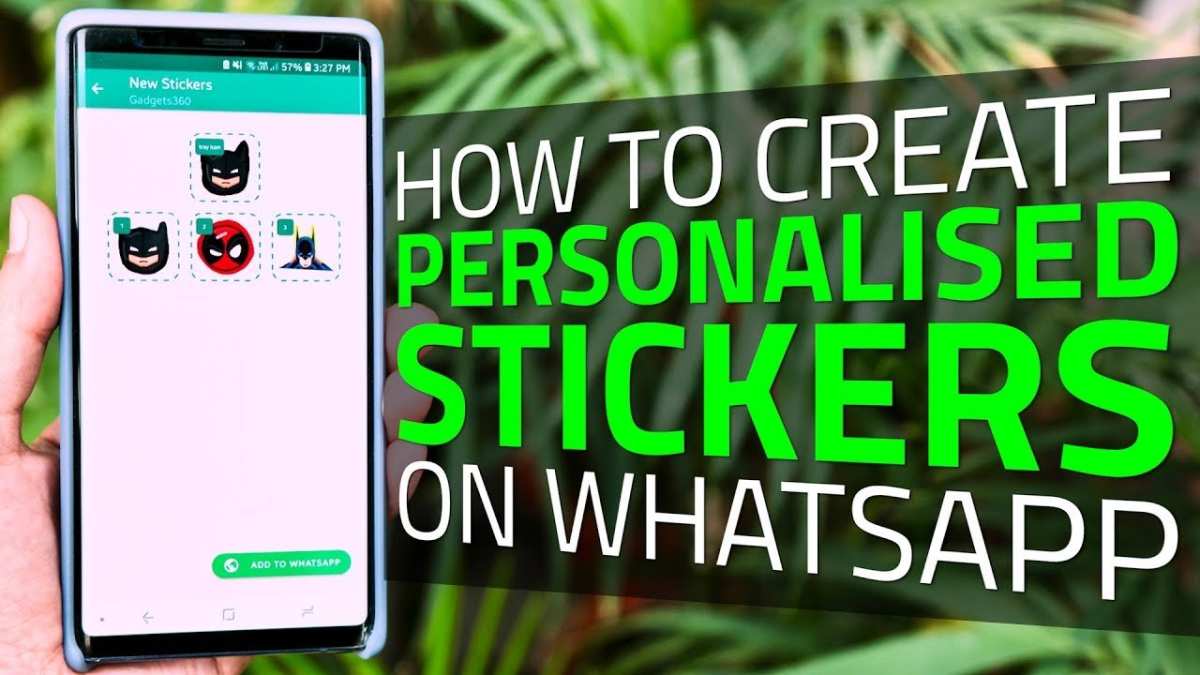

How to Make Sticker WhatsApp Android: A Complete Guide
Creating your own stickers for WhatsApp on Android devices is a fun and easy way to personalize your conversations. Instead of relying solely on the default sticker packs, making custom stickers allows you to express yourself more creatively and share unique images with friends. In this guide, we’ll walk through every step to help you learn how to make sticker WhatsApp Android, from choosing images to adding your custom packs to WhatsApp.Understanding WhatsApp Stickers and Their Benefits
Before diving into the process, let’s briefly explore what WhatsApp stickers are and why they are so popular. Stickers are images or animations that you can send in chats, similar to emojis but often more expressive and detailed. They help convey emotions, humor, and messages more vividly than text alone. Some advantages of creating custom stickers include:- Adding a personal touch to your chats
- Sharing memories, funny moments, or artwork
- Using exclusive stickers that friends don’t have
- Enhancing your communication experience on WhatsApp
Preparing Images for Making Stickers
The first step involves selecting or creating images that you want to turn into stickers. Good preparation makes the process smoother and results in better-looking stickers.Choosing the Right Images
– Opt for clear, high-resolution pictures. The higher the quality, the better the sticker will look. – Use images with a transparent or simple background for easier removal later. – Select images that are expressive or meaningful to you.Editing Images for Stickers
To convert images into stickers, you may need to crop or remove backgrounds. Here are some tips: – Use photo editing apps like Photoshop Express, Pixlr, or PicsArt to erase backgrounds. – For cutouts, choose images with distinct subject and minimal complex backgrounds. – Keep the image size around 512×512 pixels, which is the recommended size for WhatsApp stickers.Using Sticker Maker Apps to Create Stickers on Android
Android users have access to numerous apps that simplify the process of making stickers. Some popular options include Sticker Maker, Personal Stickers for WhatsApp, and Sticker Studio.Downloading and Installing a Sticker Maker App
– Open the Google Play Store. – Search for “Sticker Maker for WhatsApp” or similar apps. – Choose an app with good ratings and reviews. – Tap “Install” and wait for the app to download.Creating Stickers Step-by-Step
Let’s see how to create your stickers using these apps:- Open the sticker maker app you installed.
- Create a new sticker pack by providing a name and author name.
- Add stickers to the pack by selecting images from your gallery or capturing new photos.
- Follow the app’s instructions to crop or edit each image, removing backgrounds or adding effects.
- Save your stickers once you’re finished editing.
- Export your sticker pack to WhatsApp through the app’s provided option.
Adding Custom Stickers to WhatsApp
Once you’ve prepared your stickers, the next step involves importing your sticker packs into WhatsApp.Exporting Your Stickers
Most sticker maker apps come with an “Add to WhatsApp” button. When you tap it, your custom sticker pack is automatically added to your WhatsApp stickers.Accessing Your Custom Stickers in WhatsApp
– Open WhatsApp chat. – Tap the emoji icon next to the message box. – Select the stickers tab at the bottom. – Your newly added sticker packs should appear there. – Tap on a sticker to send it in your conversation.Creating Animated Stickers for WhatsApp Android
Animated stickers add a lively touch to your messages. To make them, you need special apps and file formats.Tools for Creating Animated Stickers
– Use apps like WAStickerApps, Stickers for WhatsApp, or GIF Maker. – Prepare animated images in GIF format, less than 3MB, with 512×512 pixels resolution.Steps for Making Animated Stickers
1. Create or select a short animation or GIF. 2. Use an app that supports converting GIFs into WhatsApp-compatible stickers. 3. Follow the app’s instructions to compress and format your GIF. 4. Export and add the animated sticker pack to WhatsApp. Note: WhatsApp supports animated stickers in WebP format, so some apps automatically convert GIFs into compatible files.Troubleshooting Common Issues
Sometimes, creating and using stickers can come with challenges. Here are common problems and how to fix them:- Sticker not appearing in WhatsApp: Restart WhatsApp or your device. Make sure you’ve successfully exported the sticker pack.
- Image quality is low: Use high-resolution images with transparent backgrounds.
- App crashes during creation: Clear cache, update the app, or try restarting your device.
- Sticker pack is too large: Keep individual images below 512×512 pixels and the total pack size under 100MB.
Tips for Creating Eye-Catching Stickers
– Keep backgrounds transparent for a cleaner look. – Use bold colors and clear lines. – Personalize with your photos or artwork. – Experiment with funny or expressive images to make your chats lively.Legal and Ethical Considerations
When making stickers, avoid copying copyrighted images or using images that may offend others. Create original artwork or use images you have permission to use. Respect others’ privacy and always ask permission if including someone’s face or personal photos.Summary of Best Practices
– Use high-quality, transparent images. – Keep image sizes within recommended limits. – Choose reliable sticker maker apps. – Regularly update your apps for new features. – Organize your sticker packs for easy access. Making your own stickers on Android keeps your messaging fun and personalized. Whether you want to create funny, cute, or artsy stickers, the process is simple and rewarding. Just follow these steps, and soon you’ll have a collection of custom stickers that make your chats more expressive and engaging.Frequently Asked Questions
How can I add custom stickers to WhatsApp on my Android device?
To add custom stickers, first create or download images you want to use. Use a photo editing app to remove backgrounds and resize images to fit WhatsApp’s requirements. Then, install a sticker maker app from the Google Play Store, such as Sticker Maker for WhatsApp. Open the app, create a new sticker pack, add your images, and export the pack to WhatsApp. Once exported, open WhatsApp, go to a chat, and access your new stickers from the sticker panel.
What steps should I follow to create stickers using a third-party app on Android?
Download a sticker creation app compatible with WhatsApp from the Play Store. Launch the app and select images from your gallery or capture new ones. Edit the images if needed by cropping or removing backgrounds. Save your edited images within the app, then organize them into a sticker pack. After completing your pack, export it directly to WhatsApp. Your custom stickers will now be available within your WhatsApp sticker collection.
Are there any recommended tools for designing stickers specifically for WhatsApp on Android?
Yes, several apps facilitate sticker creation for WhatsApp on Android devices. Popular options include Sticker Maker, Personal Stickers for WhatsApp, and Sticker Studio. These apps allow you to easily import images, edit them by cropping or background removal, and compile them into packs. They also provide straightforward options to add your packs directly to WhatsApp, making the process simple and accessible.
Final Thoughts
To make sticker WhatsApp Android, start by creating your images with clear backgrounds. Use an editing app to crop and save them in PNG format. Next, install a sticker maker app from the Play Store and import your images. Finally, add your stickers to WhatsApp and enjoy sharing personalized expressions. Making sticker WhatsApp Android is simple and fun when you follow these steps.
Similar Posts