How To Make Snapchat Notifications Sound On Android

How to Make Snapchat Notifications Sound on Android
When you use Snapchat on your Android device, getting notifications with sound is key to staying connected. Whether it’s a new message, friend request, or story alert, hearing a sound makes sure you don’t miss important updates. But sometimes, notifications may appear silent or not work as expected. Don’t worry — in this guide, you’ll learn step by step how to enable, customize, and troubleshoot Snapchat notification sounds on your Android device. Understanding how notifications work on Android helps you control what you hear and see. This way, you can enjoy Snapchat alerts with a sound that suits your preferences. Let’s explore all the details so you can receive Snapchat notification sounds without any hassle.Understanding Notifications on Android Devices
Before diving into the specific steps for Snapchat, it’s helpful to understand how notifications work on Android. Notifications are messages that appear on your device screen to inform you of new activities or updates from apps. They can be visual, like banners or pop-ups, or auditory, like sounds or vibrations. Android offers extensive notification settings, allowing you to:- Turn notifications on or off for each app
- Choose different sounds for different apps
- Control notification priority and visibility
- Customize Do Not Disturb mode to silence or allow certain notifications
Why Snapchat Notifications Might Not Sound
Sometimes, despite receiving alerts from Snapchat, you may notice there’s no sound. Several reasons could cause this issue:- Notification sounds are disabled in your device settings
- The Snapchat app notification settings are turned off or muted
- System Do Not Disturb mode is activated
- The app’s notification sound is set to silent or a very low volume
- Android’s volume controls are turned down or muted
- Outdated Snapchat or system software causing compatibility issues
Enabling Notification Sounds from Android Settings
The first step is to check your device’s overall notification and sound settings. Here’s how to do it:Adjusting System Volume
Make sure your device volume is turned up, especially for media and notifications:- Press the volume up button on your device or go to Settings.
- Navigate to Sounds & Vibration or Sound settings.
- Use the volume sliders to increase the media, notifications, and system volumes.
- If your device has a Do Not Disturb mode, ensure it’s turned off or configured to allow notifications from Snapchat.
Checking Notification Settings
Verify that notifications are enabled for Snapchat:- Open the Settings app on your Android device.
- Tap on Apps or Applications.
- Find and select Snapchat from the list of installed apps.
- Tap on Notifications.
- Ensure the toggle is turned on to allow notifications.
- Check if the “Allow sound” option is enabled. If not, turn it on.
Test Notification Sound
You can test whether your notification sound works:- Send yourself a message or have a trusted friend send you a snap.
- Observe if you hear a notification sound during the alert.
Configuring Snapchat Notification Settings
Next, ensure Snapchat is set up correctly within the app itself:Enable Notifications Inside Snapchat
Open Snapchat and follow these steps:- Tap on your Profile icon or Bitmoji in the top-left corner.
- Tap on Settings (gear icon) in the top-right corner.
- Scroll down to the ‘Notifications’ section and tap on it.
- Ensure the toggle for ‘Enable Notifications’ is on.
- Check if additional options related to sounds are available and enabled.
Choose Notification Tone for Snapchat
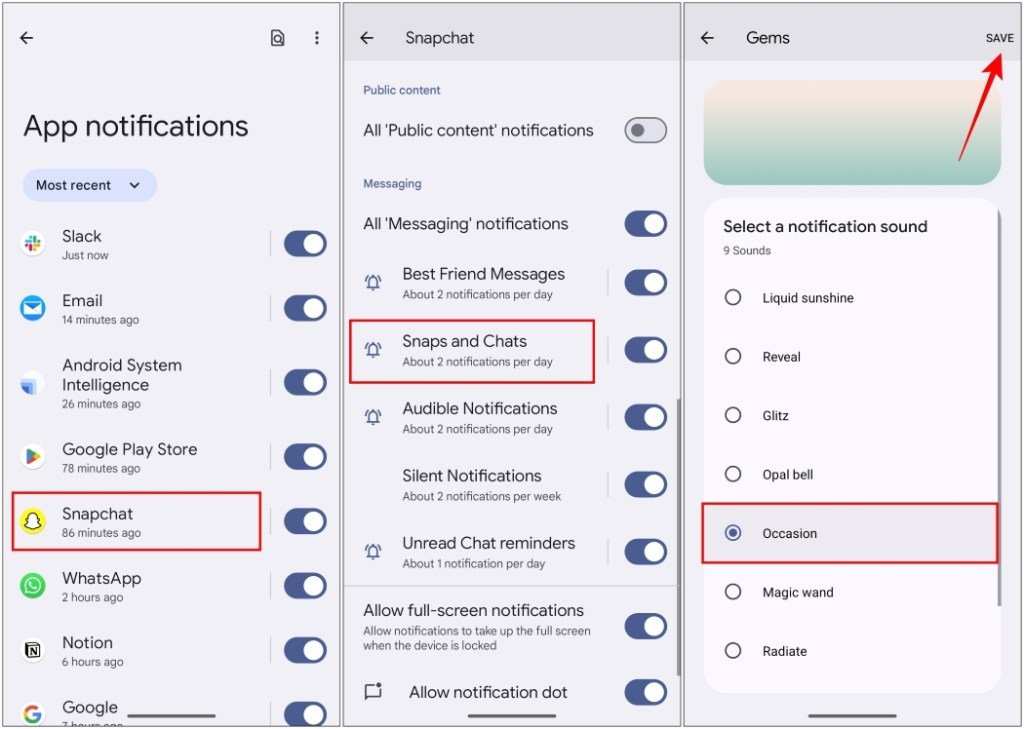
Android allows you to select different sounds for notifications:- Go back to your device Settings.
- Tap on Apps & Notifications, then select Snapchat.
- Tap on Notifications.
- Here, you might see categories like Chat, Stories, or Friend Requests.
- Select each category and choose a sound from the options provided.
- If you don’t see a sound option, proceed to set it through system notification settings.
Setting Custom Notification Sounds for Snapchat
If you want Snapchat notifications to have a specific sound, you can set a custom tone:Choose a Custom Sound
Follow these steps:- Navigate to your device Settings, then Apps & Notifications.
- Select Snapchat and go to Notifications.
- Choose the notification category you want to customize (such as Chat alerts).
- Tap on ‘Sound’ or ‘Notification sound.’
- Select a sound from your device’s list or add a new one from your files.
- Confirm your choice, and Snapchat notifications will now play this sound.
Adding New Notification Sounds
To use a custom audio file:- Download a sound file (MP3 or WAV) from a trusted source.
- Move the file to your device’s Notifications folder via your file manager.
- Follow the previous steps to select the sound, now available in your list.
Troubleshooting Common Snapchat Notification Sound Issues
Even after setting everything correctly, problems may persist. Here are some tips:Restart Your Device
Sometimes, a simple restart refreshes your system and fixes minor glitches:- Hold down your power button.
- Select ‘Restart’ or ‘Reboot.’
- Wait for your device to restart and check if notifications sound now.
Update Snapchat and Android Software
Make sure both your app and device software are current:- Open the Google Play Store.
- Search for Snapchat and tap ‘Update’ if available.
- Go to Settings > Software Update and check for updates.
Clear App Cache and Data
If notifications still don’t sound, clearing cache can help:- Go to Settings > Apps & Notifications > Snapchat.
- Tap on Storage & Cache.
- Select ‘Clear Cache.’
- If needed, tap ‘Clear Storage’ (note: this may log you out).
Reinstall Snapchat
As a last resort, uninstall and reinstall the app:- Long-press the Snapchat app icon.
- Select ‘Uninstall.’
- Go to Google Play Store and install Snapchat again.
Additional Tips for Better Notification Sound Control
To enhance your experience, consider these additional tips:- Use Do Not Disturb mode selectively, allowing Snapchat notifications to bypass silence if needed.
- Set different notification sounds for other apps to easily identify alerts.
- Keep your device’s volume at a comfortable level to ensure notification sounds are audible but not disruptive.
- Enable vibration along with sound for more noticeable alerts.
- Regularly check your notification settings after system updates, as default settings may reset.
Frequently Asked Questions
How can I ensure Snapchat notifications produce sound on my Android device?
Go to your device’s Settings, then tap on Apps or Notifications. Find Snapchat in the list and select it. Tap on ‘App Notifications’ and make sure the toggle is turned on. Under ‘Notification Style,’ choose the desired notification channel and enable sound options. You can also select a specific notification sound to ensure Snapchat alerts are audible.
What steps should I follow to adjust Snapchat notification volume independently?
Firstly, open your device’s Settings and navigate to Sound or Volume settings. Adjust the notification volume slider to your preferred level. Some Android devices allow you to set different volume levels for each app; if yours does, access app-specific volume controls within the sound settings. If not, setting the general notification volume will affect Snapchat notifications as well.
How do I troubleshoot if Snapchat notifications are silent despite settings being correct?
Ensure that Do Not Disturb mode is turned off and that your device isn’t in Silent mode. Check Snapchat’s notification settings within the app to verify that notifications are enabled. Also, review your device’s notification settings to confirm that sound is permitted. Restart your device after making these changes to apply improvements, and consider reinstalling Snapchat if problems persist.
Final Thoughts
To make Snapchat notifications sound on Android, start by opening the Settings app. Tap on “Apps & notifications,” then select “See all apps.” Find Snapchat in the list and tap on it. Next, go to “Notifications” and ensure they are enabled. Tap on “Notification categories” and choose the category for alert sounds. Select your preferred sound from the options provided. In conclusion, to make Snapchat notifications sound on Android, adjust the notification settings within the app and your device. This ensures you receive alerts with the sound you prefer every time.
Similar Posts































