How To Make Snapchat Notifications Not Show Names Android
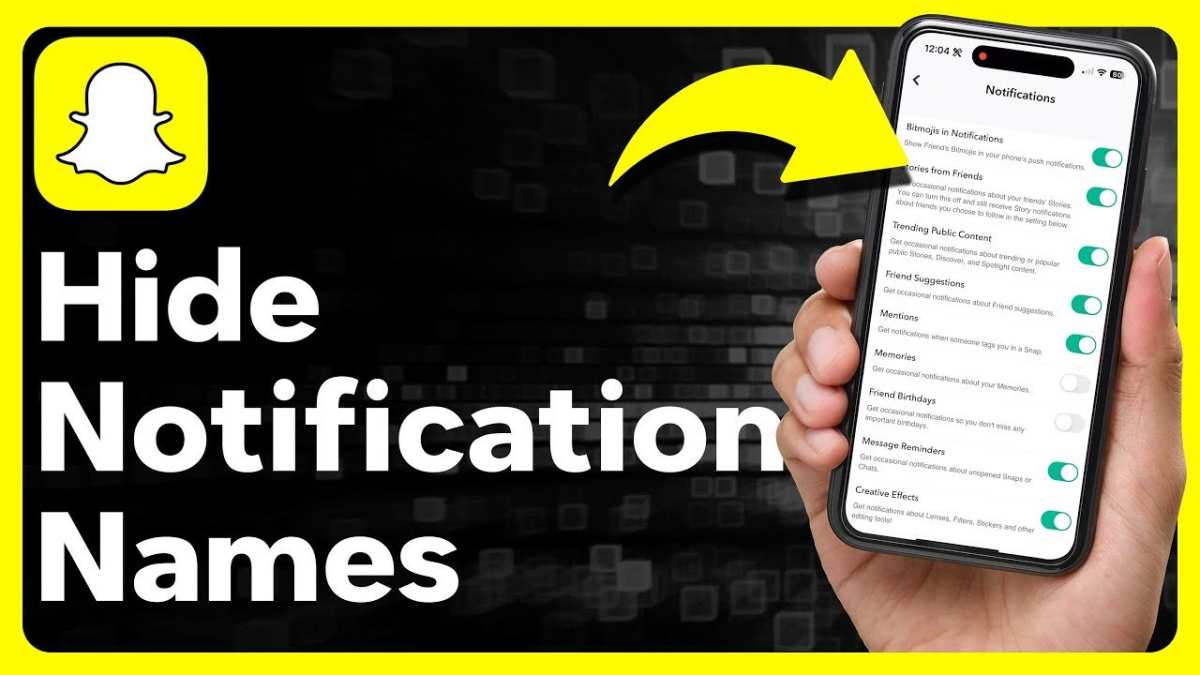

How to Make Snapchat Notifications Not Show Names on Android
Managing your privacy on Snapchat is important, especially when it comes to notifications. Sometimes, you might want to receive notifications without revealing the sender’s name. This can be useful if you’re in a shared space or just prefer to keep your activity discreet. In this guide, we will walk through multiple ways to make Snapchat notifications not show names on Android devices. From adjusting app settings to modifying notification preferences at the system level, you will find everything you need to keep your Snapchat activity private.Understanding Snapchat Notifications and Why Names Are Visible
Before diving into modifications, it helps to understand why Snapchat notifications display names in the first place. When someone sends you a snap or chat, Snapchat automatically pulls the sender’s profile name or username from your contact list or the app itself. The notification system then shows this information to alert you about new activity. This visibility is useful for quick responses, but it can compromise privacy if you don’t want others nearby to see who’s messaging you. The good news is that Android offers ways to control this behavior, allowing you to keep notifications discreet.Adjusting Notification Settings in Snapchat
The first step involves customizing notification settings directly within Snapchat. This is the most straightforward way to hide sender names in notifications. Here’s how to do it:Disable Name Display in Snapchat Notifications
- Open the Snapchat app on your Android device.
- Go to your profile by tapping your Bitmoji or profile icon in the top left corner.
- Tap the gear icon in the top right to access Settings.
- Scroll down to find the Notifications section.
- Tap Notification Settings.
- Look for options related to message and snap notifications, such as Show Notifications.
- Disable notifications if you want to turn off all alerts, or look for specific options that control how notifications appear.
Using Android System Settings to Hide Notification Content
Android offers comprehensive options to customize how notifications appear on your device. You can hide content, including sender names, from appearing on the lock screen or notification panel. Here’s how:Hide Notification Content in Android
- Open the Settings app on your Android device.
- Tap Apps & Notifications or simply Apps.
- Find and select Snapchat from the list of applications.
- Tap Notifications.
- Look for a setting called On Lock Screen or Notification Show/Hide Content.
- Select Hide Sensitive Content or Don’t Show Notification Content.
Use Notification Categories on Android Oreo and Later
Android 8.0 Oreo introduced notification channels and categories allowing more granular control. You can assign your Snapchat notifications to a specific category and then modify how they appear:Adjust Notification Category Settings
- Open your device’s Settings.
- Navigate to Apps & Notifications and select Snapchat.
- Tap Notifications.
- If available, find the specific categories for Snapchat notifications, such as Messages.
- Select the category you want to modify.
- Check or uncheck options like Show Notification Content.
Utilize Third-Party Apps for Enhanced Privacy
If the above options don’t fully meet your needs, you can consider third-party apps designed to hide notification content. These apps can hide or customize how notifications appear, including sender details. Here are some popular options:- Notification Hider: Hides notifications from specific apps or disables content preview.
- Notisave: Saves notifications and allows you to read them privately.
- Heads Off: Blocks heads-up notifications and prevents sender info from showing.
Best Practices for Privacy When Using Snapchat Notifications
While adjusting settings helps, consider these additional tips:- Disable Notification Preview on Lock Screen: This prevents any notification info from showing when your device is locked.
- Use Notification Bubbles Carefully: If you enable chat bubbles, be cautious about sensitive info leaking through floating chats.
- Regularly Review App Permissions: Ensure Snapchat only has permissions it needs, minimizing data exposure.
- Turn Off Notifications When Necessary: If privacy is a big concern, consider turning off notifications temporarily.
Summing It Up
Controlling how Snapchat notifications appear on your Android device involves both internal app settings and system-level adjustments. While Snapchat may not offer a built-in feature to hide sender names in notifications specifically, Android provides multiple ways to prevent this information from displaying openly. By managing notification content visibility, adjusting lock screen settings, and potentially using third-party apps, you can make your Snapchat activity more private and discreet. Remember that privacy is about knowing what information is visible and controlling it effectively. Taking these steps helps protect your conversations and makes your notification experience more aligned with your personal privacy preferences.Frequently Asked Questions
How can I hide contact names in Snapchat notifications on my Android device?
You can prevent Snapchat from displaying contact names in notifications by adjusting your device’s notification settings. Go to your phone’s Settings > Apps & Notifications > Snapchat. Tap on Notifications and look for options to disable or customize notification previews. Turning off notification previews or setting notifications to show only icons can help keep contact names hidden.
What steps should I take to prevent Snapchat from showing contact details in notifications?
To stop Snapchat from displaying contact details, navigate to your device’s Settings > Apps & Notifications > Snapchat. Select Notifications and disable the feature that shows detailed notifications. You might also want to turn off the feature that displays message content within notifications, which can prevent contact names and message previews from appearing.
Is there a way to modify notification settings specifically for Snapchat to hide sender names on Android?
Yes. Open your phone’s Settings and find the Notifications section. Locate Snapchat in the list of apps and modify its notification settings. Set the notifications to show only basic alerts or disable the preview of message content. This approach ensures sender names no longer display in your notifications.
Can changing the notification display style help in hiding contact names in Snapchat alerts?
Altering the notification style can help prevent contact names from appearing. On your Android device, go to Settings > Apps & Notifications > Snapchat > Notifications. Choose a notification style that minimizes details, such as only showing silent icons or hiding message content. This way, sensitive information like contact names remains concealed.
Are there third-party apps that can help control what appears in Snapchat notifications on Android?
Some third-party apps are designed to manage notifications more granularly. These apps can filter or modify notification content, including hiding contact names. However, use caution when installing third-party tools, as they might not always be reliable or secure. Always choose reputable apps and review their permissions carefully.
How can I ensure my Snapchat notifications do not reveal contact names after Android updates?
After updating your device, revisit your notification settings for Snapchat. Android updates sometimes reset or modify app permissions and notification controls. Navigating to Settings > Apps & Notifications > Snapchat and adjusting the notification options ensures that contact names no longer display. Regularly check these settings after system updates to maintain your privacy preferences.
Final Thoughts
To ensure that Snapchat notifications do not show names on Android, go to your device settings and select notifications. Find Snapchat in the app list and tap on it. Disable the option that displays notification details or change the notification style to minimize info shown. By customizing these settings, you can prevent names from appearing in notifications. Remember, how to make snapchat notifications not show names android primarily depends on adjusting the app or system notification preferences directly. This approach keeps your alerts discreet and respects your privacy.
Similar Posts































