How To Make Secret Album Android: Easy Step-By-Step Guide
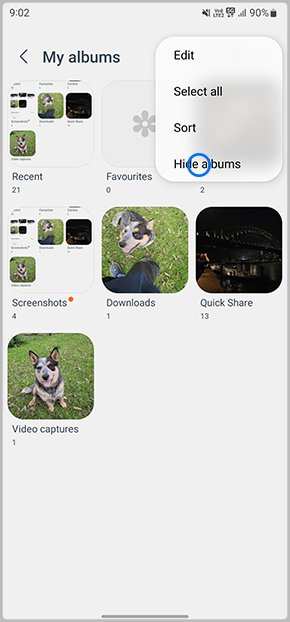

How to Make a Secret Album on Android
Creating a hidden space for your photos and videos on Android devices has become increasingly important, especially as our phones store more personal information than ever before. Whether you want to keep certain images private from prying eyes or simply want a discreet place to store your memories, learning how to make a secret album on Android can help you protect your privacy while still having easy access when needed. In this guide, we’ll walk through the different ways you can create and manage secret albums on your Android phone. We’ll explore built-in features, third-party apps, and tips for keeping your hidden album secure. Let’s dive into each method step by step, making sure you understand how they work and how to use them effectively.Understanding Why You Need a Secret Album
Before jumping into the hows, it’s good to understand why a secret album matters. These are some common reasons people choose to keep their photos hidden:- Privacy concerns: Protecting personal images or sensitive photos from friends, family, or colleagues.
- Security: Keeping important images safe from accidental deletion or exposure.
- Organization: Separating private images from everyday photos for better management.
- Preventing theft: Hiding images if your phone gets lost or stolen.
Using Built-in Hidden Album Features on Android
Many Android phones come with native options to hide photos and videos, making this the easiest way to create a secret album. These features are typically built into the Photos app, Gallery app, or the device’s file manager.Google Photos Hidden Features
Google Photos offers an option called “Archive,” which isn’t exactly secret but helps move images out of the main view, reducing visibility:- Open Google Photos.
- Select the photos or videos you want to hide.
- Tap the three-dot menu icon and choose “Archive.”
Using the Android Gallery App
Some devices like Samsung or OnePlus offer a “Secure Folder” or “Private Mode” in their Gallery apps:- Open the Gallery app.
- Select the images you want to hide.
- Look for options like “Move to Private” or “Hide.”
File Manager Apps
Most Android phones come with a file manager app (like “My Files” or “File Manager”). You can hide images by:- Locating the image files in your device storage.
- Renaming the file with a dot at the beginning (e.g., “.secretpic.jpg”). This makes the file hidden in many systems.
- Moving the files to a private folder that you secure with a password or encryption—if your app supports this.
Creating a Private or Hidden Album with Third-Party Apps
If built-in options are not sufficient for your needs, third-party apps offer more privacy features, including password protection and encryption. These apps are easy to use and often come with additional security measures.Popular Apps for Making Secret Albums on Android
Here are some recommended apps you can install:- KeepSafe Photo Vault: Offers password protection, fingerprint login, and break-in alerts.
- Gallery Lock – Hide Pictures & Videos: Allows creating private albums protected with PIN, pattern, or fingerprint.
- Vault: Not just for photos, but also for hiding videos, apps, and even messages—all secured with strong authentication methods.
- Private Photos Vault: Focuses solely on hiding images securely with encryption and password lock.
How to Use These Apps Effectively
Most of these apps follow similar usage steps:- Download and install the app from the Google Play Store.
- Set up a master password or fingerprint login for secure access.
- Import or move photos and videos you want to hide into the app.
- Create albums or folders within the app for better organization.
Tips for Enhancing Security with Third-Party Apps
- Use strong, unique passwords or biometric locks whenever possible.
- Enable features like fake login or decoy mode if available.
- Regularly update the apps to benefit from the latest security patches.
- Avoid granting unnecessary permissions to these apps, especially access to SMS or contacts.
How to Keep Your Secret Album Secure
Protection doesn’t stop at choosing the right app or method. Here are some tips to keep your secret album safe:Choose Strong Passwords
Set passwords that are difficult to guess. Avoid using common words like “password” or your birthdate. Combine letters, numbers, and special characters for better security.Enable Two-Factor Authentication
If the app offers it, activate two-factor authentication. This adds an extra layer of security by requiring you to verify your identity through a secondary method, like a code sent to your email or phone.Control App Permissions
Review permissions for your hiding apps regularly. Disable permissions that aren’t necessary to prevent unauthorized access.Backup Your Hidden Files Securely
Some apps offer cloud backup options. If you choose to use them, make sure the backup is encrypted and protected with a different password.Be Discreet with Access
Avoid opening secret albums in public or shared spaces. If you need to access them, do so discreetly to prevent others from noticing.Additional Tips for Managing Secret Albums
Managing your hidden images effectively helps keep your privacy intact:- Keep your hiding app updated to benefit from the latest security features.
- Regularly review the content within your secret album, deleting unnecessary images.
- Use a separate, secure email or password for any cloud backup accounts linked to your privacy apps.
- Be cautious of app permissions and avoid installing suspicious apps claiming to hide photos.
Frequently Asked Questions
What are some apps I can use to keep my photos private on Android?
There are several apps available that allow you to hide photos and videos securely. Popular options include Gallery Vault, Keepsafe Photo Vault, and LockMyPix. These apps offer password protection, PIN codes, or biometric security features to ensure your media stays private and inaccessible to others.
How can I create a separate space on my device for my secret images?
You can create a designated private folder or use a secure storage feature built into your device or apps. For example, some Android phones offer a Private Space or Secure Folder option. Additionally, file management apps like Solid Explorer or ES File Explorer let you set permissions and hide folders containing sensitive images, making them less visible to others.
Is it possible to hide images directly within the default Gallery app?
Yes, many Gallery apps include a hide or privacy feature. You can usually select specific photos or videos and use the hide option to make them invisible in the main gallery view. Alternatively, some apps allow you to create a password-protected album for added security.
Can I use biometric authentication to protect my secret album?
Absolutely. Many privacy apps and secure galleries integrate biometric authentication methods like fingerprint or facial recognition. Setting up these features adds an extra layer of security, ensuring only you can access the hidden media even if someone has physical access to your device.
Are there any tips to prevent accidental exposure of my hidden images?
To avoid accidental exposure, always select a dedicated privacy app or feature that encrypts your media. Avoid sharing device screenshots that reveal hidden albums, and be cautious when granting app permissions. Regularly check your privacy settings to confirm your sensitive files remain protected from other users or apps.
Final Thoughts
To create a secret album on Android, start by choosing a reliable app or using built-in features like private folders. Set a PIN or password to secure your hidden content. Organize your photos and videos carefully for quick access later. Remember, how to make secret album android involves simple steps but requires consistency. Always update your security settings to protect your privacy. Keep your hidden albums discreet to prevent unauthorized access.
Similar Posts































