How To Make Photo Albums On Android Step By Step

How to Make Photo Albums on Android: A Complete Guide
Creating photo albums on your Android device is a fun and easy way to organize your favorite memories. Whether you want to keep family pictures, travel photos, or everyday snapshots tidy and accessible, knowing how to make photo albums directly on your Android phone or tablet makes life simpler. In this guide, you’ll learn step-by-step methods to create photo albums, explore different apps to use, and get tips on managing and customizing your albums. Let’s dive into everything you need to know about making photo albums on Android devices.Understanding the Importance of Photo Albums
Photo albums help you stay organized. Instead of scrolling endlessly through hundreds of pictures, you can quickly find what you’re looking for. A good album system:- Prevents photos from getting lost in your device’s gallery
- Makes sharing specific memories easier
- Allows for customized themes and decorations
- Helps in creating digital scrapbooks or printed albums
Using Google Photos to Create Albums on Android
Google Photos is one of the most popular apps for managing photos on Android devices. It’s free, easy to use, and offers powerful features for creating, editing, and sharing albums.Getting Started with Google Photos
Before creating albums, ensure your photos are backed up to Google Photos:- Open the Google Photos app on your Android device
- If you haven’t signed in, log in with your Google account
- Enable backup & sync in the app’s settings to save your photos automatically
Steps to Make a New Album
- Open Google Photos and go to the “Library” tab
- Tap on “Create Album”
- Name your album clearly, like “Summer Vacation” or “Family Moments”
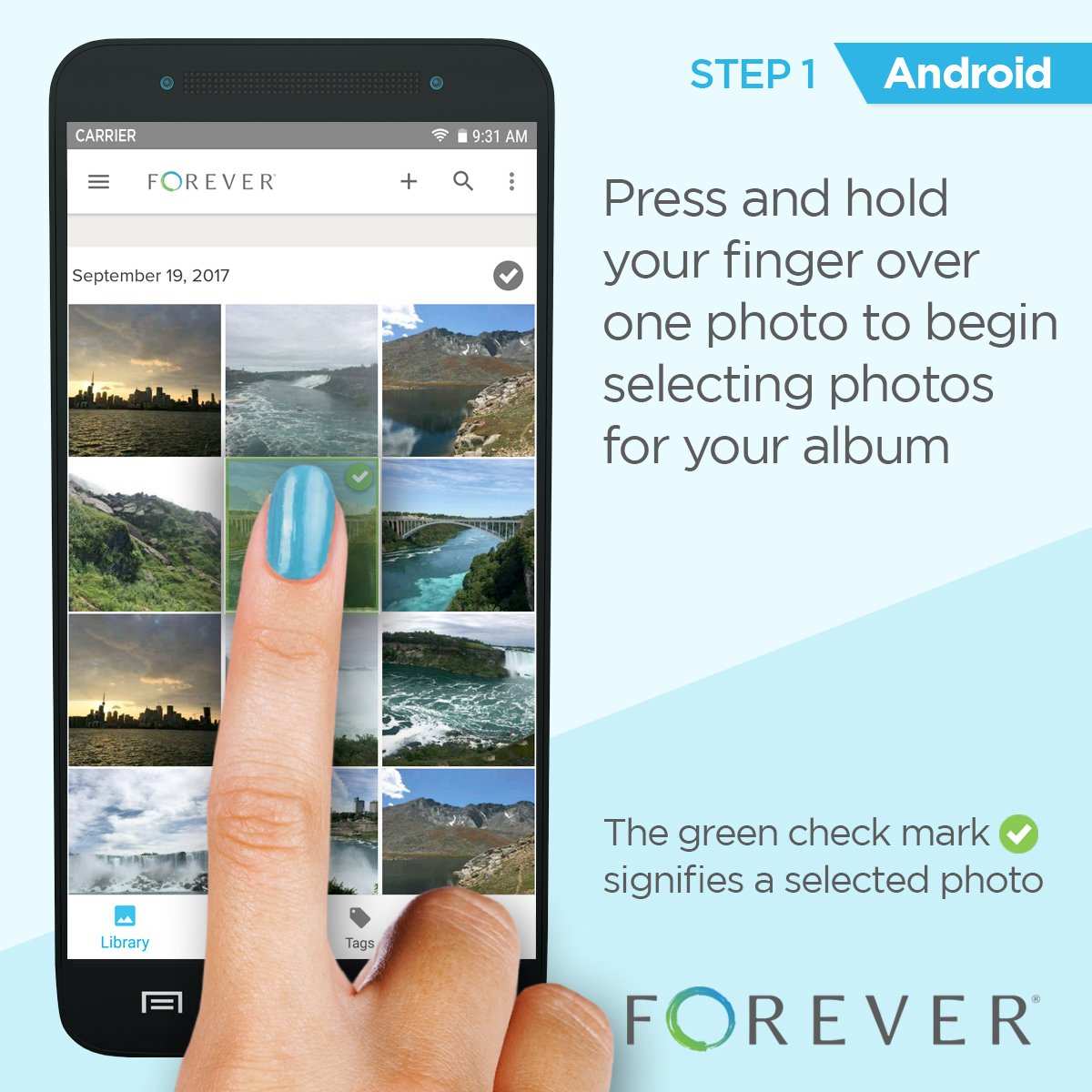
- Select photos and videos to add to the album by tapping on them
- Tap “Add” to create the album with your selected media
Managing and Editing Your Albums
After creating an album, you can add more photos, remove unwanted ones, or change the album’s title:- Open your album from the “Library” tab
- Tap the three dots menu or “Edit” icon
- Select “Add Photos” to include more images
- Tap on any photo to remove it if needed
- Rename the album if desired to keep things organized
Creating Albums Using the Default Gallery App
Most Android devices come with a built-in gallery or photos app. This varies by manufacturer (Samsung, Huawei, etc.), but the basic steps are similar.How to Create a Photo Album in Your Gallery App
Follow these simple steps:- Open your device’s gallery or photos app
- Navigate to the “Albums” section or tap the “+” icon
- Select “Create Album” or “New Album”
- Enter a name for your album
- Select the photos you want to include and confirm
Adding to Existing Albums
To add new photos to existing albums:- Open the album you want to add photos to
- Tap “Add Photos” or the “+” icon
- Select new images from your gallery
- Confirm to include them in the album
Using Third-Party Apps to Create and Manage Photo Albums
If you’re looking for additional features, several third-party apps can help you organize your photos creatively.Popular Apps for Photo Album Creation
- F-Stop Gallery – Offers customizable albums, smart tagging, and advanced search options
- ProShot – Not only for taking photos but also for creating themed albums with editing tools
- Simple Gallery – A straightforward app for creating private albums with password options
How to Use Third-Party Apps
Typically, these apps follow similar steps:- Download and install the app from Google Play Store
- Open the app and grant necessary permissions
- Navigate to the “Albums” or “Create Album” section
- Name your album and select photos to include
- Save or organize your album as needed
Tips for Organizing Your Photo Albums Effectively
Creating albums is just the first step. Keeping them organized makes browsing easier:- Use descriptive names like “Vacation 2023” or “Grandma’s Birthday”
- Create separate albums for different events or themes
- Sort photos chronologically within albums for better flow
- Regularly update albums to include new photos and remove duplicates
- Use tags or labels if your app supports them for quick searches
Decorating and Customizing Your Photo Albums
Personal touches make albums more special:Add Captions and Notes
Many apps allow you to add descriptions or captions to photos, helping you remember details.Applying Themes and Backgrounds
Some apps let you change the background colors or themes, making your albums visually appealing.Printing Your Albums
Once you’ve organized your digital albums, you might want to create physical copies:- Use online printing services that let you upload your photos and customize layouts
- Order printed photo books directly through apps or websites
- Choose the size, paper quality, and cover styles to personalize your book
Frequently Asked Questions
How can I organize my photos into specific albums on my Android device?
You can organize your photos by opening your device’s Gallery app, selecting the photos you want to include, and then creating a new album. Tap on the options menu, choose “Add to Album” or “Create Album,” give your album a name, and confirm. This method allows you to group related photos together for easy access and management.
What steps do I follow to add new pictures to an existing album on Android?
To add new pictures to an existing album, open your Gallery app and locate the album you want to update. Tap the “Add” or “+” button usually found within the album, then select the photos from your gallery that you wish to include. Confirm your selection, and the photos will be added to that album, keeping your collections neatly organized.
How can I delete or remove photos from a photo album on my Android phone?
Open the photo album containing the images you want to remove. Tap on the photos you wish to delete or remove, then select the delete option, often represented by a trash bin icon. Confirm the deletion, and the selected photos will be removed from the album. Keep in mind that deleting from an album may not delete the original photo from your device unless specified.
Is it possible to create multiple albums with shared photos on Android?
Yes, you can create multiple albums with some photos shared across them. To do this, create the desired albums and add the photos to each of them as needed. This way, a single photo can be part of multiple albums, helping you categorize and access your images in various contexts without duplication of the actual files.
What apps can help me make and manage photo albums more efficiently on Android?
The default Gallery app on Android works well for basic album creation and management. Additionally, apps like Google Photos offer advanced organization features, such as automatic grouping, editing, and sharing options. These tools can make it easier to keep your collections organized and accessible across devices.
Final Thoughts
To make photo albums on Android, start by opening your preferred gallery app. Select the photos you want to include and create a new album or folder. Organize your images for easy browsing and sharing. This simple process helps you enjoy your memories more efficiently. In conclusion, knowing how to make photo albums on Android makes managing your photos easier and more enjoyable.
Similar Posts































