How To Make My Number Private On Android Easily
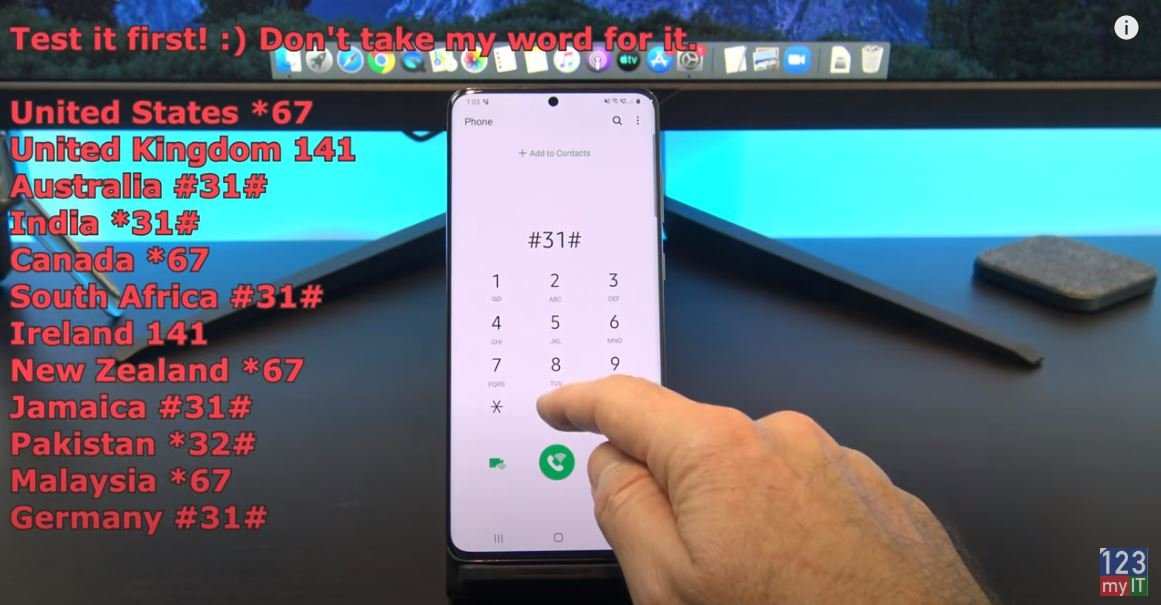
To keep your number private on Android, you can quickly alter your caller ID settings. **Go to your phone’s settings, find the Call or Phone section, and enable the option to hide your number.** This simple step ensures your number stays hidden during calls.
Wondering how to make my number private on Android? It’s straightforward and can be done in seconds. Just follow the steps, and your privacy is secured with minimal effort.
How to Make My Number Private on Android
If you want to keep your phone number hidden when making calls or sending messages, you’re not alone. Many Android users prefer to protect their privacy and avoid revealing their numbers without needing to change their entire SIM card or phone settings. Luckily, Android devices offer several straightforward ways to make your number private, whether for individual calls, text messages, or all outgoing calls. This guide will walk you through each method step-by-step, ensuring you understand how to control your privacy on Android effectively.
Understanding Why You Might Want to Hide Your Number
Before diving into how to hide your number on Android, it’s helpful to understand the reasons behind it. People choose to hide their numbers for various purposes, such as:
- Privacy protection when making sensitive calls.
- Avoiding caller ID when contacting someone for the first time.
- Preventing telemarketers or spam callers from identifying them.
- Maintaining anonymity in professional contexts.
Knowing your reasons can also determine which method suits you best — whether hiding your number temporarily for a single call or setting it to be hidden all the time.
Methods to Make Your Number Private on Android
There are several ways to hide your number on an Android device. Let’s explore each method in detail so you can choose the most convenient option for your needs.
Using the Phone App Settings for Temporary Number Hiding
Most Android phones allow you to hide your caller ID directly through the phone’s dialer. This method is perfect for making a single call private.
- Open the Phone app on your Android device.
- Tap the three dots or menu icon, typically located at the top right corner.
- Select Settings or Call Settings.
- Look for an option named Additional Settings or More Settings. This might vary depending on your device manufacturer and Android version.
- Tap on Caller ID.
- Choose Hide Number or Network Default and select Hide Number.
*Note:* This setting typically applies only to outgoing calls made after changing the option. It does not affect incoming calls or messages.
Using the Phone Number Settings for Permanent or Temporary Privacy
Most Android phones offer an option within the settings to hide your caller ID for all outgoing calls. Here’s how you can do it:
- Go to the Settings app on your Android device.
- Scroll down and find Network & Internet or Connections, depending on your device.
- Tap on Mobile Network or SIM Cards & Mobile Networks.
- Select your active SIM card if you have dual SIMs.
- Locate the Caller ID option.
- Choose Hide Number.
*Important:* This setting will hide your number for all future outgoing calls until you change it back.
Using a USSD Code to Hide Your Number Temporarily
Another quick way to hide your number on Android is by dialing a specific code before making a call. This method is especially useful for one-time privacy.
- Open your dialer app.
- Type the USSD code *67 followed by the number you want to call.
- For example, dial *67 1234567890 and press call.
*Note:* The exact USSD code might vary by carrier or country. For example, in some regions, you might need to use #31# or other codes.
Changing Your Phone Number’s Privacy Settings Via Your Carrier
If the previous methods don’t work or your carrier has specific restrictions, contacting your service provider can help. Most carriers offer options to hide your number on a network level.
- Call your carrier’s customer service or visit their website.
- Request to hide your caller ID permanently or temporarily.
- Follow their instructions to enable the setting, which might include sending a code or adjusting account settings.
*Tip:* Some carriers allow you to set your caller ID preferences through their official apps or online account portals.
Verifying If Your Number Is Hidden
After setting your phone to hide your number, it’s essential to test it out.
- Make a call to a trusted friend or family member.
- Ask them if they see your number or if the call appears as “Unknown” or “Private.”
If your number appears as “Private” or “Unknown,” then the setting is successful. If not, double-check the steps or consult your carrier.
How to Make Your Number Visible Again
If you wish to show your number again after hiding it, you can reverse the settings:
- Access the same settings menu where you previously hidden your number.
- Choose the option to show your caller ID or select Network Default.
- If using USSD codes, dial *82 before making a call to temporarily unhide your number.
Remember that changes made through your device settings or carrier are system-wide and will affect all outgoing calls.
Additional Tips for Protecting Your Privacy on Android
Protecting your number is just one part of maintaining your privacy. Here are some additional tips:
- Use a secondary number or calling app for sensitive situations.
- Be cautious when sharing your number online or with unfamiliar contacts.
- Consider installing privacy-focused call blocker apps.
- Update your Android device regularly to ensure you have the latest security features.
Potential Limitations and Things to Keep in Mind
While hiding your number is straightforward, some limitations exist:
- Emergency services may still see your number or may not accept calls with hidden IDs.
- Some countries or carriers restrict the ability to hide caller ID.
- Repeatedly hiding your number might raise suspicion or cause call blocking in certain contexts.
- Not all apps respect caller ID settings, especially third-party messaging apps.
Controlling your privacy on Android is easier than you might think. Whether you want to hide your number for just one call or make it a permanent setting, Android offers flexible options. Remember to choose the method that best suits your needs, and always verify if it works through testing. Keep your privacy in mind and remain cautious about sharing your number when unnecessary.
By applying these steps and tips, you can confidently make calls without revealing your number whenever you want, maintaining the control you desire over your privacy.
Frequently Asked Questions
Can I hide my number temporarily when making a call on Android?
Yes, you can hide your number temporarily on Android by dialing a specific code before the phone number. Typically, entering *67 followed by the number you want to call will hide your number for that particular call. Keep in mind that some carriers or recipients may have restrictions on displaying or hiding caller IDs.
How do I set my Android device to prevent my number from being displayed by default?
Go to your phone’s Settings, then select ‘Calls’ or ‘Phone Settings.’ Tap on ‘Caller ID’ or ‘Show My Caller ID,’ and choose the option to hide your number. This setting will ensure your number remains private for all outgoing calls until you decide to change it back.
Are there any apps that can help hide my number on Android?
Yes, several third-party apps allow you to manage your caller ID and hide your number easily. Apps like ‘Hide My Number’ or ‘Caller ID Management’ provide options to control the visibility of your number on a per-call basis. Always verify the permissions and reviews before installing these apps to ensure your privacy and security.
What should I do if my number still appears after hiding it in settings?
If your number still shows up despite adjusting your settings, contact your mobile service provider. Some carriers may have restrictions or require you to disable caller ID from their end. They can provide specific instructions or make necessary changes to ensure your number remains private.
Can I hide my number for specific contacts on Android?
Can I hide my number for specific contacts on Android?
Android doesn’t natively support hiding your number for individual contacts. However, you can use third-party apps or features provided by your carrier that allow you to create custom calling options. Alternatively, dialing *67 before the number can be used for specific calls if your carrier supports this feature.
Final Thoughts
Making your number private on Android is simple and effective. Start by opening the Phone app and navigating to the settings menu. Select the “Caller ID” option and choose “Hide number” to prevent your number from showing during calls. Alternatively, you can toggle the “Hide number” feature in your device’s network settings.
Always remember that you can also set your number to private temporarily or permanently through your carrier’s customer service.
In conclusion, if you want to keep your information confidential, knowing how to make my number private on android helps maintain your privacy effortlessly.

Similar Posts































