How To Make Group Chat On Android: Step-By-Step Guide
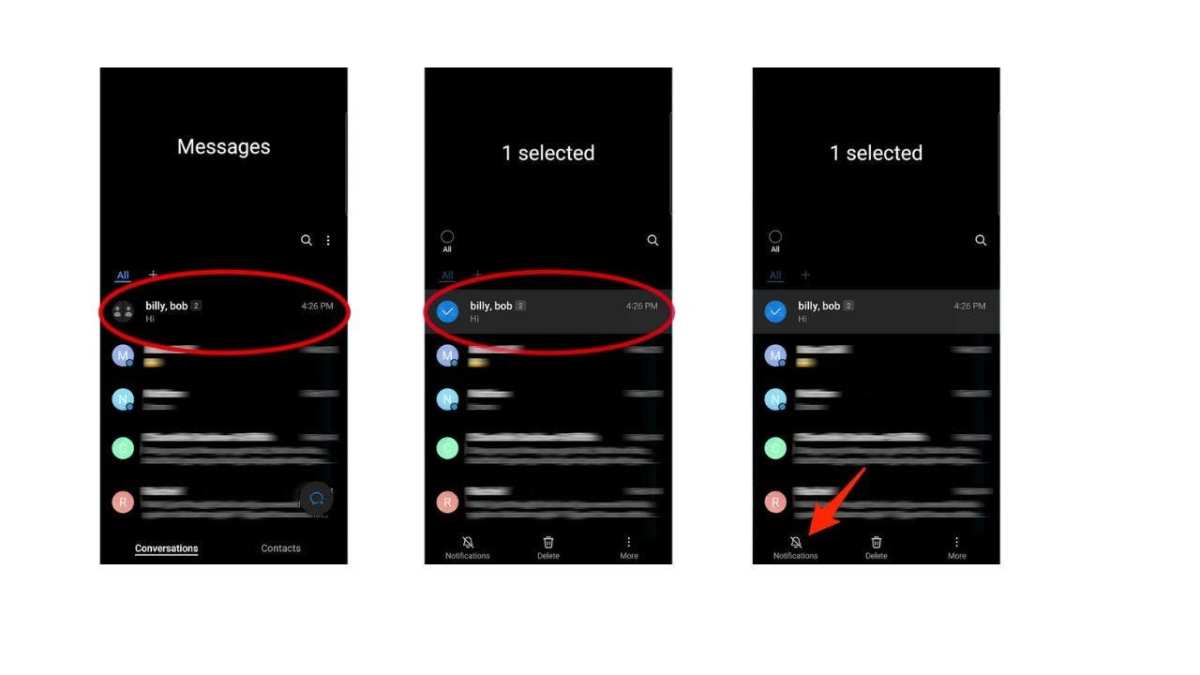
How to Make a Group Chat on Android
Creating a group chat on your Android device is a great way to stay connected with friends, family, or colleagues all in one place. Whether you’re using a messaging app like WhatsApp, Messenger, or other platforms, understanding the steps to set up a group chat can save you time and help you communicate more effectively. In this guide, we’ll explore how to make a group chat on Android step by step, cover different messaging apps, and share tips to manage your group chats easily. Let’s dive in and learn everything you need to know to start chatting with multiple people today.Choosing the Right Messaging App for Group Chats
Before creating a group chat, it’s important to select the right messaging app that fits your needs. Popular options include WhatsApp, Facebook Messenger, Google Messages, and Signal. Each app has unique features, and some may work better depending on your preferences.Facebook Messenger
Facebook Messenger integrates seamlessly with Facebook accounts. It enables you to create group chats with friends on Facebook, share multimedia, and conduct video calls. Messenger supports larger groups with more features like reactions and bots.Google Messages
If your Android phone uses Google’s native messaging app, Google Messages, you can create group texts. It supports SMS, MMS, and RCS, making it a good choice if you want to stay within your carrier’s messaging system.Signal
Signal emphasizes privacy and security. You can easily create secure group chats, share media, and even set custom administration options. This app is perfect if privacy is a priority for your group.How to Make a Group Chat on WhatsApp
WhatsApp offers a straightforward process to set up a group chat. Here’s a detailed step-by-step guide:Step 1: Open WhatsApp
Locate the WhatsApp icon on your device and tap to open the app.Step 2: Tap the New Chat Button
Look for the chat icon, usually at the bottom right corner of the screen. Tap on it to start a new conversation.Step 3: Select “New Group”
In the menu that appears, choose “New Group.” If you don’t see this option immediately, it might be under “More options” or similar menu.Step 4: Choose Participants
Select the contacts you want to add to the group. You can scroll through your contact list or use the search bar to find specific people quickly. Tap on each person to add them.Step 5: Tap the Next Button
Once you’ve selected all the members, tap the arrow or “Next” button to proceed.Step 6: Name Your Group
Enter a meaningful name for your group chat. This name will be visible to all members. You can also add a group photo by tapping the camera icon.Step 7: Create the Group
Tap “Create” to finalize your new group chat. Now, you’re ready to start chatting with all your selected contacts.How to Make a Group Chat on Facebook Messenger
Facebook Messenger makes group creation equally simple. Follow these steps:Step 1: Open Facebook Messenger
Tap the Messenger app icon on your Android device.Step 2: Tap the New Message Icon
Look for the pencil-and-paper icon or “New Message” button, usually at the top or bottom of the screen.Step 3: Select “Create a New Group”
In the contact list, either select multiple contacts by tapping their names or find the “Create Group” option in the menu.Step 4: Choose Group Participants
Tap the contacts you want to include. You can add more members later if needed.Step 5: Tap “Next” or the Confirm Button
Enter a group name that everyone will see. You can also add a profile picture for the group.Step 6: Start Chatting
Once the group is created, you can begin sending messages, sharing media, and conducting video calls.Creating a Group in Google Messages
Google Messages typically handles group texts through SMS, MMS, or RCS. Here’s how to create a group chat:Step 1: Open Google Messages
Tap the Messages app icon on your Android device.Step 2: Tap the Compose Button
Select the new message icon, usually a “+” sign or a pencil.Step 3: Add Contacts
Enter the phone numbers or select contacts from your list. To create a group, add multiple contacts before typing your message.Step 4: Enter the Message
Type your message in the chat box.Step 5: Send the Group Message
Tap send. If RCS is enabled, the group will be more interactive with features like read receipts and multimedia sharing.Managing and Customizing Your Group Chat
Once your group chat is up and running, managing it effectively ensures everyone stays engaged and the chat stays organized. Here are some tips:Naming the Group
Choose a clear, fun, or relevant name that reflects the group’s purpose. For example, “Family Plans” or “Book Club Members.”Adding or Removing Members
Depending on the app, you can add new members or remove existing ones. For WhatsApp:- To add members: Open the group info, tap “Add Participants,” and select contacts.
- To remove members: Tap the group info, then select the member and choose “Remove from Group.”
Setting Group Admins
Make some members admins to help manage the chat. This is useful for large groups where multiple people want control over members and settings. Usually, you can tap a member’s name and select “Make Admin.”Customizing Notifications and Settings
Control how often you get notifications, mute the chat, or set custom alerts for specific activities. This way, you avoid being overwhelmed with messages from busy groups.Sharing Files and Media
Most apps support sharing photos, videos, documents, and links. Use these features to make your group chat lively and informative.Tips for a Successful Group Chat
To keep your group chat fun, respectful, and useful:- Set clear rules about respectful communication.
- Avoid spamming the group with unnecessary messages.
- Use emojis and reactions to express yourself quickly.
- Share important updates or information in an organized way.
- Encourage everyone to participate and share their thoughts.
Frequently Asked Questions
How can I start a new group chat on my Android device?
Open your messaging app and tap on the ‘New Chat’ icon, usually represented by a plus sign or a pencil. Select the option for a new group or select multiple contacts from your contact list. Once you’ve chosen the contacts, tap on ‘Create’ or ‘Start’ to set up the group chat.
What steps should I follow to add more members to an existing group chat on Android?
Open the group chat and tap on the group name or profile picture at the top of the screen. Look for an option like ‘Add Participants’ or ‘Add Members’ and select it. Choose the contacts you want to include in the group and confirm by tapping ‘Add’ or ‘Done.’
How do I customize notification settings for group chats on Android?
Access the group chat and tap on the group name or profile image. Find the ‘Notification Settings’ or ‘Mute’ option. From there, select the desired notification preferences, such as muting sounds, disabling notifications, or setting custom notification tones for that specific group.
Can I create a group chat with contacts from different messaging platforms on Android?
Creating a group chat across different messaging apps depends on the platform. Some apps, like WhatsApp and Messenger, allow group chats within their ecosystem. To include contacts on other platforms, you might need to use third-party services or switch to an app that supports multi-platform messaging, such as Signal or Telegram.
How can I leave or delete a group chat on my Android device?
Enter the group chat, then tap on the group name or settings icon. Select the option to ‘Leave Group’ or ‘Exit.’ If you’re the group admin and wish to delete the entire chat, you may need to delete the chat history or remove all members first, depending on the messaging app’s features.
Final Thoughts
To make a group chat on Android, open your messaging app and tap on the new message icon. Select multiple contacts you want to include in the group. Type your message and send it to create the group. Adding or removing members is simple—just tap the group info and manage contacts. Customizing settings helps you control notifications and permissions. In conclusion, how to make group chat on Android involves creating a new message, selecting contacts, and managing your group settings efficiently. This approach ensures smooth communication for everyone involved.
Similar Posts































