How To Make A Three-Way Call On An Android In 55 Characters
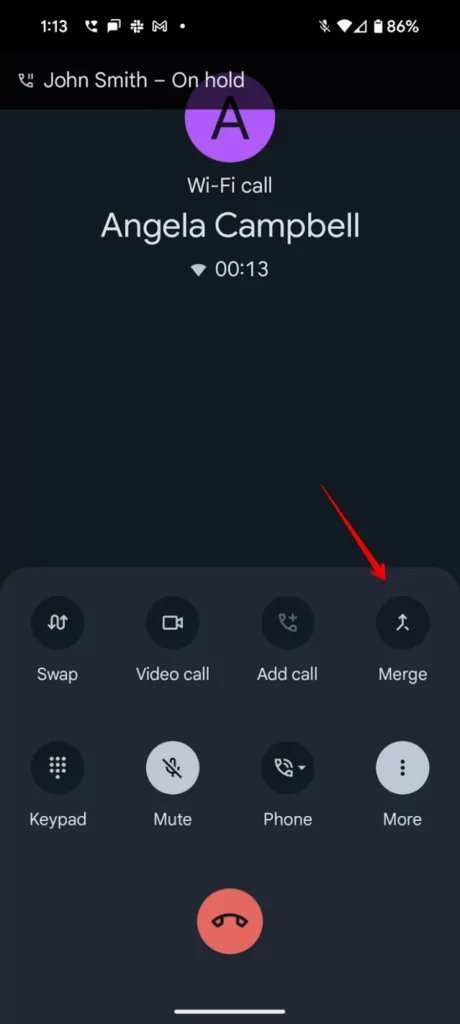
To make a three-way call on an Android, simply start a call, then add another participant through the call menu. **This process is quick and straightforward.** When you initiate a call, tap the options button, then select “Add call” to include the second person. Once both calls are active, merge them into a three-way conversation by tapping “Merge calls.” Knowing how to make a three-way call on an Android makes group conversations hassle-free and simple to manage.
How to Make a Three-Way Call on an Android
Making a three-way call on your Android device can be a real lifesaver, especially when you need to chat with two people at the same time. Whether you’re coordinating plans with friends or discussing work details with colleagues, understanding how to set up a three-way call is a valuable skill. In this section, you’ll find detailed steps and tips that make creating a three-party conversation simple and straightforward.
What Is a Three-Way Call?
A three-way call, also called a conference call, allows three people to talk simultaneously during a single phone call. Instead of making separate calls and trying to coordinate between them, a three-way call connects everyone at once, making conversations smoother and more efficient.
Why Use a Three-Way Call?
People use three-way calls for many reasons:
- Business meetings with colleagues while on the go
- Planning outings or events with friends
- Handling customer service issues with support and a supervisor
- Talking with family members in different locations
Having the ability to connect three people quickly helps save time and makes discussions more dynamic.
Prerequisites for Making a Three-Way Call on Android
Before you can make a three-way call, ensure:
- Your Android device is turned on and has an active cellular connection
- Your service plan allows conference calling (most carriers include this feature)
- Call credits or minutes are sufficient if you’re on a prepaid plan
Some carriers might require you to activate conference calling as a feature. Check with your service provider if you’re unsure.
How to Make a Three-Way Call: Step-by-Step Guide
Follow these steps to easily create a three-way call on your Android device:
Step 1: Call the First Person
Start by dialing the number of the person you want to speak with first. After the call connects, stay on the line.
Step 2: Add the Second Person
While on the call, look for the ‘Add Call’ button on your screen. It may appear as a plus sign (+) or be labeled as ‘Add Call’ or ‘Merge Calls’ depending on your device and Android version.
Step 3: Dial the Second Contact
Tap the ‘Add Call’ button, then dial the second person’s number or select them from your contacts. Wait for the call to connect.
Step 4: Merge the Calls into a Conference
Once the second call connects, tap the ‘Merge Calls’ or ‘Conference’ button. Your device will connect both callers into a single three-way conversation.
Step 5: Managing the Call
During the conference:
- You can speak privately with one person by putting them on hold
- To disconnect a caller, tap ‘End Call’ while selecting the person’s line
- To add more participants, repeat the ‘Add Call’ process
Remember, the number of participants may be limited by your carrier or Android device.
Tips for Smooth Three-Way Calls
To make your conference calls better, follow these tips:
- Tell participants to mute their microphones when not speaking to reduce background noise
- If your connection drops or the call gets disconnected, simply repeat the merging process
- Use a quiet environment to avoid distractions and improve audio clarity
- If you’re on a Wi-Fi network, ensure your connection is stable to prevent call drops
Using Built-in Features and Third-Party Apps
Most Android phones have built-in conference calling features. However, if your carrier or device doesn’t support this, you can use third-party apps that facilitate conference calls:
- Google Voice
- Zoom or Skype for group video calls
- Third-party conference call apps available on Google Play Store
Always check the app’s privacy policies and permissions before installing.
Potential Troubleshooting Tips
If you encounter issues making a three-way call, try these solutions:
- Ensure your caller ID and network are working properly
- Check that your call plan includes conference calling features
- Restart your device to refresh the connection
- Update your Android software if updates are available
- Contact your service provider if conference features are not working as expected
Best Practices for Using Three-Way Calls Effectively
Conducting a conference call smoothly involves some etiquette:
- Introduce participants at the start of the call
- Keep the conversation organized and on topic
- Make sure everyone has a chance to speak
- Respect privacy; avoid sharing sensitive information during the call
- End the call politely once discussions are complete
Summary
Making a three-way call on an Android device is quick and easy once you understand the steps. By dialing your first contact, adding others, and merging the calls, you can have a simultaneous conversation with multiple people without hassle.
Remember, the ability to perform this task depends on your device and carrier, so it’s always a good idea to verify your plan’s features and ensure your device is updated. With these tips and instructions, you’ll be able to connect with friends, family, or colleagues anytime you need to have a group chat on your Android phone.
Frequently Asked Questions
How do I add a third person to an ongoing call on my Android device?
During an active call, tap the “Add Call” button on your screen. Dial the third person’s number or select a contact. Once connected, tap “Merge Calls” or “Merge” to combine all three parties into one conference call.
Can I merge calls on all Android phone models?
Most Android phones support call merging, but the process may vary slightly depending on the device manufacturer and carrier. Check your phone’s user manual or contact your service provider to confirm if conference calling is available and how to access it on your specific device.
What should I do if the “Merge Calls” option isn’t appearing during a call?
If the “Merge Calls” button doesn’t show up, ensure your carrier supports conference calls and that your plan includes this feature. Restart your phone to refresh the system, or update your device’s software. If the problem persists, contact your service provider for further assistance.
Are there any limitations when making a three-way call on Android?
Yes, some carriers restrict the number of participants or the types of conference calls you can make. Additionally, some Android versions or devices might have limited options for managing conference calls. Always verify with your carrier if you encounter restrictions.
Can I initiate a three-way call from the recent calls or contacts list on my Android?
Yes, most Android devices allow you to start a three-way call directly from your contacts or recent calls. Tap on a contact, select the option to call or add to an ongoing call, then follow the steps to merge the calls into a conference call.
Final Thoughts
Making a three-way call on an Android is simple and efficient. Start by dialing the first contact, then tap the add call button to include the second person. Once both are on the line, tap merge calls to connect everyone. This process allows seamless communication among multiple parties. Remember, knowing how to make a three-way call on an Android helps you stay connected with ease and clarity.

Similar Posts































