How To Make A Conference Call In Android Step By Step
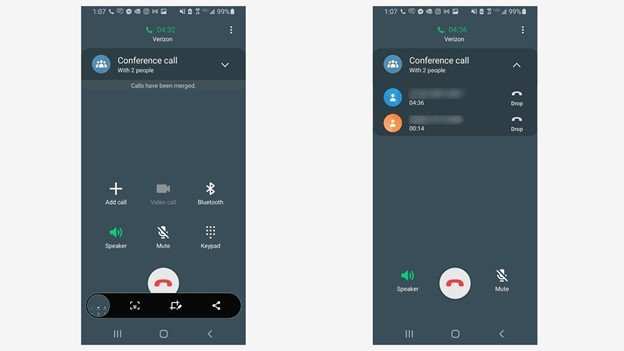
To make a conference call in Android, simply open your phone app, dial the first number, and then tap the add call button to include additional participants. **This quick process allows you to connect multiple contacts effortlessly.** Knowing how to make a conference call in Android helps you coordinate discussions smoothly without switching devices. Whether for work or personal use, this feature keeps conversations focused and time-efficient. Just follow these steps, and you’ll be hosting group calls in no time.
How to Make a Conference Call in Android
Making a conference call on your Android device can seem tricky at first, but once you understand the process, it becomes quick and easy. Whether you’re coordinating a work meeting, chatting with friends, or connecting with family members all at once, knowing how to set up a conference call can save time and keep everyone connected. This guide will walk you through every step, covering different Android versions, popular apps, and helpful tips to ensure you master conference calling on your device.
Understanding Conference Calls on Android
Conference calling on Android involves connecting multiple people in a single call so everyone can talk and listen at the same time. Most Android phones support this feature natively through the default dialer app, but some carriers or phones might have slight differences in how the process works. Additionally, there are third-party apps that make conference calls even more flexible and easier to manage.
Benefits of making conference calls:
- Save time by communicating with multiple people at once instead of calling each person individually
- Coordinate meetings or group activities seamlessly
- Stay connected with family and friends for social calls
- Improve team collaboration for work-related discussions
Using the Built-in Phone App for Conference Calls
Most Android phones come equipped with a built-in dialer app capable of handling conference calls. Here’s a step-by-step guide to help you make a conference call using your device’s default features:
Starting a Conference Call with Your Phone’s Dialer
- Open the Phone app on your Android device.
- Dial the first contact’s number and press the call button.
- Once the first person answers, look for the ‘Add Call’ option on your screen. It usually appears as a plus (+) sign or an icon with a person and a plus sign.
- Tap ‘Add Call’ to dial the second contact. You can either select a contact from your contacts list or manually enter a phone number.
- When the second person answers, you will see options to manage both calls. Tap ‘Merge Calls’ or ‘Merge’ to combine the two calls into a conference.
- If you want to add more people, repeat the process of tapping ‘Add Call’ and merging calls.
Managing Participants During the Conference
Once the call is set up, you can manage participants effectively:
- Mute a participant: Tap the person’s name or number and select ‘Mute’ if you want to silence their microphone.
- Remove a participant: Some Android devices allow removing a person by tapping their name and selecting ‘Remove from Call.’
- Split the call: If necessary, you can split a participant into a separate call to talk privately.
Tips for a Successful Conference Call with Built-in Features
- Ensure all participants have good network coverage for clear audio.
- Inform participants about the call and what will be discussed to prepare them.
- Mute unneeded participants to reduce background noise.
- Keep the call organized by allowing one person to speak at a time.
- Use headphones or a speakerphone for better sound quality and to free your hands.
Using Third-Party Apps for Conference Calls
While the native Android dialer works well, third-party apps can offer added functionalities such as easier participant management, recording options, and video conferencing. Here are some popular options:
Google Meet
Google Meet is a free app that allows you to host video and audio meetings with multiple participants. To make a conference call:
- Download and open Google Meet from the Play Store.
- Create a new meeting and share the link with participants.
- Join the meeting at scheduled time, and all participants can join via the link.
Zoom
Zoom is widely used for video conferencing but also supports audio-only conference calls:
- Download the Zoom app and create an account.
- Start a new meeting and invite participants via email or link.
- Participants join the call through the shared link or meeting ID.
Other Apps to Consider
- WhatsApp: Group voice calls up to eight participants.
- Skype: Supports group calls with up to 50 participants.
- WhatsApp, Messenger, or other messaging apps that support group calls for smaller groups.
How to Make a Conference Call on Different Android Devices
Android devices may vary slightly depending on the manufacturer (Samsung, Google, OnePlus, etc.) and carrier. Here are some tips specific to certain devices:
Samsung Devices
Most Samsung phones follow similar steps, but look out for the ‘Add Call’ and ‘Merge Calls’ options on the dialer screen.
Google Pixel and Stock Android
Pixel phones generally have a clean interface. The process remains the same, but if you don’t see ‘Merge Calls,’ check for ‘Conference Call’ options in your call menu.
Carrier-locked Devices
Some carriers restrict conference calling features. If you face issues, check with your carrier to ensure your plan supports conference calls or look for app-based solutions.
Common Troubleshooting Tips
- If you cannot merge calls, restart your device and try again.
- Make sure your carrier supports conference calling; some prepaid plans might not.
- Update your device’s software for the latest features and bug fixes.
- Check your network connection—Wi-Fi calling can sometimes interfere with conference call features.
- If audio quality is poor, switch to speakerphone or use wired headphones with a microphone.
Additional Features for Conference Calls
Once you are comfortable making basic conference calls, explore additional options:
- Recording: Some third-party apps support recording your calls for reference later.
- Scheduling: Apps like Google Calendar integrated with Google Meet help plan and notify participants about upcoming conference calls.
- Screen sharing: Useful in video calls to display presentations or documents.
Final Tips for Effective Conference Calling
To ensure your conference calls go smoothly:
- Test your audio equipment before the call begins.
- Keep your device charged to avoid interruptions.
- Choose a quiet location to minimize background noise.
- Announce when you’re adding new participants to avoid confusion.
- Record important meetings if needed for future reference, but inform participants first.
Making a conference call on Android might seem complicated at first, but with a bit of practice, it becomes straightforward. Whether you choose the built-in dialer, a third-party app like Google Meet or Zoom, or messaging apps that support group calls, you can stay connected with multiple people easily. Keep these steps in mind, and you’ll be hosting seamless conference calls right from your Android device whenever you need.
Frequently Asked Questions
How can I add multiple participants to an ongoing call on my Android device?
To add more participants to an active call, tap the ‘Add Call’ button during the conversation. Dial the next person’s number or select a contact from your list, then tap ‘Merge’ or ‘Merge Calls’ to combine the calls into a conference. Repeat this process to include all participants you want in the conference call.
Is it possible to initiate a conference call directly from the contacts app?
Yes, some Android phones allow you to start a conference call directly from your contacts. Open the contacts app, select a contact, and look for the option to ‘Start Conference’ or ‘Create Conference.’ If your device does not support this feature, you can manually add participants during an active call as described above.
What should I do if my Android phone doesn’t support conference calls natively?
If your device lacks native conference calling capabilities, consider using third-party apps or services that facilitate group calls. Apps like WhatsApp, Skype, or Google Meet support multiple participants and can serve as alternatives for group communication. Check with your carrier as well, as some may offer conference calling features through their services.
Final Thoughts
To make a conference call in android, start by dialing the first contact. Once connected, tap the add call button to include additional participants. After selecting the next contact, merge the calls by tapping the merge button. This simple process allows seamless communication with multiple people. With these steps, you can easily manage conference calls on your Android device.

Similar Posts































