How To Make 3 Way Call On Android For Easy Conference Calls
How to Make a 3-Way Call on Android
Making a three-way call on your Android phone might sound tricky at first, but it’s actually pretty simple once you know the steps. Whether you want to talk to two friends at the same time or include a colleague in a conversation, learning how to do a 3-way call can save you time and make communication smoother. In this section, we will walk through the entire process, step by step, and explore some helpful tips to make your experience better.Understanding the Basics of a 3-Way Call
Before diving into the how-to, let’s understand what a 3-way call is. Essentially, it allows you to connect three people in one conversation. This feature is handy for coordinating plans, resolving issues, or just catching up with more than one person at a time. Most Android phones support this feature, but the process can vary slightly depending on your device brand and carrier. Typically, there are two main methods to initiate a three-way call: using the built-in dialer and utilizing conference call features. Knowing both will help you use your phone better.Preparing Your Android Phone for a Three-Way Call
Before making the call, ensure your device is ready:- Check your signal strength — a good signal ensures a smooth connection.
- Make sure you have enough battery life — long conversations can drain your battery fast.
- Verify your plan includes conference calling features — most carriers support this, but some might charge extra.
- Update your phone’s software — running the latest version ensures compatibility with recent features.
Steps to Make a Three-Way Call on Android
The process can be broken into simple steps. Here’s how to do it using the standard Android dialer:Start Your First Call
1. Open the Phone app on your Android device. 2. Dial the first person’s number or select a contact from your list. 3. Press the call button and wait for the person to answer.Add a Second Person to the Call
1. Once the first call is active, look for the “Add call” or plus (+) icon on your screen. On some phones, it might be labeled as “Add call.” 2. Tap the button, and your current call will be put on hold temporarily. 3. Dial the second person’s number manually or select a contact. 4. Tap the call button to connect with the second person.Merge the Calls into a Conference
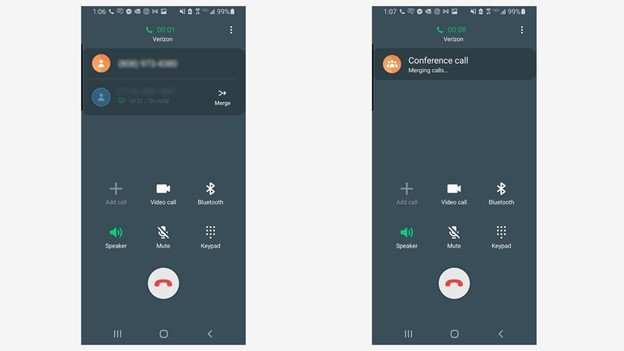
1. When the second person answers, you will see options on the screen. 2. Tap on “Merge calls” or “Merge,” depending on your device. 3. The two calls will now be combined into a single conference call. 4. You can speak with both people at once and switch between them if needed.Add More Participants (If Supported)
Some Android phones and carriers allow adding more than two people:- Repeat the process of tapping “Add call” and selecting new contacts.
- Merge each new call into the existing conference.
- Remember that some devices only support three-way calls, so check your phone’s capabilities.
Alternative Methods for Making 3-Way Calls on Android
In addition to the standard dialer method, there are other ways to make three-way calls:Using Carrier-Specific Codes
Some carriers support specific codes to facilitate conference calls:- Dial the first number and wait for it to connect.
- Use a special code (like *43# or similar) to initiate conference mode. Check with your carrier for exact codes.
- Dial the second and third contacts as instructed by your carrier.
Using Third-Party Apps
There are various apps that simplify conference calling, such as:- Google Voice
- Skype
Tips for a Better 3-Way Calling Experience
To make your three-way calls smoother, consider these tips:- Find a quiet place — background noise can make conversations hard to understand.
- Inform all participants beforehand — make sure everyone knows they’ll be in a conference call.
- Speak one person at a time — avoid talking over others to keep the conversation clear.
- Use the mute button — mute your microphone if you need to check something or reduce background noise.
- Stay patient — if the call drops or you face connection issues, hang up and try again.
Common Issues and Troubleshooting
Sometimes, making a three-way call on Android can run into problems. Here are some common issues and solutions:Unable to Merge Calls
*Ensure your carrier supports conference calls.* *Restart your device.* *Check for software updates.*Call Quality Is Poor
*Move to a location with better signal strength.* *Close background apps that might be using data.* *Use a wired headset or earphones for clearer audio.*Additional Participant Cannot Join
*Verify you have enough call minutes or plan support.* *Make sure the number is correct.* *If using third-party apps, ensure all participants have the app installed.*Wrapping Up
Making a three-way call on Android doesn’t have to be complicated. With a few taps, you can connect multiple people into one conversation effortlessly. Whether you choose to use the built-in conference call feature or explore third-party options, the key is to familiarize yourself with your device’s specific steps. Practice makes perfect, and soon you’ll be able to handle multi-person calls confidently, helping you manage your communication more effectively.Frequently Asked Questions
Can I add a third caller during an ongoing call on Android?
Yes, you can add a third caller during an ongoing call on Android. While on your current call, tap the “Add Call” button, which is usually represented by a plus (+) sign or labeled as “Add Call.” Dial the number of the third person and connect the call. Once the third call connects, you can merge the calls into a conference by tapping the “Merge” or “Merge Calls” option.
What steps should I follow to switch between multiple calls on Android?
To switch between calls on Android, tap the “Swap” or “Swap Calls” button during a call. This allows you to put one call on hold and answer or switch to another call. If you have multiple calls on hold, you can also select the specific call to resume or merge them into a conference call.
Is there a limit on the number of participants in a three-way call on Android?
The maximum number of participants in a three-way call depends on your mobile carrier and device. Most Android phones support conference calls with up to five participants, but some carriers may restrict this number. Check with your carrier or device specifications for the exact limit.
How do I end a three-way call on Android without disconnecting all participants?
To end a call with multiple participants without disconnecting everyone, tap the “End Call” button when you want to disconnect. Usually, you can select individual calls from the call screen and hang up one while keeping the others active. To terminate the entire conference, you may need to end the call from the conference screen or use the “Merge” options to disband the group.
Can I initiate a conference call with contacts saved on my Android device?
Yes, you can start a conference call with contacts saved on your Android device. Call your first contact, then add additional contacts by tapping “Add Call” during the call. Dial the next person and merge calls to create a three-way or multi-party conference. This process works smoothly if your carrier supports conference calling.
Final Thoughts
To make a 3 way call on Android, first call the person you want to speak with. Once connected, tap the “Add call” button to dial the second contact. When both calls are active, press “Merge” to create the three-way conversation. This simple process allows you to seamlessly connect with multiple parties on your Android device. Remember, how to make a 3 way call on Android involves easily combining calls with a few taps. Keep this method in mind for quick, multi-party communication.
Similar Posts































