How To Integrate Chatgpt Into WordPress Effectively
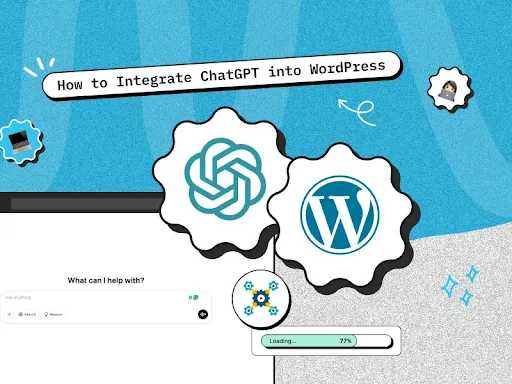

How to Integrate ChatGPT into WordPress
Integrating ChatGPT into your WordPress site can greatly enhance user engagement and streamline communication. This technology brings artificial intelligence into your website, providing instant responses to user inquiries and improving overall user experience. In this detailed guide, we will explore the steps to integrate ChatGPT into your WordPress site, along with some helpful tips and tricks.Understanding ChatGPT and Its Benefits
ChatGPT is an AI language model developed by OpenAI. It can understand and generate human-like text based on the user’s input. Here are some benefits of integrating ChatGPT into your WordPress site:- 24/7 Availability: ChatGPT can respond to user queries any time of the day.
- Improved User Experience: Provides instant replies, making interactions smoother.
- Cost-Effectiveness: Reduces the need for a large support team.
- Increased Engagement: Encourages visitors to spend more time on your site.
Choosing the Right Plugin for Integration
To integrate ChatGPT into your WordPress site, you will need to find a suitable plugin. Here are a few popular options:- WP Chatbot: This plugin allows easy integration with Facebook Messenger and can also work with ChatGPT.
- Chatbot with Dialogflow: It connects your site with Google’s AI technologies.
- ChatGPT Plugins: Look for specific plugins designed to integrate ChatGPT directly.
Installing the Plugin
Once you have selected the right plugin, installing it is straightforward. Follow these steps: 1. **Log in to your WordPress Dashboard.** 2. **Go to Plugins > Add New.** 3. **Search for your chosen plugin.** 4. **Click “Install Now” and then activate it.** After activating the plugin, you will see a new menu option in your dashboard.Setting Up ChatGPT API Key
To use ChatGPT, you will need an API key from OpenAI. Here’s how to get one: 1. **Sign up for an OpenAI account** if you haven’t already. 2. **Navigate to the API section** and apply for access. 3. **Once approved, copy your API key.** You will need this key to connect the plugin with ChatGPT.Configuring the Plugin Settings
After obtaining your API key, proceed to configure the plugin settings. Here’s what to do: 1. **Go to the plugin settings page in your WordPress dashboard.** 2. **Paste your API key into the designated field.** 3. **Adjust any other settings** according to your preferences, such as response time and language. Make sure to save your changes before proceeding.Customizing Your ChatGPT Experience
Customization plays a crucial role in user interaction. Here are some options to personalize the ChatGPT experience on your WordPress site:- Greeting Message: Set a friendly greeting message that introduces visitors to the chatbot.
- Response Templates: Create templates for common queries to streamline responses.
- Design Options: Customize the appearance of the chat window to match your site’s theme.
Testing the Integration
Before launching the ChatGPT feature on your site, it’s essential to conduct thorough testing. Follow these steps: 1. **Open your website in a new browser tab.** 2. **Initiate a chat session** through the chat window. 3. **Ask various questions to see how the chatbot responds.** Check for any inaccuracies or delays in responses and make adjustments as necessary.Maintaining Your ChatGPT Integration
After successfully integrating ChatGPT into your WordPress site, maintenance is key. Here are some tips for ongoing management:- Regular Updates: Keep your plugin updated to ensure compatibility with the latest WordPress version.
- Monitor Performance: Use analytics tools to track user engagement and interaction patterns.
- Gather Feedback: Ask your users for feedback on their experiences with the chatbot.
Implementing Security Measures
Ensuring the security of your ChatGPT integration is vital. Here are some security measures to implement:- Use HTTPS: Secure your website with an SSL certificate.
- Limit API Access: Restrict the usage of your API key to specific domains.
- Regular Backups: Ensure you have backups of your site in case of any issues.
Enhancing User Interactions with AI
With ChatGPT, you can create engaging user interactions. Here are some strategies:- Interactive Quizzes: Use ChatGPT to build fun quizzes that encourage users to engage.
- Personalized Recommendations: Leverage AI to suggest content based on user preferences.
- Feedback Collection: Ask users for their thoughts on content and services through the chatbot.
Analyzing Chatbot Interactions
Analyzing the interactions between users and the chatbot can reveal valuable insights. Here’s how to do it: 1. **Collect Data:** Use your analytics tools to gather data on chat sessions. 2. **Identify Patterns:** Look for frequently asked questions or common concerns. 3. **Optimize Responses:** Use this data to refine how ChatGPT interacts with users. This can lead to an improved user experience and higher satisfaction levels.Exploring Additional Functionalities
ChatGPT can offer additional functionalities beyond basic chat responses. Here are some ideas:- Customer Support: Provide troubleshooting tips and FAQs.
- Event Scheduling: Allow users to schedule appointments through the chatbot.
- Product Information: Help users find specific products on your site.
Integrating Other AI Tools
Consider integrating other AI tools to complement ChatGPT. Here are a few suggestions:- Content Creation Tools: Use AI for blog post ideas or drafting.
- SEO Optimization Tools: Enhance your site’s visibility through AI-driven SEO strategies.
- Data Analysis Tools: Leverage AI to analyze user data for better decision-making.
How to Integrate OpenAI Chat GPT Chatbot into WordPress
Frequently Asked Questions
“`htmlWhat plugins are available for integrating ChatGPT into WordPress?
Several plugins facilitate the integration of ChatGPT into WordPress. Some popular options include “WP GPT-3” and “AI Engine.” These plugins allow you to easily connect your WordPress site with ChatGPT, providing various features such as chatbot functionality and automated content generation.
How can I customize ChatGPT responses on my WordPress site?
You can customize ChatGPT responses by adjusting the parameters within the API settings. This involves modifying the prompt or settings in the plugin you are using. You can specify the tone, style, or specific topics you want ChatGPT to focus on, ensuring the responses align with your site’s voice and audience expectations.
Is it necessary to have coding skills to integrate ChatGPT into WordPress?
No, you do not need coding skills to integrate ChatGPT into WordPress. Most available plugins provide a user-friendly interface for setup and configuration. However, some customization might require basic knowledge of HTML or JavaScript, especially if you want to modify the appearance or functionality beyond default settings.
What are the potential costs associated with using ChatGPT on my WordPress site?
The costs of using ChatGPT on your WordPress site can vary. While some plugins offer free versions with limited features, others may require a subscription or a one-time fee for advanced functionalities. Additionally, using the OpenAI API may incur usage charges based on the number of requests or tokens consumed.
Can I use ChatGPT for customer support on my WordPress site?
Yes, ChatGPT can effectively serve as a customer support tool on your WordPress site. By configuring the chatbot feature, you can provide instant responses to common inquiries, helping enhance user experience and reduce response times. However, ensure that you periodically monitor interactions to maintain quality and address more complex queries when necessary.
“`Final Thoughts
Integrating ChatGPT into WordPress enhances user engagement and provides instant support. Start by installing a suitable plugin that connects your site with the ChatGPT API. Customize the chat interface to match your site’s design for a seamless experience. Finally, test the integration thoroughly to ensure everything operates smoothly. Following these steps, you will successfully learn how to integrate ChatGPT into WordPress, creating an interactive platform for your visitors.
Similar Posts