How To Find A Lost Android Phone Using Find My Device
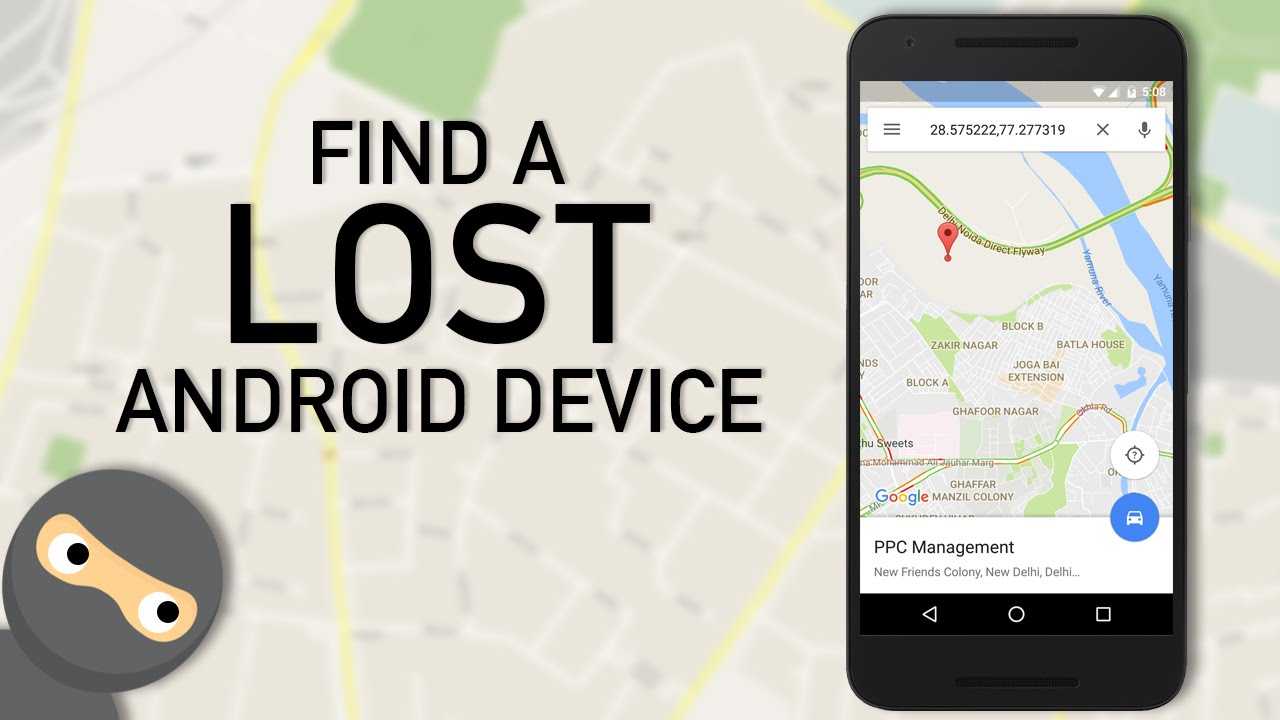

How to find a lost Android phone using Find My Device
Understanding what Find My Device is
Find My Device is a free service provided by Google that helps you locate your lost Android phone. It works by connecting your device to your Google account and using its location services. This tool not only shows where your phone is on a map but can also make it ring, lock, or erase your data remotely.Preparing your phone for Find My Device
Before your phone gets lost, it’s helpful to set up your device for easier recovery. You need to ensure that your phone has active location services, an internet connection, and your Google account is linked. Additionally, turn on Find My Device in your phone settings to enable tracking features.Steps to activate Find My Device on your Android phone
- Open the Settings app on your device.
- Scroll down and tap on Google.
- Select Security & Location or Find My Device, depending on your device model.
- Ensure that Find My Device is turned on.
- Check that Location is enabled and set to High accuracy mode for better results.
Locating your lost phone using Find My Device
Once your phone is lost, you can locate it from another device or computer. Visit the official Find My Device website or use the app to get real-time location updates. Make sure you’re logged into the same Google account linked to your lost phone.Accessing the Find My Device service
- Open a web browser and go to https://www.google.com/android/find.
- Sign in with your Google account credentials.
- Allow a moment for the service to locate your device on the map.
Interpreting the location data
Find My Device shows your phone’s approximate location on a map. The accuracy depends on your device’s GPS and internet connection. If the location appears inaccurate, try refreshing the page or wait a few moments for the device to update its position.Using Find My Device to play a sound
If your phone is nearby but you can’t see it, use the ‘Play Sound’ feature. This makes your device ring at full volume for five minutes, even if it’s on silent. It can help you find your phone hiding under a couch or in a drawer.Steps to play a sound
- Click on the ‘Play Sound’ button in Find My Device.
- Your phone will start ringing loudly.
- Follow the sound to locate your device quickly.
Lock your device remotely for security
If you’re worried about someone accessing your personal data, locking your device is crucial. You can lock your phone remotely and display a custom message with your contact info. This can help someone return your device if found.How to lock your device
- Click on the ‘Secure Device’ option in Find My Device.
- Set a new PIN, password, or pattern if prompted.
- Add a message with your contact information to display on the lock screen.
- Click ‘Lock’ to activate the lock immediately.
Erasing your data to protect privacy
If recovery seems unlikely or your device has been stolen, erasing your data can prevent sensitive information from falling into the wrong hands. Keep in mind that once erased, you cannot track your device anymore.Steps to erase your device remotely
- Select the ‘Erase Device’ option in Find My Device.
- Confirm your decision to delete all data from your device.
- Follow the prompts to complete the erasure process.
Additional tips for using Find My Device effectively
To improve your chances of recovery, keep your Google account and device settings up-to-date. Always enable location services and Keep Find My Device turned on. Regularly check your device’s security settings to ensure tracking features are active.What to do if Find My Device can’t locate your phone
- Ensure your phone is turned on and connected to the internet.
- Verify that location services are active on your device.
- Check if your device has sufficient battery charge.
- Consider that your device might be turned off or out of network coverage.
Related topics to consider
Using Google Timeline to find your device history
Google Timeline records your device’s location history if enabled. It can help you identify where your device was before losing it.Installing additional security apps
For enhanced protection, consider installing third-party security apps that offer more tracking options, remote locking, and data wiping features.Preventative measures to avoid losing your phone
Use features like Smart Lock, which keeps your device unlocked in trusted locations or with trusted devices. Always keep your phone updated and consider setting up a unique lock pattern or PIN.Summary
Finding your lost Android phone becomes manageable with Find My Device. Proper setup beforehand improves your chances of recovery. Use the tool to locate, ring, lock, or erase your device efficiently, ensuring your personal data stays safe. Remember to keep your device connected to the internet and regularly check your security settings, so you’re prepared for any unexpected loss.Here's HOW To Find Your Lost Or Stolen Android Phone !!! #androidtricks #learnmore
Frequently Asked Questions
What steps should I take if my Android device is turned off when I try to locate it?
If your Android phone is off, the Find My Device feature can’t track its real-time location. However, you can set it to notify you when the device powers back on. Ensure that your device is connected to the internet once it is turned on, and then check the location through Find My Device or receive an email alert with its current location. Additionally, you should consider marking the device as lost, which locks it and displays a message with contact information to help someone return it.
Can I locate my Android phone if the battery has completely drained?
When the battery is fully drained, Find My Device cannot determine the phone’s location until it charges and powers back on. To prepare for such situations, enable the ‘Send last location’ option in your device settings. This feature automatically sends the last known location before the battery dies, providing you with an approximate position of your device.
Is it possible to make my lost Android device ring even if it’s on silent mode?
Yes, using Find My Device allows you to make your Android phone ring at full volume, regardless of its current sound setting. This feature helps you locate your device if it’s nearby but muted. Simply select the ‘Play Sound’ option in the Find My Device app or website, and your phone will emit a loud ringing noise for five minutes or until you find it.
How can I enhance the chances of recovering my Android device through Find My Device?
To improve your chances of recovering a lost Android phone, ensure Location and Find My Device are enabled on your device before losing it. Keep your device connected to the internet and sign in with your Google account. Additionally, enable device lock and display a custom message with a contact number through Find My Device, so a finder can reach you if they locate your phone.
Final Thoughts
To find a lost Android phone using Find My Device, start by visiting the website or opening the app. Sign in with your Google account linked to the device. Once signed in, select your phone from the list of devices. The app will display your phone’s last known location on a map. You can make your phone ring, even if it’s on silent, to help locate it nearby. Using these features makes it easier to retrieve your device quickly and efficiently.
Similar Posts































