Find Lost Android Phone With Dead Battery Secrets
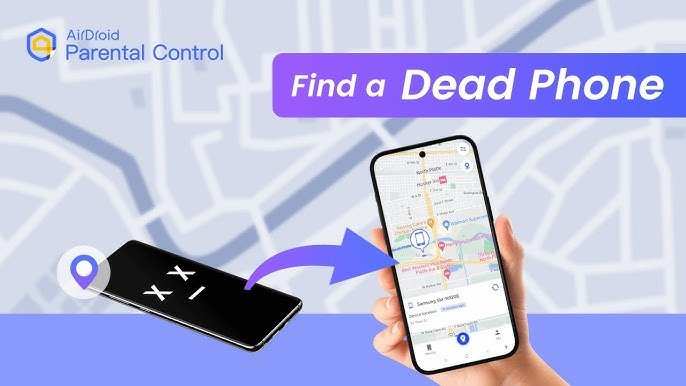
**To find a lost Android phone with a dead battery, the best approach is to use your Google account through another device.** Once your phone is connected to Wi-Fi or gets some power, it can send its location.
Even with a dead battery, you can check last known locations or use your Google account to alert your device when it powers back on.
Don’t worry if your phone isn’t immediately visible; these methods help you track it down efficiently and with minimal stress.

How to Find Your Lost Android Phone with a Dead Battery
Losing your Android phone can be stressful enough, but what happens when the battery is dead and you can’t call or track it directly? Don’t worry—there are several ways to locate your phone even if it’s out of juice. In this guide, we’ll explore effective steps and tips to help you find your lost Android device, no matter the battery situation. From utilizing location services to physical search strategies, learn how to increase your chances of recovery.
Understanding Why a Dead Battery Makes Finding Your Phone Difficult
Before diving into solutions, it’s important to understand why a dead battery complicates the process. When your Android phone’s battery dies, it stops transmitting its location. Apps like Find My Device or Google’s location services depend on the phone being powered on and connected to the internet. Without power, these tools become useless, forcing you to explore alternative methods.
Key points to remember:
- Without battery power, your phone cannot send location data.
- If the phone was offline or turned off intentionally, it might not appear in tracking apps.
- Physical clues and prior knowledge become vital in locating your device.
Using Google’s Find My Device When Your Phone Is Dead
Google’s Find My Device is the go-to tool for locating Android phones. Although the app relies on the device being on and connected, it still offers features that can assist you after the phone is dead:
Viewing Last Known Location
If your phone has been connected to the internet recently, Google may display its last known location. This snapshot can provide a starting point, indicating where your device was before it lost power or went offline.
Checking the Time of Last Activity
Find My Device also shows the last time your phone was active. Knowing this can help you narrow down the search area, especially if the phone died shortly after being used.
Enabling Notifications When Found
Set up alerts that notify you when your phone comes online again. While this doesn’t help locate a dead phone immediately, it prepares you to act quickly once the device is powered back on.
Other Ways to Track a Dead Android Phone
When Google’s services don’t yield enough clues, try these alternative methods:
Retrace Your Steps and Think About the Last Use
Sometimes, the best way is the most straightforward. Think about where you last used or saw your phone. Did you leave it on a table at a coffee shop? Drop it in your bag or car? Use these clues to guide your physical search.
Ask People Around You
If you’re in a public place, ask staff members or friends nearby if they’ve seen your phone. Sometimes, someone might have picked it up or moved it for safekeeping.
Look for Physical Clues and Common Hiding Spots
Phones often slip into places like:
- Under cushions or furniture
- Between car seats
- Inside pockets or bags
- Behind appliances or in laundry baskets
Using Bluetooth and Nearby Device Detection
If your phone has Bluetooth enabled and is within range, you may still find it through nearby device scans:
Using Other Devices to Detect Bluetooth
Devices like tablets or another Android phone can scan for Bluetooth signals. If your lost phone is on and Bluetooth is active, it may emit a signal that nearby devices can detect.
Apps That Help Find Bluetooth Devices
Some apps and built-in device features allow you to scan for Bluetooth signals. If your phone is in proximity, it might be discoverable, giving you a clue about its location.
Physical Search Strategies to Locate a Dead Battery Phone
Sometimes, digital tools aren’t enough. Use these practical tips to aid your physical search:
Designate a Search Area
Divide the area where you think the phone might be into zones. Search each zone thoroughly before moving on.
Use a Flashlight in Dark Spaces
A flashlight can help you spot reflections or shining surfaces that might hide your device, especially under furniture.
Check Common Hiding Spots and Unusual Places
Look in places where the phone could have slipped or been concealed, such as:
- Behind books or papers
- In laundry baskets
- Inside drawers or cabinets
- Under car seats or in glove compartments
Preventive Measures for Future Incidents
While finding your phone can be challenging when the battery is dead, prevention makes the process easier next time:
Enable Find My Device and Keep It Active
Always keep this feature enabled and ensure your device is connected to a Google account.
Regularly Charge Your Phone
Charge your device often, especially before heading out or in situations where losing it is more likely.
Set Up Emergency Contacts and Notifications
Share your device’s location with trusted contacts who can assist if you lose your phone.
Use Smart Accessories
Smart tag or Bluetooth key trackers can help you locate your device even if it’s out of power, as long as they are powered and within range.
Practical Tips for When Your Phone is Dead and Lost
– Keep calm and think logically about where the device could be.
– Check recent activity in your Google account for clues.
– Search thoroughly and methodically.
– Don’t forget to alert local authorities or your service provider if you suspect theft.
By combining digital tools, physical search techniques, and preventive habits, you maximize your chances of recovering your Android phone even if the battery is dead. Remember, patience and thoroughness make all the difference.
Frequently Asked Questions
What options are available if my Android phone’s battery dies when I’m trying to find it?
If your Android phone’s battery dies, you can try locating it through your Google account on a web browser. Log in to your Google account and access the Find My Device feature to see the last known location and any recent activity. Additionally, wait until the phone is charged again to attempt to locate it using the device’s location services.
How can I prevent losing my Android phone with a dead battery in the future?
To reduce the chances of losing your phone when the battery dies, keep your device charged regularly and enable battery-saving modes to extend battery life. You can also set up an alternative recovery method, such as a Bluetooth tracker or share your location with trusted contacts, so they can help find the device even if it’s out of power.
Is there a way to locate my Android device once it has been turned off due to a dead battery?
Once your Android device powers off because of a dead battery, real-time location tracking becomes unavailable. However, if you enabled location history or device updates, you might be able to see the last known location before the battery drained. Using this information, you can check nearby areas or retrace your steps to find your phone.
Can apps help in locating my Android phone after the battery is dead?
Most tracking apps require an active battery and internet connection to provide current location updates. If your phone’s battery is dead, these apps can’t track it in real-time. However, some apps log the last known location before the device powered off, which can help guide your search.
What steps should I take immediately after realizing my phone’s battery is dead and I can’t locate it?
First, try to remember where you last used your phone and check those places. Contact nearby locations or individuals who might have seen it. Wait until the device’s battery charges again so you can use location services or tracking features. Meanwhile, inform your service provider about the loss and consider turning on features like device locking or remote wiping to protect your data.
Final Thoughts
Finding a lost Android phone with a dead battery can be challenging, but several methods offer solutions. Check your Google Maps timeline, as it may have recorded your phone’s last location. Use your Google account to ring your device remotely through Find My Device. Keep in mind, these steps increase your chances of recovering your phone even when the battery is drained. Remember, persistence is key when trying to find a lost Android phone with dead battery.

Similar Posts