How To Enable Dark Mode In Windows 11 Easily

How to Enable Dark Mode in Windows 11
Switching to dark mode in Windows 11 can make your screen easier on the eyes, especially in low-light environments. It’s a simple process that improves your overall user experience and adds a sleek, modern look to your desktop. In this guide, we will walk through every step to enable dark mode quickly and easily.
Understanding the Benefits of Dark Mode
Dark mode helps reduce eye strain by decreasing the amount of bright light emitted from your screen. It can also save battery life on laptops with OLED screens, as darker pixels consume less power. In addition, many users find dark mode more visually appealing and easier to work with over long periods.
Preparing Your System for Dark Mode Activation
Before you enable dark mode, ensure your Windows 11 system is up to date. Regular updates improve performance and security, which are essential for a smooth transition. Check for updates by opening Settings, clicking on Windows Update, and selecting Check for updates.
Step-by-Step Guide to Enable Dark Mode in Windows 11
Follow these simple steps to activate dark mode:
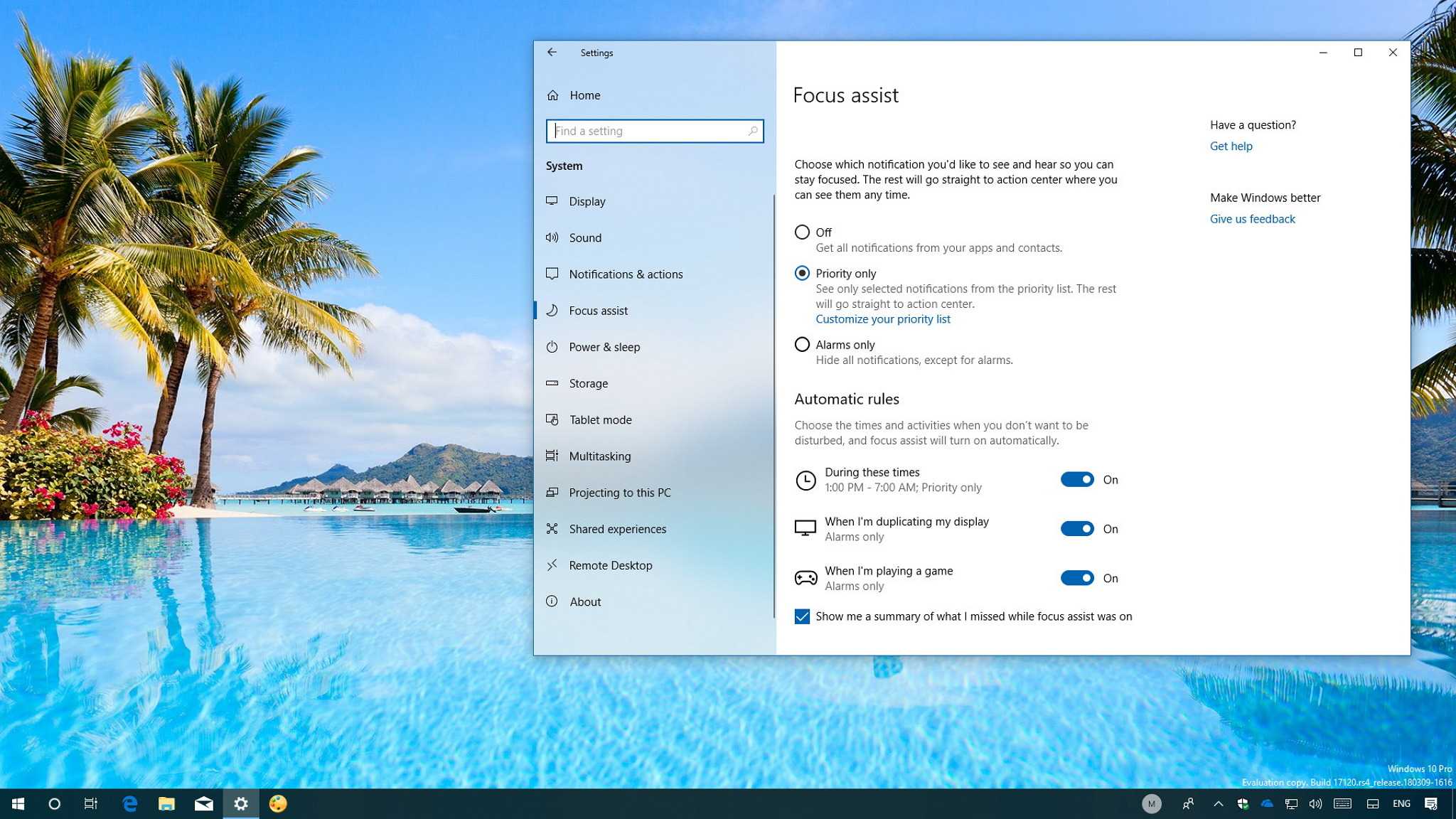
- Open Settings: Click on the Start menu and select the gear-shaped Settings icon, or press Windows + I on your keyboard.
- Navigate to Personalization: In the Settings window, click on the ‘Personalization’ option.
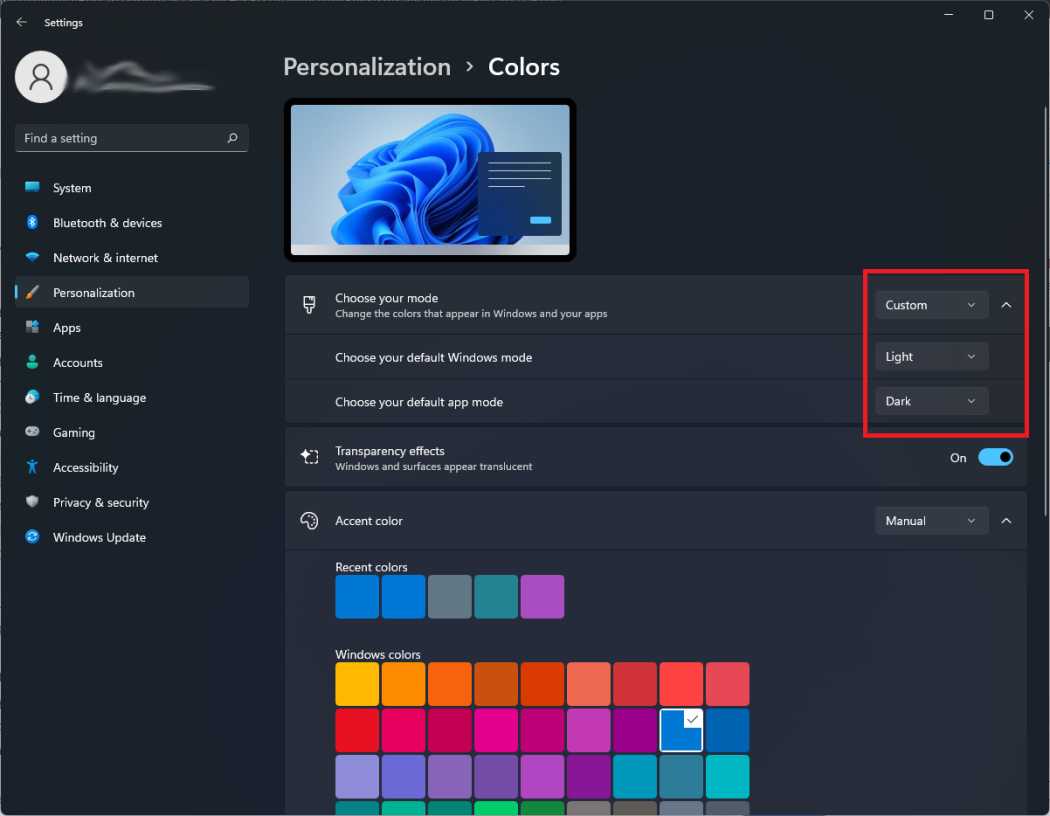
- Select Colors: From the menu on the left, click on ‘Colors’ to access color settings.
- Choose Your Mode: Under the ‘Choose your mode’ section, click the dropdown menu and select ‘Dark.’
- Apply the Changes: Once selected, Windows will automatically switch to dark mode across compatible apps and system interfaces.
Customizing Dark Mode Settings for a Better Look
Adjusting Accent Colors
You can personalize the dark mode appearance by choosing different accent colors. Under the ‘Accent color’ section, select the color you prefer or let Windows pick an accent automatically based on your desktop background.
Enabling Dark Mode for Specific Apps
Some apps may not switch automatically to dark mode. To manage this, during the ‘Colors’ settings, scroll down to find individual app settings. Here, you can select whether apps follow Windows’ theme or have their own specific setting.
Alternative Ways to Enable Dark Mode in Windows 11
Using the Quick Settings Panel
Windows 11 offers a quick way to toggle dark mode via the Quick Settings panel. Click on the network, sound, or battery icon in the taskbar, then select the ‘Dark mode’ icon to switch themes instantly.
Enabling Dark Mode via Registry (Advanced users)
For those comfortable with system settings, you can enable dark mode by editing the Windows Registry. This method provides more customization options but should be approached carefully to avoid system issues.
| Registry Path | Value Name | Value |
|---|---|---|
| HKEY_CURRENT_USER\Software\Microsoft\Windows\CurrentVersion\Themes\Personalize | AppsUseLightTheme | 0 (to enable dark mode) |
| HKEY_CURRENT_USER\Software\Microsoft\Windows\CurrentVersion\Themes\Personalize | SystemUsesLightTheme | 0 (to enable dark mode) |
Remember to back up the registry before making changes and follow instructions carefully.
Troubleshooting Common Issues with Dark Mode
Apps Not Switching to Dark Mode
If some applications don’t change to dark mode, check their individual settings. Many apps have their own theme options that need adjustment manually.
System Interface Not Switching
Ensure your Windows is fully updated. Reboot your computer if dark mode does not activate immediately. Sometimes, a restart can fix theme inconsistencies.
Additional Tips for Using Dark Mode
- Combine dark mode with Night Light to reduce blue light exposure and improve sleep quality.
- Adjust brightness settings to complement dark mode for a comfortable viewing experience.
- Install dark mode-compatible wallpapers to enhance the overall aesthetic.
Related Topics to Explore
Beyond enabling dark mode, you can customize other appearance settings in Windows 11 to create a cohesive look.
- Changing Desktop Background: Choose wallpapers that match your theme.
- Adjusting Font Size and Style: Make text easier to read in dark environments.
- Managing Notification Colors: Set notification banners to display in colors that suit dark mode.
Summary of Key Points for Enabling Dark Mode in Windows 11
- Access Settings via Start menu or keyboard shortcut.
- Navigate to Personalization and then Colors.
- Select ‘Dark’ in the ‘Choose your mode’ dropdown.
- Customize accent colors for a personalized look.
- Use alternative methods like Quick Settings or Registry edits if needed.
- Troubleshoot apps or system issues by checking individual app settings or updating your system.
Enabling dark mode in Windows 11 is straightforward and can significantly improve your computing experience. Whether you prefer a gentle, dark environment for nighttime work or want your entire system to look modern and sleek, these steps will make it easy to switch themes. Take a few moments to customize your settings and enjoy a more comfortable, visually appealing setup.
How to Enable Dark Mode on Windows 11 – Windows 11 Dark Themes
Frequently Asked Questions
What steps are involved in switching to dark mode through the Settings menu?
To enable dark mode via the Settings menu, open the Start menu and select the gear icon to access Settings. Navigate to the Personalization section, then click on Colors. Scroll down to the ‘Choose your color’ dropdown menu and select ‘Dark.’ The interface will immediately switch to dark mode, applying the theme to supported apps and system elements.
Can I set dark mode to activate automatically at specific times?
Windows 11 allows you to schedule dark mode activation through the Settings. Go to Settings > Personalization > Colors. Under ‘Choose your color,’ select ‘Custom,’ and then choose ‘Dark’ for the ‘Choose your default Windows mode.’ While Windows does not offer built-in scheduling, you can use third-party automation tools or scripts to toggle themes at designated times.
Is it possible to enable dark mode only for certain apps or parts of the interface?
Yes, Windows 11 provides options to customize dark mode settings for individual apps. In Settings > Personalization > Colors, turn on ‘Dark’ mode globally, then scroll to the section titled ‘Choose your default app mode’ and select either ‘Light’ or ‘Dark’ for app-specific themes. This allows you to have a mixed appearance, with some apps in light mode and others in dark mode.
How can I quickly switch between light and dark modes without going through Settings?
You can add the quick action toggle for dark mode to the Action Center for faster access. Click the Notification Center icon on the taskbar, then click ‘Expand’ if needed. Look for the ‘Dark Mode’ toggle; if it’s not there, right-click on the Action Center and select ‘Edit your quick actions.’ Add the Dark Mode toggle for easy switching at any time.
Does enabling dark mode impact the appearance of third-party applications?
Enabling dark mode in Windows 11 primarily affects supported system elements and apps that follow the system theme. Many third-party applications automatically adapt to the current theme, but some may require individual settings adjustments. Check the app’s settings to ensure they are set to use the system theme or to manually enable dark mode within the app itself.
Final Thoughts
Enabling dark mode in Windows 11 is simple and quick. Navigate to Settings, then Personalization, and select Colors. From there, choose Dark under the ‘Choose your mode’ section. This change applies system-wide for a sleek, comfortable viewing experience. Adjusting dark mode helps reduce eye strain and conserves battery life on your device. It’s a practical feature that enhances usability during extended use. How to enable dark mode in Windows 11 ensures your interface matches your preferences effortlessly. Quickly toggle it whenever you want a more subdued, less bright screen.
Similar Posts