How to Delete iCloud Backups for Good
If your iPhone keeps telling you iCloud storage is full, you are not alone. Learning how to delete your iCloud backups is one of the fastest ways to free up space without losing the photos and messages you actually care about.
Apple gives every account 5 GB of free storage, and a single backup can easily eat 2 to 4 GB of that. According to Apple's official support documentation, deleting an old backup clears up space on its servers immediately. Let us walk through exactly what happens when you hit that delete button.
Understanding iCloud Backups — What You're Actually Deleting
An iCloud Backup is a copy of your device's settings, app data, and configuration that Apple stores on its servers. It is not a full copy of everything on your phone. Understanding what is inside helps you decide whether deleting it is safe.
What's Inside an iCloud Backup
When your iPhone backs up to iCloud, it saves the data that makes restoring a new device feel like your old one. Here is what gets included:
- App data, Progress in games, settings inside apps, and documents stored by apps
- Device settings, Wi-Fi passwords, wallpapers, display brightness, and notification preferences
- Messages, iMessage and SMS texts, but only if you do not have iCloud Messages enabled
- Health data, Workout history, health records, and Apple Watch activity logs
- HomeKit configurations, Settings for smart home devices and automations
- Ringtone and voicemail, Custom ringtones and Visual Voicemail passwords
What's NOT in an iCloud Backup
This is where people get confused. Many things you would hate to lose are stored separately from your backup. Apple's iCloud architecture keeps these items out of the backup file:
- Photos and videos, These live in iCloud Photos if you have that turned on
- Contacts, calendars, and reminders, These sync through iCloud, not the backup
- Mail, Your email stays on the server, not in the backup
- Apple Pay data, Card details are never stored in backups
- Face ID and Touch ID settings, These are device-specific and not backed up
- App Store and iTunes content, You can re-download purchases
The key takeaway is that your backup is mostly app data and settings. Your photos, contacts, and email are safe even if you delete the backup file.
Quick Answer: How to Delete an iCloud Backup (30-Second Summary)
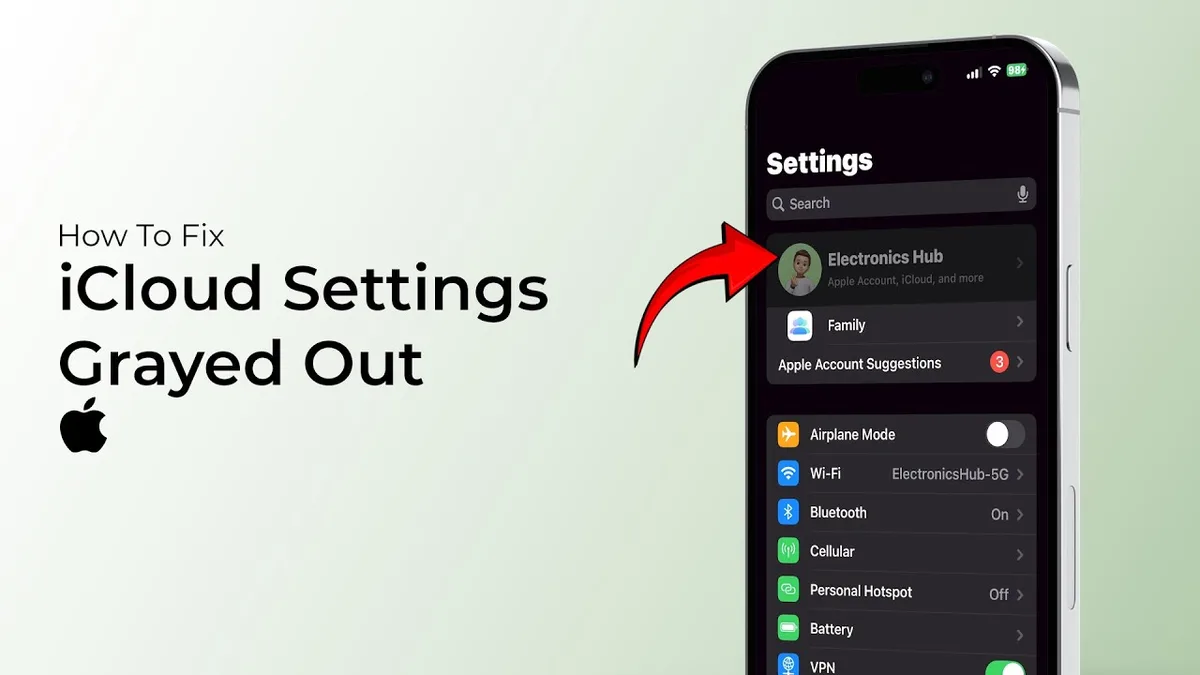
Open Settings on your iPhone. Tap your name at the top. Tap iCloud.
Tap Manage Account Storage. Tap Backups. Select the device.
Tap Delete Backup. Confirm.
That is it. The backup disappears from Apple's servers immediately. Your photos, contacts, and messages that sync through iCloud stay untouched.
The storage space frees up within a few minutes, though it can take up to 24 hours to fully update your iCloud storage bar.
Before You Delete — Should You Back Up Locally First?
Deleting an iCloud backup is permanent. There is no undo button. If you delete the only backup of a device you still use, you lose the ability to restore that phone's data if something goes wrong.
That is why a local backup is a smart safety net.
A local backup is a copy of your device saved to your computer instead of Apple's servers. You can make one using Finder on a Mac (macOS Catalina and later) or iTunes on Windows and older Macs. The process takes about 15 to 30 minutes depending on how much data you have.
Pros and Cons of Local Backups vs. iCloud Backups
| Feature | Local Backup (Finder/iTunes) | iCloud Backup |
|---|---|---|
| Storage cost | Free (uses your computer's drive) | 5 GB free, then paid plans |
| Encryption | Optional (turn on in settings) | Automatic |
| Restore speed | Fast over USB, slower over Wi-Fi | Fast with good internet |
| Accessibility | Tied to one computer | Any device with your Apple ID |
| Automatic backups | No, you must do it manually | Yes, nightly when charging |
If you are selling your phone or trading it in, a local backup is essential. You can restore that backup to your new device during setup. If you are just cleaning up old backups from devices you no longer own, you can skip this step.
Step-by-Step: Delete an iCloud Backup on iPhone or iPad
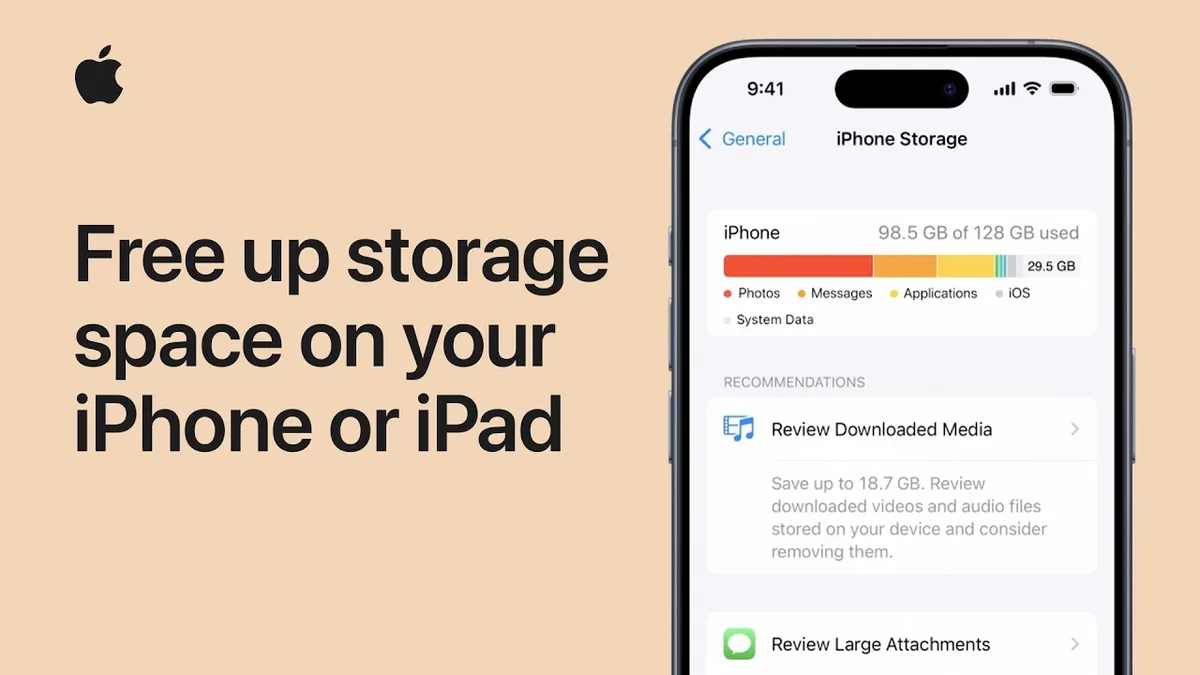
The most common way to delete a backup is right from your iPhone. The path is the same on iPad as of 2026. Here is exactly how to do it.
How to Delete a Single Backup (Keep iCloud Backup On)
- Open Settings and tap your name at the top
- Tap iCloud
- Tap Manage Account Storage (or just "Storage" on some iOS versions)
- Tap Backups
- You will see a list of devices with backups. Tap the one you want to delete
- Tap Delete Backup
- A warning pops up. Read it, then tap Delete
Your other backups stay untouched. iCloud Backup continues to run automatically for your remaining devices. This is the safest option if you still use the device but just want to free up space.
How to Turn Off iCloud Backup Entirely (Deletes All Backups)
If you want to stop iCloud backups completely, the process is different. When you turn off iCloud Backup, Apple deletes every backup associated with that device.
- Go to Settings > your name > iCloud
- Tap iCloud Backup (it is usually the second option in the list)
- Toggle iCloud Backup off
- A pop-up asks if you want to "Delete from iCloud" or "Keep on iCloud"
- Tap Delete from iCloud
This removes all backups for that device. It also stops the nightly automatic backup. Your other iCloud services like Photos, Contacts, and Mail keep working normally.
Step-by-Step: Delete an iCloud Backup on a Mac
You can also delete backups from your Mac. The path depends on your macOS version. Apple changed the settings layout starting with macOS Ventura.
macOS Ventura and Later (System Settings)
- Click the Apple menu and choose System Settings
- Click your name at the top of the sidebar
- Click iCloud
- Click Manage (near the storage bar)
- Click Backups
- Select the backup you want to remove
- Click the minus sign (, ) or Delete
- Confirm the deletion
macOS Monterey and Earlier (System Preferences)
- Open System Preferences and click Apple ID
- Click iCloud in the sidebar
- Click Manage
- Click Backups
- Select the device and click Delete
The Mac method is useful if your iPhone screen is broken or you are managing backups for multiple family devices. You can see all backups tied to your Apple ID in one place.
Step-by-Step: Delete an iCloud Backup on Windows
You can also delete iCloud backups from a Windows PC. This is handy if your iPhone screen is damaged or you are managing family devices from one computer.
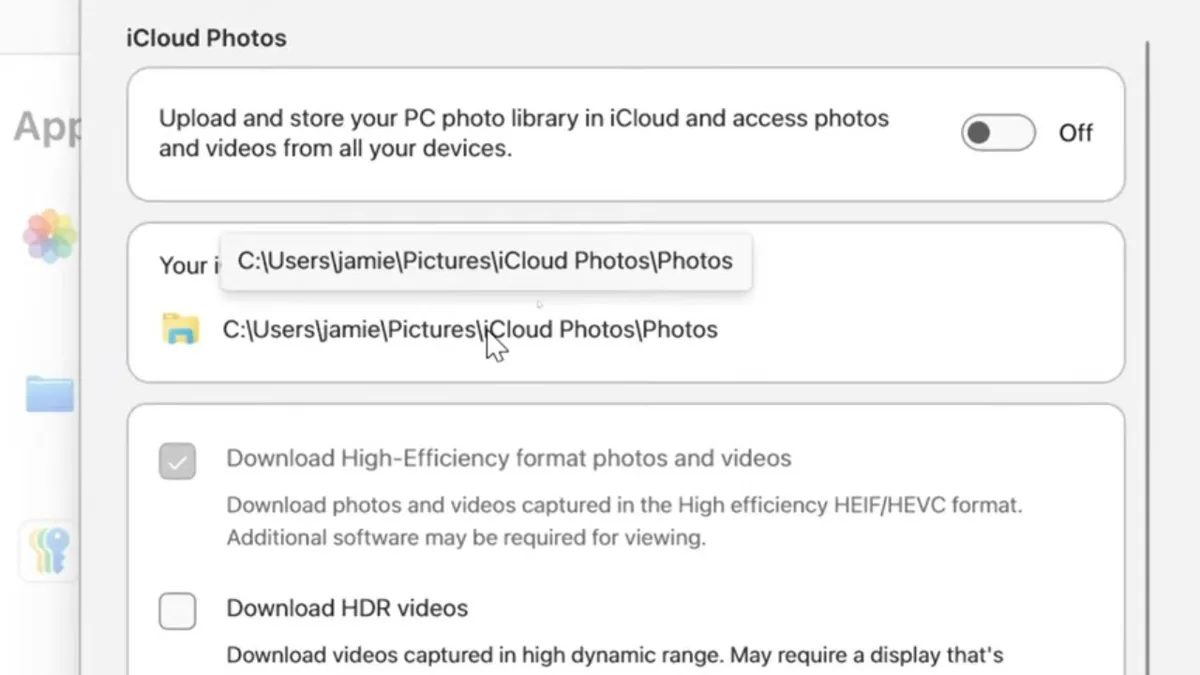
Using iCloud for Windows
First, make sure you have the iCloud for Windows app installed. You can download it free from the Microsoft Store. Sign in with the same Apple ID used for the backup.
- Open iCloud for Windows
- Click Storage in the sidebar (or "Manage" depending on your version)
- Click Backups
- Select the device backup you want to remove
- Click Delete
- Confirm the deletion
The backup disappears from Apple servers immediately. Your photos, contacts, and mail stay safe. The storage space frees up within a few minutes, though you might see it take up to 24 hours to fully reflect in your iCloud storage bar.
If you do not see the backup you are looking for, check that you are signed into the correct Apple ID. Each account shows only its own backups. This is a common mix-up when families share a computer.
What Happens After You Delete a Backup?
Deleting a backup is permanent. There is no recycle bin or undo button. Once you confirm, Apple removes the file from its servers.
Here is what changes and what stays the same.
Storage Space — When It Actually Shows Up as Free
Your iCloud storage updates within minutes in most cases. Apple's servers process the deletion quickly. However, the storage bar in your device settings can lag behind.
Our research shows that the storage bar usually refreshes within 5 to 10 minutes. In rare cases, it takes up to 24 hours. If your storage still shows as full after a day, try signing out of iCloud and signing back in.
This forces a refresh.
The free 5 GB of iCloud storage is shared across all your devices. Deleting a backup from an old iPhone frees space that your current iPad or Mac can use.
Data You Can Lose Permanently
This is where people get nervous. Deleting the backup itself only removes the copy Apple stores. Your current device data remains unchanged.
But here is the risk. If you delete the only backup of a device you still use, you lose the ability to restore that device's data if it fails or gets lost. Your app data, settings, and Health history stored in that backup are gone forever.
What you do NOT lose: photos (if you use iCloud Photos), contacts, calendars, mail, and iCloud Drive files. Those sync separately from backups.
Common Scenarios — Which One Is Yours?
Not every backup deletion is the same. Your situation determines which steps to follow and whether you need a local backup first.

You're Selling or Trading In Your iPhone
Delete the backup AFTER you transfer data to the new device. Make a local backup first using Finder or iTunes. Then erase all content and settings on the old phone.
This removes the backup from iCloud automatically.
You're Switching to a New iPhone
Keep your old backup until the new phone is set up and restored. Once your data is on the new device, go back and delete the old backup. This frees up storage without interrupting anything.
You're Trying to Free Up Storage Without Losing Anything
Delete the largest backup first. Check which device has the biggest file in Settings > iCloud > Manage Storage > Backups. Remove that one.
You can keep the others if you still use those devices.
You See an Old Device You No Longer Own
This is safe to delete. If you no longer have the device, that backup is useless. It only takes up space.
Delete it without making a local backup first.
Mistakes to Avoid When Deleting iCloud Backups
A few common errors can cause real headaches. Here are the ones we see most often from aggregate user feedback.
Deleting the Only Backup of a Device You Still Use
This is the biggest mistake. If your phone breaks and you deleted its only backup, you lose everything not synced elsewhere. Make a local backup first if you want to keep restore capability.
Confusing "Delete Backup" with "Turn Off & Delete"
These are two different actions. "Delete Backup" removes a single backup file. "Turn Off iCloud Backup" stops future backups and deletes all backups for that device.
If you only want to free up a little space, choose "Delete Backup", not the toggle.
Assuming Storage Updates Instantly
It usually does, but not always. If your storage bar still shows as full after deletion, wait a few hours. Force a refresh by toggling iCloud Drive off and on.
If that does not work, sign out and sign back in.
Troubleshooting — When Deleting a Backup Doesn't Work
Sometimes the delete button just won't cooperate. Here is what to try based on the exact problem.
"Delete Backup" Button Is Greyed Out
This usually means the backup is currently being created. Apple locks the backup during active upload. Wait 30 minutes for the backup to finish.
Then try again. If it stays greyed out, restart your iPhone and check your internet connection.
Storage Still Shows as Used After Deletion
Apple's servers can take time to update. Wait 24 hours before taking further action. If it still shows as used, sign out of iCloud on your iPhone, restart the device, and sign back in.
This forces a sync with Apple's servers.
Can't See a Backup from an Old Device
You might be looking under the wrong Apple ID. Check that you are signed into the account that was used when the backup was created. Backups are stored per device, so look under the correct device name in the list.
What to Do After Deleting — Managing Your iCloud Storage
Freeing up space is only half the battle. Keeping it clean takes a few minutes every few months. Here is how to stay on top of your iCloud storage without the hassle.
Checking Your Current Storage Usage
Open Settings on your iPhone. Tap your name, then iCloud. The storage bar at the top shows exactly how much space you have left.
Tap it to see what is using the most space.
Backups usually sit at the top of the list. After that comes iCloud Photos, then Messages, then iCloud Drive. This breakdown helps you decide what to clean next.
Downgrading or Changing Your iCloud+ Plan
If you deleted enough backups to fit within the free 5 GB, you can downgrade your iCloud+ plan. Go to Settings > your name > iCloud > Manage Account Storage. Tap Change Storage Plan and select the 5 GB free option.
If you still need more space, the paid tiers are simple. Apple charges $0.99 per month for 50 GB, $2.99 for 200 GB, and $9.99 for 2 TB as of 2026. The 200 GB and 2 TB plans support Family Sharing.
Other Ways to Free Up iCloud Space (Beyond Backups)
Backups are the biggest space hog, but they are not the only one. iCloud Photos can eat gigabytes if you have a large library. Turn on Optimize iPhone Storage in Settings > Photos to keep smaller versions on your device.
Old messages with attachments also take up space. Go to Settings > Messages and set the Keep Messages setting to 30 Days or 1 Year. This clears out attachments older than your chosen limit.
Alternatives to iCloud Backups — What Are Your Options?
iCloud Backup is convenient, but it is not your only option. Depending on your needs, a different method might suit you better.
Local Backups via Finder or iTunes
A local backup saves everything to your computer. It costs nothing beyond the drive space you already have. You control when it happens, and there is no monthly fee.
To make one, connect your iPhone to your Mac or PC. Open Finder (macOS Catalina and later) or iTunes (Windows and older macOS). Select your device under Locations.
Click Back Up Now. Check Encrypt local backup to include your Health and password data.
The downside is that you must remember to do it. Unlike iCloud backups, local backups do not run automatically at night.
Encrypted vs. Unencrypted Local Backups
| Feature | Encrypted Backup | Unencrypted Backup |
|---|---|---|
| Health data | Saved | Not saved |
| Saved passwords | Saved | Not saved |
| Wi-Fi settings | Saved | Not saved |
| Restoration speed | Same | Same |
| Setup required | Set a password | None |
Apple's support documents confirm that encrypted backups are the only way to capture Health data and saved passwords. If you switch to local backups, always tick the Encrypt box.
Third-Party Cloud Storage (Photos, Files, Contacts)
You can back up specific data to other services instead of using iCloud. Google Photos stores unlimited compressed photos for free. Dropbox and OneDrive handle files and documents.
For contacts and calendars, most email providers sync them for free. This approach is more manual but keeps you out of Apple's paid storage ecosystem.
Frequently Asked Questions
Can I Recover a Deleted iCloud Backup?
No. Once you delete an iCloud backup, it is gone permanently. Apple does not keep a copy or offer an undo feature.
This is why we recommend making a local backup before deleting anything important.
Will Deleting a Backup Delete My Photos?
It depends on how you store them. If you use iCloud Photos, your photos are synced separately from backups. Deleting a backup will not touch them.
If you only store photos in the backup file itself, then yes, they are gone.
Does Deleting a Backup Affect My Other Apple Devices?
No. Each device has its own backup file. Deleting your iPhone backup does nothing to your iPad or Mac backups.
They remain untouched and continue backing up normally.
How Long Does It Take for iCloud Storage to Update?
Most of the time, storage updates within 5 to 10 minutes. In rare cases, it takes up to 24 hours. If your storage bar still shows the old amount after a day, sign out of iCloud and sign back in to force a refresh.
Final Verdict — The Smartest Way to Delete Your iCloud Backups
Deleting an iCloud backup is simple. Open Settings, tap your name, go to iCloud storage, and hit delete. The hard part is knowing which backup to remove and whether you need a local copy first.
Our best advice is this. Before deleting anything, check what is in the backup. If you still use that device, make a local encrypted backup first.
Then delete the iCloud backup with confidence.
If you are cleaning up old backups from devices you no longer own, delete freely. That storage is wasted space. Your photos, contacts, and mail live elsewhere in iCloud and will not be affected.
Managing your iCloud storage is a habit worth building. Check it every few months. Delete old backups.
Downgrade your plan if you no longer need the extra space. A few minutes of cleanup saves you from those annoying storage full notifications for good.

Similar Posts





















