How To Block Ads On Android Browsers And Apps Effectively

How to block ads on Android browsers and apps
Understanding the Need to Block Ads on Android
Many Android users find ads intrusive and disruptive while browsing or using apps. Ads can slow down device performance, consume data, and even pose security risks. Blocking ads enhances privacy, speeds up browsing, and creates a smoother user experience.Types of Ads You Can Block
Ads appear in various forms on Android devices. These include banner ads, pop-up ads, video ads, and in-app advertisements. Each type appears differently and requires specific methods to block effectively.Using Built-in Browser Features to Block Ads
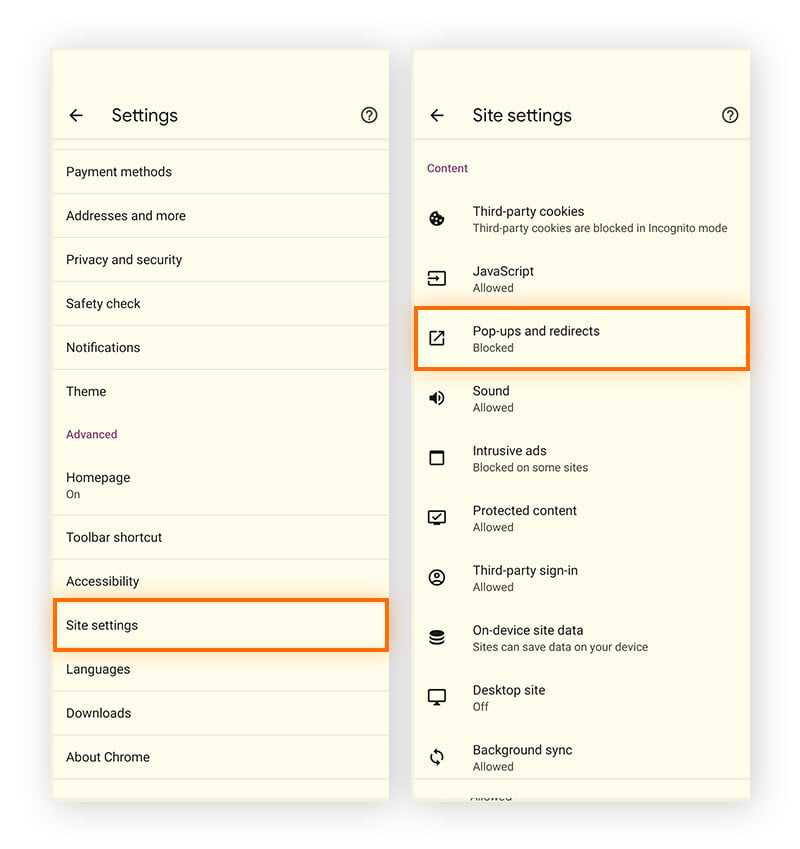
Some Android browsers come with built-in ad-blocking tools. For example, Google Chrome offers limited options, but newer browsers include more comprehensive blocking features. Enable these features to reduce ads during browsing sessions.Ad-Blocking Options in Popular Browsers
| Browser | Ad-Blocking Features |
|---|---|
| Google Chrome | Limited, with third-party extensions needed for full blocking |
| Mozilla Firefox | Supports add-ons like uBlock Origin for ad blocking |
| Samsung Internet | Includes built-in ad blocker options |
| Brave Browser | Automatic ad and tracker blocking included |
Installing Ad-Blocker Extensions on Android Browsers
For browsers that support extensions, installing ad-blockers can drastically reduce unwanted ads. Extensions like uBlock Origin, Adblock Plus, and Ghostery are popular choices.Steps to Install Extensions in Firefox
- Open Firefox on your Android device.
- Visit the Firefox Add-ons store.
- Search for “uBlock Origin” or your preferred ad blocker.
- Tap “Add to Firefox” and follow the prompts.
- Once installed, enable the extension through the add-ons menu.
Limitations of Extensions in Mobile Browsers
Not all browsers support extensions, and some may limit functionality. For full ad-blocking capabilities, consider switching to a browser with native support or built-in blockers.Using VPNs with Ad-Blocking Capabilities
Virtual Private Networks (VPNs) can block ads at the network level, providing protection across all apps and browsers.Best VPNs for Ad Blocking on Android
- NordVPN – offers CyberSec feature to block ads and malware
- AdGuard VPN – specifically designed with ad-blocking in mind
- ExpressVPN – includes features to block malicious sites and ads
How VPNs Block Ads
VPNs route your internet traffic through their servers, filtering out ad content using predefined blocklists. This method is effective across all apps and browsers on your device.Using Ad-Blocking Apps for Android
Dedicated ad-blocking apps can be installed directly on your device for comprehensive ad removal.Popular Ad-Blocking Apps
- AdGuard – blocks ads system-wide and offers privacy protection
- Blokada – open-source app that blocks ads across all apps
- Block This – offers customizable ad-block rules
Installing and Setting Up Ad-Blocking Apps
- Download the app from the official website or trusted app stores.
- Enable installation from unknown sources if prompted.
- Follow the setup instructions, including granting necessary permissions.
- Activate the ad blocker and configure settings for optimal performance.
Modifying Hosts Files for System-Wide Ad Blocking
This advanced method involves editing your device’s hosts file to block ad servers directly.Prerequisites for Hosts File Modification
To modify hosts files, your device needs root access or a specialized app that doesn’t require rooting. Be cautious, as improper modifications can affect device stability.Steps to Edit Hosts File
- Root your Android device or install a hosts file management app.
- Backup current hosts file to prevent issues.
- Download a reliable ad-blocking hosts file from trusted sources.
- Replace the existing hosts file with the new one using a file manager or app.
- Reboot your device to apply changes.
Using DNS-Based Ad Blocking
Domain Name System (DNS) services can block ad domains at the network level, preventing ads from loading.Popular DNS Services for Ad Blocking
- AdGuard DNS
- NextDNS
- Cloudflare 1.1.1.1 with WARP (supports ad blocking)
Configuring DNS on Android
- Go to Settings > Network & Internet > Private DNS.
- Select “Private DNS” and enter the DNS provider’s address (e.g., dns.adguard.com).
- Save settings and restart your browser or apps for effect.
Tips for Maintaining an Ad-Free Experience
To keep ads at bay, regularly update your ad-blocking tools and stay informed about new ad domains or techniques.Regular Updates and Checks
Ensure your ad-blocker or VPN app is always up to date. Check for new filter lists or block settings periodically.Supporting Ethical Websites
Some sites rely on ads for revenue. Consider whitelisting trusted sites to support content creators while blocking ads elsewhere.Limitations and Legal Considerations
Blocking ads may affect website revenue and content availability. Always use ad blockers responsibly and ethically.Possible Risks of Ad Blocking
Some sites may restrict access if ads are blocked. Also, some ad-blockers might interfere with app functionality if improperly configured.Legal Aspects
While it’s legal to block ads for personal use, avoid distributing ad-blocking tools that infringe on copyrights or violate terms of service. Blocking ads on Android browsers and apps can significantly enhance your browsing experience, improve privacy, and speed up your device. Using a combination of built-in features, extensions, VPNs, or dedicated apps offers flexible options to suit your needs. Remember to balance your ad-blocking efforts with support for websites you value and stay updated on the latest tools for the best results.Block Ads on Your Android For FREE!
Frequently Asked Questions
What are some popular ad-blocking apps for Android devices?
Several ad-blocking apps work effectively on Android devices, including AdGuard, Adblock Plus, and Nano Adblocker. These applications can be downloaded from trusted sources like the Google Play Store or their official websites. They typically block unwanted ads across browsers and some apps, providing a cleaner browsing experience.
Can modifying browser settings effectively prevent ads?
Yes, adjusting your browser settings can help reduce ads. Many browsers like Chrome or Firefox offer extensions or settings that block pop-ups and unwanted scripts. You can also enable data saver modes or privacy settings that restrict ad trackers, decreasing the number of targeted ads you see while browsing.
Is using a VPN with ad-blocking features a reliable method?
Utilizing a VPN service that includes ad-blocking features can be an effective approach. These VPNs route your internet traffic through servers that filter out ads and malicious content before it reaches your device. Make sure to choose a reputable VPN provider to ensure your privacy and security while blocking unwanted advertisements.
Are there any settings within Android itself that help reduce ads?
Android devices offer some built-in features to minimize ads, such as limiting ad personalization. You can go to your device’s settings, select “Google,” then “Ads,” and enable “Opt out of Ads Personalization.” This doesn’t block ads entirely but reduces targeted advertising based on your activity, resulting in potentially fewer intrusive ads.
What are the risks of using third-party ad-blocking tools?
While many ad-blockers provide a smoother browsing experience, some may compromise your device’s security or privacy. Some third-party tools might contain malware or collect your data without consent. Always choose well-reviewed, reputable ad-blocking solutions and ensure you download apps from trusted sources to avoid exposing your device to potential threats.
Final Thoughts
Blocking ads on Android browsers and apps enhances your browsing experience significantly. Use reputable ad blocker apps like AdGuard or Blokada, which work system-wide to remove ads effectively. Enabling browser extensions or adjusting settings can also help minimize intrusive ads. For more comprehensive control, consider VPN-based ad blockers or tweaking DNS settings. These methods prevent ads from loading without compromising your device’s speed. In conclusion, knowing how to block ads on Android browsers and apps allows you to browse smoothly and confidently, free from constant interruptions.
Similar Posts