Wondering if your next gaming monitor will include speakers? This guide demystifies the topic, explaining that most gaming monitors do NOT come with integrated speakers. You’ll learn how to verify this, understand the reasons behind this trend, and explore the best ways to achieve immersive audio for your gaming setup.
Do Gaming Monitors Come with Speakers
Are you gearing up for your next PC gaming adventure, meticulously researching the perfect monitor? You’re probably weighing up crucial factors like refresh rate, response time, resolution, and panel type. But a question that often pops up, especially for those new to PC gaming or upgrading from an all-in-one setup, is: “Do gaming monitors come with speakers?” It’s a fair question, and the short answer is, generally, **no**.
This guide will dive deep into this topic. We’ll explore why most gaming monitors skip the speakers, how you can confirm whether a specific monitor has them (or doesn’t), and what your best options are for getting fantastic audio to complement your gaming visuals. Whether you’re a seasoned gamer or just starting, understanding your audio options is key to a truly immersive experience.
Contents
- 1 Key Takeaways
- 2 Understanding the Gaming Monitor Market
- 3 Why Most Gaming Monitors Don’t Have Built-In Speakers
- 4 How to Check if a Gaming Monitor Has Speakers
- 5 What to Do if Your Gaming Monitor Doesn’t Have Speakers (Or They Aren’t Good Enough)
- 6 Connecting Your Audio Devices
- 7 Troubleshooting Audio Issues
- 8 Conclusion
Key Takeaways
- Most Gaming Monitors Lack Integrated Speakers: The vast majority of dedicated gaming monitors prioritize display quality and refresh rates, often omitting built-in speakers to save space and cost.
- Why They Aren’t Standard: Manufacturers focus on delivering superior visual performance. Integrated speakers are typically low-quality and don’t enhance the gaming experience significantly.
- How to Check for Speakers: Carefully examine product specifications, look for audio output ports (like headphone jacks), and check physical ports on the monitor itself.
- Dedicated Audio is Superior: For an immersive gaming experience, external speakers or headphones are highly recommended over any integrated monitor speakers.
- Alternatives for Audio: Explore options like desktop speakers, soundbars, or high-quality gaming headsets for superior sound.
- Exceptions Exist, But Are Rare: While uncommon, some budget or multi-purpose monitors might include basic speakers. Always verify the specs.
Understanding the Gaming Monitor Market
The world of gaming monitors is a specialized one. Manufacturers are intensely focused on delivering the best possible visual experience for gamers. This means prioritizing:
- High Refresh Rates: For smoother motion and reduced blur in fast-paced games.
- Low Response Times: To minimize ghosting and input lag, making your actions feel instantaneous.
- Excellent Color Accuracy and Contrast: For vibrant and detailed visuals that bring game worlds to life.
- Adaptive Sync Technologies (G-Sync/FreeSync): To prevent screen tearing and stuttering.
To achieve these cutting-edge visual features, components and design considerations are paramount. The space and engineering focus are directed towards the display panel, its backlight, and the internal processing power needed to drive high refresh rates and resolutions.
Why Most Gaming Monitors Don’t Have Built-In Speakers
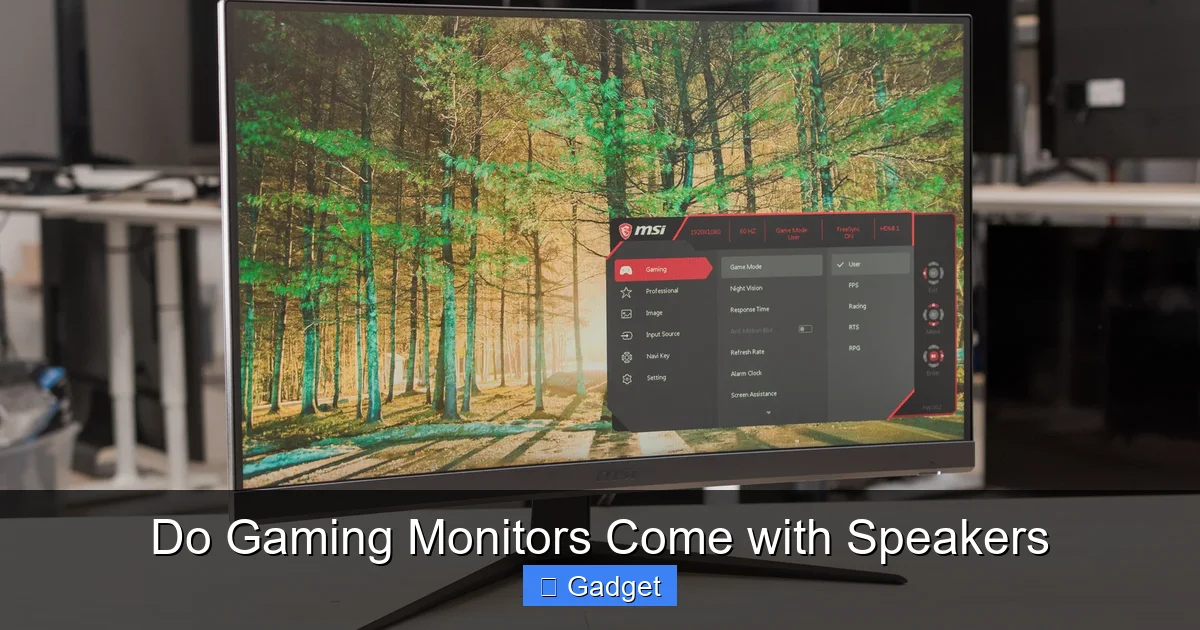
Visual guide about Do Gaming Monitors Come with Speakers
Image source: i.rtings.com
So, if visual prowess is the priority, why aren’t speakers just thrown in? There are several compelling reasons:
1. Audio Quality Compromises
Integrated speakers in monitors are almost universally small, low-powered units. They are designed for basic audio output – think system notifications, the occasional YouTube video sound, or very casual media consumption. For the immersive, directional, and often booming audio that modern games demand, these built-in speakers simply cannot compete. Gamers seeking an engaging audio experience will find monitor speakers to be tinny, lacking in bass, and generally underwhelming.
2. Space and Cost Efficiency
Including speakers, even basic ones, adds to the manufacturing cost and complexity. More importantly, it takes up valuable internal space within the monitor’s chassis. This space could otherwise be used for more robust cooling systems for high-performance components, better port management, or simply a slimmer, more aesthetically pleasing design. For manufacturers aiming to offer the most competitive gaming features at a given price point, omitting speakers is a straightforward way to manage both cost and design.
3. Performance Focus
The primary function of a gaming monitor is to display graphics. Any effort or resources diverted to designing and integrating adequate audio components would detract from the core mission. It’s a matter of specialization. Companies that excel at display technology are not necessarily audio engineering experts, and vice-versa.
4. User Preference and Existing Setups
Most serious PC gamers already have their preferred audio solutions. This could be a high-quality headset for private gaming sessions, a dedicated set of desktop speakers for a more impactful soundstage, or even a soundbar for a more compact yet powerful audio experience. Providing basic speakers would be redundant for many, and potentially a feature they’d rather not pay for.
How to Check if a Gaming Monitor Has Speakers

Visual guide about Do Gaming Monitors Come with Speakers
Image source: pcdelight.com
Before you click that “buy” button, it’s crucial to verify whether a gaming monitor includes speakers. Here’s how to do it:
1. Scrutinize the Product Specifications
This is your most reliable source of information. Manufacturers list detailed specifications for every monitor they sell. Look for sections related to:
- Audio: This is where you’ll find mentions of built-in speakers, their wattage (if any), and any audio-related features. If there’s no mention of speakers here, it’s highly unlikely they are present.
- Ports: While not a direct indicator of built-in speakers, the presence of an audio-out jack (often a 3.5mm headphone jack) signifies that the monitor can process and output audio, which might be necessary even if it doesn’t have its own speakers. Some monitors might also have HDMI or DisplayPort audio passthrough.
You can usually find these specifications on the manufacturer’s official website, the retailer’s product page (e.g., Amazon, Best Buy, Newegg), or in the physical manual if you have the monitor in hand.
Example: What to Look For
When looking at a spec sheet, you might see:
- “Built-in Speakers: No” (Most common for gaming monitors)
- “Built-in Speakers: 2 x 2W” (Indicates very basic, low-power speakers)
- “Audio Output: 1 x 3.5mm Headphone Jack” (This is about outputting sound *from* the monitor, not about it having its own speakers)
2. Physically Inspect the Monitor
If you’re in a store or have the monitor in front of you, take a look around.
Check the Edges and Back
Look for small grilles or openings on the monitor’s bezel (front or sides) or the back panel. These are often where speakers are housed. However, be aware that these can sometimes be ventilation grilles, so don’t rely on this alone.
Look for Volume Controls
Some monitors with speakers might have physical volume buttons or a joystick control that doubles as a volume adjuster.
3. Read Reviews and Watch Unboxing Videos
Third-party reviews and unboxing videos are invaluable. Reviewers often test or at least comment on the presence (or absence) of speakers. They’ll also usually give an honest assessment of their quality. Watching someone physically set up the monitor can reveal speaker grilles or ports you might have missed.
4. Consider the Monitor’s Purpose
Is it marketed purely as a high-performance gaming display, or is it a more general-purpose monitor or a monitor designed for media consumption alongside gaming? Monitors that are more of an “all-in-one” solution might include speakers, but this is rare in the dedicated gaming monitor segment.
What to Do if Your Gaming Monitor Doesn’t Have Speakers (Or They Aren’t Good Enough)

Visual guide about Do Gaming Monitors Come with Speakers
Image source: techpicko.com
The good news is that a lack of built-in speakers is not a barrier to an incredible gaming audio experience. In fact, it often means you’ll be forced to invest in better audio solutions, leading to a superior outcome. Here are your primary options:
1. Gaming Headsets
For many PC gamers, a headset is the go-to audio solution.
Pros:
- Immersive Experience: Stereo or surround sound can place you directly in the game.
- Privacy: Enjoy your game without disturbing others.
- Communication: Most gaming headsets include a microphone for in-game chat.
- Variety: Available in wired and wireless options, with features like noise cancellation and customizable EQ.
- Cost-Effective: Good quality headsets can be found at various price points.
Cons:
- Comfort: Can become uncomfortable during very long gaming sessions for some users.
- Isolation: Can sometimes make you miss real-world sounds or doorbells.
Tip:
Look for headsets that support virtual surround sound (like DTS Headphone:X or Dolby Atmos) for an added layer of immersion. Ensure the microphone quality is good if you plan on using it for multiplayer communication.
2. Desktop Speakers
A good pair of desktop speakers can provide a rich, full soundstage that fills your room.
Pros:
- Fuller Sound: Often offer a more expansive and impactful sound than headphones.
- Comfort: No ear fatigue during long sessions.
- Shared Experience: Others in the room can hear the game’s audio.
- Aesthetics: Can be part of your desk setup’s visual appeal.
Cons:
- Space: Require desk real estate for the speakers and potentially a subwoofer.
- Privacy: Not suitable if you need to keep your gaming quiet.
- Cost: High-quality speaker systems can be more expensive than mid-range headsets.
Types to Consider:
- 2.0 Systems: Two satellite speakers, good for general use and gaming.
- 2.1 Systems: Two satellite speakers plus a subwoofer, offering deeper bass for more impactful explosions and immersive soundscapes.
- True Surround Sound (5.1 or 7.1): Multiple speakers positioned around you for the most immersive spatial audio, though they require more space and careful setup.
Tip:
For gaming, a 2.1 system is often a great balance of immersion, bass impact, and manageable desk space.
3. Soundbars
A soundbar is a compact, elongated speaker that sits below your monitor.
Pros:
- Space-Saving: A clean, minimalist solution that takes up less space than a full speaker set.
- Easy Setup: Usually connects with a single cable (HDMI or optical).
- Decent Audio Quality: Can offer better sound than monitor speakers and some basic desktop speakers.
Cons:
- Limited Immersion: Less effective at creating true surround sound compared to multi-speaker setups.
- Bass Limitations: Unless paired with a separate subwoofer, bass can be weaker.
- Placement: Sound quality can be affected by desk clutter and monitor height.
Tip:
If you opt for a soundbar, consider one that comes with a wireless subwoofer for added bass impact without extra cables.
Connecting Your Audio Devices
Once you’ve chosen your audio solution, connecting it to your PC is usually straightforward:
For Headphones/Headsets:
- PC Audio Jack: Most PCs have a 3.5mm audio-out port on the back or front of the tower. Plug your headset’s cable into this.
- USB: Many gaming headsets connect via USB for power and data, often providing better audio quality or enabling advanced features.
- Wireless Dongle: Wireless headsets often come with a USB dongle that plugs into your PC.
- Bluetooth: Some headsets can connect wirelessly via your PC’s built-in Bluetooth.
For Speakers/Soundbars:
- 3.5mm Audio Jack: Most desktop speakers connect via a 3.5mm cable to your PC’s audio-out port.
- USB: Some speakers, especially compact or powered ones, might use USB for both audio and power.
- HDMI/DisplayPort (Passthrough): If your monitor has audio passthrough and your speakers or soundbar support it, you might be able to connect your PC to the monitor via HDMI or DisplayPort, and then connect the monitor to your speakers/soundbar. This can simplify cable management.
- Optical Audio (S/PDIF): Some soundbars and higher-end speaker systems use an optical cable for digital audio transmission.
Troubleshooting Audio Issues
If you’ve connected your external audio device and aren’t getting sound, or the sound is poor, here are a few things to check:
1. Check Default Playback Device
On Windows, right-click the speaker icon in the taskbar and select “Open Sound settings” or “Playback devices.” Make sure your chosen headset, speakers, or soundbar is selected as the default playback device.
2. Volume Levels
Ensure the volume is turned up on your PC, within the game’s audio settings, and on your external audio device itself. Sometimes a device has its own independent volume control.
3. Correct Ports
Double-check that cables are plugged into the correct ports. For example, if your PC has both front and rear audio jacks, make sure you’re using the one that’s enabled or intended for your primary audio output.
4. Drivers
Ensure your PC’s audio drivers are up to date. You can usually update these through Device Manager or the manufacturer’s website for your motherboard or sound card.
5. Monitor Audio Settings (If Applicable)
If you’re using HDMI or DisplayPort audio passthrough via your monitor, check the monitor’s on-screen display (OSD) settings to ensure audio output is enabled.
Conclusion
So, do gaming monitors come with speakers? In most cases, the answer is a resounding **no**. Manufacturers prioritize visual excellence, and the small, low-quality speakers you might find in some monitors simply don’t cut it for an immersive gaming experience.
However, this isn’t a drawback. It’s an opportunity to invest in dedicated audio solutions that will genuinely elevate your gaming. Whether you choose a high-fidelity gaming headset for ultimate immersion and communication, a powerful set of desktop speakers for a room-filling soundstage, or a compact soundbar for a clean setup, you’ll find that superior audio is just as crucial as stunning visuals for truly enjoying your favorite games. Always check the specifications, and be prepared to invest in your audio for a complete gaming package.