Do Ultrawide Monitors Support Hdr

Key Takeaways
- HDR (High Dynamic Range) provides a wider range of colors and contrast compared to standard displays.
- Not all ultrawide monitors come with HDR support; it’s a feature to look for specifically.
- Check your monitor’s specifications, box, or on-screen display (OSD) menu for HDR certification or claims.
- Windows and macOS have settings to enable and configure HDR for supported monitors.
- Content must also be HDR-enabled to take advantage of HDR capabilities.
- Proper calibration and adjustment of HDR settings are crucial for the best visual experience.
- Troubleshooting may involve driver updates, cable checks, or software settings.
Do Ultrawide Monitors Support HDR?
You’ve invested in a spacious ultrawide monitor, enjoying the expanded field of view for gaming, productivity, or watching movies. But what about HDR? Can your ultrawide display deliver those vibrant colors and incredible contrast that HDR is famous for? The answer is: sometimes. This guide will walk you through everything you need to know about HDR support on ultrawide monitors. We’ll explain what HDR is, how to determine if your monitor is HDR-capable, how to enable it, and how to get the most out of this fantastic visual technology.Understanding HDR: More Than Just Brightness
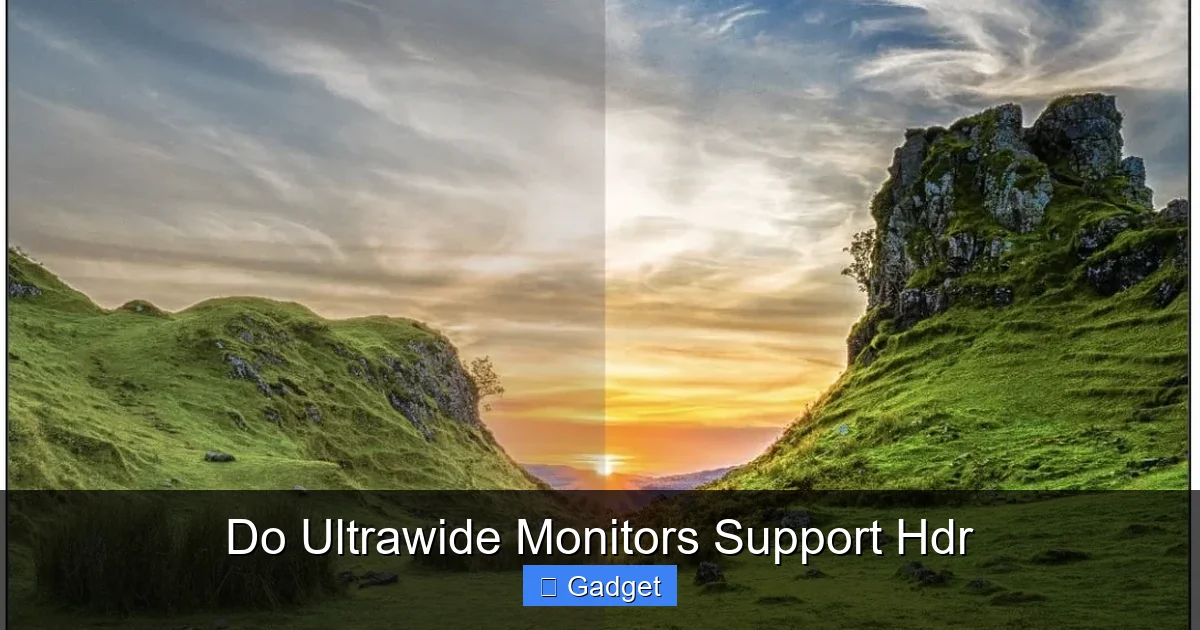
Before we dive into ultrawide specifics, let’s quickly recap what HDR (High Dynamic Range) actually means for your viewing experience. Traditional displays, often referred to as SDR (Standard Dynamic Range), have a limited range of colors and brightness they can reproduce. This means they can’t show the brightest whites or the deepest blacks very well, and the colors might not be as vivid or nuanced. HDR changes that. It dramatically expands the range of brightness levels and colors a display can show. Think of it this way:- Brighter Highlights: HDR allows for much brighter highlights, like the glint of sunlight on metal or the glow of a light bulb, making them pop off the screen realistically.
- Deeper Shadows: Conversely, HDR can display darker areas with more detail, so you can see subtle textures in shadows without them turning into a muddy mess.
- Wider Color Gamut: HDR displays can reproduce a much wider spectrum of colors. This means richer, more lifelike reds, greens, blues, and everything in between. You’ll see more subtle variations in skin tones, foliage, and sky colors.
The Ultrawide Advantage: Bigger Canvas, Better Immersion
Ultrawide monitors, with their elongated aspect ratios (typically 21:9 or 32:9), offer a significantly wider field of view than standard 16:9 displays. This extra screen real estate is fantastic for:- Gaming: More peripheral vision means you can see more of the game world, giving you an edge in competitive titles and enhancing immersion in cinematic games.
- Productivity: Juggling multiple windows side-by-side becomes effortless, boosting your workflow for coding, video editing, or general multitasking.
- Media Consumption: Watching movies or TV shows mastered in ultrawide formats fills your entire field of view, creating a more cinematic experience.
Do Ultrawide Monitors Support HDR? The Direct Answer
Now, to the main question: Do ultrawide monitors support HDR? The straightforward answer is: Some do, and some don’t. HDR is a technology that needs to be built into the monitor itself. It’s not something that can be simply enabled or added via software alone. Therefore, just because a monitor is ultrawide doesn’t automatically mean it supports HDR. You need to check for specific features and certifications.How to Determine if Your Ultrawide Monitor Supports HDR
Figuring out if your ultrawide monitor has HDR capabilities requires a little detective work. Here are the most common ways to find out:1. Check the Monitor’s Specifications
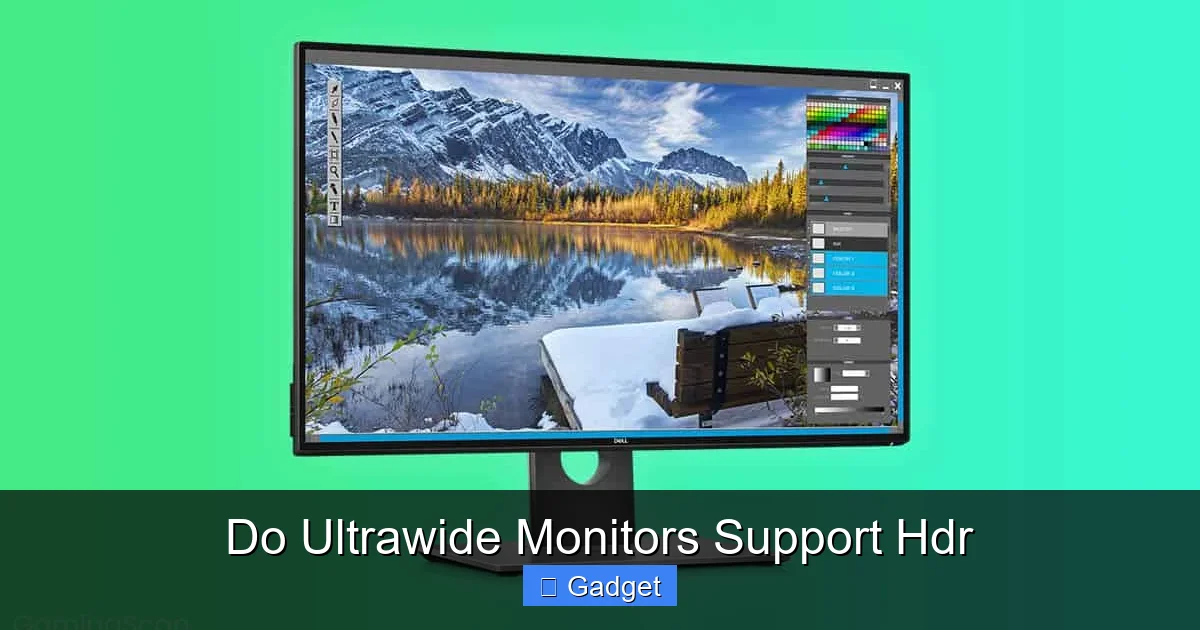
This is the most reliable method.Manufacturer’s Website and Product Page: Go to the official website of your monitor’s manufacturer. Find the product page for your specific model. Look for specifications related to HDR. You might see terms like:
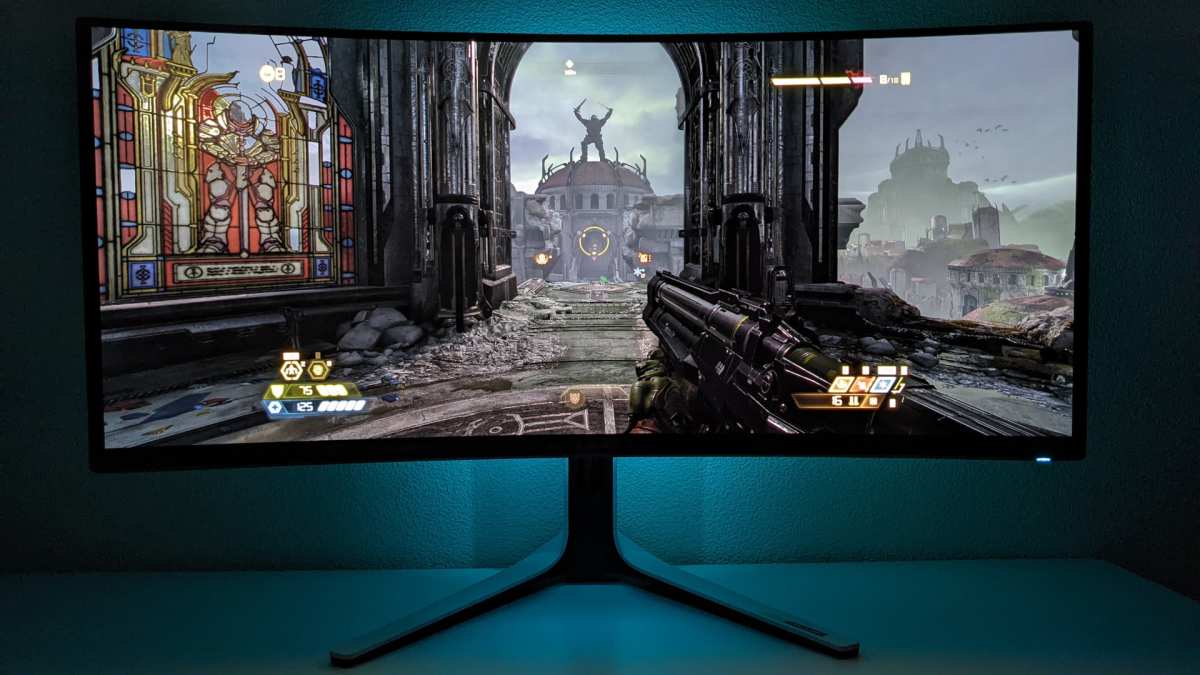
Visual guide about Do Ultrawide Monitors Support Hdr
Image source: gamingscan.com
- “HDR”
- “HDR10” (the most common HDR format)
- “HDR400,” “HDR600,” “HDR1000” (these numbers indicate peak brightness in nits, a measure of luminance)
- “VESA DisplayHDR Certified” (e.g., VESA DisplayHDR 400, VESA DisplayHDR 600, VESA DisplayHDR 1000). VESA certification is a strong indicator of quality.
Product Reviews and Retailer Listings: If you’re considering buying a new monitor, check reputable tech review sites. They will almost always mention HDR support. Retailer websites (like Amazon, Best Buy, etc.) will also list specifications, though always double-check with the manufacturer’s site if possible.
2. Examine the Monitor’s Box and Documentation
If you already own the monitor, check the original packaging. The box itself will often prominently display HDR logos or callouts if the monitor supports it. The user manual or quick start guide will also contain this information.3. Navigate Your Monitor’s On-Screen Display (OSD) Menu
Turn on your monitor and access its OSD menu using the physical buttons on the monitor itself. Look for settings related to color, picture modes, or advanced display options. You might find an option to enable or disable HDR, or settings specifically for HDR color or brightness. The presence of these options strongly suggests HDR support.4. Check Your Operating System Settings
Both Windows and macOS have built-in support for HDR. If your monitor is HDR-capable and connected correctly, your operating system will likely recognize it.On Windows:
- Right-click on your desktop and select “Display settings.”
- Scroll down to the “HDR and WCG” section (High Dynamic Range and Wide Color Gamut).
- If your monitor supports HDR and it’s enabled, you’ll see an option for “Play HDR games and apps” and “Use HDR.” If these options are available and can be toggled, your monitor likely has HDR support.
On macOS:
- Go to “Apple menu” > “System Settings” (or “System Preferences”).
- Click on “Displays.”
- Select your ultrawide monitor.
- Look for a “High Dynamic Range” checkbox or option.
Understanding HDR Standards and Certifications
It’s important to note that not all HDR is created equal. Here are a few key terms you’ll encounter:- HDR10: This is the most common and widely adopted HDR standard. It’s an open standard, meaning manufacturers don’t have to pay licensing fees to implement it. HDR10 uses 10-bit color depth and static metadata, meaning the brightness and color information is set for the entire movie or game.
- HDR10+: An advanced version of HDR10 that uses dynamic metadata. This allows for scene-by-scene or even frame-by-frame adjustments to brightness and color, leading to more optimized HDR.
- Dolby Vision: A proprietary HDR format developed by Dolby. It also uses dynamic metadata and supports up to 12-bit color depth, often providing the best HDR experience, but requires hardware and software support from both the display and the content creator.
- VESA DisplayHDR: This is a certification program by the Video Electronics Standards Association (VESA). It sets performance standards for HDR displays, with tiers like DisplayHDR 400, 600, 1000, etc. Higher numbers indicate better peak brightness, color gamut, and contrast. A VESA DisplayHDR certification is a good indication of a display’s HDR capabilities. A monitor might support “HDR” without being VESA certified, but certification offers a more standardized measure of performance.
Enabling HDR on Your Ultrawide Monitor
Once you’ve confirmed your ultrawide monitor supports HDR and is connected correctly, you’ll want to enable it. The process typically involves a few steps within your operating system and potentially your monitor’s settings.Step-by-Step: Enabling HDR in Windows
Follow these steps to enable HDR on your Windows PC:1. Connect Your Monitor with a Compatible Cable
Ensure you are using the correct cable. For HDR to function, especially at higher resolutions and refresh rates common with ultrawide monitors, you’ll need a high-quality cable that supports the necessary bandwidth.
Visual guide about Do Ultrawide Monitors Support Hdr
Image source: petapixel.com
- HDMI: For 4K or higher resolution and high refresh rates, HDMI 2.0 or HDMI 2.1 is typically required.
- DisplayPort: DisplayPort 1.4 or newer is generally recommended for ultrawide HDR, as it offers ample bandwidth.
Check your monitor’s manual for the recommended cable type.
2. Update Your Graphics Drivers
Outdated graphics drivers can cause issues with HDR functionality.For NVIDIA: Visit the NVIDIA website, go to the drivers section, and download the latest drivers for your graphics card.
For AMD: Visit the AMD website, go to the support section, and download the latest drivers for your Radeon graphics card.
For Intel Integrated Graphics: Visit Intel’s support website.
After downloading, run the installer and follow the on-screen instructions. A system restart is usually required.**
3. Enable HDR in Windows Display Settings
Right-click on your desktop and select “Display settings.”
Scroll down to the “HDR and WCG” section.
Toggle the switch for “Use HDR” to ON. If the option is grayed out, double-check your cable connection, graphics drivers, and monitor specifications.
4. Configure HDR Settings (Optional but Recommended)
Once HDR is enabled, you can often fine-tune its performance.In the same “HDR and WCG” settings window, you might see a link to “HDR settings” or “Windows HD Color settings.” Clicking this will take you to a new screen where you can:
- Calibrate HDR: Windows offers a built-in HDR calibration tool. Running this can help optimize how HDR content is displayed on your monitor by adjusting brightness and contrast.
- Adjust HDR Picture Settings: Some monitors allow you to adjust specific HDR picture settings within Windows.
Step-by-Step: Enabling HDR in macOS
The process in macOS is generally more straightforward if your hardware and software support it:1. Connect Your Monitor with a Compatible Cable
Similar to Windows, ensure you’re using a compatible HDMI or DisplayPort cable that can handle the bandwidth for HDR at your ultrawide monitor’s resolution and refresh rate.
2. Ensure Your Mac Supports HDR
Not all Macs have display hardware that fully supports HDR output. Newer MacBook Pro models (with Liquid Retina XDR displays), iMacs, and Mac Pros are more likely to have this capability. If you’re unsure, check Apple’s support documentation for your specific Mac model.
3. Enable HDR in Display Settings
Go to “Apple menu” > “System Settings” (or “System Preferences”).
Click on “Displays.”
Select your ultrawide monitor.
Look for a “High Dynamic Range” option and check the box to enable it. If the option is not present, your Mac or display may not support HDR.
4. Calibrate (if needed)
macOS doesn’t have a built-in HDR calibration tool as comprehensive as Windows, but ensure your monitor’s own settings are appropriate.Step-by-Step: Using Your Monitor’s OSD for HDR
Don’t forget your monitor’s built-in menus!Access your monitor’s OSD menu.
Look for picture, color, or advanced settings.
Find options like “HDR Mode,” “HDR Effect,” or “HDR Tone Mapping.”
Experiment with these settings. Some monitors have presets like “HDR Movie,” “HDR Game,” or “HDR PC.” Sometimes, you might need to enable a specific HDR mode in the OSD for Windows or macOS to properly detect and utilize HDR.
Optimizing Your HDR Experience on an Ultrawide Monitor
Visual guide about Do Ultrawide Monitors Support Hdr
Image source: lg.com
- Content is Key: HDR only works if the content you’re viewing is also HDR-enabled. Look for HDR logos on movies, games, and streaming services (like Netflix, Disney+, YouTube). Many modern games support HDR automatically if detected by your system.
- Calibration Matters: As mentioned, using Windows’ HDR calibration tool or your monitor’s built-in calibration options can make a huge difference. HDR can sometimes be too dim or too bright if not calibrated correctly.
- Adjust Monitor Settings: Even with HDR enabled, you might need to tweak your monitor’s brightness, contrast, and color settings to your preference. Be aware that some manufacturers’ HDR implementations are better than others.
- Refresh Rate and Resolution: Ensure your monitor is set to its native resolution and a refresh rate that your system and cable can handle while also supporting HDR. Sometimes, lowering the refresh rate slightly can improve HDR stability.
- Consider Your Viewing Environment: HDR’s impact is often more noticeable in darker rooms. In a very bright room, the increased contrast might be washed out.
Troubleshooting Common HDR Issues on Ultrawide Monitors
Encountering problems with HDR? Don’t worry, it’s often solvable.Issue: HDR Option is Grayed Out in Windows Settings
- Check Cables: Ensure you are using a certified HDMI 2.0/2.1 or DisplayPort 1.4+ cable. Try a different, known-good cable.
- Update Drivers: Make sure your graphics card drivers are up to date.
- Monitor Settings: Some monitors have a setting in their OSD that needs to be enabled for HDR to be recognized by the OS. Check your monitor manual.
- OS Compatibility: Ensure your version of Windows supports HDR (Windows 10 and later).
- Monitor Compatibility: Double-check that your specific ultrawide monitor model actually supports HDR.
Issue: HDR Content Looks Washed Out, Too Dark, or Too Bright
- Calibration: Run the Windows HDR calibration tool or your monitor’s built-in calibration. This is the most common fix.
- Monitor OSD Settings: Experiment with your monitor’s HDR modes or picture presets. Some “HDR Effect” settings can be more like SDR with boosted contrast, rather than true HDR.
- Content Source: Ensure the content itself is properly mastered in HDR. A standard SDR video played with HDR enabled will often look poor.
- Graphics Driver Settings: Sometimes, there are specific HDR adjustments within your NVIDIA Control Panel or AMD Radeon Software.
Issue: Flickering or Instability with HDR Enabled
- Cable Bandwidth: The cable might not be sufficient for the resolution and refresh rate at which HDR is being pushed. Try a higher-spec cable.
- Refresh Rate: Try reducing the refresh rate of your ultrawide monitor in display settings.
- Graphics Driver Bugs: Occasionally, a specific driver version might have an issue. Try rolling back to a previous driver or updating to the very latest.
- Monitor Firmware: Check if there’s a firmware update available for your monitor from the manufacturer’s website.
Issue: HDR Not Working on macOS
- Mac Model: Ensure your Mac model has the necessary hardware to output HDR.
- macOS Version: Make sure your macOS is up to date.
- Cable: Use a high-quality HDMI or DisplayPort cable that supports the required bandwidth.
- Monitor Settings: Some monitors may require a specific setting to be enabled in their OSD for macOS to recognize HDR.
Conclusion: Enhancing Your Ultrawide Experience with HDR
So, do ultrawide monitors support HDR? Yes, many modern ultrawide monitors do, and when they do, they offer a fantastic way to enhance your visual experience. The combination of an expansive ultrawide canvas and the vibrant, high-contrast imagery of HDR can truly immerse you in your games, movies, and creative projects like never before. Remember to always check your monitor’s specifications for HDR support, ensure you’re using compatible cables and drivers, and take the time to enable and calibrate HDR settings in your operating system and on your monitor. With a little effort, you can unlock the full visual potential of your ultrawide display and enjoy a richer, more vibrant digital world.
Similar Posts