Best Way To Cast Iphone To Android Tv For Seamless Viewing

Best Way to Cast iPhone to Android TV
Casting your iPhone to an Android TV might seem a bit tricky at first, especially since these devices come from different ecosystems. However, with the right methods and tools, you can easily enjoy your favorite movies, photos, and apps on a bigger screen. This section takes a deep dive into the most effective ways to cast your iPhone screen to an Android TV, making sure you get clear, step-by-step guidance along the way.Understanding the Challenges of Casting iPhone to Android TV
Before jumping into solutions, it’s helpful to understand why casting from an iPhone to an Android TV can sometimes be tricky:- Different ecosystems: iPhones operate on Apple’s iOS, while Android TV uses the Android operating system. They don’t naturally communicate without extra help.
- Limited native support: Apple prefers its devices to connect to Apple TV or AirPlay-compatible devices. Android TVs may not natively support AirPlay, so alternatives are necessary.
- Network issues: Both devices need to be on the same Wi-Fi network for most casting methods to work smoothly.
- Compatibility concerns: Some apps or features might not support casting from iOS devices to Android TVs, especially if they rely on proprietary systems.
Using AirPlay with an Android TV
The most popular and straightforward method to cast your iPhone to an Android TV involves using AirPlay. While Android TVs don’t natively support AirPlay, many modern models now come with built-in AirPlay compatibility, thanks to updates from manufacturers like Sony, Samsung, and LG.Steps for casting via AirPlay
If your Android TV supports AirPlay, follow these simple steps:- Connect devices to the same Wi-Fi network: Ensure both your iPhone and TV are connected to the same Wi-Fi network for smooth communication.
- Enable AirPlay on your Android TV: Access your TV settings, find the AirPlay or Screen Mirroring option, and turn it on.
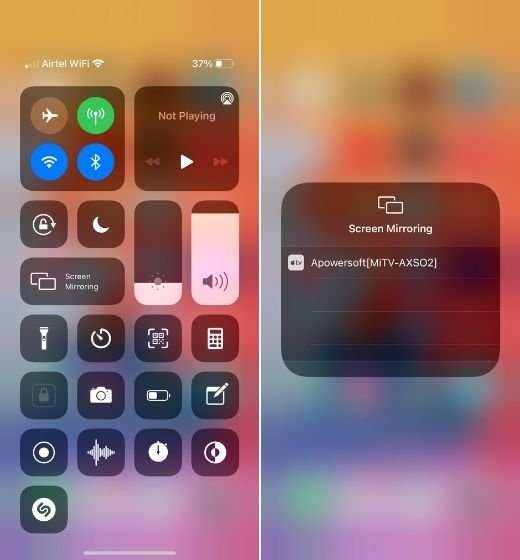
- Open the Control Center on your iPhone: Swipe down from the top right (iPhone X and later) or swipe up from the bottom (older models).
- Select Screen Mirroring or AirPlay: Tap the icon, then select your Android TV from the list of available devices.
- Enter the code if prompted: Your TV might display a code for security; enter it on your iPhone to connect.
Important considerations
– Some Android TVs may have limited AirPlay support depending on the model and firmware version. – For older TV models without AirPlay, you’ll need additional tools or apps (covered below).Using Third-Party Apps for Casting iPhone to Android TV
When native support isn’t available or doesn’t work well, third-party apps come to the rescue. Many apps can bridge the gap between iOS and Android TV platforms, offering reliable casting options.Popular third-party casting apps
Some trustworthy options include:- AirScreen: Turns your Android TV into an AirPlay receiver. Just install it from the Google Play Store, and it will support AirPlay, Google Cast, Miracast, and DLNA.
- ApowerMirror: Supports screen mirroring from iOS devices to Android TV through Wi-Fi. It offers high-resolution streaming and easy setup.
- LetsView: Free app that enables wireless mirroring across different devices, including iPhones and Android TVs.
- AirPin(PRO): Acts as an AirPlay receiver on your Android TV, allowing seamless casting from your iPhone.
How to use these apps
Each app has a slightly different setup process, but the general steps include:- Install the app on your Android TV: Find and install the chosen app from the Google Play Store.
- Open the app and follow setup instructions: Usually, you’ll need to enable certain permissions or network settings.
- Connect your iPhone: Open the Control Center on your iPhone, tap Screen Mirroring, and select your TV or the app’s receiver name.
- Start casting: Your iPhone screen should now appear on your Android TV, allowing you to play videos, display photos, or use other compatible apps.
Using Chromecast Built-In or Google Cast
Some Android TVs come with Chromecast built-in, which provides an easy way to cast content from an iPhone without hassle.How Google Cast works with iPhone
Unlike AirPlay, Google Cast is designed primarily for Android devices, but there are ways to cast from an iPhone:- Supported apps: Many streaming apps like YouTube, Netflix, and Spotify support casting directly from their iOS version to Chromecast-enabled devices.
- Cast from apps: Tap the Cast icon within a compatible app, then select your Android TV from the list to start streaming content.
Limitations
– You can’t mirror your entire iPhone screen directly with Chromecast; only supported app content can be cast. – For full screen mirroring, you need additional apps (covered below).Screen Mirroring with Third-Party Tools
If you prefer to mirror your entire iPhone screen (including gameplay, app navigation, etc.), you’ll need specific mirroring apps that support cross-platform connections.Popular options for full-screen mirroring
– **Reflector:** Works on your computer and allows you to mirror your iPhone to a PC or Mac, which you can then connect to your TV. – **AirBeamTV:** Offers apps that enable direct mirroring from iPhone to Android TV without needing Apple TV. – **MirrorForSamsung:** Designed for Samsung TVs but works well with many Android models after installing the appropriate app.How to set up screen mirroring with these tools
1. Install the mirroring app on your device (smartphone, tablet, or PC). 2. Ensure all devices are on the same Wi-Fi network. 3. Launch the app and follow on-screen instructions to connect your iPhone to the TV. 4. Start full-screen casting or mirroring as needed.Additional Tips for Smooth Casting Experience
To ensure wonderful viewing experiences, keep these tips in mind:- Use a strong Wi-Fi connection: A stable internet connection minimizes lag and disconnects.
- Keep devices updated: Software updates for your TV, iPhone, and apps can improve compatibility and performance.
- Close other apps: Running multiple apps in the background can cause slowdowns during casting.
- Position devices close to your Wi-Fi router: Reduces interference and improves signal strength.
- Check for firmware updates: Many Android TVs release updates that enhance casting capabilities and fix bugs.
Summing Up
More and more options are available today, making it easier than ever to stream content from your iPhone to an Android TV. Whether using built-in features like AirPlay, leveraging third-party apps, or employing Chromecast for compatible apps, you can enjoy your media on a larger screen with just a few taps. Keep in mind your specific needs, your TV’s capabilities, and your preferred method when choosing how to cast. With patience and the right setup, your iPhone and Android TV will work together seamlessly, providing a great entertainment experience for you and your family.Frequently Asked Questions
What are the best apps for casting iPhone content to an Android TV?
Several apps facilitate casting from an iPhone to an Android TV. Popular options include Apple’s AirPlay-compatible apps like AirScreen, which enable you to mirror your iPhone’s screen seamlessly. Additionally, streaming apps such as AllCast and ApowerMirror support both devices and allow easy sharing of photos, videos, and even screen mirroring. Choose an app that suits your needs based on compatibility and ease of use.
How can I connect my iPhone to an Android TV without using Wi-Fi?
If Wi-Fi connectivity isn’t available, you can use an HDMI adapter combined with a physical connection. Connect a Lightning to HDMI adapter to your iPhone, then link it to your Android TV using an HDMI cable. This method provides a direct connection, allowing you to mirror your screen or play media without relying on a network. Make sure your TV has an available HDMI port before proceeding.
Is there a way to mirror my iPhone screen to an Android TV using Bluetooth?
Bluetooth alone doesn’t support screen mirroring between an iPhone and an Android TV due to bandwidth limitations. However, some apps may use Bluetooth for initial device detection and setup, then switch to Wi-Fi or other protocols for the actual streaming. For reliable mirroring, it’s best to use Wi-Fi-based solutions like AirPlay-compatible apps or screen sharing features built into your devices.
What troubleshooting steps can I follow if my iPhone isn’t casting to my Android TV?
First, ensure both your iPhone and Android TV are connected to the same Wi-Fi network. Restart both devices to refresh their connections. Verify that your chosen casting app or method is updated to the latest version. Check the app permissions and settings to ensure proper connectivity. If issues persist, try disconnecting and reconnecting the devices, or consider resetting your network settings to resolve potential conflicts.
Are there hardware devices that can facilitate casting from iPhone to Android TV?
Yes, external streaming devices like Chromecast with Google TV or Amazon Fire TV can help bridge the compatibility gap. Using a Chromecast device, you can cast content from your iPhone via supported apps or through screen mirroring features using third-party apps. These devices typically connect to your Android TV’s HDMI port and provide easier methods for sharing content across different operating systems.
Final Thoughts
The best way to cast iPhone to Android TV involves using compatible third-party apps that support cross-platform casting. These apps are easy to set up and ensure a smooth connection between your devices. By following simple steps, you can quickly enjoy content from your iPhone on your Android TV. Choosing the right app makes the process straightforward and hassle-free.
Similar Posts































