Android What Apps Are Using My Battery Guide To Improve

Understanding Which Apps Are Using My Android Phone’s Battery
If you notice your Android device’s battery drains faster than usual, you might wonder which apps are responsible. Knowing how your apps consume power helps you manage your device better, extend battery life, and avoid unexpected shutdowns. In this section, we’ll explore how to see which apps are using your battery, why certain apps consume more power, and how to take control over your device’s energy drain.Why Does Battery Usage Vary Among Apps?
Not all apps drain your battery the same way. Some are designed to run in the background, constantly fetching data or sending notifications. Others may use a lot of energy when you actively engage with them, especially if they involve video, high graphics, or location tracking. Several factors influence why certain apps use more battery:- Background activity: Some apps run processes even when you’re not actively using them.
- Location services: Apps that track your position, such as maps or ride-sharing apps, typically consume more power.
- Data synchronization: Apps that sync heavy data frequently drain energy quickly.
- High graphics or multimedia: Games or streaming apps require more power for visual rendering and data streaming.
- Push notifications and real-time updates: Constant updates can keep apps active longer and drain the battery.
How to Check Battery Usage on Your Android Device
Getting insights into battery consumption is straightforward on most Android devices. Android offers built-in tools to view detailed battery usage reports.Accessing Battery Usage Data
Follow these simple steps:- Open your device’s “Settings” app.
- Scroll down and tap on “Battery” or “Battery & performance,” depending on your device model.
- Tap on “Battery usage” or “App battery usage.”
- Percentage of total battery used by each app.
- Time spent actively using the app.
- Background activity duration.
Interpreting Battery Usage Data
Look for apps that use a high percentage of battery, especially if you aren’t actively engaged with them. Some common signs include:- An app consuming more than 10% of battery in a few hours.
- System processes or apps running in the background without your knowledge.
- Unexpected battery drain after installing new apps or updates.
Why Some Apps Consume More Battery Than Others
Certain apps are naturally more energy-intensive. Let’s explore what makes some apps more demanding, and what you can do to mitigate their power draw.Apps with Heavy Graphics and Multimodal Content
Video streaming services, games, or photo editing apps often consume significant power because they:- Use high-resolution graphics.
- Run complex processes for rendering visuals.
- Require continuous internet data streams.
Location-Tracking Apps
Apps like Google Maps or ride-sharing services need to constantly access GPS data. To save battery:- Use location services only when necessary.
- Switch to “battery-saving” mode within location settings.
- Disable background location access for apps that don’t need it constantly.
Sync and Notification-Heavy Apps
Apps that frequently sync data, like email or social media, can keep your phone awake longer. To reduce this:- Adjust sync settings to manual or less frequent updates.
- Limit push notifications for less critical apps.
Managing Apps to Save Battery Life
Once you know which apps are using most of your battery, you can take several steps to manage their activity.Force Stop or Uninstall Power-Hungry Apps
If an app is draining your battery unnecessarily:- Navigate to the “Apps” section in Settings.
- Select the app causing trouble.
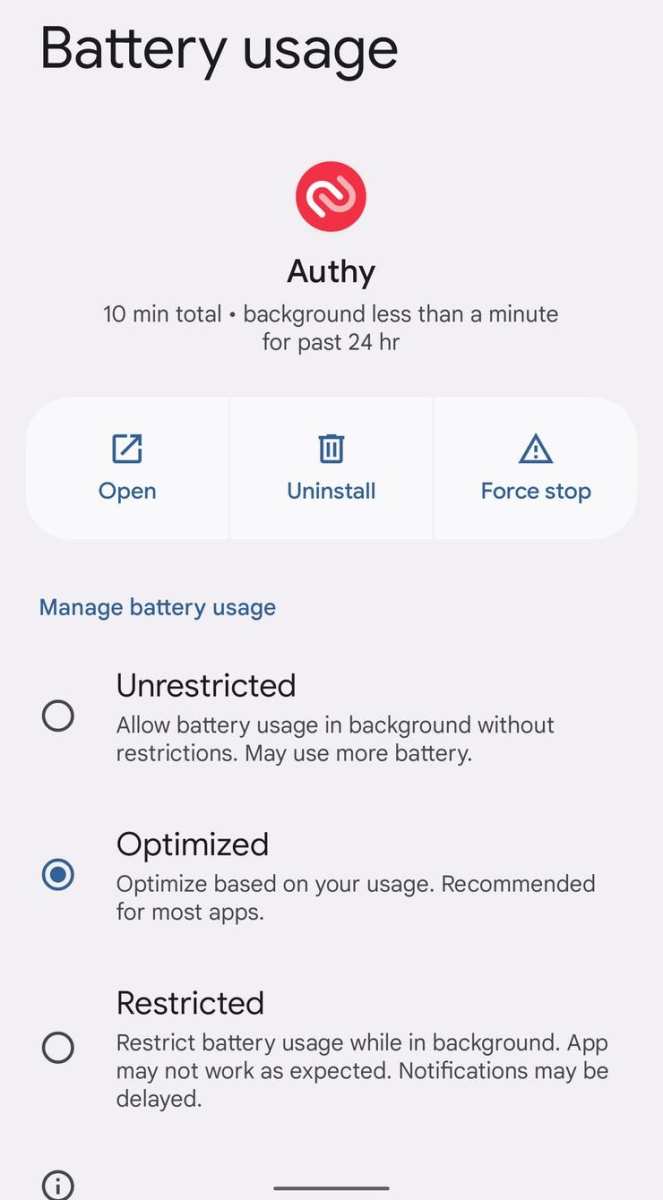
- Tap on “Force Stop” to temporarily halt its activity.
- If the app is not essential, consider uninstalling it to prevent future drain.
Restrict Background Activity
Android allows you to limit apps from running in the background:- In Settings, go to “Apps & notifications.”
- Choose the app you want to restrict.
- Select “Battery” or “Battery usage.”
- Tap “Background restriction” or “Restrict background activity.”
Use Built-in Power Saving Modes
Most Android devices come with battery saver modes:- Activate “Battery Saver” mode from the quick settings menu or battery settings.
- This mode limits background activities, reduces screen brightness, and temporarily disables some features.
- Use it when your battery is running low and you need to extend usage time.
Advanced Tips for Monitoring Battery Usage
For users who want more detailed insights, third-party apps like “GSam Battery Monitor” or “AccuBattery” can offer deeper analysis. These apps track real-time power consumption, display historical data, and identify apps that tend to drain the battery over time.Monitoring Power Consumption Over Time
By analyzing patterns, you can:- Identify apps that drain your battery during specific times of day.
- Decide when to limit or disable certain apps during peak usage times.
- Understand your device’s overall power efficiency and adjust your habits accordingly.
Setting Alerts for High Power Usage
Some third-party apps let you set alerts when an app exceeds a particular power consumption threshold, helping you proactively manage your device’s energy.Common Mistakes That Lead to Faster Battery Drain
Understanding common pitfalls helps prevent unnecessary battery loss:- Leaving Wi-Fi, Bluetooth, or GPS permanently enabled when not needed.
- Using live wallpapers or animated screensavers.
- Downloading apps from untrusted sources that may run malicious background processes.
- Ignoring software updates that contain important battery optimizations.
Frequently Asked Questions
How can I check which apps are consuming the most battery on my Android device?
You can review your battery usage by going to Settings > Battery & performance > Battery usage. This section displays a list of apps and services ranked by their energy consumption. Tapping on each app provides more details, helping you identify which applications are draining your battery most.
What steps can I take if an app is using excessive battery in the background?
If you notice an app consumes a lot of battery even when not actively used, try closing the app completely or disabling its background activity. You can do this by navigating to Settings > Apps & notifications > See all apps, selecting the app, and then choosing ‘Force stop’ or ‘Disable.’ Additionally, adjusting app permissions and restricting background activity can help reduce unnecessary energy drain.
Are there built-in tools to monitor battery usage per app on Android?
Yes, most Android devices include built-in tools that track battery consumption. Access these tools by heading to Settings > Battery & performance > Battery usage. They provide detailed insights into how each app and system component affects battery life, enabling you to manage your device’s energy consumption more effectively.
How can I identify apps that are running in the background without my knowledge?
You can view background apps by opening the recent apps menu or by checking app activity in Settings. Go to Settings > Apps & notifications > See all apps, then select each app to see if it has permission to run in the background. Managing these permissions and closing apps that shouldn’t be active can help prevent unnecessary battery use.
Is it possible to prevent certain apps from draining my battery without uninstalling them?
Yes, you can restrict specific apps from running in the background by adjusting app permissions and background activity settings. Navigate to Settings > Apps & notifications > See all apps, select the app, and disable ‘Background activity’ or similar options. This approach helps conserve battery without removing the app entirely.
Final Thoughts
Knowing which apps drain your battery helps you manage your Android device better. You can quickly see the apps using the most power in your device settings. This information allows you to close or uninstall unnecessary applications. Regularly checking “android what apps are using my battery” helps extend your battery life and improves device performance. Taking control of power-hungry apps ensures your phone runs efficiently throughout the day. Stay aware and optimize your device for a smoother experience.
Similar Posts































