Android How To Make A Gif: Simple Guide For Beginners
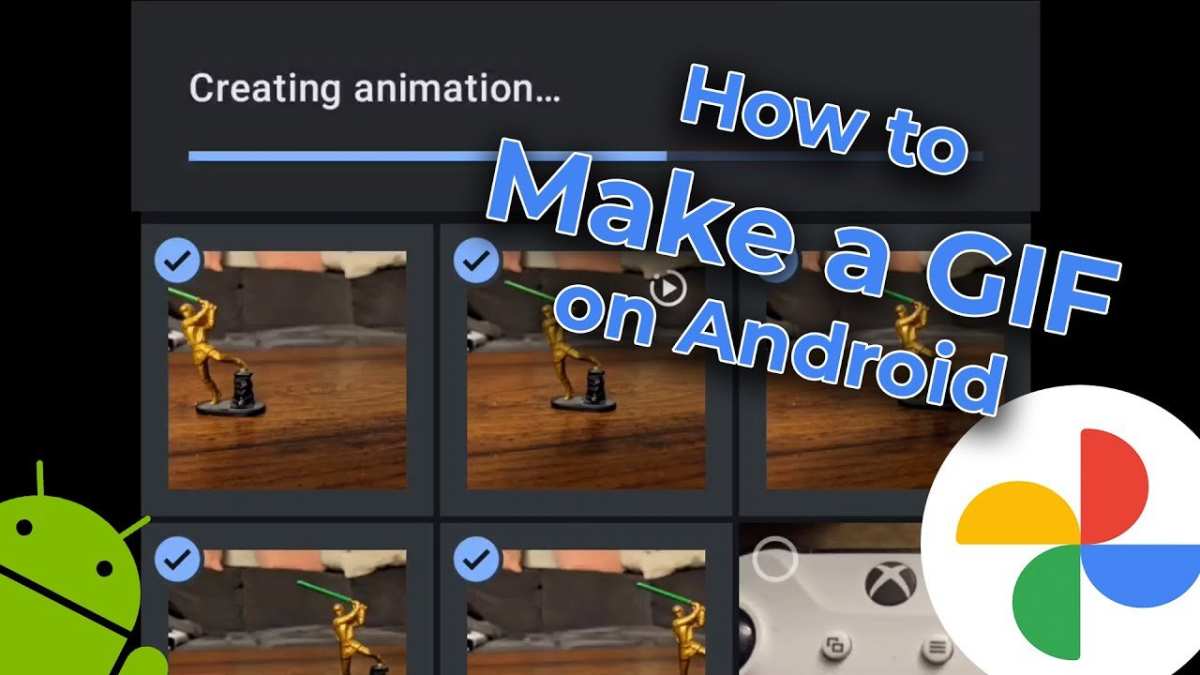

Android How to Make a GIF
Creating a GIF on your Android device can be a fun way to express yourself, share moments, or enhance your social media posts. With the variety of apps and tools available, making a GIF on Android is easier than ever. This guide will walk you through the entire process, from selecting your media to exporting a high-quality GIF that fits your needs. Whether you’re a beginner or have some experience, you’ll find step-by-step instructions, tips, and tricks to help you create stunning GIFs directly on your Android device.Understanding What a GIF Is and Why It’s Popular
Before diving into how to make a GIF on Android, let’s briefly discuss what a GIF is and why it remains a favorite among users worldwide. GIF, short for Graphics Interchange Format, is an image format that supports animated images. Unlike static photos, GIFs can show movement, making them perfect for visual storytelling, expressing emotions, or adding a dynamic touch to messages. Some reasons why GIFs are so popular include:- They convey emotions quickly and effectively
- They add humor and personality to conversations
- They are easy to share across social media platforms
- They can be used in marketing, entertainment, and educational content
Choosing the Right Content for Your GIF
The first step in making a GIF involves selecting what you want to turn into a GIF. You can create GIFs from videos, photos, or even live content. Here’s what to consider: – **Video Clips**: Short clips work best, typically between 3 to 6 seconds. – **Photos**: A series of images that show progression or movement. – **Screen Recordings**: Captures of your screen activity, useful for tutorials. – **Live Content**: Some apps allow converting live videos or streams into GIFs. Keep in mind that the content should be engaging and clear, as GIFs are often viewed quickly. Think about capturing moments that can be animated or sequences that tell a story.Choosing the Best App or Tool for Making GIFs on Android
Android offers many apps for creating GIFs, each with different features. Here’s a selection of popular options:- Giphy Cam: A fun app that lets you create GIFs with filters and effects.
- GIF Maker – ImgPlay: Supports converting videos and photos into GIFs with editing options.
- GIF Studio: Offers simple tools to edit and customize GIFs.
- Google Photos: Allows creating simple animations from your photo library.
- Video to GIF: Converts video clips into GIF format with adjustable settings.
Step-by-Step Guide to Make a GIF on Android
Now, let’s go through the process of creating a GIF with a typical app, like GIF Maker – ImgPlay, which is popular for its user-friendly interface.Preparing Your Media
1. **Select Your Source**: Decide whether you’ll use a video or a series of photos. 2. **Trim or Edit**: If using a video, trim it to the desired length. For photos, arrange them in the order you want them to appear. 3. **Save or Download Content**: Ensure your media is saved on your device in an accessible folder.Converting Media to a GIF
1. **Open the GIF creation app** and select the option to create a new GIF. 2. **Import your video or images** from your gallery or file manager. 3. **Adjust the clip length**: For videos, select the start and end points to focus on the most interesting part. 4. **Add effects or captions** (optional): Many apps allow adding text, filters, or stickers to make your GIF more expressive. 5. **Preview your GIF**: Play it within the app to check how it looks. Make adjustments if needed.Customizing Your GIF
– **Speed Control**: Change the frame rate or speed to make the animation faster or slower. – **Cropping and Resizing**: Adjust the frame size to match platform requirements or personal taste. – **Adding Text**: Include captions or funny comments to make your GIF more engaging. – **Applying Filters**: Enhance colors or add effects for a more artistic touch.Exporting and Saving Your GIF
1. **Save your creation**: Tap the save or export button in the app. 2. **Choose the quality**: High quality GIFs look better but file sizes are larger. 3. **Share your GIF**: You can directly upload it to social media, send via messaging apps, or keep it stored on your device.Advanced Tips for Creating Better GIFs
Creating captivating GIFs isn’t just about converting videos or images; it involves knowing a few tricks: – **Keep the GIF short**: Shorter GIFs (around 3-5 seconds) load faster and are more engaging. – **Focus on a single subject**: Make sure your main subject is clear and central. – **Use high-quality media**: Good lighting and sharp images improve the final result. – **Experiment with effects**: Play around with filters, speed, and text to suit your style. – **Optimize file size**: Aim for a balance between quality and size for easy sharing.Editing and Enhancing Your GIFs After Creation
Once you’ve made your initial GIF, you might want to fine-tune it further. Several apps allow you to: – **Crop or trim** unwanted parts. – **Change the speed** to make it more humorous or dramatic. – **Add overlays or stickers** for extra personality. – **Adjust colors** to make your GIF stand out. Using an editing app like Giphy or Photoshop Express can give you more control over the final product.How to Share Your GIFs on Android
After creating your perfect GIF, it’s time to share it with friends or the world:- Upload directly to social media platforms like Instagram, Facebook, or Twitter.
- Send via messaging apps such as WhatsApp, Messenger, or Telegram.
- Use email to share your GIF with others.
- Save to your device’s gallery for future use or projects.
Frequently Asked Questions About Making GIFs on Android
(You mentioned excluding FAQ, so I’ll omit this section here.) In summary, creating GIFs on Android involves selecting your media, choosing the right creating app, editing your GIF for the best effect, and sharing it with your friends. With practice, you’ll develop your own style and learn all the little tricks that make your GIFs pop. Whether you want simple animations or complex edits, Android offers plenty of tools to bring your ideas to life in GIF format.Frequently Asked Questions
What are some popular apps to create GIFs on an Android device?
Several user-friendly apps enable you to create GIFs directly on your Android device. Apps like GIPHY, GIF Maker – ImgPlay, and Tenor allow you to record videos, select existing clips, or combine images to generate GIFs. These apps often include editing tools to add text, stickers, and effects to customize your GIFs easily.
How can I convert a video into a GIF on my Android phone?
To convert a video into a GIF, open a dedicated GIF maker app such as GIF Maker or GIPHY. Import the video clip you want to convert, then select the segment you wish to turn into a GIF. Adjust the frame rate, size, and duration if needed, then save the file as a GIF. Some apps also allow you to edit and add filters before saving.
Are there any built-in features on Android to create GIFs without third-party apps?
Most Android devices do not include native tools specifically for creating GIFs. However, you can use the camera app to record a short video, then use the built-in photo editor or Gallery app’s editing features to extract a sequence of images and compile them into a GIF using third-party apps or online tools.
What are some tips for making high-quality GIFs on Android?
To produce clear and appealing GIFs, ensure your source videos or images are high resolution. Maintain good lighting and steady shots when recording. When editing, optimize the size and frame rate to balance quality and file size. Additionally, keep your GIFs short to avoid lengthy loading times, enhancing user experience.
Can I share my created GIFs directly from my Android device?
Yes, most GIF creation apps provide options to share your GIFs directly via social media platforms, messaging apps, or email. After saving your GIF, look for the share icon within the app, select your preferred platform, and send or upload your creation instantly.
Final Thoughts
In conclusion, creating a GIF on Android is simple and accessible. You can use various apps like Giphy or ImgPlay to quickly make your animations. Just upload your images or videos, add any effects, and save your GIF. Remember, if you want to learn how to make a gif on Android, these tools make the process straightforward. With minimal effort, you can produce fun and engaging GIFs to share with friends.
Similar Posts































