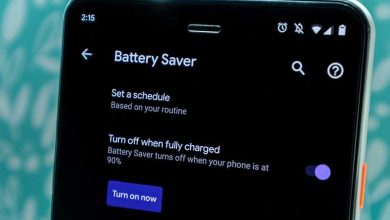
The question of how to check your Android Bluetooth battery level is common among users. **You can easily see the battery level directly through your device’s settings or notifications.** Most Android phones now offer quick access to Bluetooth device info, making it simple to monitor battery life without extra apps. Knowing the battery status helps you avoid unexpected disconnects, ensuring your devices stay connected longer. Staying informed about your Bluetooth device’s battery level enhances your overall experience without any hassle.

Understanding Android Bluetooth Battery Level: Everything You Need to Know
When using Bluetooth devices with your Android phone, one of the most common questions is about the battery level. How do you check it? Why does it matter? And what can you do if your device shows low battery? In this detailed guide, we’ll explore all these topics and more, so you’re never left guessing about your Bluetooth device’s battery status again.
What Is Bluetooth Battery Level on Android Devices?
Bluetooth battery level refers to how much power your Bluetooth device has left. This information is essential because it helps you know when to charge your device or replace its batteries. Many modern Bluetooth devices, like headphones or fitness trackers, can share their battery status directly with your Android phone.
Imagine this: you’re enjoying a long music session with your wireless headphones, and suddenly, the sound starts to cut out. That’s a sign the battery might be running low. Knowing your device’s battery level can prevent these interruptions and keep your gadgets working when you need them most.
Why Is Monitoring Bluetooth Battery Level Important?
Monitoring the battery of your Bluetooth devices offers several benefits:
- Avoid Unexpected Power Loss: Never get caught with a dead device right in the middle of your favorite activity.
- Plan Charging Times: Keep track of when to recharge your devices so they’re ready when you need them.
- Extend Device Lifespan: Properly charging devices based on their battery levels can prolong their overall lifespan.
- Save Power on Your Phone: Knowing which devices are low on battery helps you manage your Android device’s resources better.
By keeping an eye on battery levels, you can enjoy seamless use of Bluetooth gadgets without sudden disruptions.
How Does Android Show Bluetooth Battery Level?
Most recent Android versions can display the remaining battery percentage of connected Bluetooth devices. This feature depends on your Android version and whether your device supports Bluetooth Battery Level Service.
Typically, you can see this information directly in the Bluetooth settings or through notifications. When a Bluetooth device is connected, your Android might show a small icon or percentage next to the device name.
Some devices require specific apps or settings to view battery information. For example, certain headphones or fitness trackers come with their dedicated app, which provides more detailed battery info.
How to Check Bluetooth Battery Level on Android Devices
Checking the battery level of your Bluetooth device on Android is straightforward, but the steps may vary slightly depending on your device model and Android version. Here’s a basic guide:
Using Android Settings
- Open the Settings app on your Android device.
- Tap Bluetooth to see the list of paired devices.
- Locate your Bluetooth device in the list.
- If your device supports battery level reporting, you’ll see an icon or percentage next to it indicating remaining battery life.
Through Notification Panel
- Pair your Bluetooth device with your Android device.
- Connect the device and look at the notification panel.
- Some Android devices automatically display battery level info here, especially for headphones or wearable devices.
Using Dedicated Apps
Many Bluetooth devices, like smartwatches or fitness trackers, come with dedicated apps that show precise battery levels. To use these:
- Download and install the manufacturer’s app from Google Play Store.
- Open the app and pair your device if needed.
- Navigate to the device’s battery or status section for battery details.
Best Practices for Managing Bluetooth Battery Levels
Properly managing the battery of your Bluetooth devices extends their usability and lifespan. Here are some tips:
- Charge Before the Battery Gets Very Low: Avoid letting your device run completely out of power, as this can affect battery health.
- Use the Correct Charger: Always use the charger recommended by the device manufacturer.
- Turn Off When Not in Use: Disable Bluetooth on your device or turn off the gadget if you’re not using it for an extended period.
- Avoid Frequent Full Discharges: Try to keep the battery between 20% and 80% for longevity.
Troubleshooting Common Bluetooth Battery Issues on Android
If your Bluetooth device isn’t showing the battery level or seems to have battery problems, check these common issues:
Device Does Not Show Battery Level
- Ensure your device supports Bluetooth Battery Level Service.
- Update your Android OS to the latest version.
- Re-pair the device and reconnect it.
- Try restarting your phone and the Bluetooth device.
Battery Drains Quickly
- Check for firmware updates for your Bluetooth device.
- Limit the use of features that drain power, like active noise cancellation.
- Reduce the Bluetooth connection range by staying closer to your device.
Notifications Not Showing Battery Info
- Ensure notifications are enabled for Bluetooth in your settings.
- Clear cache of Bluetooth app or restart your device.
- Check if your device’s firmware needs an update.
Advanced Options and Third-Party Apps
For users seeking more detailed battery information, third-party apps can help:
- Bluetooth Battery Monitor Apps: Apps like “Bluetooth Battery Monitor” or “Battery Widget Reborn” can show real-time battery stats for multiple devices.
- Compatibility: Ensure the app supports your device model and Android version.
- Features: These apps often include notifications for low battery, usage stats, and historical data.
Always download from reputable sources and check reviews before installing third-party apps.
Summary of Key Points
- Bluetooth battery level indicates how much charge your device has left.
- Most Android devices can display this info in the Bluetooth settings or notifications.
- Using dedicated apps may offer more detailed insights.
- Proper management of battery life can extend your device’s usability and lifespan.
- Troubleshooting common issues involves checking support, updates, and connection stability.
Understanding how to check and manage Bluetooth battery levels on your Android device makes your tech experience smoother and more efficient. Staying aware of your devices’ power status prevents unexpected interruptions and helps you get the most out of your gadgets. Whether through default settings or third-party apps, monitoring battery health becomes an easy part of your routine, ensuring your Bluetooth devices are ready whenever you need them.
Frequently Asked Questions
How can I check the battery level of my Bluetooth devices on Android?
You can view the battery level of your connected Bluetooth devices directly from your Android device’s Bluetooth settings or notifications. When a device is connected, a small battery icon may appear next to the device name, indicating its current battery status. Additionally, some Android versions display detailed battery information in the device’s notification shade or within the settings menu under Bluetooth devices.
What should I do if my Android doesn’t display Bluetooth battery levels?
If your Android device doesn’t show the battery level for Bluetooth devices, ensure your device’s software is up-to-date. Check if your Bluetooth device supports battery level reporting, as not all do. You can also try disconnecting and reconnecting the device or restarting your Android phone. For further information, consider installing third-party apps designed to monitor Bluetooth device batteries, which may provide more detailed insights.
Can I view real-time battery updates for multiple Bluetooth devices simultaneously?
Most Android devices provide battery information for individual Bluetooth accessories when connected. However, real-time updates for multiple devices often depend on the specific device and Android version. Some third-party apps can help monitor multiple Bluetooth devices’ battery levels simultaneously, offering centralized management and alerts. Always ensure the app you choose is compatible with your Android version and your devices.
Final Thoughts
Understanding your android bluetooth battery level helps you stay connected without surprises. Many devices now display this information easily, keeping you informed. Monitoring this level prevents sudden disconnections and ensures smooth usage.
In conclusion, keeping an eye on the android bluetooth battery level enhances your overall experience. Knowing this information allows you to manage device connections proactively. Stay aware and maintain seamless connectivity by regularly checking your device’s battery status.