Best Android Apps Battery Alerts For Longer Battery Life
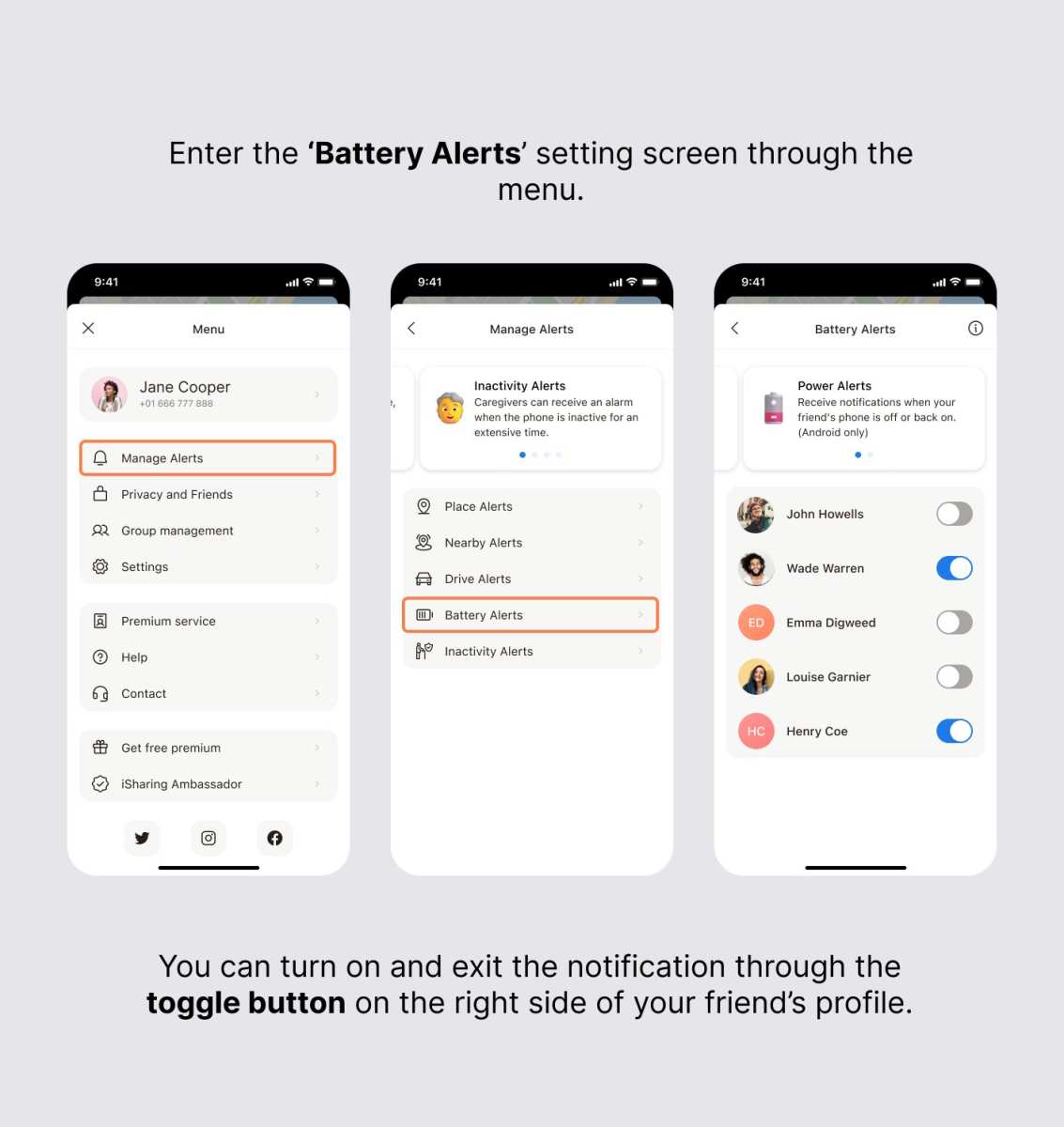

Understanding Android Apps Battery Alerts
Android apps battery alerts play a vital role in helping you manage your device’s power usage effectively. Whether you’re someone who uses your phone throughout the day or just want to avoid sudden shutdowns, these alerts serve as an early warning system. They inform you when your battery reaches a certain level, so you can take appropriate action to preserve power or charge your device. In this section, we will explore what battery alerts are, why they are essential, and how they help you maintain your device’s health.What Are Battery Alerts on Android?
Battery alerts are notifications or warnings that inform users about their device’s battery status. These alerts can be automatic or manually set, and they appear when your battery drops below a specific percentage or reaches a certain level. The goal of these alerts is to:- Prevent unexpected shutdowns due to low battery
- Encourage users to charge their devices in a timely manner
- Help conserve power by alerting users to optimize settings
Why Are Battery Alerts Important?
Battery alerts serve several critical functions that contribute to device longevity and user convenience:- Prevent Data Loss: Low battery warnings give you enough time to save your work or complete ongoing tasks before your device turns off.
- Optimize Battery Life: Alerts remind users to close unnecessary apps or switch to power-saving modes, significantly extending battery life.
- Reduce Unexpected Shutdowns: By keeping you aware of battery levels, alerts prevent sudden shutdowns that can lead to loss of unsaved data or disruptions.
- Maintain Device Health: Regular notifications about battery status encourage better charging habits, which can prolong your battery’s overall lifespan.
How Default Battery Alerts Work on Android Devices
Most Android devices come with built-in battery alert features that are straightforward to use:Standard Notification Settings
These are pre-set notifications that alert you at specific battery levels:- On 15% battery
- On 5% battery (critical level)
- Settings
- Battery
- Battery Saver or Battery Usage
Customizing Your Battery Alerts
Many Android users prefer to fine-tune their notifications. You can do this by:- Using built-in settings to choose at what percentage you want alerts to pop up
- Installing third-party apps that offer more detailed customization and additional alert sounds
- Setting different alerts for specific apps or activities
Popular Apps for Managing Battery Alerts
If your device’s default options are not enough, various apps can improve how you receive and manage battery alerts:Top Apps to Consider
- AccuBattery: Tracks actual battery consumption, shows estimated time remaining, and sends alerts when it’s time to charge.
- Battery Widget & Manager: Provides real-time battery info, customizable alerts, and battery health monitoring.
- GSam Battery Monitor: Offers detailed reports on battery usage, helping you identify power-hungry apps and set alerts accordingly.
How to Set Battery Alerts on Your Android Device
Setting up battery alerts varies based on your device and Android version, but the basic steps are similar:Using Built-in Settings
- Open the Settings app
- Navigate to Battery
- Select Battery Saver or Battery Usage
- Look for options like Battery percentage and Battery alerts
- Set your preferred notification thresholds
Installing and Configuring Third-Party Apps
- Download a reputable battery alert app from the Google Play Store
- Open the app and grant necessary permissions
- Customize alert thresholds, sounds, and notification methods
- Enable your preferences and test the alerts to make sure they work correctly
Troubleshooting Common Battery Alert Issues
Sometimes, battery alerts may not work as expected. Here are common issues and solutions:Alerts Not Showing Up
- Ensure notifications are enabled for the relevant app or system feature
- Check if your device has any battery saver modes active that might restrict notifications
- Update your device’s software and apps for the latest improvements
Incorrect Battery Level Reporting
- Calibrate your battery by fully draining it and then charging to 100%
- Use third-party apps to verify actual battery capacity and consumption
Too Many Notifications
- Adjust the alert thresholds or disable less important alerts
- Turn off non-essential notifications in your device settings
Enhancing Battery Life with Alerts
Smart use of battery alerts can significantly extend your device’s runtime. Here’s how:- Set low battery alerts to activate power-saving modes automatically
- Monitor apps that drain your battery and close or uninstall them if necessary
- Charge your device when notifications warn you that your battery is getting low
- Keep your device updated to benefit from the latest energy efficiency improvements
Future Trends in Android Battery Alert Technology
As technology advances, battery alert features are becoming more sophisticated:- Integration with AI to predict battery trends and suggest optimal charging times
- Enhanced customization options for alerts, including vibration, sounds, or visual cues
- Better integration with power management apps for real-time control
- Support for smart accessories that notify you about battery status remotely
Frequently Asked Questions
How can I reduce battery drain caused by notifications from certain apps?
To minimize battery drain from notifications, disable notifications for apps that are not essential. You can do this by going to your device’s settings, selecting ‘Apps & notifications,’ choosing the specific app, and turning off notifications. Additionally, restricting background activities for these apps can help conserve battery life.
Is it possible to set custom battery alerts for specific apps?
Most Android devices do not offer built-in features to set custom battery alerts per app. However, you can install third-party apps designed to monitor individual app battery usage and notify you when an app consumes a significant amount of power. These tools allow for better control over your device’s battery consumption.
What strategies can help extend my device’s battery life related to app usage?
Reducing the number of apps running in the background, closing unused apps, and limiting background data usage are effective strategies. Also, consider adjusting app permissions to prevent unnecessary background activity and uninstalling apps that are rarely used to improve overall battery longevity.
Final Thoughts
In conclusion, maintaining optimal battery health is crucial for Android users. Using apps with battery alerts helps prevent unexpected shutdowns and prolongs device lifespan. These alerts keep users informed and allow timely actions to conserve power. ‘android apps battery alerts’ serve as valuable tools to manage battery performance efficiently and with ease.
Similar Posts































