Android Best Battery Life Tips For Longer Phone Use

Maximizing Your Android Phone’s Battery Life for All-Day Use
When you rely heavily on your Android device, battery life becomes one of the most important aspects of your daily experience. Whether you’re a student, a professional, or someone who simply enjoys browsing or gaming on your phone, having a long-lasting battery can make your day much easier. Thankfully, there are many ways to boost your Android’s battery performance without sacrificing the features you love. In this section, we’ll explore effective strategies, helpful tips, and practical tools to ensure your Android device keeps going longer between charges.Understanding How Android Phones Use Power
Before diving into tips, it helps to understand what drains your Android’s battery. Several factors influence battery consumption:- Screen brightness and timeout duration
- Background apps and processes
- Connectivity features like Wi-Fi, Bluetooth, and GPS
- Notifications and app updates
- System updates and hardware usage
Adjust Screen Settings for Better Battery Performance
The display often accounts for the highest battery drain on Android devices. So, optimizing screen settings is one of the fastest ways to extend battery life.Reduce Screen Brightness
Keeping your screen brightness low can save substantial power. Most Android phones have an automatic brightness setting, but you can also manually set it to a lower level:- Access the quick settings panel by swiping down from the top of the screen
- Adjust the brightness slider to a comfortable, lower level
- Enable “Auto Brightness” if you prefer dynamic adjustment but monitor its impact on power consumption
Limit Screen Timeout Duration
The screen stays lit longer than necessary if timeout settings are too high. Set your device to turn off the display quickly after inactivity:- Go to Settings > Display
- Select “Screen Timeout” or “Sleep”
- Choose a duration such as 30 seconds or 1 minute
Use Dark Mode and Wallpapers
If your device has an OLED or AMOLED screen, switching to a dark theme can dramatically improve battery life:- Enable system-wide dark mode through Settings > Display
- Set wallpapers to darker images to save power
Manage Connectivity Features Effectively
Connectivity options like Wi-Fi, Bluetooth, GPS, and mobile data are essential but can quickly deplete battery if left on unnecessarily.Turn Off Wi-Fi and Bluetooth When Not Needed
Switch off Wi-Fi and Bluetooth if you’re not using them, especially when you’re in areas with no available networks:- Use the quick toggles for quick access
- Disable them in Settings > Connections
Use Airplane Mode in Low Signal Areas
When your signal is weak, your phone works harder to connect, draining more battery. Turning on airplane mode temporarily can help:- Swipe down the quick settings panel
- Tap the airplane icon to activate
Optimize GPS Usage
GPS is a major battery consumer, especially if apps run it in the background:- Turn off GPS when not in use
- Limit location access for apps in Settings > Location
- Use “Battery Saving” mode in location settings if available
Control App Behavior and Notifications
Many apps run in the background and send notifications, which can lead to unnecessary battery drain. Managing these apps helps conserve power.Restrict Background Activity
Limiting background activity prevents apps from consuming resources when you’re not actively using them:- Go to Settings > Apps & Notifications > See all apps
- Select the app you wish to restrict
- Tap “Battery” or “Background restriction”
- Choose to restrict background activity
Disable Unnecessary Notifications
Receiving frequent notifications causes your device to wake up repeatedly, consuming energy:- Open Settings > Notifications
- Identify critical apps and disable notifications for less important ones
Use Battery Optimization Features
Modern Android versions come with built-in battery-saving modes:- Navigate to Settings > Battery & Device Care
- Enable “Battery Saver”
- Adjust the settings to turn on automatically at a certain battery percentage
Perform Regular Maintenance and Updates
Maintaining your device helps ensure it runs efficiently and uses power intelligently.Update Apps and System Software
Developers frequently release updates that improve power efficiency:- Check for system updates regularly in Settings > Software Update
- Update apps via Google Play Store
Clear Cache and Unused Apps
Cached data can sometimes cause apps to misbehave, leading to excess battery drain:- Go to Settings > Storage > Cached data
- Clear cached data periodically
- Uninstall apps you no longer use to free up resources
Utilize Power-Saving Apps and Tools
Several third-party apps help monitor and improve battery health. When choosing them, ensure they are reputable:- Battery monitoring apps that show real-time usage
- App killers that close unnecessary background apps
- Tools that manage CPU and GPU performance
Practical Tips for Everyday Use
In addition to setting adjustments, adopting habits that conserve power makes a big difference:- Charge your phone before it drops below 20%
- Avoid excessive gaming or video streaming when running low on battery
- Use offline maps or download content to reduce data and GPS usage
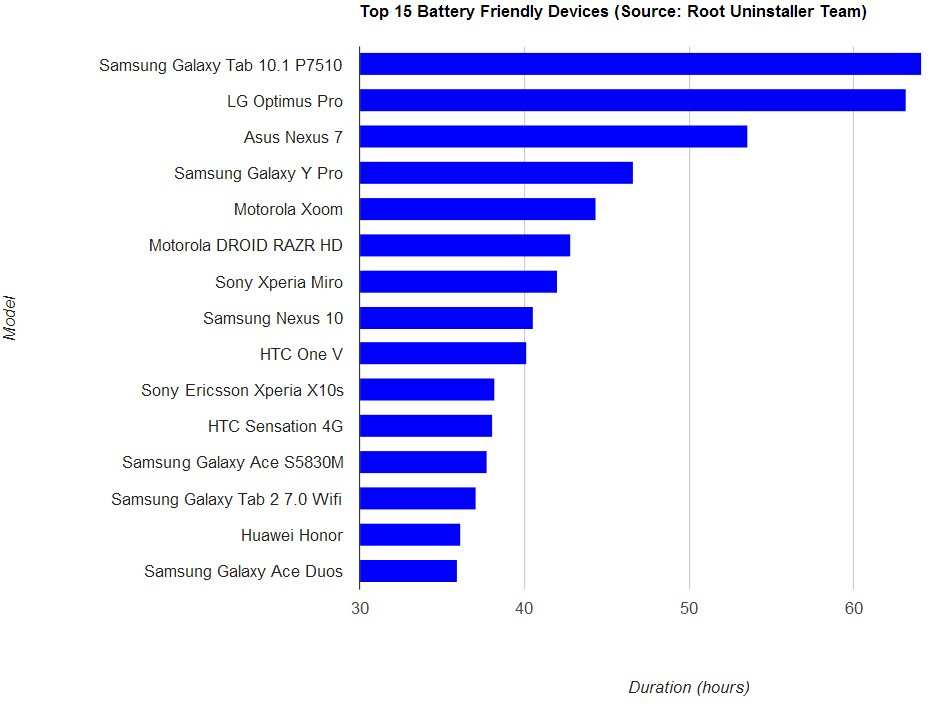
Choosing the Right Android Device for Battery Life
If you’re considering a new device, battery capacity is a key specification:| Device Model | Battery Capacity (mAh) | Estimated Usage Time |
|---|---|---|
| Device A | 4000 | Day and a Half |
| Device B | 5000 | Two Days |
| Device C | 6000 | Two and a Half Days |
Final Thoughts on Extending Android Battery Life
Maximizing your Android device’s battery longevity involves a combination of smart settings, regular maintenance, and mindful usage. Small changes like lowering screen brightness, managing app permissions, and turning off unused connectivity features can add up to significantly longer battery life. Always stay updated and keep an eye on your device’s health through built-in tools. Remember, understanding how your device consumes power empowers you to make smarter choices, ensuring your Android stays powered longer and works better throughout your busy day.Frequently Asked Questions
How can I extend the battery life of my Android device during daily use?
To maximize your Android device’s battery life, reduce screen brightness, limit background app activity, turn off Wi-Fi and Bluetooth when not in use, and enable battery saver mode. Additionally, closing apps when you’re finished with them and avoiding heavy tasks like gaming for extended periods can help conserve power throughout the day.
What settings or features help improve Android battery performance?
Enabling adaptive brightness adjusts the screen based on your environment, which saves energy. Using dark themes and minimizing push notifications reduces activity that drains the battery. Also, restricting background data for apps and turning off location services when not needed can significantly boost battery longevity.
Are there any specific apps or tools that can help monitor and manage battery health?
Yes, Android offers built-in battery health features that show usage statistics and track which apps consume the most power. Third-party apps like AccuBattery or GSam Battery Monitor provide detailed insights into battery performance and can suggest ways to optimize usage for better longevity.
What hardware factors influence an Android device’s battery life?
The size and quality of the battery directly impact how long your device can operate on a single charge. Hardware components such as the processor, display, and camera also affect power consumption. Devices with efficient processors and optimized hardware designs typically offer better battery life.
How can I optimize my Android device’s battery when using resource-intensive applications?
When running demanding apps or games, lower the screen resolution and disable unnecessary background processes. Using power-saving modes and closing background applications can help reduce overall power drain. Managing app permissions and limiting background data also helps maintain better battery life during intensive tasks.
Final Thoughts
The quest for the android best battery life involves practical steps like reducing screen brightness and limiting background activity. Using power-saving modes can extend your device’s usability throughout the day. Regular updates and managing app permissions also contribute significantly. Prioritizing these tips allows users to maximize battery performance efficiently. Whether you’re a busy professional or a casual user, optimizing settings helps your device last longer between charges. In conclusion, focusing on thoughtful usage and device management ensures you get the android best battery life, making your smartphone more reliable and efficient.
Similar Posts































