Understanding Android Battery Symbols: A Complete Guide
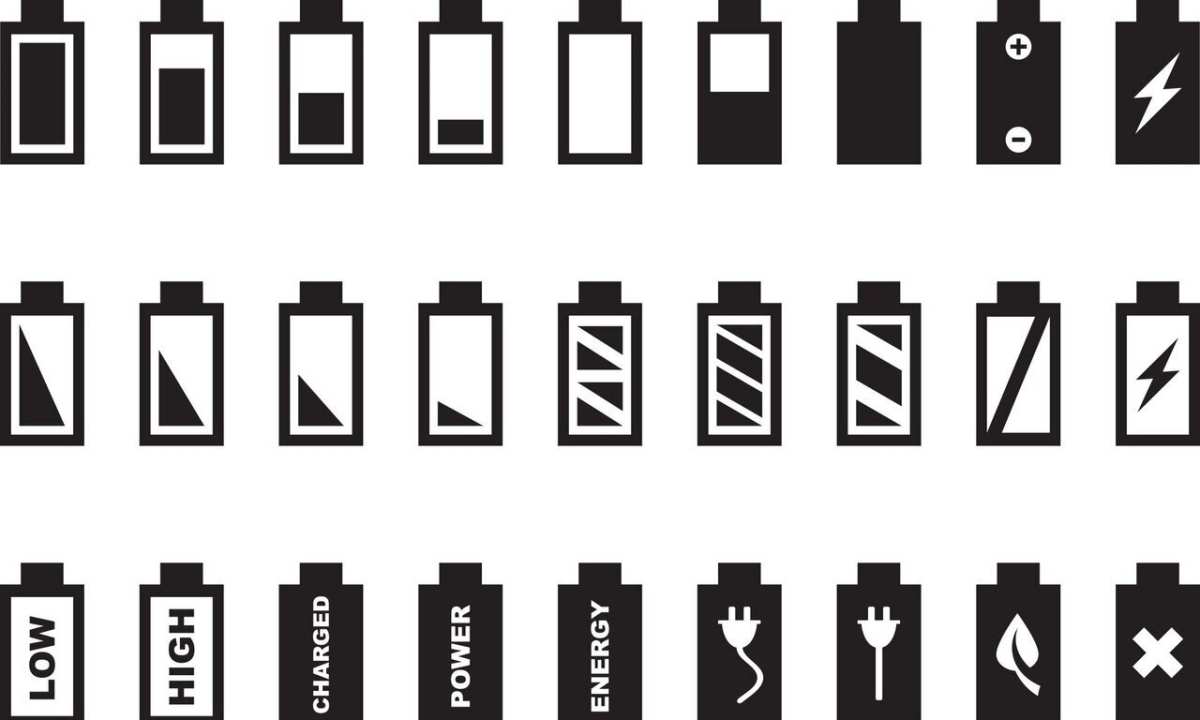

Understanding Android Battery Symbols: What They Mean and How to Read Them
Have you ever looked at your Android device and noticed different battery symbols in the status bar? Sometimes they appear as a simple icon, while other times they flash or change color. These symbols are more than just pictures—they provide important information about your phone’s battery health and how much power you have left. Knowing what each symbol means can help you manage your device better, avoid unexpected power loss, and improve your overall user experience.
The Basics of Android Battery Icons
Android battery symbols appear in the top part of your screen, typically in the status bar. They may look familiar, but they can also vary depending on your device model, Android version, and any customizations made by the manufacturer or through apps. At their simplest, these icons show the battery’s current charge level, but they can also indicate charging status, battery health, or even alert you to specific issues.
Understanding these icons is useful because it saves you from guessing how much battery life you have left or whether your phone is charging properly. The symbols usually change dynamically to keep you informed in real-time, making it easier to plan your usage and recharge your device when needed.
Common Android Battery Symbols and Their Meanings
Let’s explore the most common symbols you’ll encounter on Android devices. Each symbol provides specific information about your battery’s state:
| Icon | Description | What It Tells You |
|---|---|---|
 | Full battery | Your device has a fully charged battery, ready for use. |
 | Half charge | Your battery is about halfway charged. You might need to recharge soon depending on your usage. |
 | Low battery warning | Battery is running low, usually below 15%. It’s a good idea to plug in your charger soon. |
 | Empty battery | Your battery is almost dead. If not charged soon, your device might turn off. |
 | Charging | Your device is charging. The icon usually shows a lightning bolt inside the battery or next to it. |
 | Battery fully charged | The battery has reached 100% and stops charging automatically unless you unplug it. |
 | Wireless charging | Your device is charging wirelessly. Some battery symbols indicate this with a small wireless symbol. |
 | Battery health issue | The device is alerting you to a problem with the battery, such as aging or damage. |
How Charging Icons Differ Across Android Devices
While most Android devices use similar icons for basic functions, some manufacturers introduce their own symbols for added features or information. For example, Samsung phones often include a lightning bolt for charging, but may also add icons for fast charging, wireless charging, or battery optimization modes.
Additionally, newer Android versions and updates introduce subtle changes in the appearance of these symbols. For instance, some devices animate the battery icon to show charging progress or include color indicators: green for healthy, yellow for moderate, and red for critical battery levels. These visual cues help you quickly assess your phone’s battery condition without needing to unlock your device or go into settings.
Special Battery Symbols for Battery Optimization and Alerts
Beyond the basic icons, Android devices sometimes display additional symbols or notifications related to battery health or performance:
- Battery saver icon: Indicates that your device is in battery saving mode, which limits background activity to conserve power.
- Charging pauses: When unplugging a device or disconnecting from a wireless charger, a small icon may show that charging has paused temporarily.
- Battery health warning: An icon or message appears if the battery’s ability to hold charge has diminished significantly.
- Temperature warning icons: Show when your battery is too hot or too cold, which can affect charging and overall health.
Managing Battery Symbols and Notifications Efficiently
Knowing how to interpret battery symbols helps you manage your Android device more efficiently. Here’s what you can do:
- Monitor charge levels frequently: Keep an eye on the battery icon to avoid unexpected shutdowns.
- Enable battery saver mode: Use the icon or setting to extend battery life when you notice low levels.
- Identify charging issues: If the charging icon doesn’t appear when connecting your charger, check the port, cable, or adapter.
- Respond to warnings promptly: If you see a battery health or temperature warning, take action to prevent damage.
Tips to Improve Battery Health and Performance
Understanding battery symbols also guides you in maintaining your device’s battery health over time. Consider these tips:
- Avoid overcharging: Disconnect your charger once the battery hits 100% to prevent long-term damage.
- Keep battery levels moderate: Try not to let your battery drop below 20% frequently and recharge before it gets too low.
- Use original chargers and cables: Low-quality accessories can harm your battery and cause inaccurate symbols or warnings.
- Monitor battery usage: Use built-in settings or apps to see which apps consume the most power and adjust accordingly.
Customizing Battery Icons and Notifications
If you’re interested in personalizing how your Android device displays battery information, several apps and settings allow modifications:
- Battery widget apps: Install these apps to replace or add more detailed icons or information on your home screen.
- Notification settings: Customize alerts for specific battery levels or health issues.
- System themes and overlays: Some launchers or themes change the look of status bar icons, including battery symbols.
Troubleshooting Battery Icon Issues
Sometimes, your battery icon might not reflect the correct status. Common issues include icons showing incorrectly, icons disappearing, or icons not updating. Here are some troubleshooting steps:
- Restart your device: Sometimes a simple restart can fix display glitches.
- Update your system: Ensure your Android OS is current, as updates often fix bugs related to icons and notifications.
- Clear cache and data: For launcher or system UI apps, clearing cache might resolve icon problems.
- Reset app preferences: Resetting app preferences can fix conflicts causing incorrect icons.
- Check for hardware issues: Damaged charging ports or batteries can cause incorrect symbols; consider professional help if needed.
By understanding each of these symbols and their meanings, you gain better control and awareness over your device’s battery health. Recognizing what each icon indicates allows you to respond promptly — whether that’s plugging in your charger, adjusting device settings, or seeking professional advice for battery issues.
Next time you see a change in your Android battery icon, you’ll know exactly what it means and how to act. Keeping an eye on these symbols helps keep your device running smoothly, extend its lifespan, and ensure you always have power when you need it most.
Frequently Asked Questions
Why does my Android device show a battery symbol with a lightning bolt?
This symbol indicates that your device is currently charging. The lightning bolt inside the battery icon appears when you connect your Android to a power source, whether through a charger or a USB connection. It helps you quickly identify that your device is receiving power and charging the battery.
What does a battery icon with a warning sign mean on Android?
A battery icon with an exclamation mark or warning symbol signals a potential issue with your device’s battery. It could indicate that the battery is overheating, degrading, or not holding a charge properly. If you see this warning, consider checking the battery health, reducing usage, or visiting a service center for a thorough inspection.
What is the significance of a partially filled battery icon on my Android?
A partially filled battery icon shows the current charge level of your device. The more filled the icon, the higher the remaining battery life. This visual cue helps you gauge when to recharge your device and manage your usage accordingly to prevent unexpected shutdowns.
How can I interpret different colors of battery symbols on Android?
Colors of battery icons often provide quick insights into your device’s power status. For example, a green battery indicates sufficient charge, yellow or orange suggests moderate charge levels, and red warns that the battery is low and needs to be charged soon. Some devices may also change color when overheating or experiencing other battery issues.
What does a blinking or animated battery icon mean on Android?
A blinking or animated battery icon typically appears when your device is charging rapidly or when there’s an ongoing power issue. If the animation persists or the icon blinks unexpectedly, it could mean there’s a problem with the charger, the port, or the battery itself. In such cases, try using a different charger, ensure the port is clean, or seek professional assistance if necessary.
Final Thoughts
Android battery symbols provide quick insights into your device’s power status. Understanding these icons helps you manage your battery life more effectively. Recognizing when your phone needs a charge avoids unexpected shutdowns. Being familiar with these symbols ensures you stay aware of your device’s power level. Android battery symbols are essential for maintaining your phone’s performance. Clear comprehension of these icons allows you to plan your usage wisely.
Similar Posts