Close Menu
    Facebook X (Twitter) Instagram
    TechBink
    • Home
    • Android
    • Apple
    • Chat GPT
    • Windows 11
    • Contact Us
    Facebook X (Twitter) Instagram
    TechBink
    Gadget

    What Is the Best Budget Ultrawide Monitor

    Chris NolanBy Chris NolanMarch 4, 2026Updated:March 7, 2026No Comments12 Mins Read
    What Is the Best Budget Ultrawide Monitor
    Image for What Is the Best Budget Ultrawide Monitor
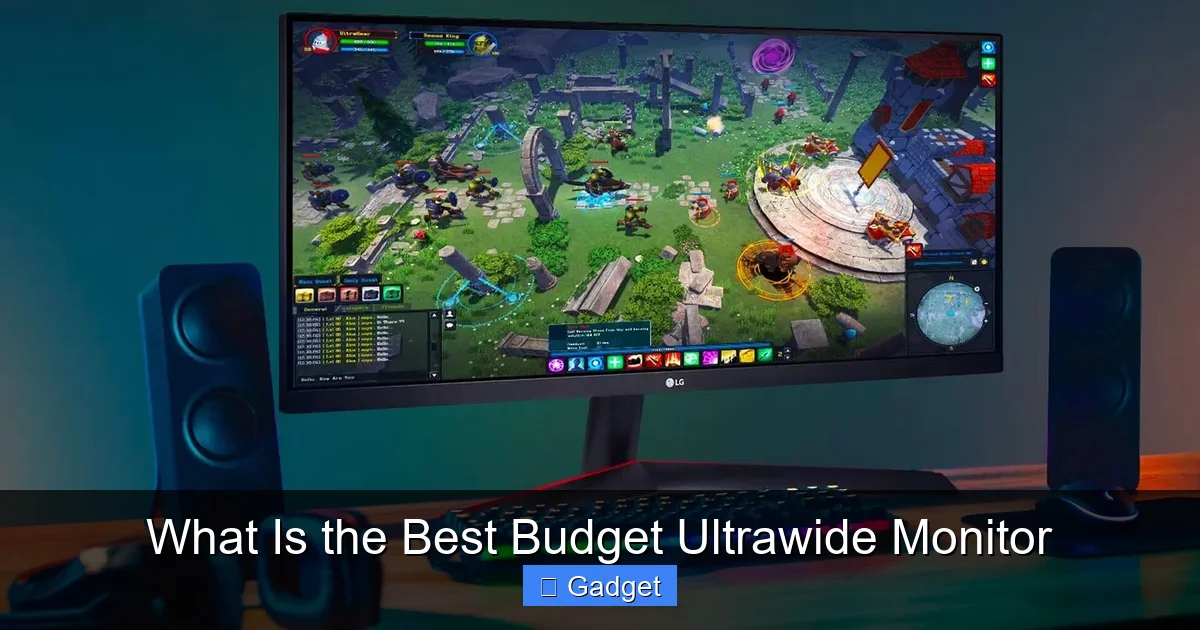
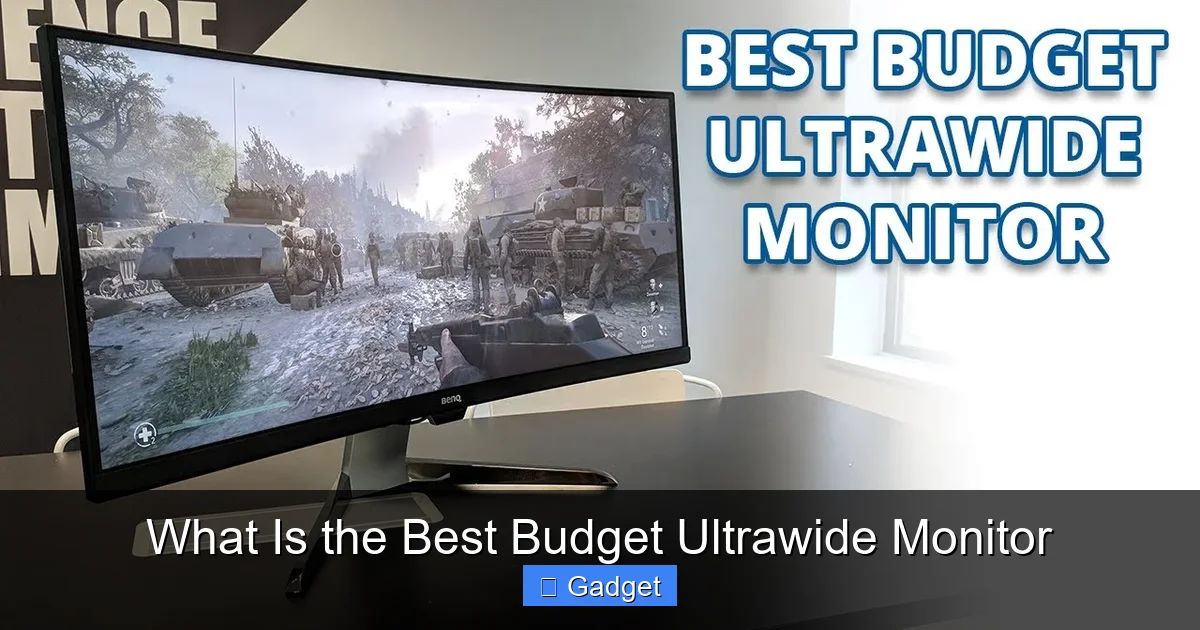
    Searching for the best budget ultrawide monitor can feel overwhelming, but this comprehensive guide simplifies the process. We’ll walk you through essential features to consider, from resolution and refresh rate to panel type and connectivity, helping you make an informed decision. By the end, you’ll be equipped to find an affordable ultrawide monitor that enhances your gaming and work experience without compromising your wallet. Are you tired of your standard monitor’s limited view? Do you dream of a more immersive gaming experience or a workspace where you can see more of your projects at once? An ultrawide monitor might be the perfect upgrade for you. But the term “ultrawide” often comes with a hefty price tag. The good news is, you don’t need to spend a fortune to enjoy the benefits of an ultrawide display. This guide is here to help you navigate the market and find the **best budget ultrawide monitor** that fits your needs and your wallet. We’ll break down what makes an ultrawide monitor great, what key features you should look for, and how to make the most of your purchase, even if you’re on a tight budget. Get ready to expand your horizons without emptying your bank account.

    Contents

    • 1 Key Takeaways
    • 2 What Exactly is an Ultrawide Monitor?
    • 3 Why Choose an Ultrawide Monitor?
    • 4 Defining “Budget” for Ultrawide Monitors
    • 5 Key Features to Consider for a Budget Ultrawide Monitor
    • 6 Where to Find the Best Budget Ultrawide Monitors
    • 7 Popular Budget Ultrawide Monitor Brands and Models to Consider
    • 8 Setting Up Your Budget Ultrawide Monitor
    • 9 Troubleshooting Common Issues with Budget Ultrawide Monitors
    • 10 Conclusion

    Key Takeaways

    • Understanding Ultrawide Benefits: Ultrawide monitors offer a wider field of view, enhancing immersion in games and productivity by displaying more content simultaneously.
    • Key Specifications to Prioritize: Focus on resolution (at least 2560×1080 for budget models), refresh rate (75Hz or higher for smoother visuals), and response time (4ms or lower for gaming).
    • Panel Type Matters: VA panels often offer the best contrast and deepest blacks for budget ultrawides, while IPS provides better color accuracy and viewing angles.
    • Connectivity is Crucial: Ensure the monitor has the necessary ports (HDMI, DisplayPort) to connect to your PC or console.
    • Resolution vs. Price: While higher resolutions like 3440×1440 are desirable, 2560×1080 is a good starting point for budget-conscious buyers, especially for gaming.
    • Reading Reviews is Essential: Always check professional and user reviews to gauge real-world performance, color accuracy, and build quality of budget ultrawide monitors.

    What Exactly is an Ultrawide Monitor?

    Before we dive into finding the best budget option, let’s clarify what an ultrawide monitor is. Simply put, an ultrawide monitor has a wider aspect ratio than a traditional monitor. Most standard monitors are 16:9, meaning they are 16 units wide for every 9 units tall. Ultrawide monitors, on the other hand, typically come in a 21:9 aspect ratio. This extra width provides a significantly broader field of view. Imagine the difference between watching a movie in widescreen format versus a more “square” format. The ultrawide experience is like that – it pulls you further into the content.

    Why Choose an Ultrawide Monitor?

    • Enhanced Immersion in Gaming: This is a huge draw for gamers. A wider field of view means you see more of the game world around you, making games more immersive and giving you a potential competitive edge in titles that support ultrawide resolutions.
    • Increased Productivity: For multitasking, ultrawide monitors are game-changers. You can comfortably have multiple windows open side-by-side without overlap, making research, coding, video editing, or even just managing emails much more efficient.
    • Better for Media Consumption: Movies and TV shows often have a cinematic 21:9 aspect ratio. Watching them on an ultrawide monitor means fewer black bars at the top and bottom, giving you a more expansive viewing experience.
    See also  How Do Ultrawide Monitors Affect Performance

    Defining “Budget” for Ultrawide Monitors

    When we talk about a “budget ultrawide monitor,” we’re generally looking at models priced below $300, and often closer to the $200 mark. These monitors will have compromises, but they still offer a significant step up from standard monitors and provide that desirable ultrawide experience. High-end ultrawides can easily cost $500, $800, or even over $1000, featuring higher resolutions, faster refresh rates, and premium features. Our focus here is on finding the sweet spot where you get the most bang for your buck.

    Key Features to Consider for a Budget Ultrawide Monitor

    Resolution: The Balancing Act

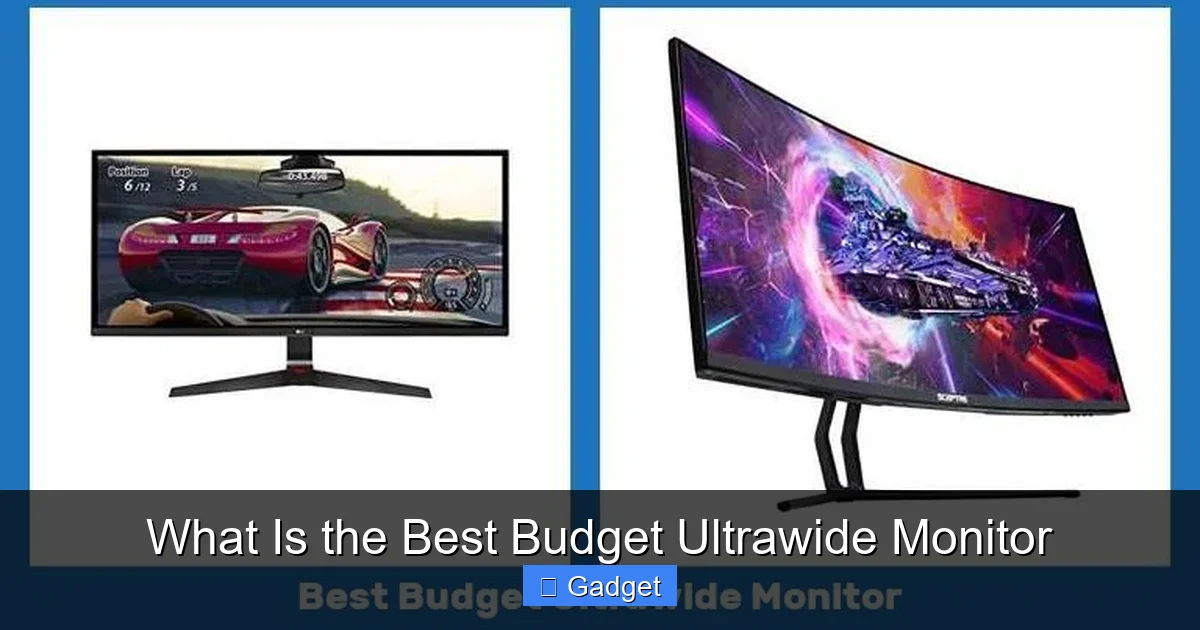
    • 2560×1080 (WFHD): This resolution offers a good balance between screen real estate and the graphical power needed to drive it. For gaming, it’s much easier on your graphics card than higher resolutions, making it ideal for budget builds. While it’s not as sharp as higher resolutions, it’s a significant improvement over standard 1920×1080 on a similarly sized screen.
    • 3440×1440 (WQHD or UWQHD): This is the resolution for higher-end ultrawides. It provides a much sharper image and more desktop space. However, it requires a more powerful GPU and is generally outside the budget category for ultrawide monitors.
    Tip: For a budget ultrawide, 2560×1080 is your target resolution. Don’t be swayed by marketing for higher resolutions if your budget is limited.
    What Is the Best Budget Ultrawide Monitor

    Visual guide about What Is the Best Budget Ultrawide Monitor

    Image source: thesweetpicks.com
    What Is the Best Budget Ultrawide Monitor

    Visual guide about What Is the Best Budget Ultrawide Monitor

    Image source: vssmonitoring.com
    What Is the Best Budget Ultrawide Monitor

    Visual guide about What Is the Best Budget Ultrawide Monitor

    Image source: i.ytimg.com

    Refresh Rate: Smoothness for Your Eyes

    • 60Hz: This is the standard for most basic monitors. It’s acceptable for general productivity and casual gaming, but you’ll notice motion blur in fast action.
    • 75Hz: A slight bump up from 60Hz, 75Hz offers a noticeable improvement in smoothness. Many budget ultrawide monitors offer 75Hz, making it a great target for this price range.
    • 100Hz – 144Hz+: These higher refresh rates are found on gaming-focused monitors and are generally outside the budget ultrawide category.
    Tip: Aim for at least 75Hz on your budget ultrawide. It makes a significant difference in perceived smoothness compared to 60Hz, especially for gaming. For more insights on how refresh rate impacts gaming, check out our guide on whether a 144Hz monitor is good for gaming.

    Response Time: Minimizing Ghosting

    • 1ms – 4ms: This is generally considered good for gaming. Many budget monitors will list a 4ms response time, often an overdrive setting.
    • 5ms – 8ms: You might see this on some budget panels. It’s acceptable for casual use but could be noticeable in fast-paced games.
    Tip: Look for monitors advertising 4ms response time. While real-world performance can vary, it’s a good indicator of a monitor’s potential for handling fast motion. To understand why this spec matters, read our detailed breakdown on whether monitor response time matters for gaming.

    Panel Type: VA vs. IPS

    • VA (Vertical Alignment): VA panels are common in budget ultrawide monitors. They typically offer excellent contrast ratios, meaning deeper blacks and brighter whites, which can make images pop. They also generally have good response times. However, they can sometimes have narrower viewing angles and color accuracy might not be as precise as IPS panels.
    • IPS (In-Plane Switching): IPS panels are known for their superior color accuracy and wide viewing angles. This means colors look consistent even when viewed from the side, and they are generally preferred for content creation. However, IPS panels can have lower contrast ratios than VA panels, leading to blacks that might appear more gray. They can also be more expensive, so finding an IPS ultrawide on a strict budget can be challenging.
    See also  Are Ultrawide Monitors Bad for Your Eyes
    Tip: For a budget ultrawide, a VA panel often provides the best balance of features, especially if deep blacks and good contrast are important to you for gaming or movies. If color accuracy is paramount for work, try to find an IPS panel if your budget allows. Learn more about the trade-offs in our article: Is IPS monitor better than TN for gaming?

    Connectivity: What Ports Do You Need?

    • HDMI: The most common video interface. Most modern graphics cards and consoles have HDMI outputs.
    • DisplayPort (DP): Often preferred for PCs as it can support higher refresh rates and resolutions. Ensure your graphics card has a DisplayPort output if you plan to use it.
    • USB Ports: Some monitors include USB ports, which can be handy for connecting peripherals or charging devices.
    • USB-C: A more advanced connection that can carry video, data, and power. Less common on budget ultrawides, but a great feature if you can find it.
    Tip: Always check the number and type of ports. For budget ultrawides, at least one HDMI and one DisplayPort are ideal.

    Size and Curvature

    • 29-inch: These are often the most affordable ultrawides. They have a slightly less dramatic curve and take up less desk space.
    • 34-inch: These offer a more immersive experience with a greater sense of wrap-around. They are more common but can sometimes be a bit pricier.
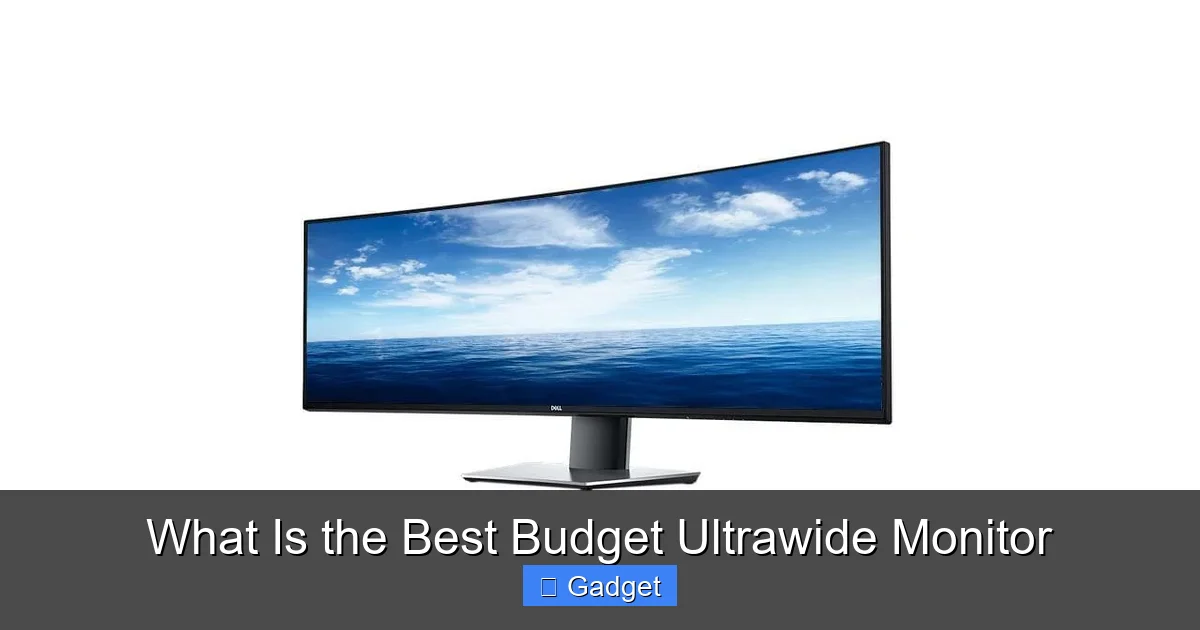
    Curvature: Many ultrawide monitors feature a curved screen (e.g., 1500R or 1800R). This curvature helps to bring the edges of the screen closer to your eyes, enhancing immersion and reducing eye strain, especially on wider displays. Budget ultrawides often feature a subtle curve, which is generally pleasant.

    Where to Find the Best Budget Ultrawide Monitors

    Online Retailers

    * Amazon: Offers a vast selection, competitive pricing, and frequent sales. You can often find excellent deals on budget ultrawide monitors here. * Newegg: A popular choice for PC hardware, Newegg often has good deals on monitors, especially during holiday sales. * Best Buy: While prices can sometimes be higher, Best Buy offers the advantage of being able to see some models in person and often has good open-box or refurbished deals.

    Manufacturer Websites

    Keep an eye on manufacturer websites like LG, Samsung, AOC, Viotek, and Sceptre. They sometimes have direct sales or offer refurbished units.

    Refurbished and Open-Box Deals

    Don’t shy away from refurbished or open-box items. Retailers often offer warranties on these products, and you can save a significant amount of money. Just be sure to check the return policy and warranty details.

    Popular Budget Ultrawide Monitor Brands and Models to Consider

    * AOC: Known for offering competitive specs at attractive price points. * Viotek: A brand that focuses on gamers and offers a good balance of features for the money. * Sceptre: Often one of the most affordable options, though sometimes with fewer premium features. * **LG & Samsung:** While they also make high-end models, keep an eye out for their entry-level ultrawide offerings, especially during sales.
    See also  Do Curved Monitors Distort Images

    Setting Up Your Budget Ultrawide Monitor

    Step 1: Unboxing and Physical Setup

    * Carefully unpack your monitor and all accessories. * Attach the stand according to the manufacturer’s instructions. * Place the monitor on your desk.

    Step 2: Connecting Your Monitor

    * Connect your computer or gaming console to the monitor using an HDMI or DisplayPort cable. Ensure you’re using the correct port on both your device and the monitor. * Plug in the power cable.

    Step 3: Adjusting Display Settings

    * Turn on your monitor and your computer. * Your operating system (Windows, macOS) should detect the new display. You may need to go into display settings to set the correct resolution (2560×1080 for budget ultrawides) and refresh rate (e.g., 75Hz). * For Gaming: In your graphics card control panel (NVIDIA Control Panel or AMD Radeon Software), ensure the correct resolution and refresh rate are selected. You might also want to explore overdrive settings for response time. * Color Calibration (Optional but Recommended): While budget monitors might not have perfect factory calibration, you can use your operating system’s built-in calibration tools or free online tools to make minor adjustments for better color accuracy.

    Step 4: Optimizing Your Workspace

    * **Software Adjustments:** For productivity, explore Windows Snap features or third-party window management tools to make the most of the extra screen real estate. * **Ergonomics:** Adjust the monitor’s height and tilt for comfortable viewing. If your monitor stand doesn’t offer much adjustability, consider a monitor arm.

    Troubleshooting Common Issues with Budget Ultrawide Monitors

    Issue: Screen Stretching or Black Bars

    * Cause: Incorrect resolution or aspect ratio settings. * Solution: Go into your display settings (Windows: Settings > System > Display; macOS: System Settings > Displays) and ensure the resolution is set to 2560×1080 and the aspect ratio is correct for your ultrawide monitor. Also, check your graphics card’s control panel.

    Issue: Ghosting or Motion Blur in Games

    * Cause: High response time or aggressive overdrive settings. * Solution: Check your monitor’s On-Screen Display (OSD) menu for “Response Time” or “Overdrive” settings. Try different levels. Sometimes, the fastest setting can cause inverse ghosting; a slightly lower setting might be better. Ensure your graphics card is running at a frame rate that matches your monitor’s refresh rate.

    Issue: Colors Look Washed Out or Inaccurate

    * Cause: Poor factory calibration or panel type limitations. * Solution: Use your OS’s display calibration tools. Adjust brightness, contrast, and color temperature in the monitor’s OSD. Online color calibration guides can also help. If it’s a VA panel, some off-axis color shifting is expected.

    Issue: Monitor Not Detected or Displaying Correctly

    * Cause: Loose cables, incorrect input selected, or driver issues. * Solution: Ensure all cables are securely plugged in. Try a different HDMI or DisplayPort cable. Manually select the correct input source on your monitor using its OSD. Update your graphics card drivers from the manufacturer’s website.

    Conclusion

    Finding the **best budget ultrawide monitor** is entirely achievable. By understanding the key specifications like resolution (2560×1080), refresh rate (75Hz+), panel type (VA often offers great value), and connectivity, you can make an informed decision. Don’t be afraid to explore different retailers, look for deals, and consider refurbished options. An ultrawide monitor can genuinely transform your computing experience, offering more immersive gaming and a more efficient workflow, all without requiring a premium investment. With a little research and by focusing on these essential features, you’ll be well on your way to enjoying a wider world on your desk. Happy hunting for your new ultrawide display!
    Chris Nolan

    Related Posts

    Does Monitor Refresh Rate Affect Fps

    March 12, 2026

    What Is the Difference Between Gaming Monitor and Normal Monitor

    March 11, 2026

    Do You Need a 27 Inch Monitor for Gaming

    March 11, 2026
    Leave A Reply Cancel Reply

    Facebook X (Twitter) Instagram Pinterest
    • Home
    • Contact
    • About Us
    • Disclaimer
    • Privacy Policy
    • Terms & Condition
    © 2026 ThemeSphere. Designed by ThemeSphere.

    Type above and press Enter to search. Press Esc to cancel.