

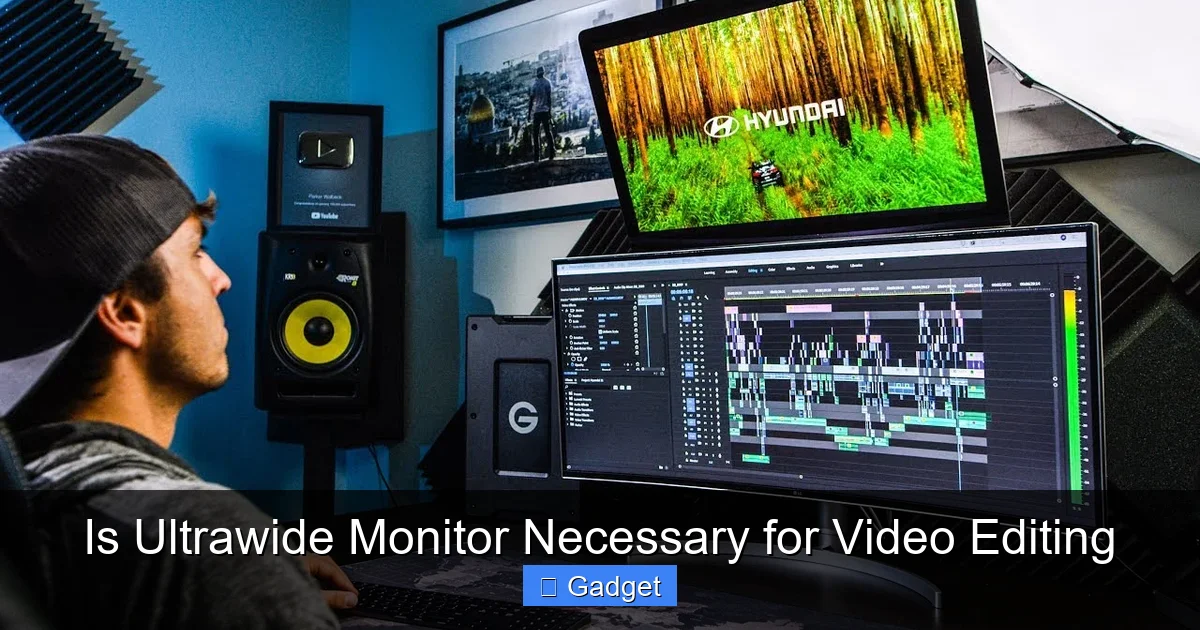
For video editors, the debate around ultrawide monitors is significant. While they offer a vast workspace for timelines and preview windows, they aren’t strictly necessary for everyone. This guide dives deep into the advantages and disadvantages of ultrawide displays for video editing, helping you determine if this immersive experience is the right fit for your workflow and budget, or if traditional setups suffice.
## Is Ultrawide Monitor Necessary for Video Editing? A Deep Dive
So, you’re a video editor, or perhaps you’re looking to get into the craft. You’re building your dream setup, and the question inevitably arises: “Do I *need* an ultrawide monitor for video editing?” It’s a common question, and the answer, like most things in tech, isn’t a simple yes or no. It depends on your workflow, your budget, and your personal preferences.
This guide will take you on a journey to understand the world of ultrawide monitors and how they fit into the demanding landscape of video editing. We’ll explore the compelling reasons why many editors swear by them, the potential downsides that might make you reconsider, and how to make the best decision for *your* specific editing needs. By the end, you’ll have a clear picture of whether an ultrawide monitor is a must-have tool or an optional luxury for your video editing endeavors.
## Understanding Ultrawide Monitors
Before we dive into the specifics of video editing, let’s get a handle on what an ultrawide monitor actually is. Unlike standard monitors that typically have a 16:9 aspect ratio (meaning for every 16 units of width, there are 9 units of height), ultrawide monitors stretch this ratio, most commonly to 21:9 or even 32:9. This results in a significantly wider display. Think of it as taking a standard monitor and widening it considerably, giving you a panoramic view.
These monitors come in various resolutions, with common ones being 2560×1080 (WFHD Ultrawide), 3440×1440 (WQHD Ultrawide), and 5120×1440 (DQHD Ultrawide). The higher the resolution, the more detail and screen real estate you get. Many ultrawide monitors also feature a curved display, which is designed to wrap the image around your field of view, enhancing immersion and potentially reducing eye strain by keeping the edges closer to your eyes.
## The Allure of the Ultrawide for Video Editing
For video editors, screen real estate is king. The more space you have to lay out your various editing panels and timelines, the smoother and more efficient your workflow can be. This is where ultrawide monitors truly shine.
### 1. The Glorious Timeline Space
This is arguably the biggest draw for video editors. Your timeline, where you arrange your clips, audio, and effects, can get incredibly long, especially for longer projects like documentaries or feature films.
* Less Zooming and Scrolling: On a standard 16:9 monitor, you’re often forced to zoom in and out constantly or scroll horizontally to see different parts of your timeline. An ultrawide monitor gives you a much wider view of your timeline at any given zoom level. This means you can see more of your edit at once, making it easier to spot continuity errors, manage transitions, and get a better overview of your project’s structure.
* Visualizing Your Entire Project: Imagine being able to see 30 seconds, a minute, or even more of your timeline laid out clearly without having to move your mouse. This level of visibility allows for a more fluid and intuitive editing process. You can grab a clip from the beginning and drag it to the end, or see how a music track aligns with your visuals across a substantial segment of the video.
### 2. Multitasking Nirvana: Panels Galore!
Modern video editing software, like Adobe Premiere Pro, Final Cut Pro, DaVinci Resolve, and Avid Media Composer, is designed with multiple panels and windows. You have your project browser, source monitor, program monitor, effects controls, audio mixer, and, of course, the timeline.
An ultrawide monitor allows you to arrange these panels side-by-side much more comfortably. You can have your timeline at the bottom, your program monitor and source monitor to the right, and your project browser and effects controls to the left, all within view simultaneously. This drastically reduces the need to click between different windows or tabs, saving precious seconds and mental energy on every edit.
This ability to see everything at once translates directly into improved workflow efficiency. You can make a change in the effects panel and immediately see the result on your program monitor, then jump back to adjusting your timeline, all without losing focus. It creates a more seamless and intuitive editing experience.
### 3. Immersive Previewing
The expanded aspect ratio can also enhance the previewing experience, especially if you’re working with cinematic footage or content intended for widescreen viewing.
* True Cinematic Feel: If you’re editing content that’s already in a 21:9 or even a wider aspect ratio (like 2.35:1 or 2.39:1), an ultrawide monitor can display it without letterboxing. This gives you a true sense of how your final video will look. You’re not squinting at a small window or guessing how the wider image will feel.
* Enhanced Detail: The sheer width can also make it easier to appreciate details in your footage, particularly in wide landscape shots or scenes with a lot of environmental information.
### 4. Reduced Eye Strain (Potentially)
This is a benefit that often comes with the curved ultrawide monitors.
* Natural Field of View: The curve of the monitor is designed to mimic your natural field of vision more closely. Instead of looking at a flat surface where the edges are further away, a curved monitor brings the edges into your peripheral vision more equally. This can reduce the amount of eye movement and refocusing required, potentially leading to less fatigue over long editing sessions.
## The Flip Side: Potential Drawbacks of Ultrawide Monitors
While the benefits are compelling, ultrawide monitors aren’t a magic bullet for every video editor. There are potential downsides to consider.
### 1. Software and Content Compatibility
This is a crucial point. Not all software and not all video content is designed to take full advantage of an ultrawide aspect ratio.
* Letterboxing and Stretched Content: If you’re editing standard 16:9 footage and your editing software doesn’t handle aspect ratios gracefully, you might end up with letterboxing (black bars on the sides) in your preview windows, or worse, your footage might be stretched to fill the ultrawide screen. This can be distracting and make it hard to judge framing accurately.
* UI Scaling Issues: Some older or less sophisticated software might not scale their user interface elements properly to ultrawide resolutions. You might find menus or toolbars looking stretched or oddly placed. However, most major editing suites (Premiere Pro, DaVinci Resolve, Final Cut Pro) are generally well-optimized for ultrawide displays these days.
* Playback of 16:9 Content: When watching regular 16:9 videos on an ultrawide monitor, you’ll typically have black bars on the sides. This is not necessarily a problem for editing, but it’s something to be aware of if you also use your monitor for general media consumption.
### 2. Desk Space and Ergonomics
These monitors are, by their nature, larger and wider.
* Significant Footprint: An ultrawide monitor, especially a larger one (34 inches or more), takes up a considerable amount of desk space. You need to ensure you have adequate room for it, along with your keyboard, mouse, and other peripherals. For detailed measurements and layout tips, check out our guide on how much desk space an ultrawide monitor needs.
* Curvature and Viewing Distance: While the curve can be beneficial, it also means the monitor is deeper from front to back. You need to ensure you’re sitting at the optimal viewing distance. Too close, and the curve might feel exaggerated; too far, and you might not be able to appreciate the width. Proper positioning is key to avoiding neck strain.
### 3. Cost Factor
Ultrawide monitors are generally more expensive than their standard 16:9 counterparts with comparable specifications.
* Premium Pricing: If you’re on a tight budget, a high-quality ultrawide monitor might be out of reach. You might get a larger, higher-resolution 16:9 monitor for the same price. The question becomes whether the specific benefits of the ultrawide aspect ratio justify the extra cost for your workflow. Learn more about why ultrawide monitors are more expensive and whether the investment aligns with your editing needs.
### 4. Color Accuracy and Calibration
While not exclusive to ultrawide monitors, ensuring accurate color representation is paramount for video editing.
* Uniformity Challenges: With a larger, wider screen, achieving perfect color uniformity across the entire display can be more challenging. It’s essential to invest in a quality monitor known for good color accuracy and to calibrate it regularly to ensure your edits look correct on other displays.
## Alternatives to Ultrawide Monitors
If an ultrawide monitor doesn’t seem like the perfect fit, don’t despair! There are other ways to achieve a highly productive editing setup.
### 1. Dual Monitor Setup
This is a classic and highly effective solution that many professional editors swear by.
* Separating Workspaces: A common setup involves a primary monitor for your timeline and program view, and a secondary monitor dedicated to source footage, effects, or a media browser. This gives you ample screen real estate and allows for clear separation of tasks.
* Flexibility: You can configure dual monitors in various ways – side-by-side, stacked, or even one horizontal and one vertical (for timelines!). This offers a high degree of customization.
* Cost-Effectiveness: You can often build a capable dual-monitor setup for less than a premium ultrawide. You can even start with one good monitor and add a second, less expensive one later.
### 2. High-Resolution Standard Monitors
A single, high-resolution 16:9 monitor can also provide a great editing experience.
* More Pixels, More Space: Monitors with 4K (3840×2160) or even 5K (5120×2880) resolutions offer a significant amount of screen real estate, even within the 16:9 aspect ratio. You can fit more panels and see your timeline in greater detail.
* Ideal for Specific Workflows: If you primarily work with 16:9 footage and don’t require the extreme width of an ultrawide, a high-resolution 16:9 monitor might be more than sufficient.
### 3. Vertical Monitor Setup
For editors who spend a lot of time working with detailed timelines or text-based content, a vertically oriented monitor can be surprisingly useful.
* Timeline Dominance: A vertical monitor is excellent for displaying long timelines without any horizontal scrolling. You can see a vast chunk of your edit in terms of duration at a glance.
* Complementary Tool: It’s often used in conjunction with a primary horizontal monitor, creating a powerful dual-setup that caters to different aspects of the editing process. While ultrawide monitors can’t be rotated vertically in the traditional sense, you can explore options like can ultrawide monitors be used vertically for unique workflows.
## Making the Decision: Is It Necessary for *You*?
So, to circle back to the original question: Is an ultrawide monitor *necessary* for video editing?
### For Whom is an Ultrawide Monitor Likely Necessary?
* Professional Editors Working with Long Form Content: If you regularly edit documentaries, feature films, or any project with very long timelines, the space an ultrawide provides can be a significant time-saver and workflow enhancer.
* Editors Prioritizing Maximum Efficiency: If every second counts and you want to minimize mouse clicks and window switching, an ultrawide can be invaluable.
* Editors Working with Ultrawide Aspect Ratios: If your primary output is cinematic 21:9 or wider, seeing your content in its native aspect ratio without bars is a major advantage.
* Gamers Who Also Edit: Many ultrawide monitors offer excellent gaming performance, making them a versatile choice for users who do both.
### For Whom Might an Ultrawide Monitor Be Optional?
* Beginner Editors or Hobbyists: If you’re just starting out, a standard 16:9 monitor or a dual monitor setup is perfectly adequate to learn and create. The investment in an ultrawide might not be justifiable early on.
* Editors Primarily Working with 16:9 Content: If your bread and butter is YouTube videos, commercials, or social media content that is predominantly 16:9, the extreme width of an ultrawide might offer less dramatic benefits than for someone working with 21:9 footage.
* Those on a Strict Budget: As mentioned, ultrawides can be expensive. If budget is a primary concern, focus on getting the best quality 16:9 or dual monitor setup you can afford.
* Users with Limited Desk Space: The physical footprint of these monitors cannot be ignored.
## Practical Tips for Using an Ultrawide Monitor for Editing
If you decide to go for an ultrawide, here are some tips to maximize its potential:
### Setting Up Your Workspace
* Software Customization: Spend time customizing your editing software’s layout. Arrange panels where they are most intuitive for your workflow. Group related panels together.
* Window Management Tools: Utilize your operating system’s window snapping features (like Windows Snap Assist or macOS Split View) or third-party window management software to quickly arrange and resize your application windows.
* Consider the Curve: If you have a curved ultrawide, position yourself directly in front of the center of the screen for the best viewing experience. Avoid sitting too close or too far away.
### Optimizing for Different Aspect Ratios
* Project Settings: Ensure your project settings in your editing software match the aspect ratio of your footage. This will help prevent stretching or incorrect scaling.
* Playback Monitor: If you have a secondary monitor, consider using it as your primary playback monitor for your program view, especially if it’s a 16:9 display, to get a true representation of that aspect ratio.
### Calibration is Key
* Invest in a Color Calibrator: Regardless of your monitor choice, regular calibration is essential for video editing. This ensures that the colors you see are accurate.
* Uniformity Checks: After calibrating, run some tests with solid color screens to check for any significant color shifts or uniformity issues across the wide expanse of your ultrawide monitor.
## Conclusion: The Ultrawide – A Powerful Tool, Not a Requirement
Ultimately, an ultrawide monitor is a powerful tool that can significantly enhance the video editing experience for many, particularly those who crave more screen real estate for their timelines and multitasking. It offers a more immersive and potentially more efficient workflow.
However, it is not an absolute necessity. A well-configured dual monitor setup or a high-resolution standard monitor can provide comparable productivity gains for a wider range of editors and budgets. The decision boils down to your individual workflow, your primary content type, your budget, and your personal preference.
If you have the desk space, the budget, and a workflow that would genuinely benefit from that expansive horizontal canvas, an ultrawide monitor is an excellent investment. But if your needs are met by other configurations, or if the drawbacks outweigh the benefits for your specific situation, don’t feel pressured to conform. The best monitor for video editing is the one that allows *you* to edit most comfortably, efficiently, and creatively.
Key Takeaways
- Space for Your Timeline: Ultrawide monitors provide significantly more horizontal screen real estate, making it easier to view and manage long video timelines without constant zooming or scrolling.
- Improved Workflow Efficiency: By allowing multiple panels (like the timeline, viewer, effects, and media browser) to be visible simultaneously, ultrawide monitors can streamline your editing process and reduce context switching.
- Immersive Viewing Experience: The expanded field of view can offer a more immersive preview experience, especially for cinematic aspect ratios, though this can also be a double-edged sword.
- Potential Compatibility Issues: Some older video editing software or certain project settings might not fully optimize for ultrawide resolutions, leading to letterboxing or stretched content.
- Desk Space and Ergonomics: Ultrawide monitors are larger and require more desk space. Their curved nature can also impact viewing angles and require careful positioning for optimal ergonomics.
- Cost vs. Benefit: While offering substantial benefits, ultrawide monitors are often more expensive than comparable standard aspect ratio displays, so weigh the cost against the tangible improvements to your editing workflow.
- Alternatives Exist: Dual monitor setups or high-resolution standard monitors can achieve similar multitasking benefits without the unique challenges of ultrawide displays.
