Where Is The Battery On Android Phone: A Simple Guide
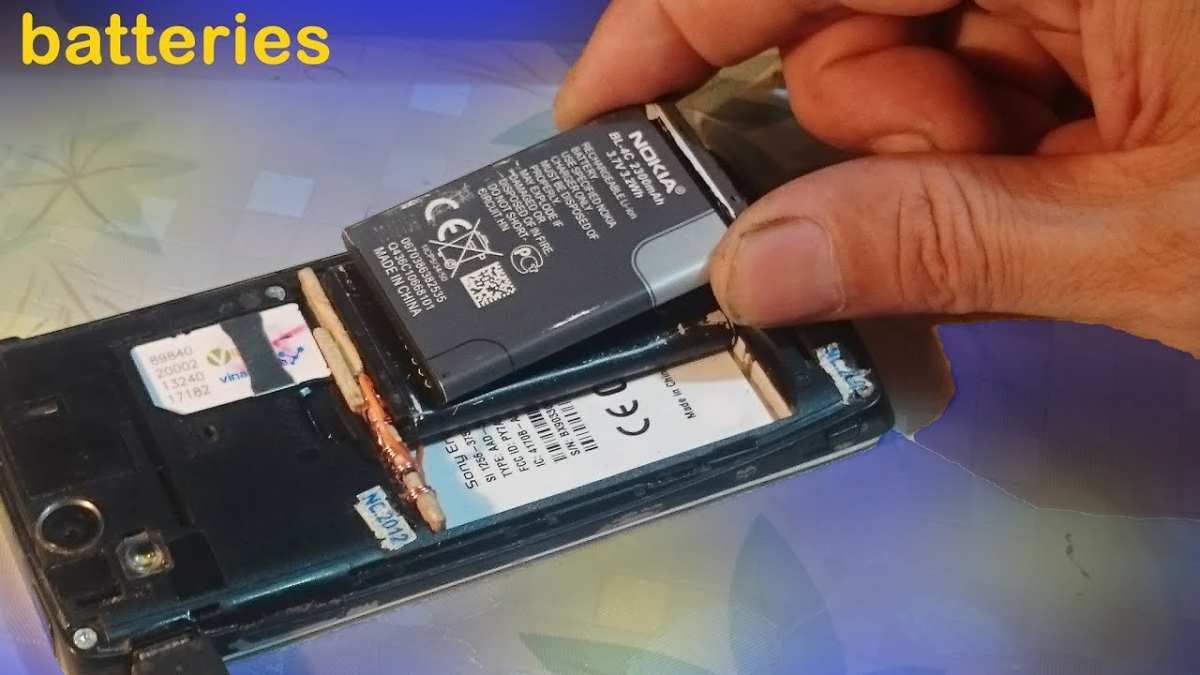
The battery on an Android phone is usually visible at the top right corner of your screen. **You can also find it in the quick settings menu by swiping down from the top.** When asking where is the battery on Android phone, many wonder if it’s hidden in the settings or a specific app. Typically, the main indicator is displayed on the status bar, making it easy to check your battery level at a glance. If you want more detailed info, simply tap the icon or go to your device’s battery settings.

Where Is the Battery on an Android Phone? A Complete Guide
Knowing where the battery on an Android phone is located might seem like a simple question, but it’s actually more important than many believe. Your phone’s battery is the core of its functionality. Without it, your Android device is just a piece of tech sitting idle. Many users wonder where their phone’s battery is, especially when they want to check the battery status, replace it, or troubleshoot battery-related issues.
In this guide, we will explore everything about the battery’s location and how to manage it effectively. Whether you’re a new Android user or someone who wants to understand their device better, this article will provide all the details you need.
Understanding the Location of the Battery on Android Phones
Most Android phones come with built-in lithium-ion batteries that are either removable or non-removable. Knowing where the battery is located depends greatly on the design of your device—whether it has a removable back cover or not.
Removable Batteries: The Back Cover Method
Many older Android phones have batteries that you can take out easily. Here’s what to look for:
- Back Cover: Simply remove the back panel of your device. Most phones made before 2018 have a back cover that you can slide or lift off.
- Battery Placement: Inside, you will see a rectangular or square-shaped battery, usually with a label indicating its model and capacity.
- Tools Needed: Use a fingernail or a small pry tool to lift the back cover if it doesn’t slide off easily.
This type of design makes it straightforward to access the battery and replace it if needed. If you have one of these phones, the battery is located directly behind the back cover.
Non-Removable Batteries: The Internal Design
Most modern Android phones have non-removable batteries built into the device. This design keeps the phone slim and water-resistant. Here’s what you need to know:
- Internal Placement: The battery is embedded inside the phone’s chassis, usually occupying most of the internal space.
- Accessing the Battery: To access or replace a non-removable battery, you need special tools, and in some cases, professional help is recommended.
- Location by Design: While you can’t see the battery directly, its placement is typically in the center of the phone, behind the logic board and other components.
Understanding whether your Android phone has a removable or fixed battery can help you plan any repair, replacement, or troubleshooting.
How to Check Your Phone’s Battery Status
Knowing where the battery is located helps with physical inspection, but it’s equally important to know how to check the battery’s health and level through software:
- Use built-in settings: Navigate to Settings > Battery or Battery & Power. Here, you’ll see the current battery percentage, usage details, and estimated time remaining.
- Quick access icons: Many Android phones display battery icons in the status bar at the top of the screen, showing the current charge level.
- Battery health apps: Download apps like AccuBattery or GSam Battery Monitor for detailed information about your battery’s health, capacity, and usage patterns.
Regularly checking your battery status can help you understand how your phone’s power system performs and if it needs maintenance or replacement.
Signs Your Battery Needs Attention
Even if you know where the battery is located, you should also be aware of signs that indicate it’s time for a check-up:
- Rapid Battery Drain: Your battery percentage drops much faster than it used to.
- Unexpected Shutdowns: Your phone turns off suddenly even when the battery isn’t empty.
- Overheating: Your device becomes hot while charging or during use, which can be linked to battery issues.
- Swelling or Physical Damage: Bulging or deformation of the phone’s back or screen can indicate battery swelling.
- Inconsistent Charging: The battery doesn’t charge properly or shows erratic charging behavior.
If you notice any of these symptoms, it’s best to consult a professional technician or visit a service center.
How to Replace or Service the Battery
Depending on your device, replacing the battery might be simple or require professional help:
- Removable Battery Phones: Remove the back cover, disconnect the battery connector, and gently lift out the old battery. Insert the new one carefully, reconnect, and replace the cover.
- Non-Removable Battery Phones: For these devices, avoid trying to open the phone yourself unless you are experienced. Contact authorized service centers or technicians to replace the battery safely.
- Precautions: Always turn off your phone before replacing the battery. Use appropriate tools and avoid puncturing or damaging the battery.
Proper handling and replacement extend your device’s lifespan and ensure safe operation.
Preventive Tips for Battery Longevity
Taking care of your battery can help it last longer and perform better:
- Avoid extreme temperatures: Keep your phone away from heat sources or freezing cold.
- Use the right chargers: Always use the charger and cable recommended by the manufacturer.
- Charge wisely: Avoid letting the battery drop to 0% or stay at 100% for long periods.
- Optimize settings: Reduce screen brightness, turn off unnecessary apps, and enable power-saving modes.
- Update your software: Keep your phone’s software up to date for better power management.
Following these tips can help maintain your battery’s health over time.
Knowing where the battery is located on your Android phone and understanding how it works are essential parts of smartphone ownership. Whether your phone has a removable or fixed battery, regular checks and proper care can keep your device running smoothly for longer. Remember, the crucial part is to be aware of your phone’s signs and symptoms and act promptly when needed. Taking simple steps to maintain your battery can save you money and frustration in the long run. Ensure you handle your device gently and use professional services when necessary, and your Android phone will serve you well for years to come.
Frequently Asked Questions
How can I locate the battery icon on my Android phone’s screen?
Most Android phones display the battery icon in the status bar at the top of the screen. It shows the current battery level as a percentage or a graphical icon. If you do not see the icon, check your settings to ensure that the status bar is set to display it. Some devices may hide the icon or use different symbols for battery status.
Where do I find battery information within my Android phone’s settings?
You can access detailed battery information by opening the Settings app, then navigating to the ‘Battery’ or ‘Battery & Power’ section. Here, you can see the current charge level, usage statistics, and which apps consume the most power. Some devices also provide options to optimize battery performance from this menu.
Are there physical locations on the phone where the battery can be accessed?
On most modern Android smartphones, the battery is built-in and not accessible without opening the device, which typically requires technical skills and tools. However, older models may have removable batteries located beneath the back cover. In such cases, you can remove the cover and locate the battery at the back of the device.
How do I know if my Android device’s battery is deteriorating?
You can monitor your battery health through built-in settings or third-party apps. If your device shows rapid battery drain, shortened usage time, or the battery percentage drops suddenly, it might indicate deterioration. Checking the battery usage statistics can also help identify apps or processes that drain power excessively.
Can I check the battery status using notifications or quick settings?
Yes, many Android devices allow you to view the battery percentage directly in the notification shade or quick settings menu. Some manufacturers include a battery widget that displays detailed information when you pull down the notification bar. You can customize these options in your device’s quick settings or notification settings menu.
Final Thoughts
The battery on an Android phone is typically located behind the back cover or inside the device, depending on the model. Some phones have removable batteries, making it easy to access with a simple back cover removal. Others have sealed batteries that require professional assistance for replacement.
Knowing where the battery is helps you understand your device better and manage its power more effectively. When asking yourself ‘where is the battery on android phone,’ consider the phone’s design and model. In most cases, accessing the battery involves removing the back cover or accessing a designated card slot.

Similar Posts































