What To Do If An App Keeps Stopping On Android Samsung
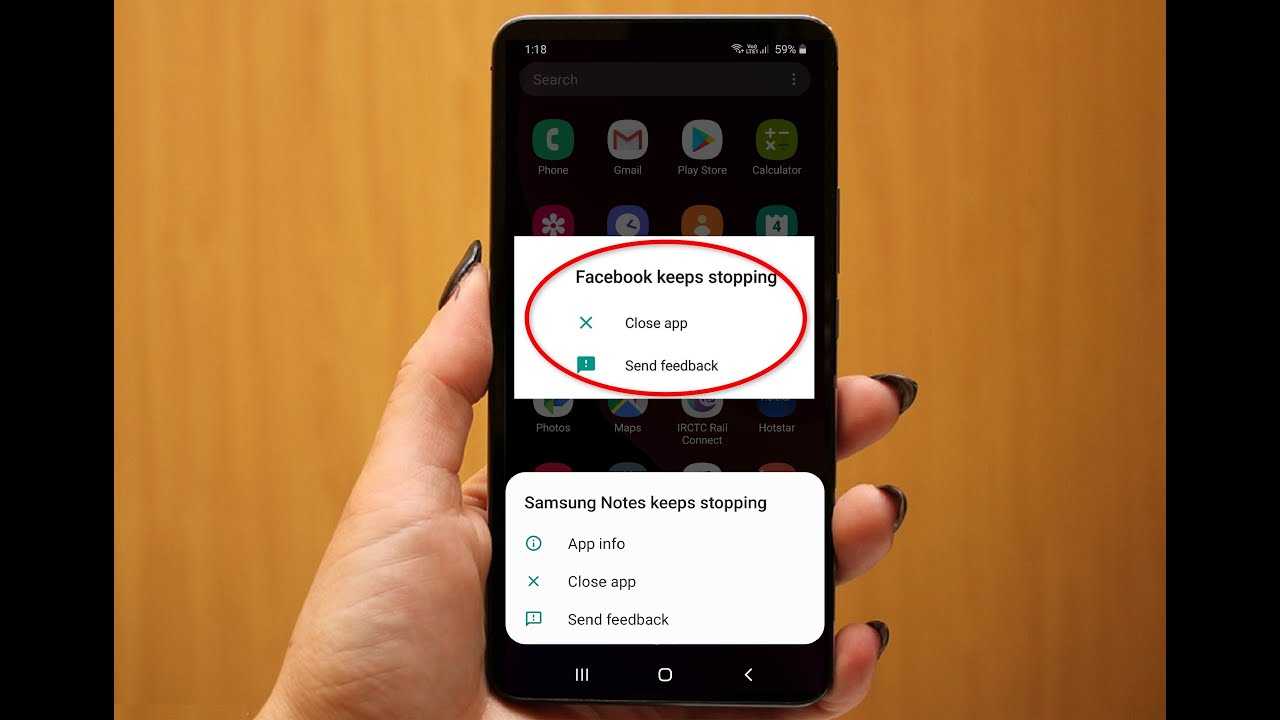

What to Do If an App Keeps Stopping on Android Samsung
Understanding Why Apps Keep Crashing on Your Samsung Device
Many Samsung users face the frustrating issue of apps repeatedly stopping unexpectedly. Usually, this problem arises due to software glitches, outdated apps, or insufficient device resources. Recognizing the common causes can help you find the right solution quickly.Common Causes of App Crashes
- Outdated Apps or Software: Running older versions can cause compatibility issues.
- Corrupted App Data: Sometimes, cached or corrupted data makes apps malfunction.
- Insufficient Storage Space: When your device storage is full, apps may freeze or close.
- Conflicting Apps or Settings: New apps or settings might interfere with existing applications.
- Operating System Bugs: Software bugs in Android or One UI can cause instability.
Basic Troubleshooting Steps
Before trying complex solutions, perform some quick checks and simple fixes. These steps often resolve minor issues efficiently.Restart Your Samsung Device
A simple restart resets temporary files and clears minor glitches that cause apps to stop. Hold down the power button, then select Restart from the menu.Update the App and System Software
Keeping apps and system software up-to-date is crucial. Go to Google Play Store ➤ My Apps & Games ➤ Update all available apps. For system updates, navigate to Settings ➤ Software update ➤ Download and install.Clear App Cache and Data
Cached data helps apps load faster but can become corrupted. To clear cache or data:- Go to Settings ➤ Apps ➤ Find the problematic app.
- Tap Storage ➤ Clear cache.
- If problems persist, tap Clear data (note this resets app settings).
Advanced Solutions for Persistent App Crashes
If basic steps don’t solve the problem, try these more detailed methods.Uninstall and Reinstall the App
Sometimes, reinstalling can fix corrupted files or incomplete downloads:- Long press the app icon and select Uninstall.
- Visit Google Play Store to download and install the latest version.
Check for Software Updates
An outdated system can cause app instability. Go to Settings ➤ Software update ➤ Download and install any available updates.Free Up Storage Space
Low storage can impact app performance:- Delete unnecessary files, photos, or videos.
- Use Storage Manager in Settings to find and delete large files.
- Move files to an SD card or cloud storage.
Disable or Safe Mode Testing
Conflicting apps may cause crashes. Boot into Safe Mode:- Press and hold power button.
- Tap and hold Power off until Safe Mode prompt appears.
- Tap OK to reboot into Safe Mode.
Reset App Preferences
Resetting app preferences can resolve conflicts:- Go to Settings ➤ Apps ➤ Menu (three dots) ➤ Reset app preferences.
- This resets disabled apps, default apps, and permissions without deleting data.
Factory Reset as a Last Resort
If all else fails, restoring your device to factory settings can eliminate persistent software issues. Remember, back up important data first:- Navigate to Settings ➤ General management ➤ Reset ➤ Factory data reset.
- Follow on-screen instructions and wait for the reset to complete.
Additional Tips to Prevent Future App Crashes
Maintaining your device can help avoid app problems:- Regularly update your apps and device software.
- Keep sufficient free storage space.
- Uninstall unused or problematic apps.
- Use security apps to scan for malware or viruses.
- Restart your device periodically to keep it running smoothly.
Use Samsung Support and Community Forums
If you’re still experiencing issues, consult Samsung support or community forums. Sometimes, specific apps may have known bugs or compatibility issues that need targeted solutions. Dealing with apps that keep stopping on your Samsung device can be frustrating, but following these steps can often resolve the problem. Always keep your device updated and maintain good storage habits to reduce crashes. Remember, most issues are fixable without professional help by systematically troubleshooting and updating your device.How to Fix All Apps Keeps Stopping Error in Android Phone (100% Works)
Frequently Asked Questions
How can I clear the app cache to fix frequent stopping issues on my Samsung device?
To clear the app cache, go to Settings > Apps > select the problematic app > Storage > Clear Cache. Clearing the cache removes temporary files that might be causing the app to crash. Restart your device and check if the app functions properly afterward.
What should I do if updating the app doesn’t resolve the crashing problem?
If updating the app doesn’t help, try uninstalling and then reinstalling it from the Google Play Store. This process replaces any corrupted files and ensures you have the latest version. Make sure your device’s software is also up to date to optimize compatibility.
How do I check for and remove potential conflicting apps on my Samsung device?
Identify apps recently installed or updated that may conflict with the crashing app. Remove these apps by navigating to Settings > Apps, selecting the app, and tapping Uninstall. Restart your device and test if the original app remains stable.
Final Thoughts
If an app keeps stopping on Android Samsung, start by restarting your device to resolve temporary glitches. Clear the app’s cache and data to fix corrupted files. If problems persist, update the app or reinstall it to ensure compatibility. Remember, troubleshooting steps like these can help you resolve the issue quickly and keep your device running smoothly.
Similar Posts































