Tips To Speed Up Windows 11 Performance For Better
Struggling with a sluggish Windows 11? Don’t worry—you can boost its speed quickly with some simple tweaks. The key lies in optimizing your system settings, managing startup programs, and performing regular maintenance. By following these practical tips, you’ll notice a significant improvement in performance, making your experience smoother and more efficient. Keep reading to discover effective ways to give your Windows 11 a much-needed speed boost!
To speed up Windows 11, focus on minimizing background processes, keeping your system updated, and cleaning unnecessary files. These steps help free up resources and improve responsiveness, ensuring your PC runs faster and more smoothly.
If your Windows 11 feels slow, it might be due to too many startup programs, cluttered files, or outdated drivers. The good news is, with just a few adjustments—like disabling unnecessary startup apps, running disk cleanup, and updating drivers—you can dramatically enhance your system’s performance. Taking these simple actions can transform a sluggish experience into a snappy, efficient one, making your everyday tasks much easier and more enjoyable.

Tips to Speed Up Windows 11 Performance
Optimize Startup Programs
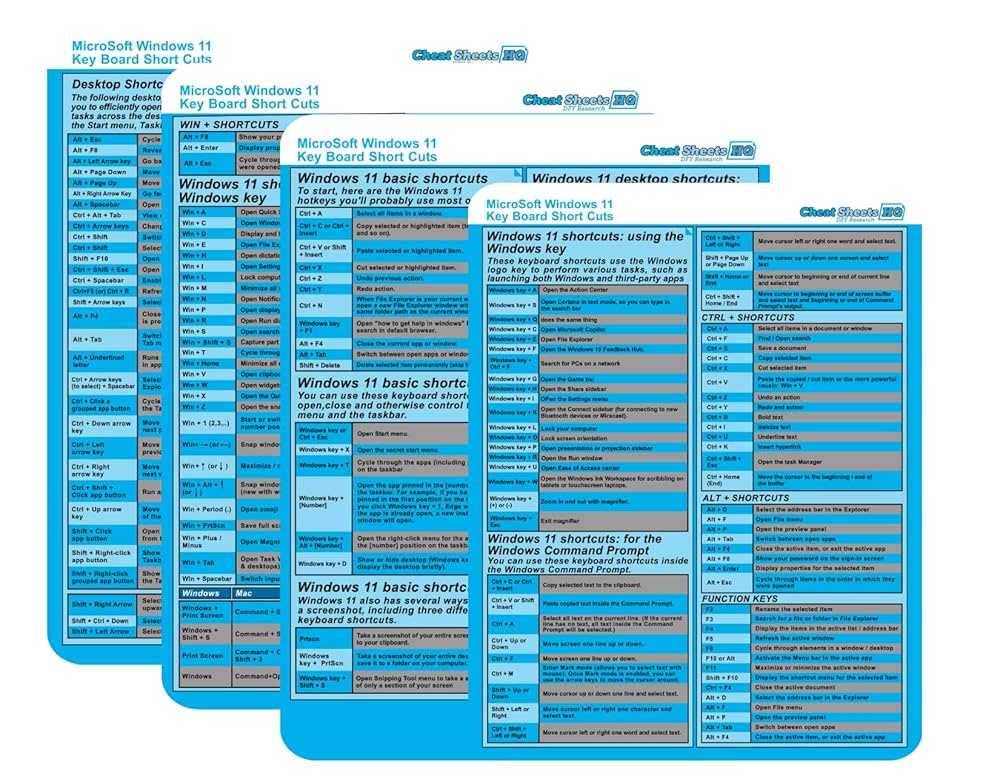
Many applications automatically run when you turn on your computer, slowing down your system startup. Disabling unnecessary startup programs helps Windows 11 load faster. You can manage these programs through the Task Manager by pressing Ctrl + Shift + Esc and navigating to the Startup tab. Disable programs that you do not need immediately after booting.
Focus on Essential Applications
Only keep essential apps enabled at startup. For example, antivirus software, system drivers, and essential utilities should run at startup. Non-critical applications like messaging apps or cloud storage can be launched later as needed.
Regularly Review and Manage Startup Items
Make it a habit to review your startup programs monthly. This prevents the buildup of unnecessary apps that slow down your boot time. Use tools like the Task Manager or third-party startup managers for a clearer view.
Clean Up Disk Space
A cluttered hard drive can hinder your computer’s speed. Over time, temporary files, downloads, and system caches accumulate and consume valuable space. Clearing these files can significantly boost performance.
Use Disk Cleanup Tool
Windows 11 includes a built-in Disk Cleanup tool. To access it, type Disk Cleanup in the Start menu search bar. Select the drive you want to clean, usually C:, and check the boxes for files you want to delete such as temporary files, system cache, and previous Windows installations.
Delete Unnecessary Files Manually
Go through your Downloads folder and delete files that are no longer needed. Empty the Recycle Bin regularly to ensure that deleted files are completely removed from your system.
Disable Visual Effects
Windows 11 features visual effects like animations and shadows that can consume system resources. Disabling or reducing these effects speeds up your PC, especially on older hardware.
Adjust for Best Performance
Right-click on This PC, select Properties, then click on Advanced system settings. Under the Advanced tab, click on Settings in the Performance section. Choose Adjust for best performance or customize which effects to keep.
Customize Visual Settings
If you prefer some visual effects, turn off only the ones you find distracting or unnecessary. Use the Visual Effects tab to toggle options like animations, fading, and shadows.
Keep Windows and Drivers Up-to-Date
Regular updates fix bugs, patch security vulnerabilities, and improve performance. Staying current is vital for a smooth Windows 11 experience.
Update Windows 11
Navigate to Settings >Windows Update. Click on Check for updates. Install all available updates promptly, as they often include performance improvements.
Update Device Drivers
Visit your PC manufacturer’s website or use Device Manager to update drivers. Outdated drivers can cause system slowdown or hardware malfunctions. Ensuring all drivers are current helps optimize performance.
Optimize Power Settings
Power options influence system speed and energy consumption. Adjusting them can improve Windows 11 responsiveness, especially on laptops.
Set to High Performance
Go to Settings >System >Power & Battery. Select Power Mode and choose Best Performance. This setting maximizes your PC’s responsiveness at the expense of battery life.
Customize Power Plan
Click on Additional power settings to access the classic Control Panel. Choose or create a plan that emphasizes speed, ensuring your hardware runs at full capacity when needed.
Perform Regular Disk Defragmentation
Fragmented files slow down your system’s ability to read and write data efficiently. Defragmenting your disk reorganizes data for faster access.
Use Built-in Tools
Open the Defragment and Optimize Drives utility from the Start menu. Select your drive and click Optimize. Aim to do this monthly, especially on HDDs.
Note for SSD Users
While defragmentation benefits HDDs, it is unnecessary and potentially harmful for SSDs. Windows 11 automatically detects SSDs and manages them accordingly.
Increase RAM or Use ReadyBoost
More memory allows Windows to handle multiple applications smoothly. If upgrading RAM isn’t feasible, use ReadyBoost for a temporary speed boost.
Upgrade Your Physical RAM
Adding more RAM is one of the most effective ways to speed up your system, especially if you run multiple applications simultaneously. Check your PC’s specifications for compatible modules and installation procedures.
Enable ReadyBoost
Insert a USB flash drive (at least 4GB). Right-click on the drive in File Explorer, select Properties, then the ReadyBoost tab. Choose Use this device to dedicate it as cache memory.
Manage Background Apps
Background apps can drain resources and slow down your PC. Managing these apps ensures your system focuses on the tasks at hand.
Control Background Activity
Navigate to Settings >Apps >Background apps. Toggle off apps that do not need to run in the background. This can free up both CPU and RAM resources.
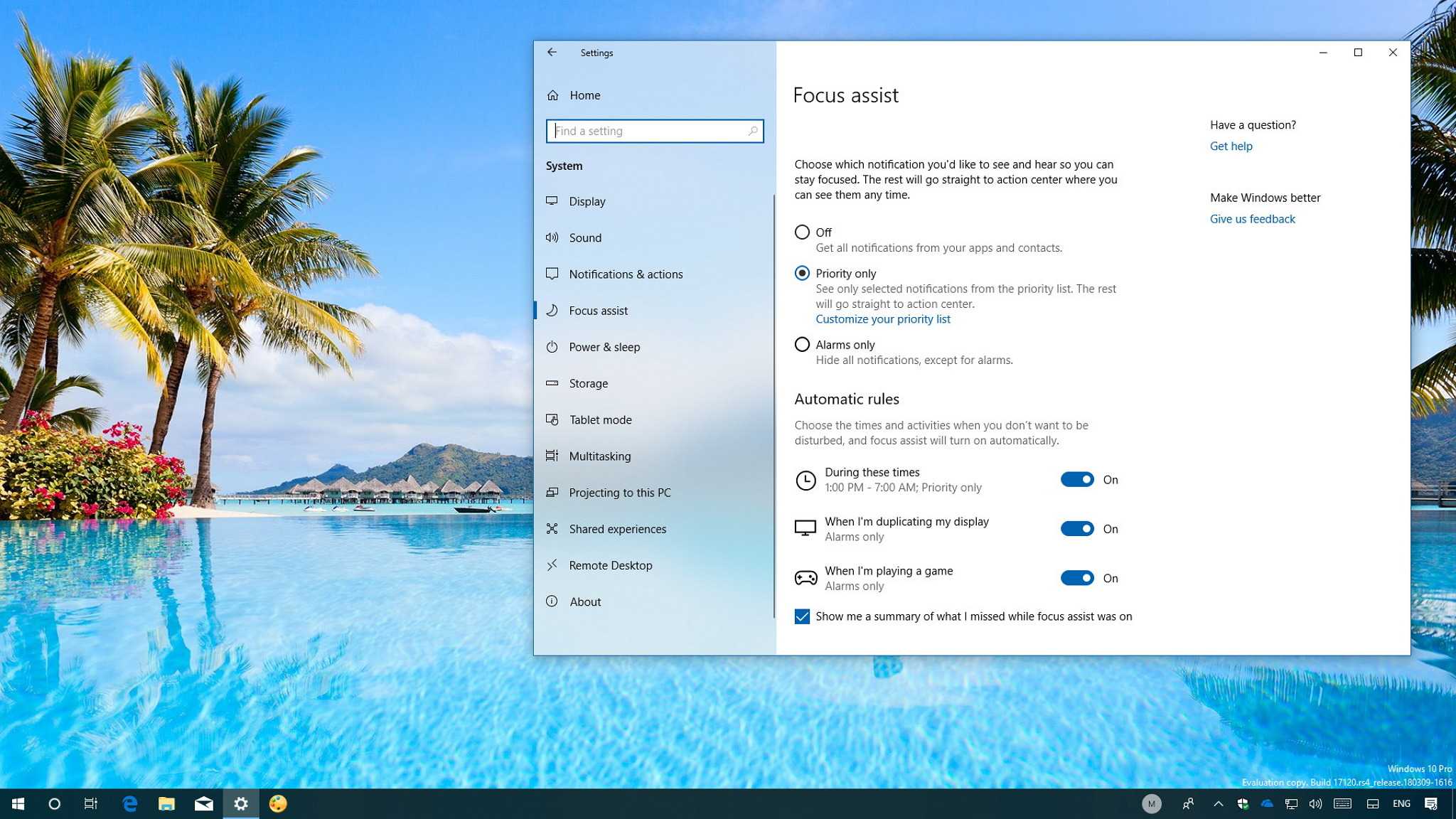
Use Focus Assist
Turn on Focus Assist during work or gaming sessions to prevent unnecessary notifications and background activity from interrupting your tasks.
Scan for Malware and Viruses
Malware can drastically slow down your Windows 11 system and compromise security. Regular scans identify and remove malicious threats.
Use Windows Security
Open Windows Security and run a quick or full scan. Keep your security definitions updated to detect the latest threats.
Consider Third-Party Antivirus
For additional protection, consider reputable third-party antivirus tools that provide real-time scanning and system optimization features.
Disable Unnecessary Services
Windows runs numerous background services that may not be needed. Disabling unneeded services can free system resources.
Use the Services App
Press Windows + R, type services.msc, and hit Enter. Identify services like Print Spooler if you do not use printers, and set them to Manual or Disabled.
Be Cautious
Research each service before disabling it. Disabling essential services can cause system instability or hardware issues.
Additional Tips for Boosting Windows 11 Speed
Besides the main strategies, consider these additional methods: uninstall unused programs, change your default browser, and reduce startup items further. Regularly reboot your PC to clear memory and refresh system processes.
Implementing these tips systematically can significantly reduce your Windows 11 startup time and improve overall responsiveness. Maintain a routine of checking for updates, cleaning your disk, and managing background tasks to keep your system running smoothly.
How to SPEED UP Windows 11 to IMPROVE PERFORMANCE!
Frequently Asked Questions
How can I manage startup programs to improve Windows 11 speed?
Open the Task Manager by pressing Ctrl + Shift + Esc. Navigate to the ‘Startup’ tab to view all programs that launch during startup. Disable unnecessary applications by selecting them and clicking the ‘Disable’ button. This reduces the load on your system during boot, leading to faster startup times and better overall performance.
What’s the best way to optimize system storage for better Windows 11 performance?
Use the built-in Storage Sense feature to clean up unnecessary files automatically. Go to Settings > System > Storage and turn on Storage Sense. You can customize its options to delete temporary files, system cache, and files in the Recycle Bin regularly. Keeping your storage clutter-free helps improve system responsiveness and reduces disk activity.
How can I improve Windows 11 performance by updating drivers?
Ensure that all your device drivers are current by visiting the manufacturer’s website or using Windows Update. Updated drivers fix bugs, enhance hardware compatibility, and optimize system performance. Regularly checking for driver updates helps prevent lag and system errors that can slow down your PC.
What settings should I tweak to enhance Windows 11 responsiveness?
Adjust visual effects for better performance by navigating to Settings > System > About > Advanced system settings. Under the ‘Performance’ section, click ‘Settings’ and select ‘Adjust for best performance.’ You can also choose custom options to keep essential visual effects while disabling others, resulting in a quicker, more responsive interface.
How does closing background apps impact Windows 11 speed?
Many apps run in the background, consuming system resources. Open the Settings app, go to Privacy > Background apps, and turn off or limit apps running in the background. This frees up CPU, RAM, and battery life, allowing your system to allocate resources to active tasks and improve overall performance.
Final Thoughts
Tips to speed up Windows 11 performance include managing startup programs to reduce boot time. Regularly deleting unnecessary files and clearing cache can free up valuable system resources. Additionally, updating drivers and Windows itself ensures optimal compatibility and security.
Adjusting visual effects and power settings further enhances speed by minimizing background activity. Using a solid-state drive (SSD) provides faster data access, significantly boosting performance. Implementing these simple steps can make Windows 11 run more smoothly and efficiently.
In conclusion, these tips to speed up Windows 11 performance help optimize your system for better speed and responsiveness. Applying them regularly keeps your device running at its best and saves time.

Similar Posts