How To Replace Battery In Android Phone: Step-By-Step Guide
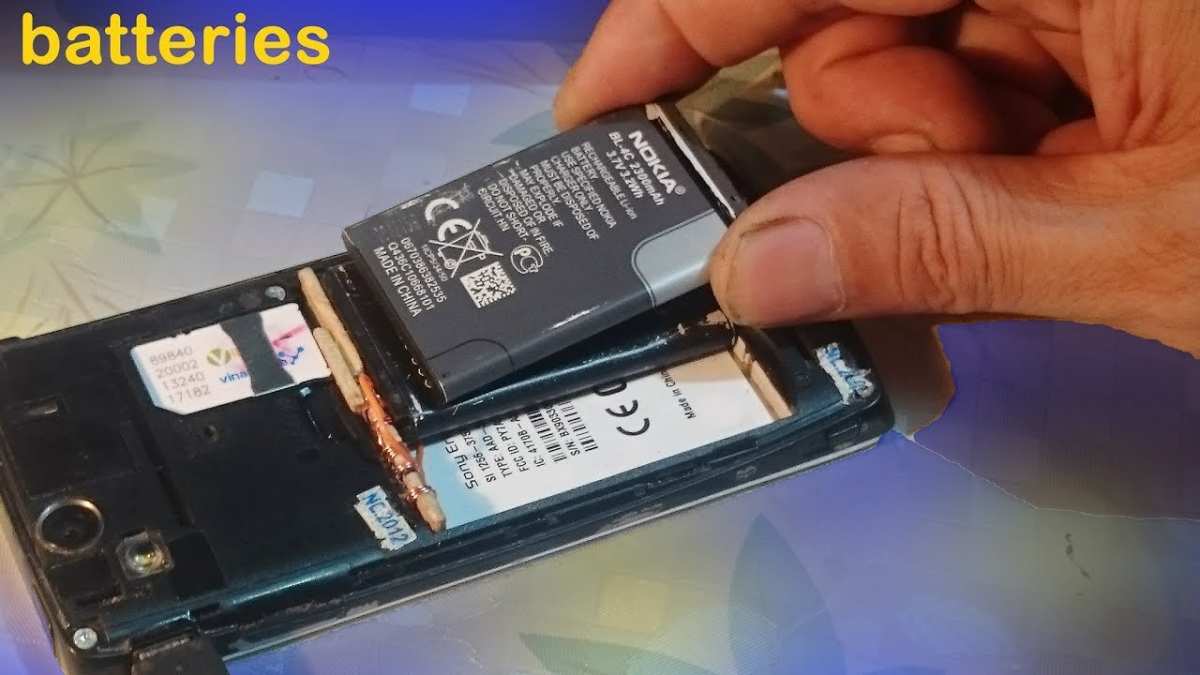
To replace the battery in your Android phone, start by turning off your device and removing the back cover. **Carefully detach the old battery and insert a new one, ensuring it fits snugly.** Knowing how to replace battery in Android phone can save you time and money. This simple process can extend your phone’s lifespan and improve performance. Just follow precise steps and handle components with care for a smooth replacement.

How to Replace Battery in Android Phone
Replacing the battery in your Android phone might seem like a difficult task, but with the right steps and some patience, you can do it yourself at home. Whether your battery doesn’t hold a charge anymore or your phone suddenly turns off, swapping out the old battery can bring your device back to life. This guide will walk you through each step carefully, so you feel confident to perform this repair without needing to visit a repair shop.
Understanding Your Android Phone’s Battery Type
Before jumping into the replacement process, it’s important to know what kind of battery your Android phone uses. Most modern Android devices typically use lithium-ion (Li-ion) or lithium-polymer (Li-po) batteries, which are lightweight, rechargeable, and offer high energy density.
Li-ion vs. Li-po Batteries
- Li-ion Batteries: Usually come in a hard shell inside the phone. They are more common in older or budget Android models.
- Li-po Batteries: These are flexible, lightweight, and can be shaped more easily. They are common in newer phones with slim designs.
Knowing your phone’s battery type helps you understand the replacement process better, especially since some newer devices have glued-in or sealed batteries.
Tools You Need for Battery Replacement
Having the right tools makes the process smoother. Here’s a list of essential items:
- Small Phillips-head screwdriver
- Prying tools or plastic spudgers
- SIM card ejector tool or paperclip
- Tweezers (optional but helpful)
- Adhesive strips or double-sided tape (if needed)
- Anti-static wrist strap (recommended to prevent static damage)
- Replacement battery compatible with your device
You can find most of these tools online or at electronics stores. Make sure your replacement battery matches your model exactly to ensure proper fit and performance.
Preparing for Battery Replacement
Before starting, power off your phone completely to prevent any electrical issues. Remove any external cases, screen protectors, or covers that might obstruct access to the battery panel.
Ensure you work in a clean, well-lit space. Gather all your tools and the new battery so everything is within reach. If your phone has a removable back cover, this process is simpler. For sealed or glued-in batteries, approach the task with extra caution.
Removing the Back Cover
The method varies depending on your phone model:
Phones with Removable Back Covers
- Just hold the phone with both hands and gently pry open the back using your fingers or a prying tool.
- Be gentle to avoid cracking the cover or damaging internal components.
Phones with Sealed or Non-Removable Back Covers
- Use a plastic prying tool along the edges to carefully separate the back cover.
- Work slowly around the perimeter, applying gentle pressure to avoid cracking the glass or damaging clips.
- In some cases, heat can soften adhesive. Use a heat gun or hairdryer on low heat around the edges for about 30 seconds before prying.
Remember, patience is key to avoiding expensive repairs.
Disconnecting the Battery
Once you access the internals, locate the battery connector. It usually connects to the motherboard via a small plug secured with a clip or socket. Follow these steps:
- Use your plastic prying tool to gently disconnect the battery connector from the motherboard.
- Be cautious not to pull on the cable directly; instead, lift the connector straight up.
- If your device has multiple connectors or shields covering the battery, remove those screws or clips first.
This step is crucial to avoid accidental short circuits or damage to the phone’s internal parts.
Removing the Old Battery
Depending on your phone’s model, the battery might be glued or held in place with adhesive strips. Here’s how to proceed:
- If adhesive strips are present, gently pull on the tabs to release the battery. Do not force or bend the battery, as it might puncture.
- If the battery is glued in, carefully apply a little heat around the edges to soften the adhesive—be cautious not to overheat or damage sensitive components.
- Use plastic tools to gently lift and pry the battery out. Work slowly in small increments to prevent bending or cracking the battery.
Avoid puncturing or puncturing the battery at all costs, as this can cause dangerous chemical leaks or fires.
Preparing and Installing the New Battery
Before placing the new battery, inspect it for any damages or defects. Make sure it is clean and free of dust or debris.
- Apply new adhesive strips if necessary. Many replacement batteries come with pre-installed adhesive, but adding extra double-sided tape ensures a secure fit.
- Align the new battery carefully with the contacts and connectors.
- Gently press the battery into place, making sure it sits flush against the internal surface.
- Reconnect the battery connector firmly to the motherboard socket, ensuring it clicks into place.
Take your time to ensure everything lines up correctly.
Reassembling Your Phone
With the new battery installed, it’s time to put everything back together:
- Secure any shields, clips, or screws that hold internal components.
- Reattach the back cover, pressing gently around the edges to ensure it snaps into place.
- If you used heat to soften adhesive, allow the phone to cool for a few minutes before sealing the back cover.
- Replace any external covers or cases you removed earlier.
Double-check all connections and make sure nothing is loose.
Powering On and Testing Your Phone
Once reassembled:
- Press and hold the power button to turn on your device.
- Check the battery percentage to ensure the phone recognizes the new battery.
- Use your device normally for several minutes to confirm proper operation.
- Observe how the battery charges and discharges during use to see if it holds a charge well.
If your phone doesn’t turn on or shows any issues, reopen the device carefully and verify connections.
Additional Tips and Troubleshooting
– If your new battery isn’t charging properly, check the charging port and cables for damage.
– Ensure that your software is up to date, as outdated firmware can sometimes affect battery performance.
– Keep your device away from extreme temperatures, which can harm the battery’s lifespan.
– Avoid using your phone while it’s charging to prevent overheating.
– If the battery drains quickly or the device turns off unexpectedly, the battery may be defective or incompatible. Contact the seller for a replacement.
When to Seek Professional Help
While replacing a battery at home is doable, certain phone models have more complicated construction, such as sealed OLED screens or glued-in batteries that require special tools. If you don’t feel comfortable performing the repair or encounter any issues during the process, it’s best to consult a professional technician. Attempting complex repairs without proper expertise can damage your device.
Maintaining Your New Battery
To extend the life of your newly installed battery:
- Avoid letting the battery drain completely before charging.
- Charge your device regularly, ideally between 20% and 80%.
- Use the original charger or a reputable alternative with proper specifications.
- Keep your phone away from extreme heat or cold that can degrade the battery over time.
- Turn off unnecessary features like Bluetooth, Wi-Fi, or location services when not in use.
Proper care can maximize your battery’s performance and lifespan.
This detailed approach to replacing your Android phone battery ensures you understand each step and feel confident to perform the task yourself. Remember, patience and careful handling are key to successfully extending your device’s lifespan without needing costly repairs.
Frequently Asked Questions
What tools are necessary to replace an Android phone battery safely?
To replace an Android phone battery safely, you typically need a small Phillips-head screwdriver, a plastic pry tool, and a pair of tweezers. Some devices may require additional tools like a SIM card ejector pin or a spudger. Always use non-metallic tools to avoid damaging internal components and work on an anti-static surface to prevent electrostatic discharge. Having a clean, organized workspace will help you handle small parts more effectively and minimize the risk of losing any components during the process.
How can I identify if my Android phone’s battery needs replacing?
Signs that your Android phone’s battery may need replacing include shorter battery life, rapid power depletion, the phone unexpectedly shutting down, or the device becoming unusually warm during use or charging. If your phone shows these symptoms despite many charges, or if it becomes difficult to hold a charge for a reasonable amount of time, it’s likely time to replace the battery to restore optimal performance and prevent further issues.
Are there any safety precautions I should follow during the battery replacement process?
Yes, safety should always come first when replacing a phone battery. Turn off your device and disconnect it from any power source before beginning. Use plastic tools instead of metal to avoid short circuits, and work in a clean, static-free environment. Avoid puncturing or bending the battery, as damaged batteries can leak harmful chemicals or catch fire. If you notice any swelling or leakage, handle the battery with care and dispose of it properly according to local regulations. Additionally, keep small parts out of reach of children while working on your device.
Final Thoughts
Replacing your Android phone battery is straightforward with the right tools and instructions. Start by turning off your device and removing the back cover, often secured with clips or screws. Carefully disconnect the battery connector and lift out the old battery.
Get a new compatible battery and reconnect it securely. Replace the back cover and power on your device to ensure it functions properly. Following these steps makes how to replace battery in android phone quick and simple.

Similar Posts































