How To Make Your Screen Darker On Android For Better Comfort
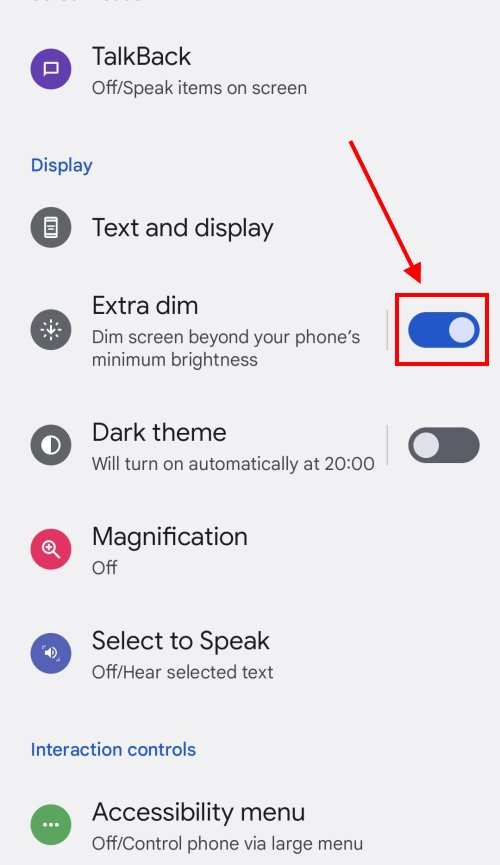
To make your screen darker on Android, simply adjust the brightness settings or enable a night mode. **You can quickly lower the brightness through the quick settings panel or enable dark theme in your device settings.** When you want a more comfortable viewing experience in low light, these simple steps help reduce eye strain.
Knowing how to make your screen darker on Android lets you customize your device easily. Whether for better sleep or just personal preference, adjusting brightness is quick and straightforward.
How to Make Your Screen Darker on Android
When your Android screen feels too bright or causes eye strain, lowering the screen brightness can provide relief. But sometimes, adjusting the default brightness isn’t enough—you might want your screen to be even darker for different lighting conditions or personal comfort. Luckily, Android offers several ways to make your screen darker, from simple brightness adjustments to specialized modes. In this guide, you’ll learn in detail how to make your Android device’s screen darker, exploring various methods and settings to suit your needs.
Understanding Brightness and Its Impact on Your Eyes
Before diving into how to darken your screen, it helps to understand what brightness does and why adjusting it matters.
- Brightness Levels: Controls how much light your screen emits. Higher brightness makes the screen easier to see in bright environments, but it can be hard on your eyes in dim settings.
- Eye Comfort: Too much brightness, especially in dark rooms, causes eye strain and fatigue. Lowering brightness can reduce these problems.
- Battery Life: Bright screens consume more power. Making your screen darker not only helps your eyes but also conserves battery life.
Understanding these points helps you see why adjusting brightness is essential and how making your screen darker can improve your device experience.
Using the Built-in Brightness Slider
The easiest way to make your screen darker on Android is by adjusting the default brightness slider.
How to Access the Brightness Slider
- Swipe down from the top of your screen to open the notification shade.
- Locate the brightness icon or slider. It usually looks like a sun symbol or a horizontal bar.
- Drag the slider to the left to decrease brightness. Keep adjusting until you reach your desired darkness.
Note:
This method adjusts the general brightness level but may not make the screen as dark as you want in very dark environments. To go beyond that, you can explore other options like dark mode or specialized apps.
Enabling Dark Mode for a Darker Screen
Many Android devices support dark mode (also called night mode), which turns most app backgrounds and menus into darker shades, reducing overall screen brightness perception.
How to Turn on Dark Mode
- Open your device Settings.
- Tap on Display or Screen.
- Look for Dark Mode or Night Mode option.
- Toggle it on.
Benefits of Using Dark Mode
- Reduces eye strain, especially in low-light settings.
- Decreases power consumption on OLED screens, making your device last longer.
- Provides a visually comfortable experience for many users.
Additional Tips
Some apps support their own dark mode settings, so check individual app settings to maximize darkness throughout your device.
Using Accessibility Features to Make the Screen Darker
Android includes accessibility settings designed to improve usability, which can also help lower screen brightness or add contrast for better viewing.
Activate Color Inversion or Color Filters
- Open Settings and navigate to Accessibility.
- Look for options like Color Inversion or Color Filters.
- Enable them. Color inversion reverses the colors on your screen, making everything appear darker or more contrasted.
Using Magnification or Display Adjustments
- In Accessibility settings, you might find options like Magnification or Display Size adjustments.
- Adjust the display size or enable magnification gestures to better see your screen at darker settings.
Applying Developer Options for Darker Settings
For users who want more control over how dark their screen appears, enabling Developer Options unlocks advanced settings.
How to Enable Developer Options
- Go to Settings > About Phone.
- Tap the Build Number multiple times (usually 7) until a message confirms Developer Options are enabled.
- Go back to Settings and find Developer Options.
Adjusting Force Dark Mode
Within Developer Options, you can enable “Override Force Dark,” which attempts to apply a darker theme to supported apps, making the overall screen appear darker even if apps don’t support dark mode naturally. This feature works best with compatible apps and can significantly reduce brightness perception.
Using Third-Party Apps to Make Your Screen Darker
Sometimes, built-in options aren’t enough, especially if you want your screen to be extremely dark. Third-party apps can help achieve this.
Popular Apps to Darken Your Screen
- CF.lumen: Allows you to control blue light and brightness levels more precisely, reducing eye strain and making your screen darker.
- Twilight: Adjusts screen brightness and filters blue light, ideal for night-time use.
- Darkness Scheduler: Lets you set schedules to automatically darken your screen during specific times.
How to Use These Apps Effectively
- Download and install your preferred app from Google Play Store.
- Configure the brightness or filter settings as per your comfort.
- Use features like activation schedule or manual control for flexibility.
Additional Tips for Darkening Your Android Screen
Beyond individual settings, consider these tips to make your screen darker and more comfortable:
- Reduce screen timeout duration so the screen doesn’t stay on longer than needed.
- Use wallpaper or themes with darker colors to visually decrease overall brightness.
- Adjust font size and contrast settings to reduce eye strain and improve readability in dark environments.
Safety and Comfort Reminder
While making your screen darker can be beneficial, always remember not to strain your eyes. Keep ambient lighting comfortable, take regular breaks, and avoid looking at screens for extended periods. Adjust settings gradually to find the best comfort level for your eyes and environment.
By understanding and utilizing these various methods, you can easily control how dark your Android screen appears. Whether through simple brightness adjustments, enabling dark mode, diving into accessibility features, or using third-party apps, you now have many options to make your Android device suit your visual preferences comfortably.
Frequently Asked Questions
How can I reduce the screen brightness on my Android device?
You can lower the screen brightness by accessing the quick settings panel. Swipe down from the top of your screen to reveal the quick settings menu. Look for the brightness slider, and drag it to the left to decrease the brightness level. For more precise control, go to Settings > Display > Brightness and adjust the slider accordingly.
Is there a way to enable a darker theme to make the screen appear darker on Android?
Many Android devices offer a dark theme or dark mode option. To activate it, go to Settings > Display and select Dark Theme or Dark Mode. Enabling this reduces overall screen brightness and shades the interface in darker colors, making the screen easier on your eyes and conserving battery life on compatible devices.
Can I use the Accessibility features to make my Android screen darker?
Yes, Android provides accessibility options like color correction and high contrast settings that can help darken the display. Navigate to Settings > Accessibility > Color Correction or Display. Adjust the settings to reduce brightness or apply filters that make the display appear darker, which can be especially helpful for users with visual preferences.
Are there third-party apps that can help dim my Android screen further?
Definitely. Several apps available on the Google Play Store allow you to overlay a dimming filter on your screen for additional darkness. Apps like Twilight or Blue Light Filter enable you to customize the level of darkness beyond system settings, providing extra comfort for nighttime use or low-light environments.
How can I limit screen brightness automatically based on ambient lighting conditions?
Many Android devices include adaptive brightness features that automatically adjust screen brightness according to ambient light. To activate this, go to Settings > Display > Adaptive Brightness, and toggle it on. This feature ensures your screen remains comfortable to look at regardless of lighting changes in your environment.
Final Thoughts
To make your screen darker on Android, you can adjust the brightness settings or enable Dark Mode. Access the quick settings menu and slide the brightness bar to a lower level for immediate results.
You can also activate Dark Mode in your device’s display settings to reduce eye strain and save battery life. Many apps support Dark Mode, making your overall experience more comfortable.
In summary, how to make your screen darker on Android involves using built-in brightness controls and enabling Dark Mode. These simple steps improve your viewing comfort and device efficiency.

Similar Posts































