How To Make Wifi Phone Calls On Android Step-By-Step
How to Make WiFi Phone Calls on Android
Making phone calls over WiFi on an Android device can make a big difference, especially when your mobile signal is weak or unavailable. Instead of relying solely on cellular networks, WiFi calling lets you stay connected through an internet connection. This guide breaks down everything you need to know about how to make WiFi phone calls on Android, covering setup tips, troubleshooting, and the benefits of using WiFi calling. Whether you’re new to this feature or looking to improve your calling experience, you’ll find all the details here.Understanding WiFi Calling: What Is It?
WiFi calling, also known as Voice over WiFi (VoWiFi), allows your Android phone to make voice calls using an internet connection instead of cellular towers. This feature is especially helpful in areas with poor cell signal but strong WiFi, such as basements or remote locations. When your device makes a WiFi call, it sends your voice data over the internet, similar to how you send emails or browse websites. The call then connects through your carrier’s network or via internet-based services, depending on your setup. Some key points about WiFi calling include:- It works on compatible Android phones with supported carrier plans.
- It often doesn’t cost extra, making calls inexpensive or free.
- It’s helpful for international calls or when traveling abroad.
- It enhances call quality when cellular signals are poor.
Checking if Your Android Phone Supports WiFi Calling
Not every Android device supports WiFi calling. Before you get started, verify if your phone has this feature:Steps to Check Compatibility
- Open the Settings app on your Android device.
- Tap on “Connections” or “Network & Internet,” depending on your device.
- Look for “WiFi Calling” or “Calls” section.
- If you see “WiFi Calling” listed, your phone likely supports the feature.
- Alternatively, search for “WiFi Calling” in the search bar within Settings.
Enabling WiFi Calling on Your Android Device
Once you confirm your device supports WiFi calling, enabling the feature is straightforward. Follow these steps:Step-by-Step Activation Guide
- Open your device’s Settings app.
- Navigate to “Connections” or “Network & Internet”.
- Tap on “WiFi Calling” or “Calls”. If you don’t see “WiFi Calling,” check if your carrier supports it and if you need to update your phone’s software.
- Toggle the switch to turn on WiFi Calling.
- You may be prompted to enter or verify your emergency address, as required by safety regulations.
- Once enabled, your phone will automatically prioritize WiFi calls when connected to a WiFi network with a strong signal.
How to Use WiFi Calling During a Call
After enabling WiFi calling, making a call over WiFi is as easy as placing a normal call:Making a WiFi Call
- Open the Phone app and dial the number as usual.
- If you’re connected to a WiFi network, your device will automatically select WiFi calling if the cellular signal is weak or unavailable.
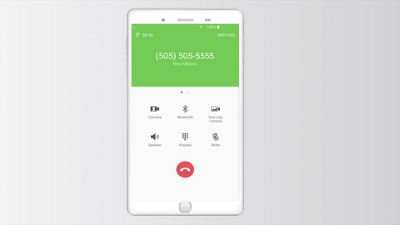
- Look for a WiFi icon or a WiFi Calling indicator on your screen, confirming your call is over WiFi.
- Speak normally; your voice will be transmitted over the internet connection.
Adjusting WiFi Calling Settings for Better Performance
Optimizing your WiFi calling setup can improve call quality and reliability:Key Settings to Consider
- Preferred Network Type: Set your device to prioritize WiFi over cellular in the “Network Mode” settings.
- Emergency Addresses: Update your emergency address in case authorities need to locate you during an emergency call.
- WiFi Network Quality: Use a high-speed and stable WiFi network. Avoid networks with high congestion or weak signals.
- Data Usage: Be aware that WiFi calls can use data if your carrier charges for it. Check your data plan to avoid unexpected costs.
Troubleshooting Common WiFi Calling Issues
Occasionally, WiFi calling may not work as expected. Here are common problems and how to fix them:WiFi Calling Not Connecting
- Ensure WiFi is turned on and your device is connected to a strong internet network.
- Verify that WiFi calling is enabled in your phone settings.
- Restart your phone and reconnect to WiFi.
- Update your device’s software and carrier settings.
- Check with your carrier to confirm WiFi calling is supported on your plan.
Poor Call Quality Over WiFi
- Move closer to your WiFi router for a stronger signal.
- Reduce the number of devices using the same WiFi network during calls.
- Restart your router to improve connection stability.
- Ensure other apps aren’t using excessive bandwidth during your call.
Emergency Call Issues
- Update your emergency address in your device settings.
- Confirm that your carrier supports emergency calls over WiFi in your location.
Additional Tips for Smooth WiFi Calling Experience
To get the most out of WiFi calling, consider these tips:- Use a high-quality WiFi network with good upload and download speeds.
- Secure your WiFi with a strong password to prevent unauthorized access.
- Keep your device’s software and carrier apps updated.
- Disable WiFi calling temporarily if you experience consistent issues, then re-enable it.
- Test your call quality regularly, especially before important calls or meetings.
Benefits of Using WiFi Calling on Android
Switching to WiFi calling offers several advantages. Here’s what you gain:- Better Coverage: Make calls even in areas with weak or no cellular signals.
- Cost Savings: Avoid additional charges for international or long-distance calls with WiFi-based services.
- Improved Sound Quality: WiFi networks often provide clearer voice transmission, leading to fewer misunderstandings.
- Mobility and Flexibility: Use your device to stay connected at home, in cafes, hotels, or anywhere with WiFi access.
- Emergency Accessibility: In case of emergencies, WiFi calling can be a critical utility, especially when cellular networks are down.
Frequently Asked Questions
How can I enable Wi-Fi calling on my Android device?
To enable Wi-Fi calling, open the Settings app on your Android device. Tap on “Connections” or “Network & Internet,” then select “Wi-Fi preferences” or “Wi-Fi calling.” Turn on the toggle for Wi-Fi calling. You might need to enter your emergency address or verify your phone number during the setup process. Once enabled, your device will automatically switch to Wi-Fi calling when cellular signal is weak or unavailable.
What should I do if Wi-Fi calling isn’t working on my Android phone?
If Wi-Fi calling isn’t functioning, first ensure that your device is connected to a stable Wi-Fi network with a strong signal. Verify that Wi-Fi calling is enabled in your settings. Restart your device and reconnect to the Wi-Fi network. Check for any available system updates, as they can improve functionality. If the problem persists, contact your carrier to confirm that Wi-Fi calling is supported on your plan and troubleshoot any account issues.
Can I make Wi-Fi calls to emergency services on Android?
Yes, most Android devices support making emergency calls over Wi-Fi, especially in areas where cellular service is limited. Ensure that Wi-Fi calling is enabled, and that your device is connected to a Wi-Fi network. Keep in mind that certain restrictions or regulations may apply depending on your location and network provider. If you need emergency assistance, dial the emergency number directly; Wi-Fi calling should connect you just as a regular call would.
Is there a difference between Wi-Fi calling and VoIP apps on Android?
Yes, Wi-Fi calling is a feature integrated into your carrier’s network that allows you to make calls over Wi-Fi using your regular phone number. VoIP (Voice over Internet Protocol) apps, like WhatsApp or Skype, also use internet connections to make calls but operate independently from your carrier’s network. Wi-Fi calling typically requires carrier support and may be billed as part of your plan, while VoIP apps often use data or Wi-Fi and may require separate accounts or subscriptions.
How do I switch between Wi-Fi calling and cellular calling on my Android device?
Your device generally switches automatically based on signal strength and network availability. However, if you want to manually select your preferred calling method, open Settings, go to “Connections” or “Network & Internet,” and find “Wi-Fi calling.” You can choose to enable or disable Wi-Fi calling, forcing your device to use cellular calls when disabled. Alternatively, you can disable mobile network data to force all calls over Wi-Fi, but this may restrict other functionalities requiring cellular data.
Final Thoughts
To make wifi phone calls on Android, first ensure your device supports Wi-Fi calling and that your carrier enables the feature. Go to your device’s settings, select ‘Network & Internet,’ then ‘Mobile Network,’ and activate ‘Wi-Fi Calling.’ Connect to a stable Wi-Fi network for the best call quality. Once set up, you can make calls over Wi-Fi seamlessly. Familiarizing yourself with these steps ensures smooth communication whenever cellular service is weak.
Similar Posts































