How To Make Wifi Faster On Android Tips And Tricks

How to Make WiFi Faster on Android
Having a slow WiFi connection on your Android device can be frustrating. Luckily, there are many simple and effective ways to improve your WiFi speed, so you can browse, stream, and download without interruptions. In this guide, we will walk through step-by-step tips and tricks to make your WiFi faster on Android, ensuring you get the best performance possible.Check Your Internet Speed and Signal Strength
Before trying to fix your WiFi, it’s important to understand what’s causing the slowdown. Here’s what you should do:- Test your current internet speed: Use apps like Ookla Speedtest or Fast.com to measure your download, upload, and ping times. Take note of these results.
- Assess your WiFi signal strength: On your Android device, check the WiFi icon at the top of the screen. A full icon indicates a strong signal, while fewer bars mean a weaker connection.
Optimize Your WiFi Settings
Adjusting some of your Android device’s settings can significantly improve WiFi speed.Forget and Reconnect to the WiFi Network
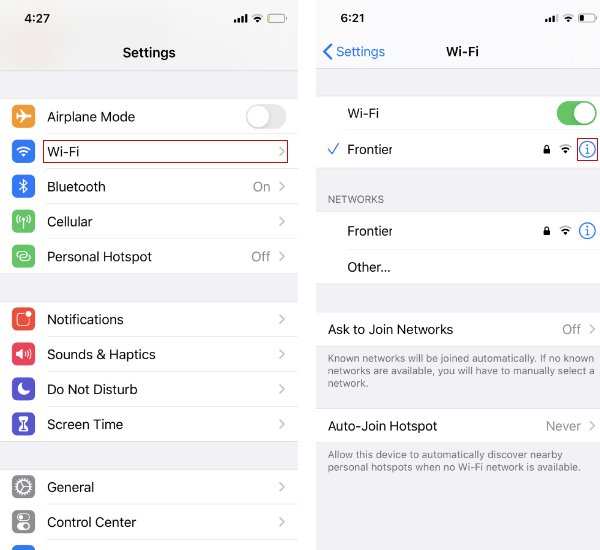
Sometimes, simply reconnecting to your WiFi network refreshes the connection.- Go to Settings > WiFi.
- Tap on your WiFi network name.
- Select Forget.
- Reconnect by selecting your WiFi network and entering the password again.
Switch to the 5GHz Band if Available
Many modern routers support both 2.4GHz and 5GHz bands. The 5GHz band offers faster speeds and less interference.- Open Settings > WiFi.
- Tap on your network, then select Advanced options.
- Check the Frequency band setting and switch to 5GHz if possible.
Adjust Router Placement
Where your router sits can impact WiFi strength.- Place the router in a central location away from walls and metal objects.
- Keep it off the ground and avoid placing it near microwaves, cordless phones, or other electronic devices that can interfere with signals.
Manage Your Connected Devices
Too many devices connected to the same WiFi network can slow down your speed.- Disconnect devices that aren’t in use.
- Limit bandwidth-heavy activities like streaming or large downloads on other devices while you’re using your Android device.
Update Your Android Device and Apps
Software updates often include bug fixes and improvements that can enhance network performance.- Navigate to Settings > System > Software Update and install any available updates.
- Ensure your apps, especially those related to network and system management, are updated via the Google Play Store.
Clear Cache and Data of Your WiFi Network
Over time, cached data can cause connectivity issues.- Go to Settings > Apps > Show System Apps.
- Find and tap on WiFi or Network Manager.
- Select Clear Cache and Clear Data.
Adjust Your Android Device’s Settings for Better Performance
Some device-specific tweaks can enhance WiFi performance.Disable WiFi Sleep Policy
This setting prevents your device from turning off WiFi to save power.- Go to Settings > Battery > Battery Saver.
- Disable any options that turn off WiFi during sleep.
Disable WiFi Power Saving Mode
Power-saving modes can limit WiFi performance.- Navigate to Settings > Connections > WiFi.
- Tap on Advanced.
- Ensure Keep WiFi on during sleep is set to Always.
Use WiFi Extenders or Mesh Networks
If your WiFi signal struggles to reach certain parts of your home, consider enhancing coverage.- Install a WiFi extender or repeater halfway between your router and device to improve signal strength.
- Opt for a mesh WiFi system that provides seamless coverage across larger spaces.
Limit Background Data and Apps
Apps running in the background can eat up bandwidth.- Go to Settings > Apps > [App Name] > Data Usage.
- Restrict background data for apps that don’t need it constantly.
Use a WiFi Analyzer App
An analyzer app helps identify interference sources and optimal channels.- Download apps like Network Analyzer or NetSpot.
- Scan your environment to see which channels are crowded.
- Change your router’s channel settings to a less congested one via its admin panel.
Reset Your Network Settings
If all else fails, resetting network settings can often resolve stubborn problems.- Navigate to Settings > System > Reset options > Reset WiFi, mobile & Bluetooth.
- Confirm the reset, then reconnect to your WiFi network with the correct password.
Frequently Asked Questions
What steps can I take to reduce Wi-Fi interference on my Android device?
To minimize Wi-Fi interference, keep your device away from other electronic devices that emit radio signals, such as microwaves and cordless phones. Ensure your router is placed in a central location free from obstructions like thick walls or metal objects. Switching your Wi-Fi to a less congested channel can also help; many routers have an automatic setting for this. Finally, avoid connecting to multiple devices simultaneously that consume significant bandwidth, as this can slow down your connection.
How do I optimize Wi-Fi settings on my Android for better performance?
Adjust your Wi-Fi settings by disabling the network notification feature to prevent constant switching between networks. Forget networks that you don’t use regularly to reduce network scanning. Enable Wi-Fi frequency band preferences; if your device supports dual-band, prioritize connecting to the 5 GHz band for higher speeds. Additionally, turn off any power-saving modes that restrict Wi-Fi activity, and update your device’s software and router firmware regularly to benefit from performance improvements.
What techniques can I use to improve my Android device’s connection speed in crowded areas?
In crowded areas, connect to the least congested Wi-Fi network available, or use 5 GHz networks that are less crowded than 2.4 GHz ones. Avoid using VPNs or background apps that consume bandwidth, and close apps running in the background that might be using internet data. Restart your device and router to clear temporary glitches, and position your device closer to the Wi-Fi router to strengthen the signal. Using a Wi-Fi analyzer app can help identify the best network channel and signal strength.
Final Thoughts
To make wifi faster on android, start by restarting your device to refresh the connection. Update your router’s firmware and android system for optimal performance. Check for interference from other electronic devices and change your Wi-Fi channel if needed. Clear cache data and reset your network settings for a smoother connection. These simple steps can significantly improve your Wi-Fi speed and ensure a more reliable internet experience.
Similar Posts































