How To Make Tiktok Camera Better Android For Better Videos

How to Make TikTok Camera Better on Android
Many Android users love creating content on TikTok, but sometimes, the camera quality or features might not meet their expectations. If you want your TikTok videos to look sharper, clearer, and more professional, there are several ways to enhance your camera experience on Android devices. In this guide, we’ll explore different tips, tricks, and tools to improve your TikTok camera performance, making your videos stand out and attract more viewers.
Understanding Your Android Camera Capabilities
Before diving into improvements, it’s essential to grasp what your Android device’s camera can do. Different phones have varying camera specs, such as megapixels, lens quality, and software features. Knowing these details helps you make smarter choices for setting up your videos.
- Check your camera resolution. Usually found in your phone’s camera settings, higher resolution means clearer videos.
- Explore built-in camera features. Features like HDR, manual focus, and stabilization can significantly improve video quality.
- Update your camera app. Ensure you’re using the latest version to access new features and performance improvements.
- Understand your device’s limitations. Some phones may not support certain enhancements, so it’s good to know what’s possible.
Using Default Camera Settings for Better TikTok Videos
Most Android phones come with customizable camera settings that can help you produce better TikTok videos even without extra apps. Here’s how to optimize your default camera for TikTok recording:
Adjust Resolution and Frame Rate
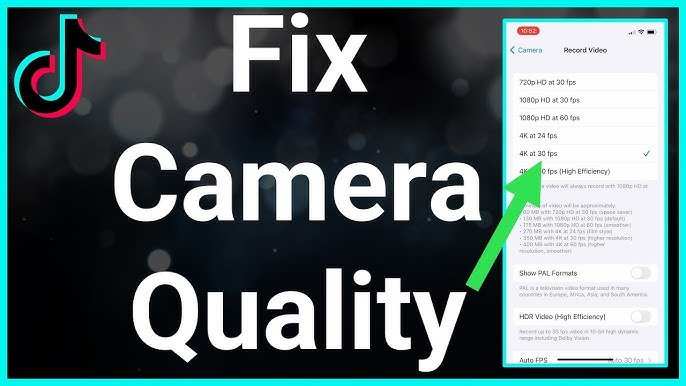
Higher resolution videos tend to look better on TikTok, especially when zoomed in or viewed on larger screens. Look for the camera resolution in your settings and set it to the maximum available. Additionally, selecting a higher frame rate (such as 60fps) can result in smoother movement, which is perfect for dynamic TikTok clips.
Activate Stabilization Features
Some phones offer built-in video stabilization—activating this feature can minimize shaky footage, creating more professional-looking videos.
Use Grid Lines for Better Composition
Enable grid lines in your camera settings to help frame your shots better. Following the rule of thirds creates more engaging and balanced videos.
Optimize Lighting and Focus
Good lighting is crucial. Always record in well-lit environments or use external lights if necessary. Tap on your screen to focus on the main subject, ensuring clarity in your videos.
Enhancing Your Video with Third-Party Camera Apps
While your phone’s default camera is good, third-party apps can provide advanced features that improve your TikTok videos. Here are some popular options:
- Open Camera – Offers manual controls, focus lock, exposure adjustment, and grid overlays.
- Filmic Pro – Known for professional-grade video controls, including adjustable frame rates and ISO settings.
- Open Camera – Provides real-time filters, stabilization, and audio controls to make your videos more appealing.
How to Choose the Right Camera App
Look for apps that provide manual controls, support high resolutions, and are easy to navigate. Read user reviews to ensure stability and compatibility with your device.
Using Editing Features in Camera Apps
Many apps allow you to tweak videos before uploading. Adjust brightness, contrast, and sharpness directly within the app, so your video looks its best upon upload.
Optimizing TikTok Settings for Better Video Capture
Besides improving your camera, tweaking TikTok’s in-app settings also helps produce better videos:
- Use the highest quality upload settings. Go into TikTok settings and select the best video quality for uploads.
- Enable “Use Device Camera” for higher resolutions. This allows TikTok to access your device’s full camera features.
- Activate filters and effects wisely. Overuse can distract from video quality, so choose filters that complement your footage.
Lighting and Environment Tips to Improve Camera Output
Lighting can make or break your TikTok videos. Here are some practical tips:
Natural Lighting
Record during the day in well-lit spots where sunlight illuminates your face and background evenly. Position yourself facing the light source to avoid shadows.
Use External Lights
If indoor lighting isn’t enough, consider ring lights or portable LED panels. These lights can enhance clarity, making your videos look vibrant and professional.
Control Background and Noise
A clean, decluttered background makes your content visually appealing. Ensure a quiet environment to improve audio quality, which contributes to the overall video perception.
Stabilization and Tripod Use for Clearer Videos
Shaky footage can ruin even the best videos. To avoid this:
- Use a tripod or phone mount. Keeps your phone steady during recording.
- Utilize stabilization apps. Some third-party apps add digital stabilization if your device lacks hardware features.
- Record in short clips. Longer recordings increase the chance of shake, so film in shorter segments.
Editing and Post-Production Techniques
Once you capture your footage, editing helps refine your video for TikTok. Here are some tips:
- Use editing apps like InShot or CapCut. Add transitions, trim clips, and enhance colors.
- Apply filters and effects sparsely. Focus on improving clarity rather than overwhelming your video with effects.
- Adjust speed and add music. Sync your clips with trending sounds for more engagement.
- Add text overlays. Use clear fonts and contrasting colors to make your message stand out.
Common Mistakes and How to Avoid Them
Even experienced TikTokers make errors that can be fixed easily:
- Ignoring lighting conditions. Always check your environment before recording.
- Using low-resolution settings. Record in the highest possible quality supported by your device.
- Shaky filming. Invest in stabilizers or keep your hands steady.
- Overusing effects. Keep edits simple and relevant to avoid distracting viewers.
Improving your TikTok camera on Android involves a combination of understanding your device’s capabilities, using the right apps and settings, mastering lighting, stabilizing your shots, and editing effectively. By paying attention to these details, you can produce videos that look more professional, engaging, and fun to watch. Remember, practice makes perfect — keep experimenting with different techniques until you find what works best for your style. Happy creating!
Frequently Asked Questions
How can I improve the clarity of my TikTok videos on Android?
To enhance video clarity, ensure your camera lens is clean before recording. Use good lighting conditions to avoid grainy footage. Additionally, update the TikTok app to the latest version and check your phone’s camera settings to select the highest resolution available. Avoid recording in low-light environments for clearer videos.
What settings can I adjust to enhance the camera quality while using TikTok on Android?
Adjust your phone’s camera resolution and focus settings for better quality videos. Enable any available HDR or high dynamic range options to improve color and contrast. Also, turn on grid lines to help compose your shots more accurately, which contributes to better overall video quality.
How do I reduce camera shake and obtain smoother footage on TikTok for Android?
Use a tripod or stabilize your phone with a steady surface to prevent shakes. Enable any built-in stabilization features on your device’s camera settings. When recording, hold the phone steadily and keep movement minimal, or consider using third-party stabilization apps if necessary.
Are there specific app features or tools within TikTok that can help improve camera performance on Android?
Yes, TikTok offers various filters, effects, and beauty tools that can enhance your videos. Using these features can draw attention away from minor camera imperfections. Additionally, select the ‘Pro’ camera mode if available on your device to manually adjust settings like ISO, shutter speed, and focus for better video results.
What additional equipment can I use to make my TikTok camera videos look better on Android?
Invest in accessories such as external lenses for wider angles or macro shots, a portable tripod for stability, and external microphones for clearer audio. These tools help you produce more professional-looking videos with improved visual and sound quality.
Final Thoughts
To enhance your TikTok camera experience on Android, start by updating your app regularly to access new features and improvements. Adjust camera settings such as resolution and filters to suit your content style. Use external lighting and stabilize your device for clearer videos. Focusing on the right environment and equipment makes a noticeable difference. Optimize your device’s storage and background apps to avoid lag during recording. In conclusion, the key to making TikTok camera better Android lies in fine-tuning settings and maintaining device performance. Applying these tips ensures smoother, more professional-looking videos.
Similar Posts