How To Make Spotify Show On Lock Screen Android
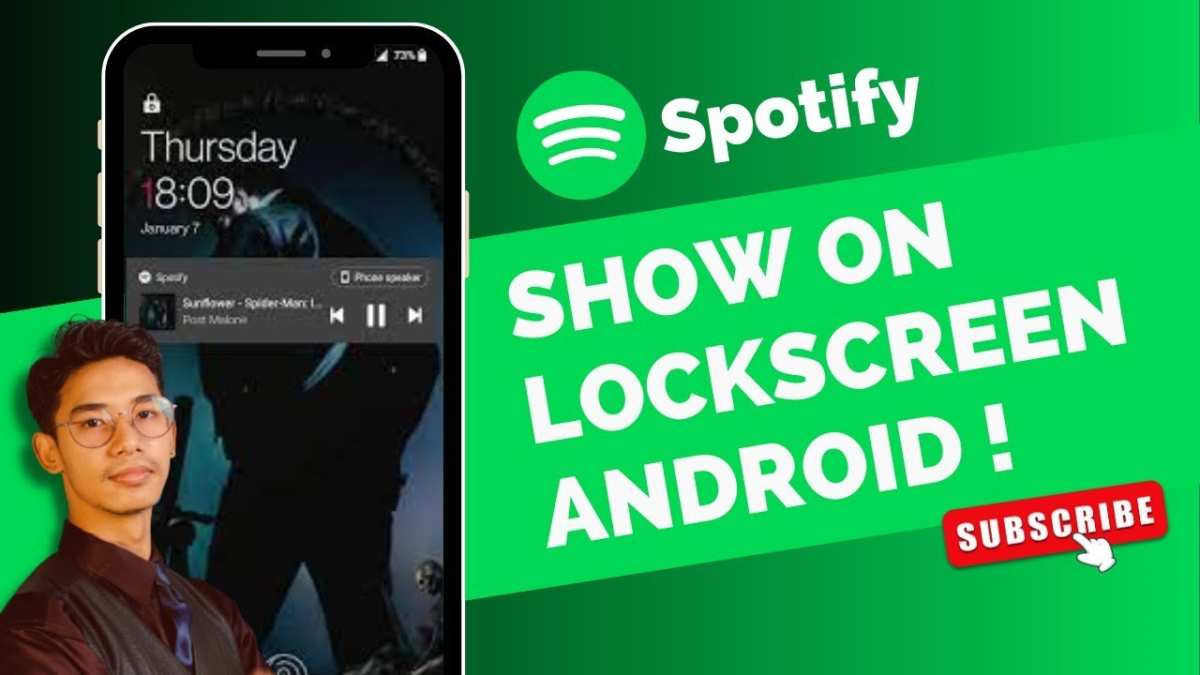

How to Make Spotify Show on Lock Screen Android
Listening to music on Spotify is a common activity for many Android users. However, sometimes you might notice that when your phone is locked, the Spotify controls and song information don’t appear on the lock screen. This can be frustrating, especially if you want to change songs or pause your music without unlocking your device. In this article, we’ll explore step-by-step how to make Spotify show on your lock screen on Android devices. We’ll cover various methods, troubleshooting tips, and additional settings to ensure you get the most out of your music experience directly from your lock screen.
Understanding Why Spotify Doesn’t Show On Lock Screen
Before diving into solutions, it helps to understand why Spotify might not be displaying on your lock screen in the first place. Several factors influence this behavior:
- Android system settings: Your device’s notification and lock screen settings control what appears when your phone is locked.
- Spotify app permissions: Without the right permissions, Spotify cannot send notifications or media controls to your lock screen.
- Battery saver mode: When active, this mode can restrict background activity, affecting Spotify’s ability to display on the lock screen.
- Notification settings within Spotify: If notifications are turned off or customized incorrectly, your lock screen may not show media controls.
- Android version: Different Android versions and custom skins (like Samsung’s One UI, Xiaomi’s MIUI, etc.) handle media controls in unique ways.
Understanding these causes helps us identify the right solutions more effectively.
Check and Enable Media Playback on Lock Screen
Ensure Media Controls Are Enabled in Your Phone Settings
The first step is to verify that your Android allows media controls to appear on the lock screen. Here’s how to do it:
- Open your device’s Settings app.
- Navigate to Display or Lock Screen, depending on your device.
- Look for options named Lock Screen Display or Lock Screen Notifications.
- Enable Show media controls on lock screen or similar options.
- If available, turn on Allow notifications in the notification management section.
Enable Media Playback Notifications
Media playback notifications are essential for displaying song info and controls on the lock screen.
- Go to Settings
- Select Apps or Notifications
- Find and tap on Spotify
- Make sure notifications are turned on
- Ensure the notification style is set to show media controls
Adjust Spotify App Settings for Lock Screen Display
Check Notification Settings in Spotify
Within Spotify, specific settings need to be enabled to display media info on the lock screen:
- Open the Spotify app.
- Tap on the Home icon, then go to Settings.
- Scroll down to find Notifications.
- Ensure the toggle for Show Notification or Notification Banner is enabled.
- Check if there is an option called Show on Lock Screen or similar—enable it.
Update the Spotify App and Your Phone
Always keep your Spotify app and Android OS up to date. Updates often include fixes for bugs and compatibility improvements for lock screen controls. To update:
- Visit the Google Play Store, search for Spotify.
- Tap Update if available.
- Similarly, check your device’s system settings for any OS updates and install them.
Using Android Quick Settings and Notification Panel
Access Media Controls from Notifications
Usually, even if Spotify is not showing on the lock screen, you can access music controls through the notification panel:
- Swipe down from the top of your screen to open the notification shade.
- Look for your Spotify media controls, which typically include play/pause, next, previous, and song info.
- If you see the media controls here, but not on the lock screen, ensure your device is configured to show notifications and media controls on the lock screen.
Adding Spotify to Quick Settings for Easier Access
Some Android devices let you add media control tiles to your Quick Settings panel:
- Pull down the notification shade fully.
- Tap the edit button (usually a pencil icon).
- Drag the Media control or similar tile into your Quick Settings area.
- Now, you can tap it anytime to control Spotify without unlocking your device.
Troubleshooting Common Issues
When Your Spotify Controls Still Don’t Show
If you’ve tried the above steps and Spotify still doesn’t display on the lock screen, consider these troubleshooting tips:
- Restart your device: Sometimes, a simple reboot refreshes system settings and resolves minor glitches.
- Clear app cache and data: Go to Settings > Apps > Spotify > Storage > Clear Cache/Data.
- Reinstall Spotify: Uninstall and reinstall the app to fix potential corrupt files or bugs.
- Disable battery saver or optimize apps: These features sometimes restrict app activity, including notifications.
- Check for system permissions: Make sure Spotify has permission to draw overlays or display notifications.
Adjusting for Custom Android Skins
Many Android phones use custom skins that change how notifications and lock screen controls behave. Refer to your device’s user manual or support site for specific instructions on enabling media controls on the lock screen.
Additional Tips for Enhancing Spotify Lock Screen Experience
- Use third-party apps: Some apps allow more control over media notifications and lock screen controls, such as media widget apps.
- Create shortcuts or widgets: Place Spotify widgets on your home screen for quick access to playback controls.
- Enable media notifications in Accessibility Settings: Some devices have accessibility options that improve media control visibility.
By following these detailed steps, you can ensure that Spotify displays properly on your lock screen, giving you seamless control over your music without unlocking your device. Always remember to keep your apps and device software updated for the best experience. With a few adjustments, your lock screen will become a handy control center for your Spotify music, making your listening experience more convenient and enjoyable.
Frequently Asked Questions
What settings should I adjust on my Android device to display Spotify controls on the lock screen?
To display Spotify controls on your lock screen, ensure that the notification settings on your Android device are enabled for Spotify. Go to Settings > Apps & notifications > Spotify > Notifications, then toggle on “Show notifications” or “Allow notifications.” Additionally, check your lock screen settings to make sure that notifications are allowed to appear on the lock screen. This often involves navigating to Settings > Security & lock screen > Notifications or Lock screen notifications and selecting “Show all notifications” or a similar option.
How can I enable the media controls for Spotify on the lock screen when using Android’s default settings?
If media controls are not visible on your lock screen, open your device’s Settings and locate the Display or Lock Screen section. Make sure that the “Media notifications” or “Show media controls” option is enabled. Also, confirm that the notification shade is set to display on the lock screen. When you play music on Spotify, the controls should automatically appear on the lock screen if these settings are active.
Why are Spotify controls not showing on my Android lock screen even though I have the app open?
Ensure that Spotify has the necessary permissions to display notifications and control media on your device. Check Settings > Apps & notifications > Spotify > Permissions and confirm that notification permissions are granted. Additionally, verify that Do Not Disturb mode is off, as it can suppress notifications. Restarting your device after adjusting these settings can also help refresh the notification system and enable Spotify controls on the lock screen.
Can I customize what appears in Spotify media controls on my Android lock screen?
Yes, you can customize the media controls by adjusting the notification settings for Spotify. Navigate to Settings > Apps & notifications > Spotify > Notifications, and look for options to customize how notifications appear. Some Android devices and versions allow you to choose what information is shown, such as album art, song title, or artist name. Additionally, you can enable or disable the display of media controls in the lock screen settings to tailor your experience.
Does the version of Spotify or Android affect the visibility of controls on the lock screen?
Yes, both the Spotify app version and your Android operating system version influence whether media controls appear on the lock screen. Keep your Spotify app updated to the latest version, as updates often include fixes for notification-related features. Similarly, ensure your Android device runs an updated operating system, as newer versions tend to improve notification handling and lock screen customization options. Compatibility issues might prevent controls from displaying properly, so keeping both updated helps ensure consistent functionality.
Final Thoughts
Pour faire apparaître Spotify sur l’écran de verrouillage Android, assurez-vous que l’application est à jour. Activez les permissions pour l’affichage sur l’écran de verrouillage dans les paramètres de votre téléphone. Vérifiez également que la fonction de contrôle de la lecture sur l’écran de verrouillage est activée. En suivant ces étapes, vous pouvez facilement faire en sorte que Spotify montre sur lock screen android. La clé réside dans la vérification des paramètres de notifications et de verrouillage de l’écran. Ainsi, vous profiterez d’un accès rapide à votre musique sans déverrouiller votre appareil.
Similar Posts































