How To Make Spotify Play In Background Android Efficiently

How to Make Spotify Play in Background on Android Devices
Playing music seamlessly while using your Android device is something many users want, especially with apps like Spotify. Whether you’re working, browsing, or just relaxing, being able to listen to Spotify in the background enhances your experience. But sometimes, your music stops unexpectedly or doesn’t play while you’re doing other tasks. This detailed guide explains exactly how you can make Spotify play in the background on your Android device, covering various methods, tips, and solutions to common problems.Understanding Why Spotify Might Not Play in the Background
Before diving into solutions, it’s helpful to understand why Spotify might not play in the background:- Battery Optimization Settings: Many Android phones have settings that limit background activity to save battery life, which can stop Spotify from running in the background.
- App Permissions: If Spotify lacks necessary permissions, it could restrict background playback.
- App Updates or Bugs: Outdated versions or bugs within the app could cause playback issues.
- System Settings: Do Not Disturb modes or other system configurations might interrupt background music.
How to Enable Background Playback on Spotify for Android
Making sure Spotify can play in the background involves a mix of app settings and device configurations. Let’s go through step-by-step instructions:Check Your Spotify Settings
Spotify generally allows background playback by default, but it’s good to verify:- Open the Spotify app on your Android device.
- Tap on the gear icon (Settings) in the top right corner.
- Scroll down to find the “Playback” section.
- Ensure that the “Allow playback in the background” or similar option is enabled. If you see it, turn it on.
Adjust Your Phone’s Battery Optimization Settings
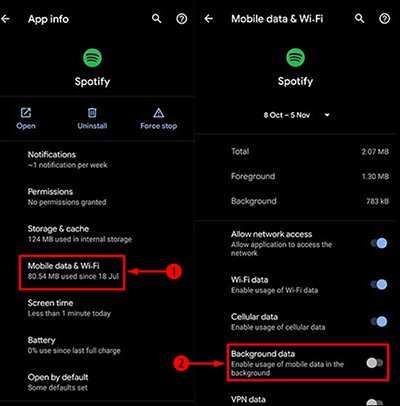
Many Android devices restrict background app activity to save battery. Adjusting this can help:- Go to your phone’s “Settings.”
- Navigate to “Battery” or “Battery & Performance.”
- Find “Battery Optimization” or “App Power Management.”
- Locate Spotify in the list (sometimes you need to tap “See all apps”).
- Set Spotify to “Not optimized” or “Allow app to run in background.”
Allow Necessary Permissions for Spotify
Permissions play a key role in enabling background playback:- Open “Settings” on your Android device.
- Tap “Apps” or “Applications,” then find and select Spotify.
- Tap on “Permissions.”
- Ensure that permissions like “Storage” and “Device & app history” are granted.
- Also, check if the app has permission to run in the background under “Special Access” or “Advanced.”
Update the Spotify App and Your Android Operating System
Sometimes, playback issues are simply due to outdated software:- Go to the Google Play Store.
- Search for Spotify and tap “Update” if available.
- Check if your device has pending system updates and install them if necessary.
Using the Notification Panel and Widgets for Background Listening
Once settings are correctly configured, controlling Spotify in the background is straightforward:Control Playback from Notifications
Most Android devices display playback controls in the notification shade when Spotify is playing:- Start playing a song on Spotify.
- Pull down your notification panel.
- You should see playback controls like play, pause, next, and previous.
- You can use these controls without opening the app again.
Create a Spotify Widget for Easier Control
Widgets allow you to manage playback directly from your home screen:- Tap and hold on your home screen.
- Select “Widgets” from the options.
- Find Spotify in the widget list.
- Drag the Spotify widget onto your home screen.
- Tap the widget to start, pause, or skip songs without opening the app.
Troubleshooting Common Problems with Spotify Background Playback
Sometimes, despite following instructions, Spotify still stops playing in the background. Here are some common issues and solutions:Music Stops When Screen Turns Off
If music stops when your screen is off, try:- Ensuring battery optimization is disabled for Spotify.
- Checking that “Allow activity to run in background” is enabled within the app settings.
- Closing other apps that might interfere with Spotify’s background activity.
Playback Stops Unexpectedly or Doesn’t Start
In this case:- Restart your device—sometimes a simple reboot helps.
- Clear Spotify app cache: Go to Settings > Apps > Spotify > Storage > Clear Cache.
- Reinstall Spotify if problems persist.
Problems with Streaming or Sound Quality
Address these by:- Switching to Wi-Fi if using mobile data to reduce interruptions.
- Checking your internet connection stability.
- Adjusting Spotify’s streaming quality in Settings > Music Quality.
Exploring Alternative Methods for Background Playback
If standard ways don’t work, here are additional options:Using Third-Party Apps or Screen Overlay Tools
Some apps allow you to overlay controls or keep music playing:- Apps like “Floating Control” or “Notification Shortcut” can help manage playback.
- Be cautious and only download from trusted sources to avoid security risks.
Playing Music via Browser or Desktop Mode
If your device supports it:- Use the Spotify Web Player in Chrome or other browsers, which can continue playing even when you switch apps.
Best Practices for Continuous Background Music Listening on Android
To enjoy uninterrupted music:- Keep Spotify updated.
- Disable battery saver modes when listening for long durations.
- Regularly check app permissions and system settings.
- Use the notification controls or widgets for easy management.
- Ensure a stable internet connection for streaming.
Summary
Getting Spotify to play in the background on your Android device involves a few simple but important steps. Begin by adjusting Spotify’s internal settings and verifying app permissions. Next, tweak your device’s battery optimization and background activity permissions. Using notification controls and home screen widgets makes it easier to manage your music. If problems persist, update your apps and device, clear cache, or consider alternative methods like browser-based playback. Following these tips guarantees that your favorite music plays seamlessly in the background, no matter what other activities you’re engaged in on your Android device.Frequently Asked Questions
How can I ensure Spotify continues playing after I leave the app on Android?
To keep Spotify playing in the background, simply press the home button or switch to another app while music is playing. Android’s default behavior allows audio to continue in the background unless the app is explicitly closed. Make sure you haven’t manually stopped playback or closed the app from the recent apps menu, as this will halt music playback.
What settings should I check to enable background playback on Spotify for Android?
Verify that your Spotify app has the necessary permissions and that background activity isn’t restricted. Go to your device’s Settings > Apps > Spotify > Battery or Data Usage, and ensure background activity is allowed. Additionally, check in Spotify’s settings under the ‘Playback’ options to ensure ‘Allow background playback’ is enabled, if available.
How does enabling Do Not Disturb mode affect Spotify’s background playback on Android?
Enabling Do Not Disturb mode can sometimes interfere with notification controls or cause playback issues. To avoid interruptions, add Spotify to your exceptions list in Do Not Disturb settings. This way, your music continues playing without interruption, even when the device is in DND mode.
Can I control Spotify playback from the notification panel while using other apps on Android?
Yes, when Spotify plays in the background, you see playback controls in the notification panel. Swipe down from the top of your screen to access these controls, allowing you to pause, skip, or adjust volume without reopening the app. Make sure notifications are enabled for Spotify in your settings to see these controls.
What should I do if Spotify stops playing after turning off the screen on Android?
If Spotify pauses when the screen turns off, check that your device’s power-saving modes aren’t restricting background apps. Disable any battery optimization settings for Spotify to allow continuous playback. Restart your device after changing these settings to ensure they take effect.
Final Thoughts
Pour que Spotify joue en arrière-plan sur Android, assurez-vous que la fonction de lecture en arrière-plan est activée dans l’application et dans les paramètres du téléphone. Utilisez également le bouton de retour ou le multitâche pour continuer à écouter tout en naviguant dans d’autres applications. Si vous rencontrez des difficultés, il peut être utile de redémarrer votre appareil ou de mettre à jour l’application. En suivant ces étapes, vous pouvez facilement faire en sorte que Spotify joue en background Android. La clé réside dans la configuration correcte de l’application et le maintien de l’application ouverte. Ainsi, comment faire spotify play in background android devient une tâche simple et rapide.
Similar Posts































