How To Make Slow Motion Video On Android Tips
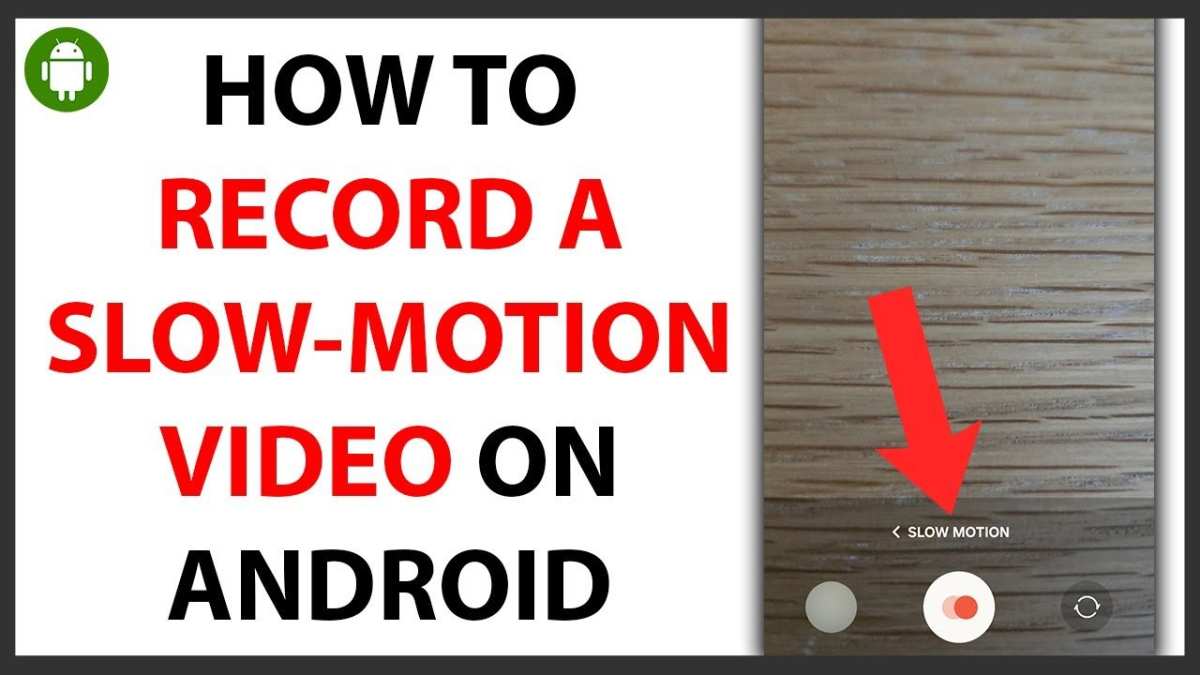
To make a slow motion video on Android, you can use dedicated apps like Google’s built-in camera or third-party options such as Slow Motion Video FX. **Open the app, select the slow motion mode, and record your video.** This process is simple and requires just a few taps. No need for complex editing skills—your device handles most of the work. Learning how to make slow motion video on Android becomes easy once you pick the right app and follow these quick steps.

How to Make Slow Motion Video on Android
Creating slow motion videos has become a popular way to add drama and emphasis to your footage, whether you’re capturing a sports moment, a funny stunt, or simply want to highlight a beautiful scene. If you own an Android device, you might wonder how to make slow motion videos without needing expensive editing software or complicated tools. Luckily, Android phones come with built-in features or easy-to-use apps that allow you to produce stunning slow motion videos right from your device. In this guide, we will explore everything you need to know about making slow motion videos on Android, from using your phone’s camera to choosing the best editing apps. We will also cover tips for capturing quality footage and best practices for editing to get smooth, professional-looking slow motion videos.
Understanding Slow Motion Video and How It Works on Android
Before diving into the “how,” let’s quickly understand what slow motion videos are and how your Android device can help you create them.
Slow motion videos are videos where the motion appears to be moving slower than real life. This effect is achieved by recording at a higher frame rate and then playing back at a standard frame rate, making the motion look smooth and slow.
Most modern Android smartphones have the ability to record at higher frame rates, typically 120 frames per second (fps) or 240 fps, which gives you the raw footage needed for creating slow motion effects. When you play back these high-frame-rate videos at the normal 30 fps, the footage appears slow and detailed.
Some Android devices have special slow motion modes built into their camera app, allowing you to record directly in slow motion without needing extra editing. Others may require you to record at standard speed and then edit the footage to slow down specific parts.
Selecting the Right Camera Settings for Slow Motion Recording
Getting the best slow motion videos starts with proper recording. Here are some key tips and settings to keep in mind:
- Check your camera’s frame rate options: Many Android cameras now offer slow motion recording at 120 fps, 240 fps, or higher. The higher the fps, the smoother and more detailed your slow motion will be.
- Use good lighting: High frame rate videos require more light for clear footage. Record in well-lit environments to avoid flickering or grainy videos.
- Record in high resolution: Opt for the highest available resolution (such as 1080p or 4K) to ensure your slow motion footage looks clear and sharp.
- Avoid shaky footage: Use a tripod or stabilize your phone to keep your shots steady, especially when recording at high fps.
Some Android devices have a dedicated slow motion mode. If yours does, make sure to enable it before recording. Consult your device’s user manual or camera app settings for specific instructions.
How to Record Slow Motion Videos with Built-in Camera Features
Many Android phones simplify the process with dedicated slow motion modes. Here is a step-by-step guide on how to record slow motion videos if your device has this feature:
- Open your camera app and navigate to the mode options. Look for “Slow Motion” or similar.
- Select the slow motion mode. Some phones allow you to choose the fps before recording.
- Preview the scene and tap the record button. Keep the device steady and avoid rapid movements to ensure smooth footage.
- Stop recording once done. Your device will usually save the video directly in your gallery or a separate slow motion folder.
If your phone doesn’t have a dedicated slow motion mode, don’t worry—you can record at standard speed and edit the footage later.
Using Third-Party Apps to Capture Slow Motion Directly or Edit Existing Footage
If your phone lacks a built-in slow motion mode or you want more control over your videos, third-party apps come in handy. Here are popular options:
- FilmoraGo: Allows you to import videos and add slow motion effects during editing.
- Enable Slow Motion: Designed specifically to enhance or create slow motion videos by adjusting playback speed.
- Phone Camera Apps like Cinema FV-5: Offer advanced controls for fps and recording options.
Most of these apps are user-friendly. You can record in high fps and then fine-tune the playback speed according to your preference.
How to Edit Your Videos for Slow Motion Effect on Android
While some smartphones offer the option to record slow motion directly, editing software allows you to refine and customize your videos further. Here’s how to do it:
Choosing the Right Editing App
Select an app with features like speed adjustment, trimming, and stabilization. Popular options include:
- InShot
- PowerDirector
- KineMaster
- Videoshop
- VLLO
Download and install your preferred app from the Google Play Store.
Editing Steps for Slow Motion Video
Follow these general steps, which are similar across most editing apps:
- Open your editing app and import the footage you want to make slow motion.
- Select the clip and find the speed or playback rate option. Increase the speed to slow down your video, such as setting it to 50% or 25% of the original speed.
- Apply gradual speed changes or freeze frames for dramatic effect, if desired.
- Trim unnecessary parts to focus on the key moments.
- Use stabilization tools, if available, to smooth out shaky footage.
- Preview your clip. Make adjustments as needed for a seamless slow motion effect.
- Save or export the finished video in the highest quality possible.
Enhancing Your Slow Motion Videos
Once you have your slow motion footage, consider adding some finishing touches to make your videos more engaging:
- Adjust brightness and contrast: Brighten dark areas for clearer visuals.
- Add music or sound effects: Synchronize sounds with slow motion for a more immersive experience.
- Include text or filters: Add captions or filters to give your video a unique style.
Always keep in mind that overly slow or abrupt speed changes can sometimes look jerky. Experiment with different speeds and editing techniques to find what looks best.
Tips for Creating High-Quality Slow Motion Videos on Android
To achieve impressive slow motion videos, keep these tips in mind:
- Plan your shot before recording. Think about what moment you want to emphasize.
- Use a tripod or stabilizer to keep the camera steady, especially at high fps.
- Record in well-lit environments to prevent flickering and graininess.
- Experiment with different frame rates and speeds to find what works best for your scene.
- Always preview your clips before finalizing to ensure smooth playback.
Remember, patience and practice make perfect. Each video you create helps you better understand what settings and techniques work for your device.
Additional Considerations and Troubleshooting
While creating slow motion videos on Android is generally straightforward, some common issues might arise:
- Flickering or stuttering: Usually caused by poor lighting or low frame rates. Use good lighting and higher fps settings.
- Decreased video quality after editing: Always export in the highest resolution available. Avoid excessive compression.
- Slow motion videos appear choppy: Ensure your device records at a high fps, and your editing app applies proper speed adjustments.
If you experience issues, try recording in different lighting conditions, adjusting the fps, or using alternative editing apps.
Summary
Creating slow motion videos on Android is accessible with the right tools and techniques. Starting with selecting the correct camera settings or using device-specific modes, you can record high fps footage effortlessly. If your device lacks a slow motion option, third-party apps give you the freedom to record or edit videos with slow motion effects. Remember that proper lighting, stabilization, and thoughtful editing enhance your final product. With patience and practice, you can produce captivating slow motion videos that impress your friends and showcase your creativity. Whether you’re capturing sports, nature, or funny moments, Android provides everything you need to make your videos stand out with beautiful slow motion effects.
Frequently Asked Questions
What are some user-friendly apps to create slow motion videos on Android?
There are many apps available on the Google Play Store that allow you to make slow motion videos easily. Popular options include “Google Photos,” which lets you adjust the speed of existing videos, and “Videoshop,” which offers detailed editing features. “PowerDirector” and “KineMaster” are also excellent choices for more advanced editing, providing tools to apply slow motion effects seamlessly.
How can I precisely control the slow motion effect in my Android videos?
To get accurate control over the slow motion effect, choose a video editing app that allows you to adjust the playback speed manually. Import your video into the app, then locate the speed adjustment feature. Set specific points in your video where you want the slow motion to begin and end, allowing for smooth transitions. This method ensures the slow motion effect looks natural and aligns with your creative vision.
Are there any tips for capturing better slow motion videos on Android devices?
Yes, to shoot high-quality slow motion videos, use a high frame rate setting available on your device, such as 240fps or 120fps. Record in good lighting conditions to prevent graininess, and keep the camera steady to avoid shaky footage. Planning your shots and practicing smooth movements help produce professional-looking slow motion videos right from the start.
Final Thoughts
To make slow motion video on Android, select your video in a slow-motion editing app. Adjust the speed settings to slow down the footage as needed. Preview the changes to ensure the desired effect.
Next, save your edited video and share it directly from the app. Practicing these simple steps allows you to easily create impressive slow motion videos on your Android device.

Similar Posts