How To Make Screenshot On Android Smartphone: A Simple Guide
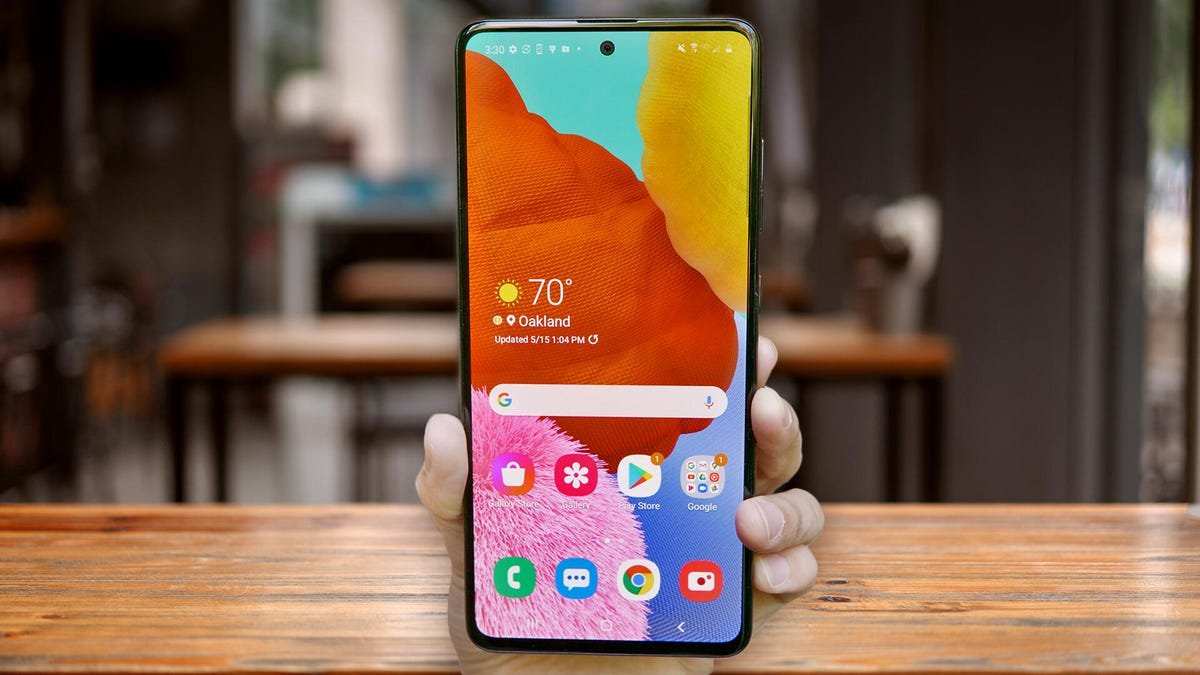

How to Make a Screenshot on an Android Smartphone
Taking screenshots on your Android device is a handy skill that can help you save important information, share funny moments, or keep a record of what’s happening on your screen. Whether you’re capturing a funny meme, saving a recipe, or recording an error message, knowing how to take a screenshot makes life easier. This guide will explore all methods step-by-step, ensuring you know how to screenshot on any Android smartphone, no matter the brand or model.Understanding What a Screenshot Is and Why You Might Need One
Before diving into the how-to, let’s clarify what a screenshot is. A screenshot captures exactly what’s displayed on your phone’s screen at a specific moment. It creates an image file that you can view later, share with friends, or save for future reference. People take screenshots for various reasons:- Saving important information like contact details or addresses from a website
- Capturing game scores or moments
- Sharing funny chats or social media posts
- Keeping a record of error messages for troubleshooting
- Documenting receipts or confirmations
Methods to Capture a Screenshot on Android Devices
There are several ways to take a screenshot on Android smartphones, and the method can vary depending on the brand and model. The most common and universal method involves using the physical buttons, but many devices also offer alternative methods, including gestures and specific settings.Using the Power and Volume Down Buttons
This is the most straightforward and widely supported way to take a screenshot on Android devices.Steps to Follow:
- Open the screen you want to capture.
- Press and hold the Power button and the Volume Down button simultaneously.
- Hold both buttons for about 1-2 seconds.
- Release the buttons once you see the screen flash or hear a camera shutter sound, indicating the screenshot was taken.
Tips for a Successful Screenshot:
- Ensure both buttons are pressed at the same time to avoid triggering other functions like turning off the device.
- If your device vibrates or you see a confirmation message, your screenshot was successful.
- Check your notification bar or the gallery app to find the saved screenshot.
Alternative Button Combinations for Different Devices:
| Device Brand | Button Combination |
|---|---|
| Samsung Galaxy | Power + Volume Down |
| Google Pixel | Power + Volume Down |
| OnePlus | Power + Volume Down |
| Huawei | Power + Volume Down |
| Sony Xperia | Power + Volume Down (or sometimes Power + Volume Up) |
Using Palm Swipe or Gestures
Many Android phones come with gesture controls that simplify screenshot tasks.For Devices with Palm Swipe:
- Go to Settings > Advanced Features or Motions & Gestures.
- Activate the “Palm swipe to capture” option.
- Place the side of your hand vertically on the edge of your screen.
- Swipe your hand horizontally across the screen from left to right or right to left.
- You will see the screen flash, confirming that a screenshot has been taken.
Note:
- This feature is available on Samsung devices and some others with similar gesture options.
- If not available, check your device settings or consult the user manual.
Screenshot Using Quick Settings Panel
Some Android devices offer a quick toggle in the notification shade.How to Use:
- Swipe down from the top of the screen to open the notification panel.
- Look for the icon labeled “Screenshot” or “Capture screen.”
- Tap on the icon.
- The screen will flash, indicating the screenshot has been taken.
Advantages of This Method:
- Quick and easy to access without pressing physical buttons.
- Especially useful if your device’s buttons are damaged or unresponsive.
Using Google Assistant or Voice Commands
Another hands-free way to take screenshots involves using voice commands.Steps:
- Make sure your device has Google Assistant enabled.
- Say, “Hey Google,” or “OK Google,” to activate the assistant.
- Issue the command: “Take a screenshot.”
- The assistant will confirm and capture the screen automatically.
Notes:
- This method works well when you need a quick screenshot without touching your phone.
- Ensure your voice recognition is properly set up for best results.
Locating and Managing Your Screenshots
Once you’ve taken a screenshot, where does it go? Usually, Android smartphones save screenshots in a dedicated folder in your Gallery or Photos app.How to Find Your Screenshots:
- Open the Gallery app or Google Photos.
- Look for a folder named “Screenshots.”
- Open it to view all your saved images.
Managing Your Screenshots:
- You can share, edit, or delete screenshots from this folder.
- If you want to move a screenshot to another album, select the image and choose your desired option.
Additional Tips for Better Screenshot Management
- Use cloud storage options like Google Drive or Dropbox to back up your screenshots automatically.
- Rename screenshots for easier identification, especially when saving multiple images.
- Use editing tools available in your gallery to crop or annotate screenshots before sharing.
- Learn your device’s specific features—some brands add extra capabilities like scrolling screenshots or recording screen videos.
Special Features for Different Android Brands
Different manufacturers add unique ways to take screenshots. Here’s a quick overview:Samsung Galaxy Devices
- Smart Capture: After taking a screenshot, options to crop, draw, or share appear immediately.
- Scroll Capture: Capture long pages by tapping “Scroll” or “Capture More.”
OnePlus Devices
- Quick Settings toggle for screenshots.
- Gestures like three-finger swipe to capture.
Huawei and Honor Phones
- Knuckle gesture: Tap the screen with a knuckle to take a screenshot.
- Long screenshot options for capturing scrolling pages.
Xiaomi (Mi) Devices
- Button combination similar to other Android phones.
- Quick gestures for screenshots if enabled in settings.
Troubleshooting Common Issues
Sometimes, taking a screenshot might not work as expected. Here are common problems and fixes:Cannot Capture Screenshot
- Ensure that you are pressing the correct button combination.
- Check if the feature is enabled in your device settings.
- Restart your device to fix temporary glitches.
- Update your device’s software to the latest version.
Unable to Find Saved Screenshots
- Verify the storage location—sometimes, screenshots are saved elsewhere.
- Clear cache of the Gallery or Photos app.
- Check your device’s internal storage for the “Screenshots” folder.
Summary of Key Takeaways
– The most universal method involves pressing the Power + Volume Down buttons simultaneously. – Gestures and quick settings panels offer easier options on compatible devices. – Voice commands provide a hands-free alternative. – Always know where your screenshots are saved for easy access. – Different brands offer additional features to enhance the screenshot experience. Mastering these methods ensures you’re prepared for any situation where capturing your screen comes in handy. Whether for work, fun, or sharing with friends, knowing how to screenshot on an Android smartphone invites convenience and efficiency into your daily routine.Frequently Asked Questions
What are the common methods to take a screenshot on an Android device?
Most Android smartphones use a combination of hardware buttons to capture a screenshot. Typically, you press and hold the power button and volume down button simultaneously for about a second until you see a visual indicator or hear a shutter sound. Some devices may have a specific gesture or feature, such as palm swipe or assistant options, to capture the screen without using buttons.
How can I take a screenshot using quick settings or notification panel?
Many Android phones offer a screenshot button directly in the quick settings menu. Swipe down from the top of the screen to access the notification panel, then look for the “Screenshot” icon. Tap on it to capture the current screen instantly. This method provides a convenient alternative, especially when hardware buttons are difficult to press simultaneously.
Are there any built-in tools or features that assist in taking screenshots on Android?
Some Android devices include built-in tools like scroll screenshots, smart capture, or screen recording. For example, after taking a screenshot, a toolbar may appear with options to edit, share, or take a longer screenshot by scrolling. These features simplify capturing multiple parts of a page or app quickly without multiple screenshots.
Can I use voice commands or assistants to take a screenshot?
Yes, if your device supports voice commands or virtual assistants, you can use voice prompts to capture a screenshot. For instance, saying “Hey Google, take a screenshot” triggers the assistant to perform the action. Ensure your voice assistant is active and set up properly to use this feature seamlessly.
Final Thoughts
To make a screenshot on an Android smartphone, press and hold the Power button and Volume Down button simultaneously. Hold them for about a second until the screen flashes or you hear a shutter sound. Some devices may have alternative methods, such as using a palm swipe or quick settings menu. Check your notification panel or gallery to find the captured image. You can edit or share it directly from there. Practicing these steps ensures you can quickly save important moments. In summary, how to make screenshot on android smartphone is simple: press the Power and Volume Down buttons together. This method works across most devices, making it easy to capture what you see.
Similar Posts































