How To Make Ringtone From Song On Android Easy Guide
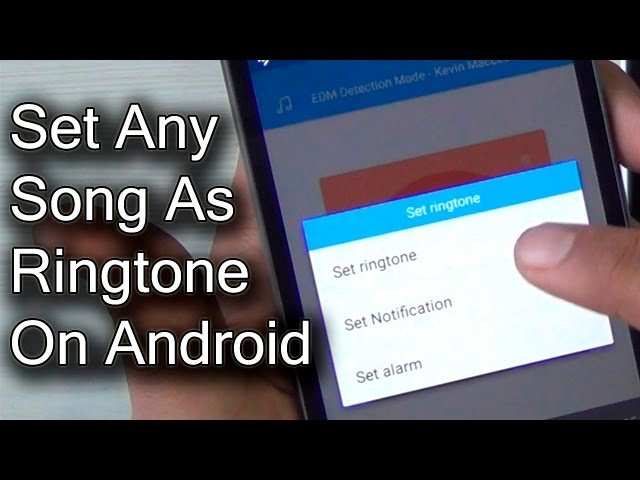
To make a ringtone from a song on Android, you simply need a suitable app or built-in tools. **Using a ringtone maker app or the default editor on your device makes the process quick and easy.** Just select the song, trim the desired part, and set it as your ringtone.
Wondering how to make ringtone from song on android? It’s straightforward and takes only a few steps. No technical skills required—just follow along and customize your ringtone effortlessly.
How to Make Ringtone from Song on Android
Creating a custom ringtone from your favorite song on Android might seem tricky at first, but it’s actually quite simple once you understand the steps involved. Whether you’re looking to set a unique ringtone for a special contact or want to personalize your device, this guide will walk you through everything you need to know. By the end of this article, you’ll be able to make your own ringtone from any song stored on your Android phone easily and quickly.
Understanding the Basics of Ringtone Creation
Before diving into the process, it’s helpful to understand some basic concepts about ringtones and how they work on Android devices. When you set a ringtone, your phone plays a specific sound whenever you receive a call, message, or notification. Customizing these sounds adds a personal touch to your device, making it stand out from others.
Most Android phones allow you to select a song or audio clip as a ringtone. The key is to create a short audio segment from your preferred song, usually around 30 seconds or less, which fits well for ringtone use. This segment should be clear and attention-grabbing, so selecting the right part of the song is essential.
The Benefits of Making Your Own Ringtone
Creating your own ringtone offers several advantages:
- Personalization — express your style with your favorite song or sound.
- Unique alerts — avoid hearing the same default ringtone as everyone else.
- Special contacts — assign different ringtones to important people.
- Creative control — adjust the sound clip to your liking, including trimming and editing.
Now, let’s explore the different methods you can use to make a ringtone directly on your Android device or with the help of third-party tools.
Method One: Using Your Android’s Built-in Ringtone Maker
Many Android phones come with a built-in feature to create custom ringtones. The process may vary slightly depending on your device’s manufacturer and Android version, but the general steps are similar.
Step-by-step Guide
- Open your Music or Files app and locate the song you want to turn into a ringtone.
- Tap on the song to open it. If your device has a music editing feature, you’ll see options like “Edit” or “Trim.”
- Select the trimming tool, which allows you to specify the start and end points of your ringtone. Usually, it’s best to choose a catchy part, typically between 15 to 30 seconds.
- Preview the selected segment to ensure it sounds good.
- Save the trimmed clip as a new file, naming it appropriately (e.g., “My Fave Song Ringtone”).
- Navigate to Settings > Sound & Vibration > Ringtone (or similar, depending on your device).
- Choose the new audio file from your saved ringtones list.
This method is straightforward but relies heavily on your device’s native capabilities. If your Android phone does not offer a built-in editor, proceed to the next options.
Method Two: Using Third-Party Apps for Ringtone Making
Downloadable apps can enhance your ability to create custom ringtones with more features and flexibility. Here are some popular apps that make ringtone creation simple and efficient.
Popular Ringtone Maker Apps
- Ringtone Maker: Free app that lets you select songs from your device, cut segments, and save them as ringtones.
- Music Cutter: Offers easy-to-use trimming tools and supports various audio formats.
- MP3 Cutter and Ringtone Maker: Provides advanced editing options, including fading and volume adjustment.
How to Use a Ringtone Maker App
- Go to the Google Play Store and search for one of the above apps or any other reputable ringtone cutter.
- Download and install the app on your device.
- Open the app and grant any necessary permissions, like access to your storage.
- Browse your music files and select the song you want to turn into a ringtone.
- Use the app’s editing tools to choose the specific part of the song. You can typically:
- Set start and end points by dragging sliders.
- Preview your selection to ensure it sounds right.
- Save the clip, naming it for easy identification.
- Most apps will give you the option to directly set the new clip as your ringtone or to find it in your device’s ringtone settings.
How to Transfer and Set Your Custom Ringtone
Once you create a short audio clip, you need to set it as your ringtone. Here’s how to do it:
Directly from the app
Many ringtone apps allow you to set the clip directly within the app itself. Usually, there will be a button labeled “Set as Ringtone” or similar. Simply tap it, and your device will update its ringtone to the new sound.
Through Android Settings
If you prefer to set the ringtone manually:
- Open the Settings app on your device.
- Navigate to Sound & Vibration or Sound.
- Tap on Ringtone or Phone Ringtone.
- Scroll through the list and find your custom ringtone file. If you saved it in a specific folder, select it from there.
- Tap on the file to set it as your default ringtone.
Tips for Creating the Perfect Ringtone
Creating a catchy and effective ringtone involves more than just choosing a song. Here are some tips to help you craft the best possible ringtone:
- Pick a memorable part: For example, a chorus or a hook that stands out.
- Keep it short: Ringtones are typically 15 to 30 seconds long. Shorter clips are less bulky and easier to manage.
- Ensure clarity: Choose a clear, high-quality segment without background noise.
- Avoid abrupt beginnings or endings: Smooth fades or transitions make your ringtone sound more professional.
- Test different parts: Listen to several clips before deciding which one sounds best.
Legal Considerations When Creating Ringtones
Remember, only use songs you have the rights to modify. Avoid using copyrighted material without permission, especially if you plan to share your ringtones with others. Opt for music you own or that is in the public domain.
Making a ringtone from a song on your Android device doesn’t require special skills or expensive software. Whether you use your phone’s built-in features or third-party apps, you can personalize your device easily. Focus on choosing a memorable part of your favorite tune, keep it short and clear, and follow the steps above to set it as your new ringtone. With a bit of practice, you’ll be creating custom sounds that truly reflect your style and make your device uniquely yours.
Frequently Asked Questions
What are the best apps to create a ringtone from a song on Android?
Some popular apps for creating ringtones on Android include Ringdroid, Zedge, and MP3 Cutter. These apps offer user-friendly interfaces and allow you to easily trim your favorite parts of a song. To use them, simply select the song, specify the section you want for your ringtone, and save the file in the appropriate format for your device.
How can I ensure the ringtone is compatible with my Android device?
To ensure compatibility, save your created ringtone in a format supported by Android, such as MP3 or M4A. After editing, transfer the ringtone to your device’s ringtone folder, typically located in the internal storage. You can then select the new ringtone through your device’s sound settings to make it your default or assign it to specific contacts.
Is it possible to set a custom ringtone for individual contacts on Android?
Yes, Android allows you to assign different ringtones to specific contacts. After creating your ringtone, go to your contacts app, select a contact, and choose the option to edit. From there, you can set a custom ringtone for that individual, making it easy to identify callers based on the sound.
Final Thoughts
To make a ringtone from a song on Android, start by choosing a music editing app like Ringtone Maker or Audacity. Open the app and load your favorite song. trim the part you want to use as your ringtone, then save it in the required format.
Next, go to your device settings, select “Sound,” then “Ringtone.” Browse your saved clips and select the one you just created. This method allows you to personalize your ringtone easily and quickly. How to make ringtone from song on android is simple with the right app and steps.

Similar Posts































