How To Make Gif In Android Tips For Easy Creation
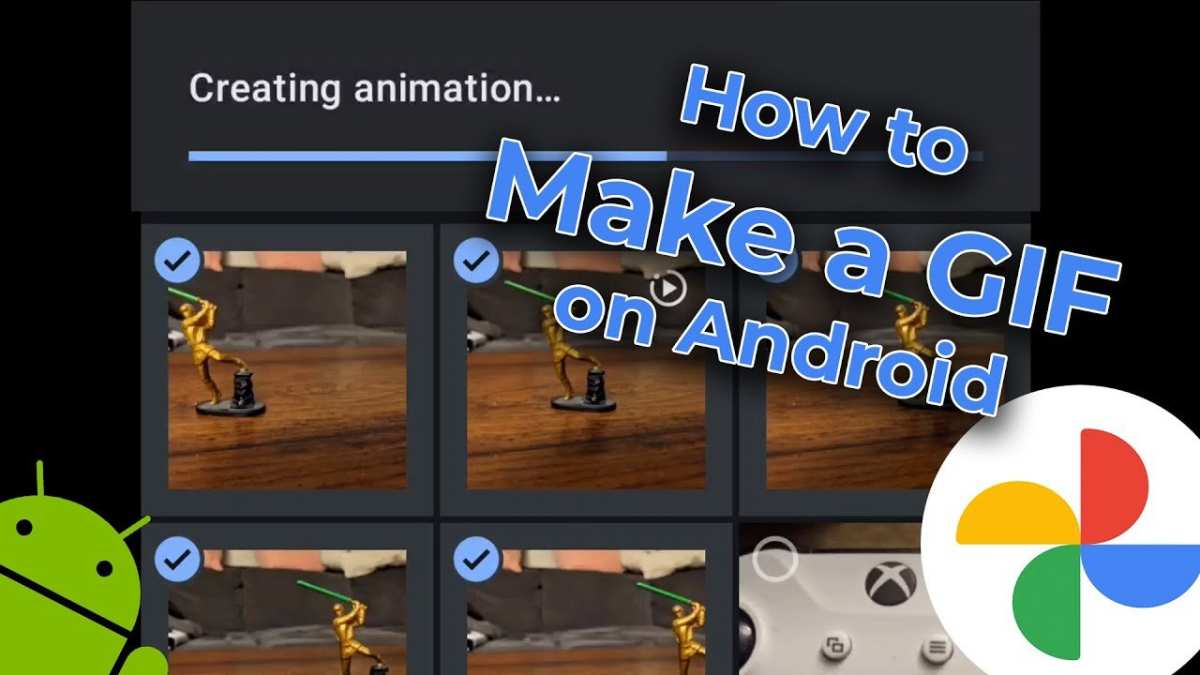
How to Make GIF in Android
Creating GIFs on your Android device has become easier than ever with a variety of apps and tools designed specifically for this purpose. Whether you want to turn your favorite video clip into a GIF, make a custom animation, or add fun effects to your images, Android offers you flexible options to bring your ideas to life. In this guide, we will walk through everything you need to know about how to make GIF in Android, covering different methods, useful apps, tips for creating high-quality GIFs, and steps to share your creations with friends.Understanding GIFs and Why They Matter
Before diving into the process, let’s understand what a GIF (Graphics Interchange Format) is and why it’s so popular. GIFs are short, looping animations that capture a moment or convey emotions effectively. They are widely used in social media, messaging apps, and websites because they add fun and expressiveness to conversations. Some reasons why GIFs are so popular:- They can tell stories without words.
- They are easy to share across different platforms.
- They add humor and emotion to messages.
- They are perfect for capturing funny or cute moments.
Methods to Make GIFs on Android Devices
There are several ways to create GIFs on Android, depending on what kind of GIFs you want to make and how much control you want over the process. Let’s explore the most common methods:Using Dedicated GIF Maker Apps
Apps designed for creating GIFs usually offer the easiest and fastest way. They come with user-friendly interfaces, allowing you to convert videos, images, or even live camera footage into GIFs.Converting Videos into GIFs
Many apps let you pick a video from your gallery, select a specific segment, and turn it into a GIF. This is perfect if you want to create a GIF from a movie clip or a video you’ve recorded.Creating GIFs from Images or Photos
You can also make GIFs by combining multiple photos into a single animated image. This method works well for creating slideshows or step-by-step tutorials.Using Online Tools and Websites
If you prefer not to install apps, online GIF makers allow you to upload videos or images directly from your browser. These tools are accessible on your Android’s web browser and often support advanced editing features.Top Apps for Making GIFs on Android
Choosing the right app depends on what you’re trying to do. Here are some of the most popular and trusted apps for creating GIFs:- GIPHY – The world’s largest library for GIFs, also allows you to create and upload your own GIFs easily.
- GIF Maker – ImgPlay – Supports converting videos and photos into GIFs with simple editing tools.
- GIF Studio – Offers advanced features like adding text, effects, and frame-by-frame editing.
- Google Photos – Has a built-in animation feature that creates GIFs from your selected photos.
Step-by-Step Guide to Creating GIFs on Android
Let’s walk through the basic steps of making GIFs using a popular app like GIPHY and an online method. These steps will help you understand the process regardless of the tool.Creating a GIF Using GIPHY App
- Download and install GIPHY from Google Play Store.
- Open the app and tap the ‘+’ icon to create a new GIF.
- Choose whether to record a video, select a video from your gallery, or upload images.
- If selecting a video, trim the segment you want to turn into a GIF.
- Add optional effects, stickers, or text to your GIF for a personalized touch.
- Preview your creation, and if satisfied, tap ‘Next’ to save.
- You can now share it directly on social media or save it to your device.
Creating a GIF from Photos Using Google Photos
- Open Google Photos and select multiple images you want to animate.
- Tap the ‘+’ button and select ‘Animation.’
- The app will process your images into a GIF, and you can preview it.
- Save or share your GIF directly from the app.
Using Online GIF Makers on Android Browsers
- Visit a trusted website like Giphy GIF Maker or Imgflip.
- Upload your video or images according to the site’s instructions.
- Customize your GIF by adding text, effects, or adjusting the speed.
- Click ‘Create’ or ‘Generate,’ then download the GIF to your device.
- Share your creation via messaging apps or social media platforms.
Tips for Making Better GIFs on Android
Creating eye-catching GIFs involves more than just converting videos or images. Here are some helpful tips:- Keep it short and sweet: GIFs are best when they’re brief, typically under 10 seconds.
- Focus on a single action or emotion: Avoid overloading your GIF with too much movement or detail.
- Use good lighting: Clear images and videos make a more appealing GIF.
- Add text or captions: Enhance your GIF by explaining or emphasizing a funny or important part.
- Experiment with effects: Use filters or stickers to make your GIF stand out.
Optimizing Your GIFs for Sharing
Once you make your GIF, sharing it smoothly is essential. Here are some suggestions:- Compress your GIF: Reduce file size for faster uploads by using compression tools or apps.
- Choose the right resolution: Larger GIFs look better but take longer to load; find a balance based on your needs.
- Use proper formats: Save your GIFs in .gif format to ensure compatibility across platforms.
Sharing Your GIFs on Android Devices
After creating your GIF, sharing it is straightforward:- Use messaging apps like WhatsApp, Facebook Messenger, or SMS to send your GIFs directly.
- Post your GIFs on social media platforms such as Instagram, Twitter, or TikTok.
- Create GIF albums or stories to showcase your best work.
- Send via email by attaching the GIF file.
Frequently Asked Questions
What are some popular apps I can use to create GIFs on my Android device?
Some widely used apps for creating GIFs on Android include Giphy, ImgPlay, GIF Maker – Video to GIF, and Camera MX. These apps offer user-friendly interfaces and a variety of features, such as editing options, text overlays, and the ability to convert videos or photos into GIFs seamlessly.
Can I make a GIF from a video stored on my Android phone?
Yes, you can easily convert a video into a GIF using several Android apps. Select a video from your gallery, open it in a GIF creation app like Gif Maker or Camera MX, and trim the desired section. Adjust settings if needed, then save the creation as a GIF file to your device.
Are there any online tools I can use to create GIFs directly from my Android browser?
Absolutely. Several online tools like Giphy, EZGIF, and Imgflip operate through mobile browsers. Upload your videos or images, customize your GIF with editing options, and download the final product directly to your device without installing any apps.
What steps should I follow to add text or stickers to my GIFs on Android?
Most GIF creation apps incorporate editing features that allow you to overlay text, add stickers, or include drawings. After importing your media, locate the editing tools within the app, choose the desired elements, position them appropriately, and save the modified GIF for sharing or storage.
Is it possible to create looping GIFs from a series of photos on Android?
Yes, many apps enable you to compile multiple photos into a continuous, looping GIF. Select your images in the intended order, use the app’s animation feature to set the frame rate, and enable looping options. Once finished, save your GIF, which will play repeatedly when viewed.
Final Thoughts
In summary, creating a gif on Android is simple using various apps available on the Play Store. Download a user-friendly app, import your video or images, and then export your gif with a few taps. Knowing how to make gif in android makes sharing fun moments quick and easy. With just a little practice, you can produce personalized gifs effortlessly.
Similar Posts































