How To Make Folder Android: Simple Step-By-Step Guide
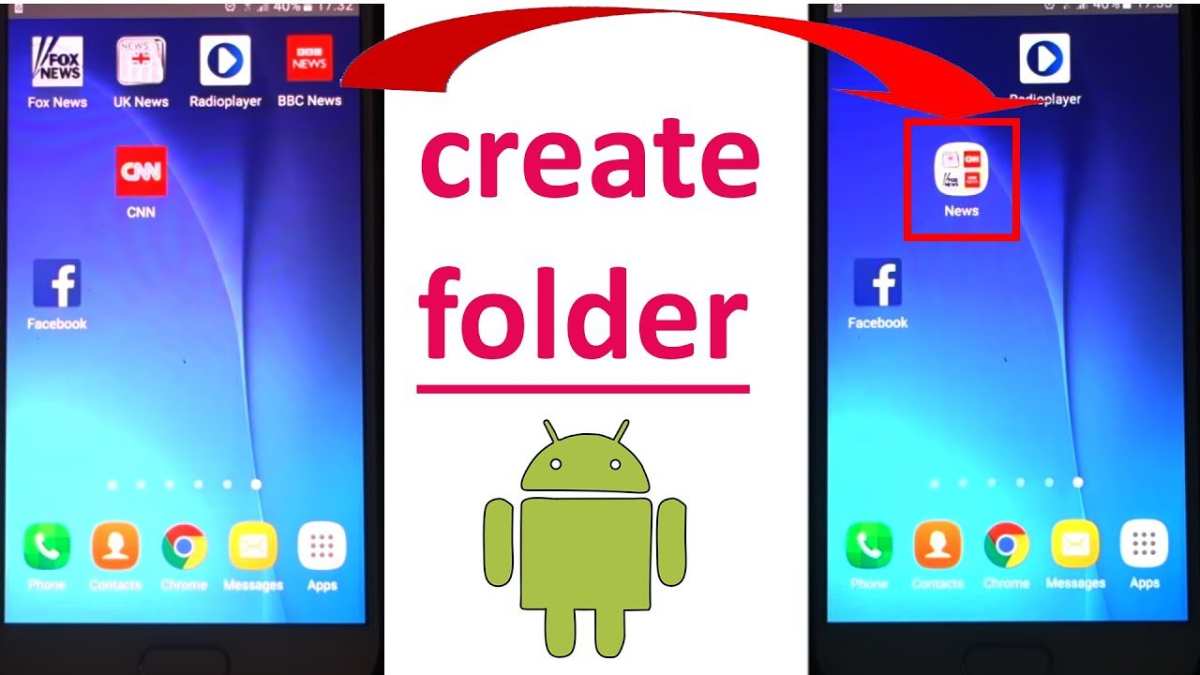
How to Make a Folder on Android
Creating folders on your Android device is a simple way to keep your apps and files organized. Instead of cluttering your home screen with too many icons, you can group similar apps together into a folder. Doing this not only makes your device look tidy but also helps you find things faster. In this guide, you’ll learn step-by-step how to make a folder on Android, with tips on customizing, managing, and organizing your folders effectively.Understanding the Basics of Folders on Android
Before diving into the how-to steps, let’s understand what folders are on Android and why they are useful. Think of a folder like a digital container where you can place multiple apps or files. It’s a handy way to reduce clutter and improve your device’s look and feel. Some key benefits of using folders include:- Keeping similar apps together — for example, games or social media apps
- Saving space on your home screen
- Quickly accessing your favorite apps without scrolling through multiple pages
- Creating a more organized and tidy interface
How to Create a Folder on Android
Creating a folder is straightforward on most Android phones. Here’s a step-by-step process:Step 1: Unlock Your Android Device
Start by turning on your phone and unlocking it. You will need to access your home screen where your apps are displayed.Step 2: Find the Apps You Want to Group
Browse through your home screen or app drawer to locate the apps you wish to group into a folder. Usually, you want to select apps that serve similar purposes or belong to the same category.Step 3: Drag and Drop to Create a Folder
Follow this simple method:- Press and hold an app icon until it becomes movable.
- Drag the app icon over another app you want to include in the same folder.
- When the icons overlap, release the app.
Step 4: Name Your Folder
To name your folder:- Tap on the newly created folder.
- Look for the “Rename” or folder name field.
- Type a name that describes what’s inside, like “Games,” “Work,” or “Social.”
- Press OK or Save.
Step 5: Add More Apps to Your Folder
To include more apps:- Open the folder by tapping on it.
- Press and hold any additional app icon you wish to add.
- Drag it into the open folder and release.
Managing and Customizing Folders
Once you’ve created your folder, you may want to customize or manage it further.Changing Folder Name
To rename a folder:- Open the folder.
- Tap on the folder name or long-press it.
- Type the new name.
- Confirm by clicking OK or Save.
Moving Folders Around the Home Screen
To reposition your folder:- Tap and hold the folder icon.
- Drag it to your preferred spot on the home screen.
- Release to place it there.
Adding or Removing Apps from a Folder
To remove an app:- Open the folder.
- Press and hold the app icon you want to remove.
- Drag it outside the folder or to a different location on the home screen.
- Open the folder.
- Press and hold the app to add.
- Drag it into the open folder.
Deleting a Folder
If you want to delete a folder:- Open the folder.
- Remove all apps inside by dragging them out.
- Once the folder is empty, it will automatically disappear.
Tips for Creating Effective Folders
Making good folders helps keep your device organized. Here are some tips:- Use descriptive names that tell you what’s inside.
- Group apps based on their purpose, like “Music,” “Work,” or “Travel.”
- Limit the number of apps inside a folder to keep it manageable. Too many apps can make the folder hard to navigate.
- Regularly review and reorganize your folders to match your changing needs.
Different Android Customizations for Folder Creation
Depending on your Android device or launcher, folder creation steps can vary slightly. Here’s a quick look at some common customizations:Using Samsung Devices
Samsung phones often come with One UI, which supports folder creation in a similar manner:- Tap and hold an app icon.
- Drag it over another app.
- Release to create the folder.
- Tap on the folder to rename or add apps.
Using Google Pixels
Google Pixel devices, running standard Android:- Press and hold an app icon.
- Drag over the second app to create a folder.
- Tap the folder to access settings and rename.
Using Custom Launchers
If you are using a third-party launcher like Nova Launcher or Action Launcher, folder creation may involve additional options:- Look for “Create Folder” option in the launcher menu.
- Some launchers allow advanced customization like folder icons or animations.
Common Issues and How to Fix Them
While creating folders is usually straightforward, some problems might occur:- Folder not creating: Ensure you are dragging one app onto another properly.
- Cannot rename folder: Tap the folder and look for the rename option explicitly or check launcher settings.
- Folder disappears: Remove all apps, or try restarting your device.
Frequently Asked Questions
How can I create a new folder on my Android home screen?
To create a new folder, tap and hold on an app icon until a menu appears or the icon is selected. Then, drag the app icon over another app you want to include in the same folder. When the icons overlap, a new folder will automatically form. You can then tap the folder name to rename it and add more apps by dragging them into the folder.
Is there a way to organize apps into folders using gestures or shortcuts?
Yes, some Android devices allow you to quickly organize apps by using quick actions or gestures. For instance, you can long-press an app icon, then select the option to create a folder or move it into an existing one. Additionally, some launchers enable you to assign gestures or shortcuts for quick folder creation and management directly from the home screen.
How do I delete or remove a folder from my Android home screen?
To delete a folder, open the home screen and locate the folder you want to remove. Tap to open the folder, then tap and hold on the folder icon or open it and select the “Edit” option. Drag the apps out of the folder back onto the home screen or delete the apps individually if needed. Once the folder becomes empty, it will automatically disappear, or you can delete it by dragging it to the trash or delete icon, depending on your device.
Final Thoughts
To make folder android, start by holding your finger on an app icon. Drag it over another app you wish to group. The devices automatically create a folder for you. You can add more apps by dragging them into this folder. Rename the folder by tapping on its name and entering a new one. Rearrange apps within the folder by dragging them to desired positions. This quick method keeps your home screen organized and accessible. Making a folder android simplifies app management. Remember these steps to keep your device tidy and efficient.
Similar Posts































