How To Make Android Screen Rotate: A Simple Guide
How to Make Android Screen Rotate
Understanding how to control your Android device’s screen rotation can make your experience much more enjoyable and comfortable. Whether you’re watching videos, browsing the internet, or using apps, having the ability to switch between portrait and landscape modes effortlessly is essential. In this guide, we will explore everything you need to know about making your Android screen rotate smoothly, including how to enable or disable auto-rotation, adjust rotation settings, troubleshoot common issues, and tailor your device’s screen orientation to fit your needs.What Is Screen Rotation on Android?
Screen rotation on Android refers to the way your device’s display changes orientation based on how you’re holding it. When auto-rotation is enabled, the screen will automatically switch between portrait (vertical) and landscape (horizontal) modes depending on the device’s physical position. This feature is handy for viewing videos, reading documents, or playing games in the most comfortable orientation. **Key Points About Screen Rotation:**- It can be controlled manually or automatically.
- Enabling auto-rotation allows the screen to adapt as you shift your device.
- Disabling auto-rotation keeps the screen fixed in the current orientation.
How to Enable or Disable Screen Auto-Rotation
The first step to making your Android screen rotate according to your preferences is to check whether auto-rotation is turned on or off. Here’s how you can do it:Using Quick Settings Panel
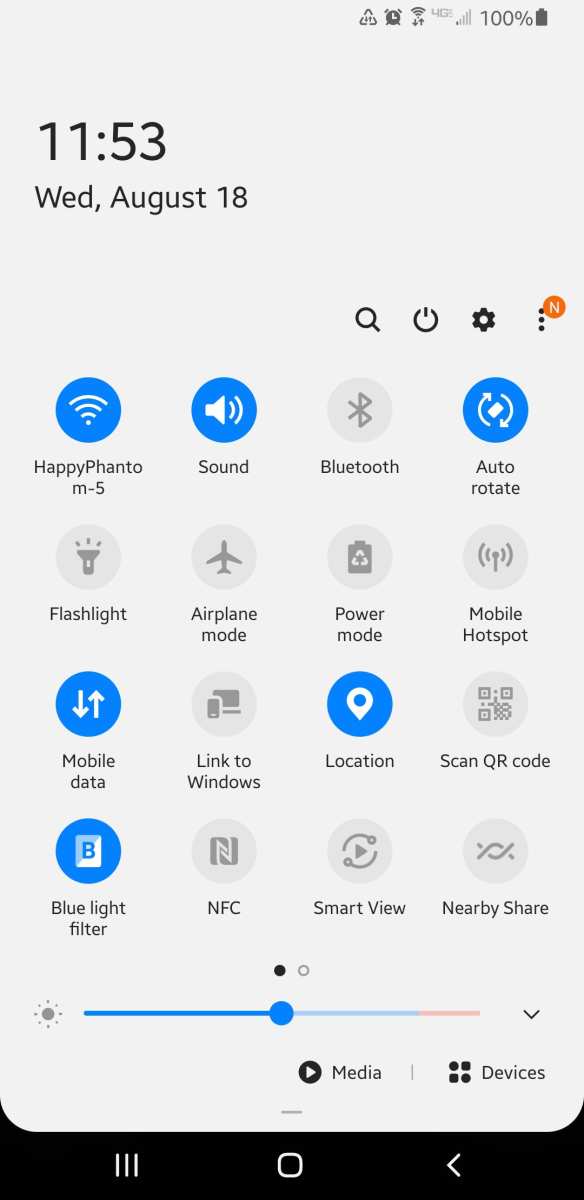
Most Android devices provide quick access to rotation settings through the notification shade:- Swipe down from the top of your screen to open the notification panel.
- Look for the “Auto-rotate” icon, which looks like a phone with rotational arrows around it.
- If the icon is highlighted or colored, auto-rotation is enabled. Tap it to toggle off.
- If it’s grayed out or uncolored, tap to turn auto-rotation on.
Through Device Settings Menu
Alternatively, you can manage rotation settings via the main settings:- Open the “Settings” app on your device.
- Scroll down and tap on “Display” or “Display & Brightness.”
- Find the “Auto-rotate screen” option and toggle the switch to enable or disable it.
Adjusting Screen Rotation Settings for Better Control
Sometimes, simply toggling auto-rotation isn’t enough. You might want to lock your screen in a specific orientation or customize how rotation behaves.Locking Screen Orientation
Locking your screen prevents it from rotating even if auto-rotation is enabled:- Open the quick settings panel by swiping down from the top of your screen.
- Tap the “Auto-rotate” icon to turn it off and lock the current orientation.
- Now, your screen will stay fixed in portrait or landscape mode until you change it again.
Using Developer Options for Advanced Settings
For users seeking more control, enabling developer options offers additional rotation preferences:- Go to “Settings” > “About phone.”
- Tap the “Build number” seven times until you see a message confirming developer options are unlocked.
- Return to “Settings” and open “Developer options.”
- Look for settings related to screen rotation or orientation and adjust accordingly.
Troubleshooting Common Screen Rotation Issues
Sometimes, your device might not rotate as expected. Here are some tips to troubleshoot and fix common problems:Device Doesn’t Rotate Automatically
If auto-rotation is enabled but your screen remains fixed:- Make sure your device is not in power-saving mode, as some modes disable auto-rotation.
- Check for any app-specific restrictions that might block rotation.
- Restart your device to reset the system and fix temporary glitches.
- Update your operating system to the latest version if possible.
Screen Rotates in Unwanted Situations
If your screen rotates unexpectedly when you don’t want it to:- Ensure auto-rotation is actively enabled in quick settings or device settings.
- Disable auto-rotation when necessary and lock the current orientation manually.
- Adjust the “Sensor rotation” settings if your device offers it for finer control.
Customizing Rotation for Specific Apps
Android allows you to set different orientation preferences for individual apps. This feature can be useful if you prefer certain apps to always open in landscape mode, while others stay in portrait:How to Set App-Specific Orientation
Depending on your device and Android version, this can be done through:- Go to “Settings” and select “Apps” or “Applications.”
- Find the app you want to customize and open its settings.
- Look for options like “Permissions” or “Display.”
- If available, set the desired orientation, such as “Landscape” or “Portrait.”
Using Third-Party Apps to Manage Screen Rotation
If built-in options don’t fulfill your needs, several apps on the Google Play Store can help you manage screen rotation more precisely:- Rotation Control: Allows you to set custom rotation rules and toggle rotation quickly.
- Set Orientation: Offers simple options to lock or rotate your screen in different orientations.
- Ultimate Rotation Control: Provides detailed control over all aspects of rotation behavior.
Enhancing Your Experience with Additional Tips
Here are some extra pointers to improve your use of screen rotation:- Use a sturdy case that supports different orientations comfortably.
- Keep your device’s sensors clean to ensure accurate detection of device position.
- Adjust display brightness and contrast for comfortable viewing in different orientations.
- Experiment with different rotation settings to find what works best for your daily tasks.
Summary of Best Practices for Making Android Screen Rotate
| Practice | How It Helps | |——————————————|——————————————————–| | Enable auto-rotation | Allows automatic switching between portrait and landscape modes based on how you hold the device. | | Lock orientation when needed | Keeps the screen fixed in your preferred mode for specific activities. | | Customize app-specific orientations | Ensures certain apps open in your favorite orientation, improving ease of use. | | Use third-party apps for advanced control| Provides detailed options beyond default device settings. | | Regularly update your device | Ensures all features, including rotation controls, work smoothly and are free of bugs. | Making your Android device’s screen rotate according to your preferences can enhance your experience significantly. Whether you want your screen to respond automatically or prefer to lock it in a specific position, knowing these steps helps you control how your device looks and feels every day. Keep experimenting with settings, troubleshoot issues as they arise, and select tools that match your individual needs to enjoy a seamless, personalized display experience.Frequently Asked Questions
How can I change the default rotation settings on my Android device?
You can modify the default rotation settings by accessing the quick settings panel. Swipe down from the top of your screen, look for the auto-rotate icon, and tap it to enable or disable automatic screen rotation. Alternatively, go to ‘Settings’ > ‘Display’ > ‘Auto-rotate screen’ and toggle the switch to set your preferred default behavior.
What steps should I follow to manually rotate my Android screen at any time?
To manually rotate your screen, ensure that auto-rotation is enabled. Then, physically rotate your device to the desired orientation. If auto-rotation is off, the screen will stay in its current position regardless of how you turn the device. You can also lock the screen orientation to prevent accidental rotations by toggling the auto-rotate setting.
Can I set a specific orientation for certain apps on my Android device?
Yes, some Android devices allow you to customize app-specific orientation settings. Go to ‘Settings’ > ‘Apps & Notifications’ > select the app, then tap ‘Advanced’ > ‘Display’ and choose the preferred orientation. If your device or app doesn’t support this, you can use third-party apps that offer more granular control over individual application orientations.
What should I do if my Android screen refuses to rotate automatically?
If your screen doesn’t rotate automatically, verify that auto-rotate is enabled in the quick settings panel or through the device settings. Check for any system updates or app conflicts that might interfere with the rotation feature. Restart your device to refresh system processes. If the issue persists, examine sensor settings or consider resetting your device to factory settings after backing up your data.
Final Thoughts
To make android screen rotate, begin by enabling auto-rotate in your device’s settings. You can also adjust rotation settings within individual apps for better control. If auto-rotate doesn’t work, check for software updates or restart your device. Understanding how to make android screen rotate helps you customize your experience effortlessly. Regularly reviewing your settings ensures smooth functionality and adapts to your preferences.
Similar Posts































