How To Make A Voicemail On Android: Step-By-Step Guide
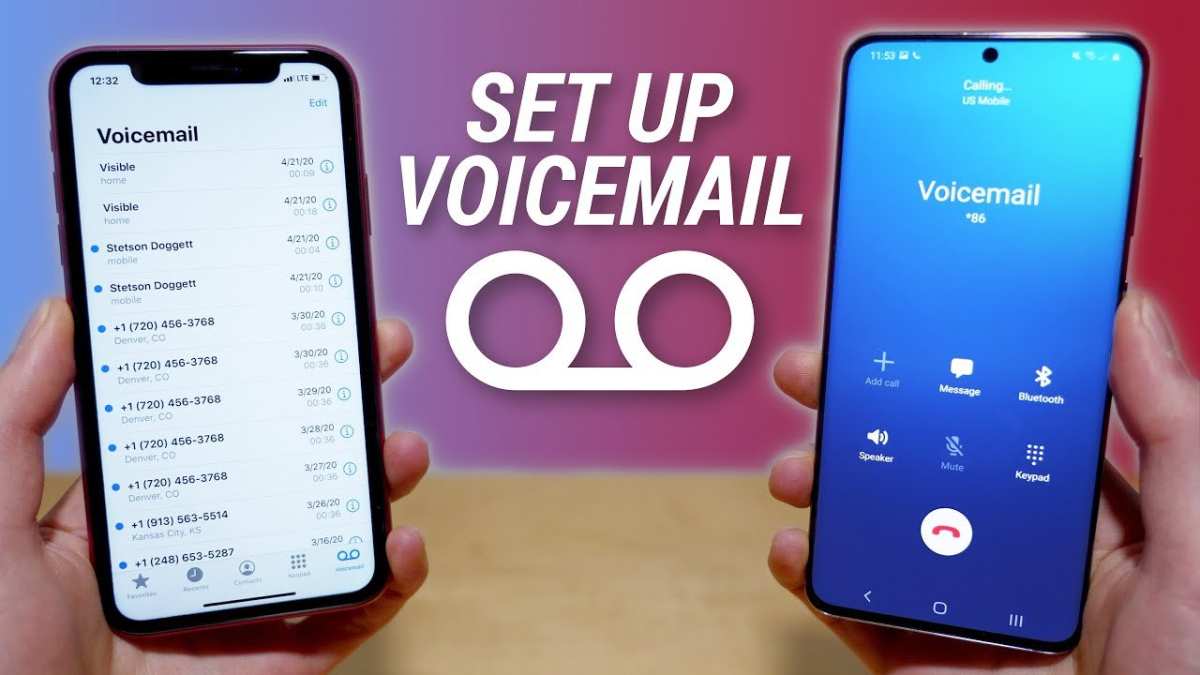
How to Make a Voicemail on Android
Creating and customizing a voicemail on your Android device is a simple process that ensures your callers can leave messages when you’re unavailable. Whether you want a basic voicemail setup or a personalized greeting, this guide will walk you through each step in detail. By understanding how to set up your voicemail correctly, you can stay connected and keep your communications organized with minimal effort.Understanding Voicemail on Android Devices
Before diving into the setup process, it’s important to understand what voicemail is and how it works on Android phones. Voicemail acts like a digital answering machine; when someone calls you and you’re unable to answer, the caller can leave a message that you can listen to later. Important points about Android voicemail:- Voicemail is typically managed by your mobile carrier, not your phone itself.
- Most Android devices come with a built-in Visual Voicemail app, but functionality may vary by carrier and device model.
- Setting up voicemail involves activating the service and customizing your greeting message.
Checking If Voicemail Is Available on Your Android Phone
Before setting up your voicemail, ensure your carrier supports the service, and your plan includes voicemail. Here’s how you can verify that:- Open the Phone app on your Android device.
- Dial your voicemail number, often something like Voicemail or a dedicated number provided by your carrier.
- If you hear a greeting or prompt, your voicemail service is active.
- If the call doesn’t connect or you hear an error, contact your carrier to activate voicemail on your plan.
How to Set Up Voicemail on Android
Now, let’s walk through the step-by-step process to set up voicemail on your Android device.Method 1: Using the Phone App
Most Android phones allow you to set up voicemail directly through the default Phone app. Follow these steps:- Open your Phone app and tap on the dial pad.
- Press and hold the number 1 key. This is often the shortcut to voicemail.
- If prompted, enter your voicemail password. If this is your first time, you might be asked to create one.
- You will hear a greeting or instructions. Follow the prompts to record your personalized voicemail greeting or accept the default message.
- Once completed, your voicemail setup is complete, and callers will hear your greeting when they leave a message.
Method 2: Using Visual Voicemail App
Visual Voicemail offers a more modern and user-friendly way to manage your messages. To set it up:- Open the Google Play Store and search for Visual Voicemail.
- Download and install the app recommended by your carrier or the one that best suits your needs.
- Open the app and follow the on-screen instructions to activate visual voicemail. You may need to log in with your carrier account or phone number.
- Create or record your greeting message if prompted.
- Once set up, you can listen to, delete, or manage voicemails directly from the app.
Customizing Your Voicemail Greeting
A personalized greeting makes your voicemail more professional or friendly. Here’s how to record or change it:Using the Phone App
- Dial your voicemail number (usually via holding the 1 key).
- Follow the prompts to access your mailbox options.
- Look for an option such as “Personalize Greeting” or “Change Greeting.”
- Follow the instructions to record your message. Speak clearly and at a steady pace.
- Save the recording once finished.
Using Visual Voicemail
- Open your Visual Voicemail app.
- Navigate to voicemail settings or mailbox options.
- Select the option to record or change your greeting.
- Record your message and save it. Most apps allow you to listen to your current greeting before saving.
Managing and Listening to Voicemails on Android
Once your voicemail is set up, it’s important to know how to access and manage your messages efficiently.Accessing Voicemails
There are two main ways:- Through the Phone app: Dial your voicemail number or press and hold the 1 key. Follow the prompts to listen to messages.
- Using Visual Voicemail: Open the app and view your voicemails listed. Tap on any message to listen, delete, or save.
Managing Voicemails
To keep your mailbox organized:- Delete old or unwanted messages to free storage space.
- Save important messages for future reference.
- Change your greeting if your schedule or preferences change.
Troubleshooting Common Voicemail Problems
Sometimes, you might encounter issues with your voicemail setup or access. Here are some common problems and fixes:Voicemail Not Connecting
- Ensure your device has a working cellular connection.
- Verify that voicemail service is active with your carrier.
- Dial your voicemail number directly to see if it responds.
- Restart your device and try again.
Unable to Record a Greeting
- Check for microphone permissions in your device settings.
- Make sure you have enough storage space.
- Try recording in a quiet environment for better sound quality.
Password or PIN Issues
- If forgotten, contact your carrier to reset your voicemail PIN.
- Change your PIN from settings or during the initial setup process.
Additional Tips for Better Voicemail Experience
To make the most out of your voicemail:- Regularly listen to new messages to stay updated.
- Update your greeting for holidays or special occasions.
- Use visual voicemail if supported, for easier message management.
- Keep your device’s software updated for improved performance and security.
Frequently Asked Questions
How can I set up a voicemail greeting on my Android device?
To set up your voicemail greeting, open the Phone app and press and hold the number 1 or dial your voicemail number. Follow the prompts to create a new greeting or listen to your current one. Some devices allow you to record a personalized message directly through the voicemail settings, which you can access via the Phone app’s menu or settings section.
What steps are involved in changing my existing voicemail password on Android?
Start by opening the Phone app and dialing your voicemail access number, typically 411 or your carrier’s designated number. When prompted, enter your current password. Navigate through the voicemail menu to find the security or password settings, and then follow the instructions to update your password to a new one. Make sure to choose a secure combination that you can remember easily.
How do I access my voicemail messages from my Android phone?
Press and hold the number 1 key on your dial pad to call your voicemail inbox automatically. Alternatively, open the Phone app and select the voicemail icon if available. Enter your voicemail password when prompted to listen to your messages. Some Android devices also display a voicemail notification or icon that you can tap to view and listen to messages directly.
Final Thoughts
To make a voicemail on Android, start by opening the Phone app. Tap the three-dot menu icon and select ‘Settings.’ Choose ‘Voicemail’ and then ‘Set up now’ to create your greeting. Follow the prompts to record your message and save it. Remember to ensure your carrier supports voicemail setup through your device. Customize your greeting to make it more personal and professional. Making a voicemail on Android is straightforward with these simple steps. In conclusion, knowing how to make a voicemail on android enables quick and efficient communication. Follow the steps above to set up and personalize your voicemail easily.
Similar Posts































