How To Make A Group Text On Android: Step-By-Step Guide
How to Make a Group Text on Android
Making a group text on your Android phone is a handy way to chat with several friends, family members, or colleagues at the same time. Whether you’re planning an event, coordinating a project, or just keeping everyone in the loop, creating a group message makes communication quick and easy. In this guide, you’ll learn step-by-step how to initiate a group text on Android, explore different methods, and understand some useful tips to optimize your experience.Understanding Group Texts on Android
Before diving into how to create a group text, let’s clarify what a group text actually is. A group text allows you to send a single message to multiple contacts simultaneously. Depending on your device and messaging app, there are two main types of group texts:- Standard Group Chat (SMS/MMS): Uses your mobile carrier’s messaging service. This is common for basic phones and many Android devices. It usually requires MMS (Multimedia Messaging Service) to send messages to multiple recipients.
- Chat Groups via Messaging Apps: Uses specialized apps like WhatsApp, Facebook Messenger, or Google Messages to create chat groups. These services often provide richer features such as emojis, media sharing, and read receipts.
How to Create a Group Text Using Google Messages
Google Messages is the default messaging app on many Android phones, and it offers a straightforward way to create and manage group texts. Here are the step-by-step instructions:Step-by-Step Guide to Creating a Group Message
- Open the Google Messages app on your Android device.
- Tap the compose button, usually represented by a ‘+’ icon or a pencil icon, to start a new message.
- In the “To” field, start typing the name or number of the first person you want to include. Select the contact from your contacts list or enter the phone number manually.
- Add additional contacts by typing their names or numbers. You can add as many as you like. The app will show your selected contacts as you go.
- Once you’ve added all the recipients, type your message in the message box.
- Tap the send button. Your message will now be sent to all selected contacts simultaneously.
Creating a Named Group for Frequent Contacts
To make group messaging even easier, you can create a group with a name in Google Messages:- After adding multiple contacts, tap on the menu icon (three dots) in the top right corner.
- Select “Create group” or “Group details” (depending on your device).
- Name your group, such as “Family” or “Work Team.”
- Tap “Save” to create the group.
Managing Group Texts on Android
Creating a group text is just the start. Managing it effectively helps prevent confusion and keeps your conversations organized.Adding or Removing Contacts
Most messaging apps allow you to modify your group chats:- Open the existing group message.
- Look for an info or details icon, usually represented by an “i” or three dots.
- Select “Add people” to include someone new.
- To remove someone, tap their name or number, then select “Remove” or “Delete.”
Renaming the Group
To keep your groups organized:- Open the group chat.
- Touch the group info or settings icon.
- Enter a new group name.
- Save your changes.
Using Alternative Apps for Group Messaging
While Google Messages works well, many people prefer using dedicated messaging apps for better features.- Open WhatsApp and go to the Chats tab.
- Tap “New Chat” and then select “New Group.”
- Select contacts to add to the group.
- Tap the arrow or “Next,” then choose a group name and icon.
- Tap “Create,” and you’re ready to chat.
Facebook Messenger
To create a group chat:- Open Facebook Messenger.
- Tap the pencil icon to start a new message.
- Choose “Create Group,” then select contacts.
- Add a group name, then start chatting.
Other Messaging Apps
Apps like Signal, Telegram, and Viber also allow you to create group conversations. The process usually involves selecting contacts and then choosing a “Create Group” option. Always check the app’s specific instructions for detailed steps.Tips for Sending Effective Group Texts
To make your group messaging experience smooth and enjoyable, consider these helpful tips:- Keep messages concise: Avoid long paragraphs. Use short sentences to keep everyone engaged.
- Set group rules: Especially for large groups, agree on what topics are appropriate and how often to send messages.
- Use media wisely: Share images, videos, or links that are relevant. Some apps let you see who has viewed your media.
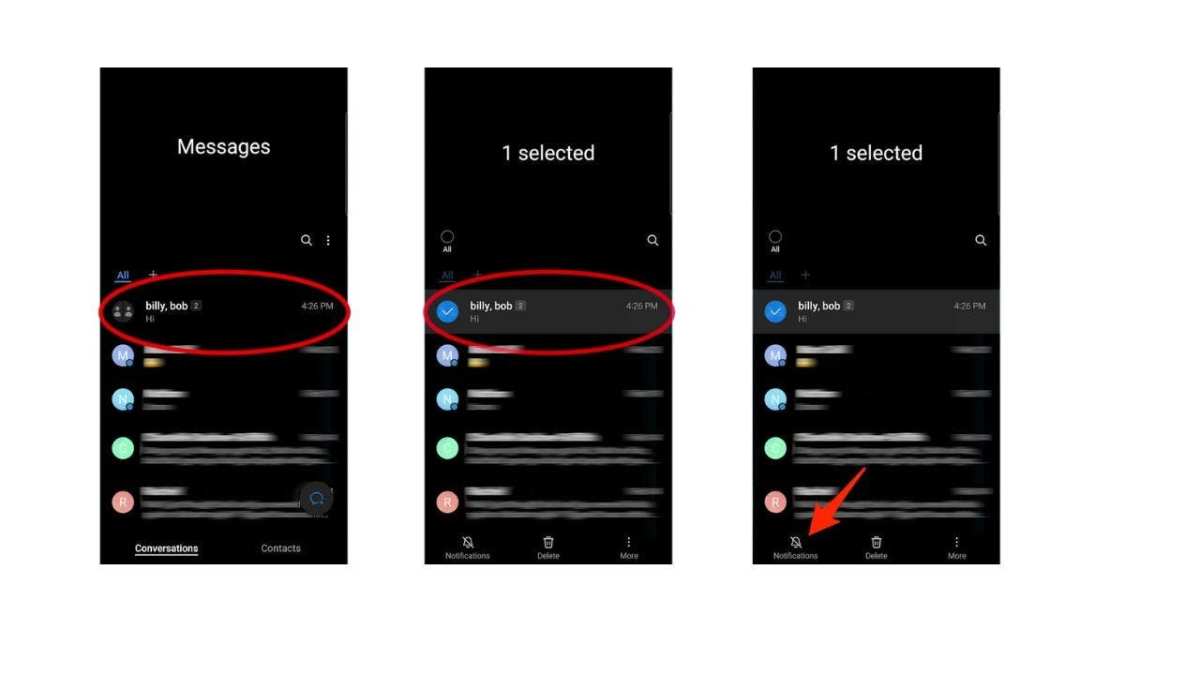
- Mute notifications: If a group chat becomes too active, you can mute notifications to avoid constant interruptions.
- Respect privacy: Be cautious when adding people to a group. Make sure everyone consents to sharing their contact information.
Common Problems and How to Fix Them
Sometimes, group texts don’t work as expected. Here are common issues and solutions:Messages Not Sending to All Members
This might happen if:- Your carrier doesn’t support MMS for group messages. Check with your provider.
- One of the contacts has a non-compatible device.
- Your phone settings need adjustment. Ensure that MMS messaging is enabled in your messaging app settings.
Unable to Add or Remove Contacts
Troubleshooting tips:- Check if your messaging app allows editing group members.
- If not possible, create a new group with the updated contact list.
- Ensure you have the latest version of your messaging app for better compatibility.
Notifications Not Working or Missing
To fix this:- Check notification settings within your messaging app.
- Adjust system notification preferences on your device.
- Ensure your device isn’t in Do Not Disturb mode.
Frequently Asked Questions
How can I add multiple contacts to a group message on Android?
To add multiple contacts to a group message, open your default messaging app and start a new message. Tap the ‘+’ or ‘Add contact’ button, then select or enter the phone numbers of the people you want to include. After selecting all contacts, tap ‘Create’ or ‘Done’ to compose your message to the entire group.
What steps should I follow to create a new group chat on Android using the messaging app?
Open your messaging app and tap on the menu icon, typically represented by three dots. Choose ‘New group’ or ‘Create group’ from the options. Enter a name for your group, then select the contacts you want to include. Confirm your choices and start typing your message to send to all group members.
Is there a way to customize group chat settings on Android, such as notifications or group name?
Yes, most messaging apps allow you to customize your group chat settings. Open the group chat, then tap on the group name or menu options. You can change the group name, mute notifications, add or remove members, and modify other settings to tailor the chat to your preferences.
Can I create a group message on Android without using the default messaging app?
Absolutely. You can use third-party messaging apps like WhatsApp, Telegram, or Signal to create group chats. Download your preferred app, create a new group, and select contacts to include. These apps often provide more features for managing your group conversations.
Final Thoughts
To make a group text on Android, open your messaging app and tap the new message icon. Select multiple contacts to add to the group. Type your message and send it to reach everyone simultaneously. Remember, creating a group chat is simple and efficient for staying connected with friends and family. In summary, how to make a group text on Android involves selecting contacts, composing your message, and sending it all at once. This process helps you communicate with multiple people easily and quickly.
Similar Posts































