How To Fix Android Tv Box Stuck On Red Light
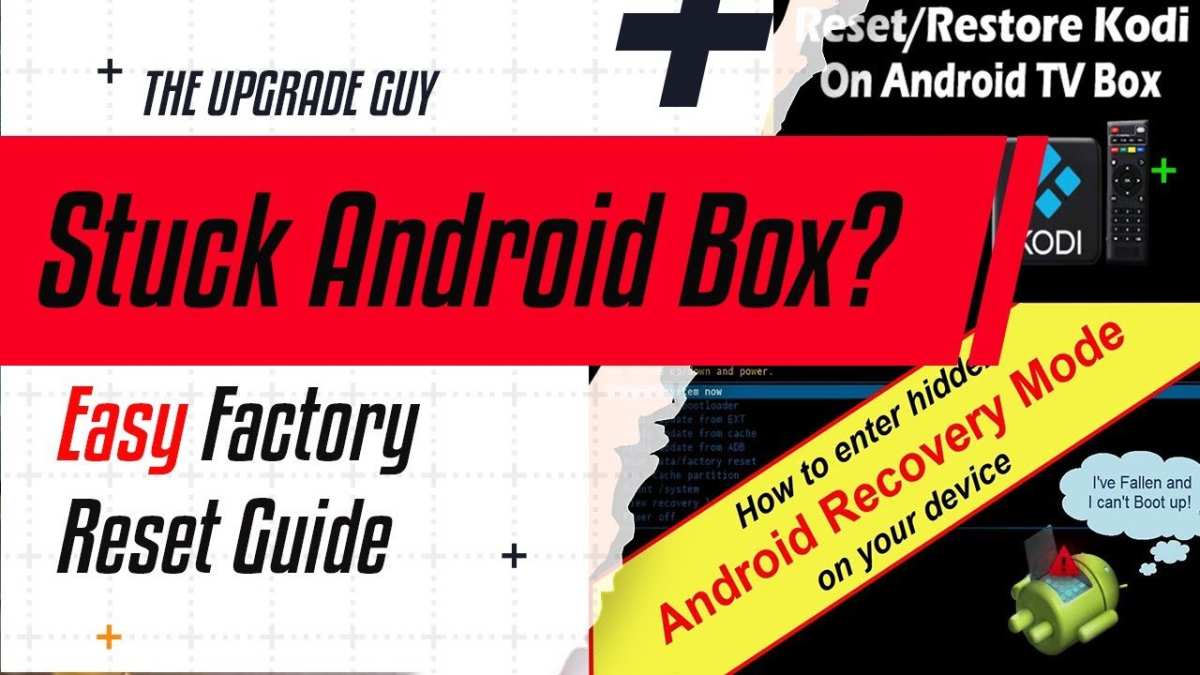

How to Fix Android TV Box Stuck on Red Light
If your Android TV box is showing a red light and refusing to turn on or function properly, you’re not alone. Many users experience this issue, and it can be frustrating when your device gets stuck on a red light. Don’t worry—there are effective ways to troubleshoot and fix this problem. In this guide, we’ll walk through the causes behind a red light on your Android TV box and provide step-by-step solutions to get it working again smoothly.Understanding Why Your Android TV Box Shows a Red Light
Before jumping into fixes, it’s helpful to understand what a red light on your device often indicates. Generally, a red light can be a sign of:- Power Issue: The device might not be receiving enough power or has a faulty power supply.
- Hardware Malfunction: Internal components may be damaged or malfunctioning, causing the device to refuse to boot.
- Firmware Problems: Corrupt software or system files can prevent the device from starting properly.
- Overheating: Excessive heat can trigger protective measures, resulting in the red light showing up.
Steps to Fix Android TV Box Stuck on Red Light
Here, we’ll explore step-by-step actions you can take to resolve the red light issue. Be sure to follow each step carefully.Check the Power Supply and Cables
A misfiring power source is often the culprit behind a red light. Doing a thorough check can save you time.- Ensure Proper Connection: Confirm that the power cable is securely plugged into both the wall outlet and the TV box.
- Inspect the Power Adapter: Look for any physical damage like frayed wires, cracks, or bent prongs. If you notice any damage, replace the power adapter.
- Test the Power Outlet: Plug another device into the same outlet to verify it supplies power properly. If the outlet is faulty, consider switching to a different socket.
Perform a Hard Reset or Power Cycle
Sometimes, simply turning off and restarting your device can clear temporary glitches.- Disconnect the power cable from your Android TV box.
- Unplug all connected HDMI and USB devices.
- Wait for at least 30 seconds. This pause allows residual power to drain and resets the system.
- Reconnect the power supply, plug in your HDMI cable, and turn the device on.
Check for Overheating and Proper Ventilation
Overheating can make your TV box enter a protective state, often shown by a red light.- Ensure the box is placed in a well-ventilated area, not in a closed cabinet or near heat sources.
- Clean any dust from ventilation holes using compressed air or a soft brush.
- Remove any obstructions around the device that block airflow.
- Allow the device to cool down for a few minutes before turning it back on.
Update or Reinstall Firmware
Firmware corruption or outdated software can cause boot problems, including the red light issue.- Visit the manufacturer’s official website and find the latest firmware for your specific Android TV box model.
- Download the firmware onto a USB flash drive formatted with FAT32.
- Insert the USB into your Android TV box.
- Follow the manufacturer’s instructions for entering recovery mode, typically by pressing a combination of buttons on the remote or device during startup.
- Select the firmware update option and proceed to install it.
Perform a Factory Reset
If firmware update doesn’t resolve the problem, resetting your device to its original settings might help.- Access the recovery mode through a remote control combination or physical buttons, as specified in your device manual.
- Select the ‘Factory Reset’ or ‘Reset to Default’ option. Be aware this will erase all your personal settings, apps, and data.
- Confirm the reset and wait for the process to complete.
- Set up your device again and check if the red light issue persists.
Repair or Replace Hardware Components
If none of the above steps work, hardware failure might be behind the red light problem. Common issues include faulty power circuits, damaged motherboard, or defective internal components.- Contact the manufacturer’s customer service or authorized repair centers for professional help.
- If under warranty, consider requesting a repair or replacement.
- In case your device is out of warranty, evaluate whether the cost of repairing is justified compared to buying a new device.
Additional Tips for Maintaining Your Android TV Box
Regular maintenance can prevent issues like the red light from appearing unexpectedly.- Keep Software Updated: Regularly check for firmware updates and install them promptly.
- Use Quality Power Supplies: Always use the original or compatible adapters recommended by the manufacturer.
- Maintain Adequate Ventilation: Place your device in a cool, open area to avoid overheating.
- Avoid Sudden Power Interruptions: Use a surge protector or uninterruptible power supply (UPS) for stable power.
Frequently Asked Questions
What steps can I take to reboot my Android TV box when it’s stuck on a red light?
First, unplug the power cable from your Android TV box and wait for about 10 seconds. Then, plug it back in and turn on the device. This simple reboot can resolve minor glitches that cause the red light to stay on. If the issue persists, try pressing and holding the reset button with a paperclip for a few seconds before powering it on again.
How do I perform a factory reset to fix the red light issue on my Android TV box?
Locate the reset button on your device, usually found at the back or underneath. Use a paperclip or a similar tool to press and hold the button for about 10-15 seconds. Release it and wait for the device to restart. Keep in mind, performing a factory reset will erase all personal data and settings, so proceed only if other troubleshooting steps fail.
What hardware problems could cause my Android TV box to be stuck on a red light?
Persistent red light signals potential hardware issues such as a faulty power supply, damaged internal components, or overheating. Check the power adapter and replace it if necessary. Ensure your device is well-ventilated and not overheating. If hardware problems remain, consider consulting a professional technician for a detailed inspection.
Can updating the firmware help resolve the red light problem on my Android TV box?
Updating the firmware can fix bugs related to system stability and hardware recognition. Download the latest firmware version from the manufacturer’s official website and follow their instructions to perform the update. If the device remains unresponsive after the update, it might require further hardware troubleshooting.
Is there a way to reset the Android TV box using a recovery mode?
Yes, access the recovery mode by powering off your device, then pressing and holding specific buttons such as the volume down and power button simultaneously. Keep holding until the recovery menu appears. Use the remote or buttons to select the factory reset option. This method often helps resolve deep software issues causing the red light to stay on.
Final Thoughts
To fix android tv box stuck on red light, start by unplugging the device and waiting for a few minutes. Check all cables to ensure they are properly connected and undamaged. If the issue persists, perform a factory reset following the manufacturer’s instructions. If resetting doesn’t resolve the problem, update the firmware or software to fix possible bugs. In some cases, replacing the power supply can also help. In conclusion, how to fix android tv box stuck on red light involves troubleshooting hardware and software issues. Address these steps, and you can restore your device to normal operation quickly and efficiently.
Similar Posts































