How To Check If Android Tv Is Google Certified
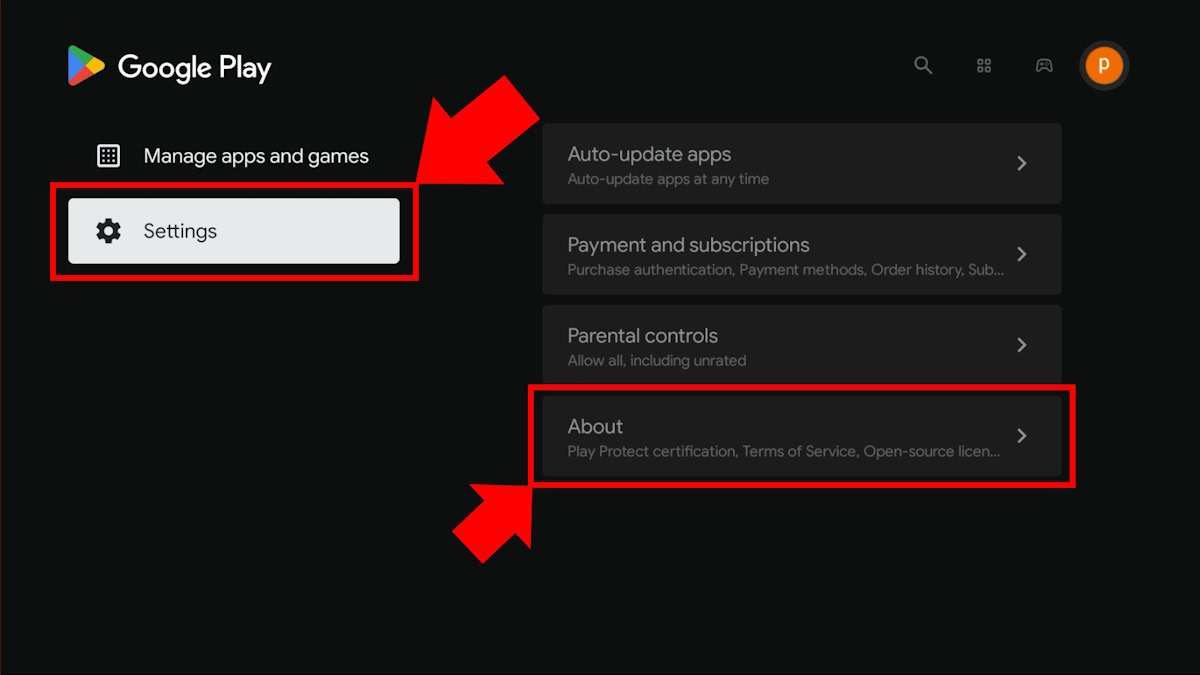

How to Check If Your Android TV Is Google Certified
When you purchase a new Android TV, one of the most important things to verify is whether it has been certified by Google. Google certification ensures that your device meets strict quality and compatibility standards, giving you access to the Google Play Store, Google Assistant, and other essential apps. But how can you tell if your Android TV is genuinely Google certified? In this guide, we will walk you through step-by-step methods to verify the certification status of your Android TV and explain why this matters.Understanding What Google Certification Means for Android TVs
Before diving into how to check certification, it’s helpful to understand why Google certification is significant for your Android TV. Here’s what it guarantees:- Access to Google Play Store: Only certified devices can install apps directly from the Google Play Store.
- Compatibility with Google Services: Certified TVs support Google services like Google Assistant, Google Maps, and Chromecast.
- Security and Updates: Certification ensures your device receives timely security patches and updates for optimal performance.
- Quality Assurance: Google certification indicates that the device has gone through rigorous testing for quality and reliability.
Methods to Check if Your Android TV Is Google Certified
Now, let’s explore various ways to check certification status. These methods are straightforward and do not require any technical expertise.Check the Settings Menu Directly on Your Android TV
The most direct way to find out if your device is Google certified is to look into its settings:- Turn on your Android TV and navigate to the main menu.
- Select the Settings icon, usually represented by a gear symbol.
- Scroll down and look for Device Preferences or About section.
- Inside this menu, find and select Legal & regulatory or Certification. The exact label may vary depending on your TV model or Android TV version.
Use the Google Play Store App
Another way to determine certification status involves attempting to access Google services:- Open the Google Play Store app on your Android TV.
- If the app loads correctly and allows you to browse and install apps, your device is most likely Google certified.
- If you receive an error message or cannot access the Google Play Store, your device may not be certified or may have limited certification.
Verify Certification via the Manufacturer’s Website
Manufacturers often list whether their Android TVs are Google certified. To check this:- Visit the official website of the TV manufacturer.
- Locate the product page for your specific Android TV model.
- Check the specifications or features section for information on Google certification.
- If unavailable online, contact customer support and inquire about certification status.
Check the Certification Status Using the Google Play Console
For tech-savvy users or developers, the Google Play Console can provide detailed device certification reports:- Access the Google Play Console with an authorized account.
- Navigate to the Device Catalog.
- Search for your Android TV model.
- Check the device’s certification status—if listed as Google certified, it will be marked accordingly.
Common Indicators That Your Android TV Is Google Certified
Besides checking the settings or app access, listen for certain clues that suggest certification:- Pre-installed Google Apps: The presence of apps like Google Play Store, Google Assistant, and YouTube indicate certification.
- Regular Software Updates: Certified devices usually receive timely updates that improve security and features.
- Official Branding: Look for official Google or manufacturer logos on the device or packaging.
- Certification Labels: Some TVs have certification labels or markings in the product packaging or manual.
Why It Matters to Check Certification Before Buying or Using an Android TV
Knowing whether your Android TV is Google certified affects your user experience significantly:- Full Access to Apps: Certifies that you can download and run apps from the Google Play Store without restrictions.
- Better Compatibility: Certified devices support Google’s ecosystem seamlessly, including voice commands and casting features.
- Reliable Performance: Certification ensures your device has passed necessary performance and security tests.
- Protection Against Security Risks: Certified devices get security patches that safeguard your data and privacy.
Common Misunderstandings and Clarifications
Many users confuse certification with other features or branding. Here are some clarifications:- Not all Android TVs with Google Apps are necessarily certified: Some models might have Google apps pre-installed but lack full certification.
- Certification status can sometimes be hidden: Manufacturers may omit certification details, so checking through settings or app access is crucial.
- Third-party firmware or modifications can affect certification: Custom ROMs or software tweaks may disable certification features.
Final Tips for Ensuring Your Android TV Is Google Certified
To wrap up, here are some practical tips:- Always purchase from reputable sellers or official stores.
- Check the packaging for certification labels or official certification statements.
- Use your device’s settings menu to look for certification information.
- Install and access Google apps to see if they function correctly.
- If unsure, contact the manufacturer’s customer support for confirmation.
Frequently Asked Questions
What are the key indicators that show an Android TV is Google Certified?
Google Certified Android TVs typically display the Google TV or Android TV logo on the packaging and within the device settings. Additionally, they come pre-installed with the Google Play Store, Google Assistant, and other Google services. Checking for the presence of these features and certifications on the device ensures it is officially recognized by Google.
How can I verify the certification status through the device settings?
Navigate to the Settings menu on your Android TV, then select ‘About’ or ‘Device Information.’ Look for entries like ‘Certification’ or ‘Google Certification.’ If the device is certified, it generally indicates official authorization from Google and the presence of Google services. If these options are missing or indicate otherwise, the device may not be certified.
Is there an official website where I can check if my Android TV model is Google Certified?
Yes, Google maintains a list of certified Android TV devices on their official developer or certification pages. You can visit the Google Certified Android TV page, search for your device’s model number, and confirm its certification status. This method provides the most reliable confirmation as it is directly sourced from Google.
What should I look for on the packaging to identify if an Android TV is Google Certified?
Official Google Certified Android TVs feature the Google Certified badge on their packaging. Look for logos indicating compatibility with Google services, such as the Google Play Store or Google Assistant logo. Avoid devices lacking these certifications or logos, as they may not meet Google’s standards.
Final Thoughts
To check if Android TV is Google certified, examine the device settings or packaging for the Google Certified badge. Alternatively, visit the official Google TV website and verify the device model. This ensures your TV meets Google’s standards and provides reliable performance. Knowing how to check if android tv is google certified helps you confirm device authenticity and access to Google services.
Similar Posts































