How Do You Know If Airpods Are Dead: Signs To Check

How Do You Know If AirPods Are Dead
Understanding the Signs of a Dead AirPod
When your AirPods stop working unexpectedly, the first thing to do is identify the signs of a dead device. Typically, a dead AirPod will stop playing sound, or the audio may become very faint or cut in and out. You might also notice that the LED indicator on the charging case remains off or shows an unusual color. One of the most obvious signs is that your AirPods do not respond to taps or gestures. If they don’t connect to your device or the connection keeps dropping, it could mean they are no longer functioning properly. Additionally, if they won’t charge or the charging case shows no lights when opened, these are clear indicators of possible dead units.Checking AirPods Battery Life
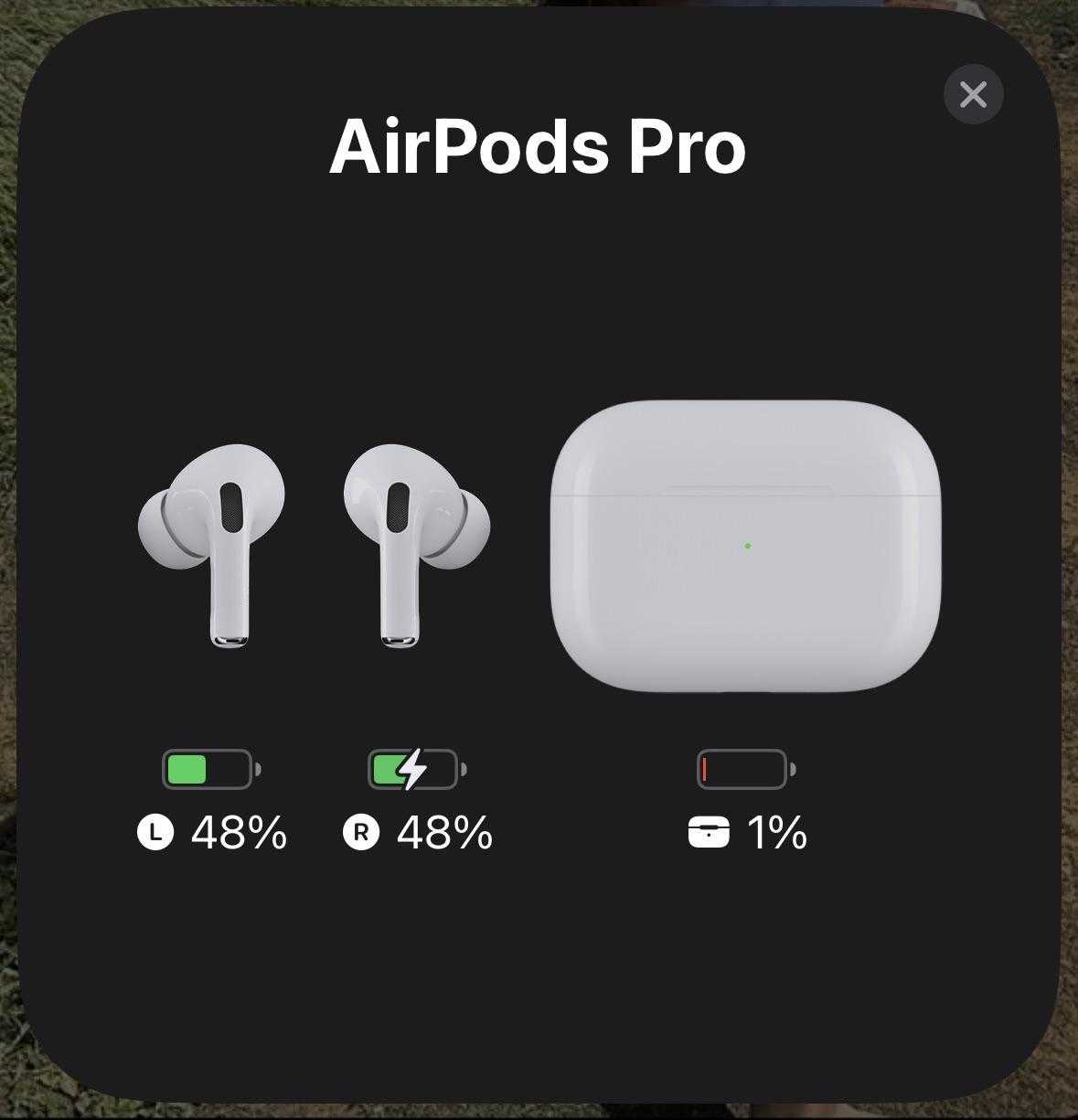
Before assuming your AirPods are dead, check the battery status using your Apple device. On an iPhone or iPad, open the case near your device, and a pop-up should display the remaining battery life of each AirPod and the case itself. If this information doesn’t appear, or the batteries are shown as empty, it might just be a battery issue rather than a dead device. You can also verify the battery status through the Batteries widget in your device’s Today View. If the battery levels are very low or zero, charging them might resolve the problem. Remember, batteries do drain over time, and that’s a common cause for AirPods not working properly.Performing a Reset Test
Resetting your AirPods can help determine if they are dead or just misbehaving. To do this, put both AirPods into their charging case and close the lid. Open it again, then press and hold the setup button on the back of the case for at least 15 seconds until the LED flashes amber and then white. If the LED doesn’t change color or the AirPods don’t reset, it’s likely that there is a hardware issue. This step is useful to differentiate between a simple glitch and a hardware failure that renders the AirPods dead.Testing with Different Devices
Sometimes, the problem isn’t with the AirPods but with the device they connect to. Try pairing your AirPods with a different iPhone, iPad, or even a non-Apple device. If they work on other devices, your original device might have Bluetooth issues rather than dead AirPods. Conversely, if your AirPods still won’t connect or produce sound on multiple devices, it strongly suggests that the AirPods themselves are dead or damaged. This method is simple but effective in narrowing down the cause.Inspecting Physical Damage
Physical damage can also indicate that your AirPods are dead. Check for cracks, debris, or corrosion on the speakers and charging contacts. If you see any visible damage, moisture, or dirt, cleaning or repairs might be necessary. Sometimes, moisture or dirt can block the electrical contacts, making it seem like the AirPods are dead. Carefully cleaning with a soft, dry cloth or a cotton swab can sometimes revive slightly damaged but not completely dead AirPods.Assessing Sound Quality and Connectivity
If your AirPods connect but produce distorted sound, crackling, or no sound at all, they might not be entirely dead but could be experiencing serious issues. Persistent audio problems often point to internal hardware failures. Try playing audio at different volumes and on various apps. If issues persist across all scenarios, the hardware may be beyond simple fixes. When your AirPods repeatedly disconnect or do not respond to controls, it indicates a potential dead or malfunctioning unit.Battery Life and Charging Issues
A common reason for AirPods to seem dead is that the batteries are drained or the charging mechanism is faulty. Check whether the charging case is working correctly by plugging it into a power source and observing the LED indicator. If the case charges normally but your AirPods do not, the internal batteries in the AirPods could be dead. Sometimes, the batteries degrade over time and cannot hold a charge, leading to the perception that the AirPods are dead.Recognizing Firmware and Software Problems
Firmware issues can sometimes cause AirPods to malfunction or appear dead. Make sure your AirPods have the latest firmware installed. You can check this by connecting them to your device, then confirming their firmware version in the Bluetooth settings. If an update is available, install it. Software glitches are often fixable, but if issues persist after updating, it could be a sign of hardware failure.When to Seek Professional Help
If you’ve gone through all the above steps and your AirPods still aren’t responding, it may be time to seek professional help. Apple support or authorized repair centers can diagnose hardware problems that might be causing your AirPods to be dead. Sometimes, internal damage or defective batteries require replacement. Remember, if your AirPods are under warranty or AppleCare, repairing or replacing them might be covered.Summary Chart: Signs Your AirPods Might Be Dead
| Signs | Possible Cause | Action Needed |
|---|---|---|
| Sound not working or very faint sound | Battery drained or internal damage | Charge or repair |
| AirPods don’t connect to any device | Hardware failure or firmware issue | Reset or professional check |
| Charging case shows no lights or not charging | Charging case malfunction or battery failure | Check charging port or replace case |
| Physical damage or corrosion | Hardware damage | Replace or repair |
Preventing AirPods from Dying Prematurely
To avoid your AirPods dying unexpectedly, it’s important to follow some simple maintenance tips. Always store them in the charging case when not in use. Regularly clean the charging contacts and avoid exposing them to moisture or extreme temperatures. Monitor the battery health periodically and replace the batteries if possible. Updating firmware regularly can also prevent software-related issues that might mimic hardware failures. Knowing if your AirPods are dead involves checking the battery, testing connectivity, inspecting for physical damage, and assessing sound and charging issues. Troubleshooting these common signs helps determine whether they simply need charging or if they require repair or replacement. Regular maintenance, proper handling, and timely updates can extend the life of your AirPods and prevent unexpected failures.How to DETECT if your AirPods are Fake❌ (2 ways)
Frequently Asked Questions
What signs indicate that my AirPods are no longer functioning properly?
If your AirPods are not connecting to your device, experiencing frequent disconnections, or if you notice distorted or no audio, these are clear signs they might be dead or malfunctioning. Additionally, if they do not respond to reset procedures or the charging case shows no indication of charging, it suggests they may need repair or replacement.
How can I verify if my AirPods are charging correctly?
Check the charging status by opening the lid of the case near your paired device or by using the device’s Bluetooth settings. If the status indicator light on the case stays unlit or does not change when charging, it might indicate a dead battery or an issue with charging. Make sure the charging port and cables are clean and functioning properly.
What troubleshooting steps can confirm if my AirPods are beyond repair?
Try resetting your AirPods and see if they respond afterward. If they still do not show any signs of life, such as no sound, no pairing ability, or unresponsive indicators despite charging, then the battery might be completely drained or the internal components could be damaged. If these steps fail, it’s likely they are dead and in need of professional repair or replacement.
Can my AirPods be considered dead if only one side stops working?
Yes, if one earbud stops producing sound or disconnects frequently, it may indicate a hardware failure or battery issue specific to that unit. Check for debris or damage and try re-pairing. If problems persist after troubleshooting, it’s possible that the affected earbud has reached its end of life.
Is there a way to determine if my AirPods have a dead battery without using them?
Yes, you can check the battery status through your device’s Bluetooth settings or the battery widget if available. If the battery level shows zero or the AirPods do not appear as connected, it suggests their battery is depleted. If they still do not respond after charging for a reasonable period, the battery may no longer hold a charge and be considered dead.
Final Thoughts
To determine if your AirPods are dead, check the battery status on your device. If they aren’t connecting or their indicator lights remain off, they might need charging. Listen for audio or look for visual cues like blinking lights to assess their power. If they fail to respond after charging and resetting, they could be malfunctioning. Knowing how do you know if AirPods are dead helps you decide whether to replace or repair them. Proper maintenance ensures your AirPods stay functioning longer.
Similar Posts