Android Prevent App From Closing In Background Tips For
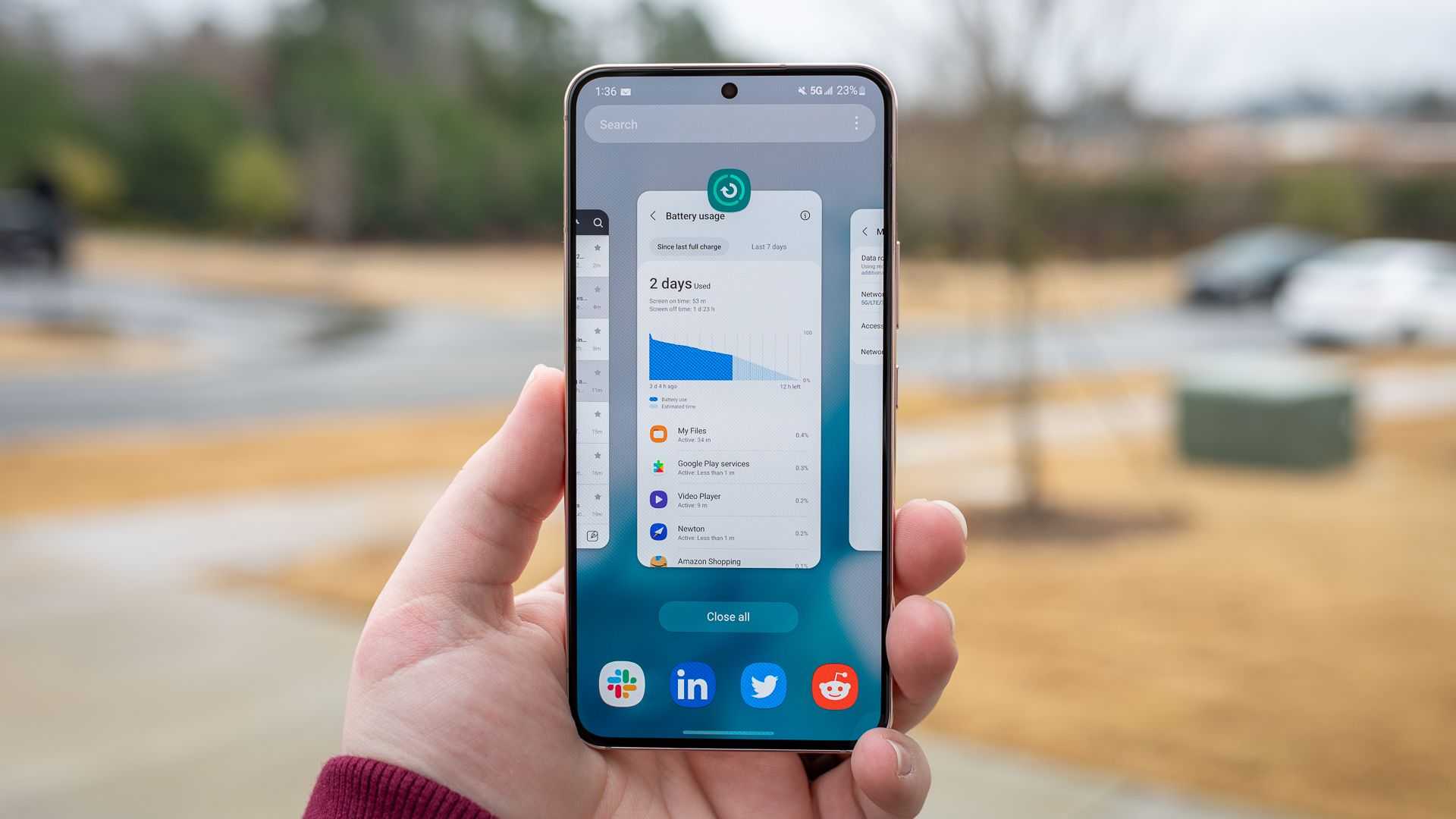

Android Prevent App from Closing in Background
Understanding Why Apps Close in Background
Many Android users notice that apps sometimes close unexpectedly when running in the background. This often happens because Android manages memory actively to keep the device running smoothly. If the system detects limited resources, it may close background apps to free up space. Additionally, some apps may close due to strict battery-saving settings or app-specific restrictions.The Impact of Background App Closure
When apps shut down in the background, it can disrupt your experience. For example, music apps might stop playing, or tracking apps may lose data. This can be frustrating, especially if you’re relying on apps for important tasks. Learning how to prevent apps from closing helps ensure they run smoothly even when you’re not actively using them.Android Settings to Keep Apps Running
Android offers several built-in settings that can help keep apps running in the background. These include battery optimization controls, app restrictions, and background activity permissions. Adjusting these settings can significantly improve app stability and performance.Adjust Battery Optimization Settings
Battery optimization restricts background activity to conserve power. To prevent apps from closing, navigate to Settings, then Battery, and tap on Battery Optimization. Select the app you want to keep active and set it to ‘Not optimized.’ This prevents Android from restricting its background processes.Allow Background Activity in App Settings
Some apps have their own settings for background activity. Open your device’s Settings, go to Apps & Notifications, then select the app. Tap on Data Usage or Mobile Data & Wi-Fi, and enable ‘Background Data’ or ‘Allow Background Activity.’ This ensures the app can run in the background without interruption.Using Developer Options to Keep Apps Active
Enabling developer options gives more control over app behavior. To access this feature, go to Settings, About Phone, tap Build Number seven times. Then, in Developer Options, look for settings like ‘Background process limit’ and set it to ‘Standard’ or ‘Don’t limit processes.’ This allows more apps to run in the background.Stay Awake Mode
Enabling the ‘Stay Awake’ option keeps your device’s screen from turning off while charging. While it doesn’t directly keep apps active, it can prevent system-initiated background closures during charging sessions. Find this under Developer Options.Using Third-Party Apps to Keep Apps Running
There are apps designed to prevent background closures by managing app activity or boosting performance. These tools can often override system restrictions and keep your favorite apps active longer. Examples include background task managers and battery saver bypass tools.Popular App Managers for Android
- Greenify: Hibernates apps, but can be configured to prevent certain apps from sleeping
- Advanced Task Killer: Manages running apps and processes
- Force Stop & Keep Alive Apps: Maintains app activity with minimal battery drain
Custom ROMs and Rooting for Advanced Users
Rooting your Android device or installing custom ROMs offers even greater control over background app management. With root access, you can modify system files and settings to prevent apps from closing automatically. However, this process carries risks, such as voiding your warranty and potential security concerns.Benefits of Rooting
Rooting allows:- In-depth control of background processes
- Removal of system limitations on app activity
- Use of specialized apps to keep apps active
Risks and Precautions
Rooting can make your device vulnerable to malware and updates may become unstable. Always back up your data before attempting rooting, and follow reputable guides tailored to your device model.Understanding Android Power Management and Its Effects
Android’s power management system is designed to optimize performance and battery life. While it helps keep your device running longer, it can also interfere with background apps.Doze Mode and App Standby
Introduced in Android 6.0, Doze Mode reduces background activity when the device is not in use. You can temporarily disable Doze for specific apps using ADB commands or specialized apps, but this involves technical steps.App Standby Buckets
Android categorizes apps based on activity levels, limiting background activities for less-used apps. To prevent an app from being restricted, use developer options or third-party tools to assign it to a more active bucket.Best Practices to Keep Apps Running in Background
To ensure your apps stay active, adopt practical habits. Regularly update your device and apps, monitor background activity, and avoid too many battery optimizations.Regularly Update Apps and Android OS
Updates often include improvements for background management, bug fixes, and performance enhancements. Keeping your system updated helps prevent unnecessary app closures.Limit Unnecessary Background Apps
Closing apps you don’t use can improve device performance, but stopping too many can also cause inconvenience if needed apps are closed. Use task managers judiciously.Maintain Adequate Storage and Memory
A device with insufficient storage or RAM is more likely to close background apps. Clearing cache and uninstalling unused apps can improve stability.Related Topics to Explore
- Optimizing battery life on Android devices
- Understanding Android app permissions and restrictions
- How to improve device performance
- Best apps for managing background processes
How to Keep Android Apps Running in the Background (No Closing) | [background apps auto close]
Frequently Asked Questions
Why does my Android app close when I switch to another app or lock the screen?
This usually happens because Android system aggressively manages background apps to conserve battery life. By default, apps that are not actively in use may be terminated or restricted. To prevent this, you can adjust app-specific settings or battery optimization options to keep your app running smoothly in the background.
How can I ensure my Android app continues to run in the background without being closed?
To keep your app active in the background, go to your device’s Settings, locate the Battery or Power Management section, and disable battery optimization for that app. Additionally, enabling “background activity” permission within the app’s settings can help ensure it remains operational even when not in the foreground.
Are there any third-party tools or settings that can help prevent background closure of apps?
Yes, some device management apps and custom ROMs offer options to restrict system background restrictions. However, use these carefully, as they can impact overall device performance and security. Always ensure you trust third-party tools and keep your device’s security in mind when making changes.
Can customizing developer options help maintain app activity in the background?
Enabling options like “Don’t keep activities” or adjusting background process limits in developer options can help keep apps running longer. Be cautious, as changing these settings may affect system stability and battery life. Use these options primarily for testing purposes or if you understand their impact.
What should I do if an app keeps closing unexpectedly on my Android device?
If an app closes unexpectedly, first check for updates to the app and your device’s software. Clearing the app’s cache or reinstalling it can resolve temporary glitches. Additionally, review your device’s battery and app management settings to ensure they are not restricting the app’s background activity.
Final Thoughts
Android prevent app from closing in background tips help maintain app activity longer. Adjust settings or use special apps to keep your favorite applications running. This approach ensures continuous notifications and updates. Configuring battery optimization settings prevents unwanted closures. Whitelist your essential apps to avoid background restrictions that limit functionality. Regularly check app permissions for smoother operation. In conclusion, understanding how to prevent apps from closing in background on Android devices is essential. Proper adjustments and settings can keep your apps active and responsive, enhancing your overall experience.
Similar Posts































