Android P Update Battery Drain Causes And Fixes

Understanding the Android P Update and Its Impact on Battery Drain
When your phone suddenly starts losing battery faster after an Android P (Pie) update, it can be frustrating. Many users notice that their device doesn’t last as long as before, even if they haven’t changed their usage habits. So, what causes this increased battery drain? Let’s explore this issue in detail and find ways to fix it.What Is the Android P Update?
Before diving into the battery drain problem, it’s helpful to understand what the Android P update is. Released in 2018, Android P, also known as Android Pie, brought many new features and improvements. These included:- New navigation gestures for easier use
- Enhanced privacy controls
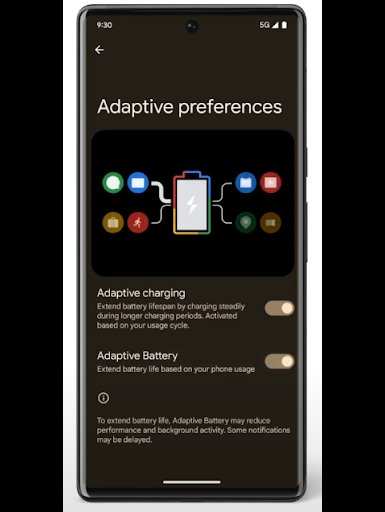
- Adaptive Battery and Brightness features
- New notifications and messaging features
- Improved AI capabilities for better device performance
Common Reasons for Battery Drain After Updating to Android P
Understanding why your battery drains quickly can help you find a proper solution. Here are some common causes:Background App Activity
After an update, some apps may not be optimized for Android P. They can run unnecessarily in the background, consuming power.System Processes and Services
New features like Adaptive Battery require system processes to learn your usage patterns. During this learning phase, these processes might use more power than usual.Software Bugs or Glitches
Initial releases often have bugs that affect performance. Sometimes, these bugs cause excessive battery consumption until patches are released.Settings and Features Not Optimized
Default settings after an update might not be battery-friendly. For example, high screen brightness or unnecessary location services can drain your battery faster.How to Identify the Cause of Battery Drain
Knowing what’s causing the drain helps solve the problem effectively. Follow these steps:- Open your device’s Settings app.
- Navigate to Battery usage or Battery.
- Check which apps or services are consuming the most power.
- Identify any apps that are unusually high in battery use after the update.
Effective Strategies to Reduce Battery Drain on Android P
Now that you’ve identified the problem, here are practical steps to improve your device’s battery life.Update Your Apps and System
– Keep all apps updated through the Google Play Store. Developers often release patches to optimize their apps for Android P. – Check for any official system updates from your device manufacturer, as they often include bug fixes and performance improvements.Adjust Settings for Better Battery Life
– Reduce screen brightness or enable adaptive brightness. – Turn off Bluetooth, Wi-Fi, or mobile data when not in use. – Limit background activity for apps through Settings > Apps & notifications > [App Name] > Battery. – Disable location services when you don’t need GPS features.Utilize Built-In Battery Optimization Features
Android P introduced enhanced battery management options:- Enable Battery Saver mode to limit background activity.
- Use Adaptive Battery, which learns your usage patterns to prioritize power for frequently used apps.
- Review app battery usage and restrict apps that drain excessive power.
Clear Cache and Data of Problematic Apps
Sometimes, accumulated cache can cause apps to misbehave, consuming more power:- Go to Settings > Apps & notifications > [App Name].
- Select Storage.
- Tap Clear Cache and Clear Data.
Perform a Factory Reset (if necessary)
If all else fails, performing a factory reset can eliminate any lingering bugs:- Back up important data.
- Navigate to Settings > System > Reset options > Erase all data (factory reset).
- Follow on-screen instructions to reset your device.
Troubleshooting Specific Battery Drain Issues
Some users report particular problems after updating to Android P, such as rapid battery drain during specific activities:Battery Drain During Screen Time
– Check for high screen brightness. – Enable dark mode if available. – Reduce screen timeout duration.Background Data Usage
– Limit background data for apps. – Turn off auto-sync for accounts that don’t need real-time updates.Problematic Apps
– Uninstall or disable apps that seem to cause excessive drain. – Look for app updates that address compatibility with Android P.Long-Term Maintenance for Battery Health
To keep your battery healthy over the long haul:- Avoid letting your battery fully drain frequently.
- Charge your device in small, frequent sessions rather than long, full charges.
- Keep your device’s software up to date to benefit from improvements.
- Use original chargers and cables to prevent damage.
Frequently Asked Questions
How can background apps impact battery life after the Android P update?
Many apps continue running in the background after the Android P update, consuming significant battery power. To improve battery life, review your app usage in settings and restrict background activity for apps that don’t need to run constantly. Disabling unnecessary notifications and closing apps when not in use also helps conserve power.
What system settings can I adjust to reduce battery drain on Android P?
Adjusting display brightness, reducing screen timeout duration, and enabling adaptive battery features can significantly extend your device’s battery life. Turning off location services when not needed and disabling Wi-Fi, Bluetooth, and mobile data during idle periods also helps minimize power consumption.
Are there specific updates or patches for Android P that address battery issues?
Google often releases patches to optimize battery performance after major updates like Android P. Check for the latest software updates in your device settings, as these can include bug fixes and efficiency improvements that reduce unnecessary battery drain.
How does screen usage influence battery drain after Android P update?
Screen usage is typically the largest battery drain on most devices. Reducing screen brightness, switching to dark mode, and avoiding prolonged use of high-intensity apps when your battery is low can help conserve power. Keep an eye on screen-on time in your device settings to better understand and manage your usage.
What troubleshooting steps can I take if my battery drains quickly after updating to Android P?
Start by restarting your device to clear temporary glitches. Check for app updates, uninstall any unnecessary apps, and reset app preferences if needed. Performing a factory reset can resolve persistent issues, but ensure you back up important data before proceeding. Monitoring your battery usage in settings helps identify problematic apps or services.
Final Thoughts
The ‘android p update battery drain’ issue can be frustrating, but users can often improve their device’s performance. Adjusting background app settings and disabling unnecessary notifications help conserve battery life. Updating apps regularly ensures compatibility and efficiency. Monitoring app usage with built-in tools reveals which apps consume the most power. Users should also consider performing a factory reset if problems persist. In summary, addressing the ‘android p update battery drain’ involves a combination of settings adjustments and updates. These steps can significantly extend your device’s battery life and improve overall functionality.
Similar Posts































